Why Is My Phone Location Wrong?
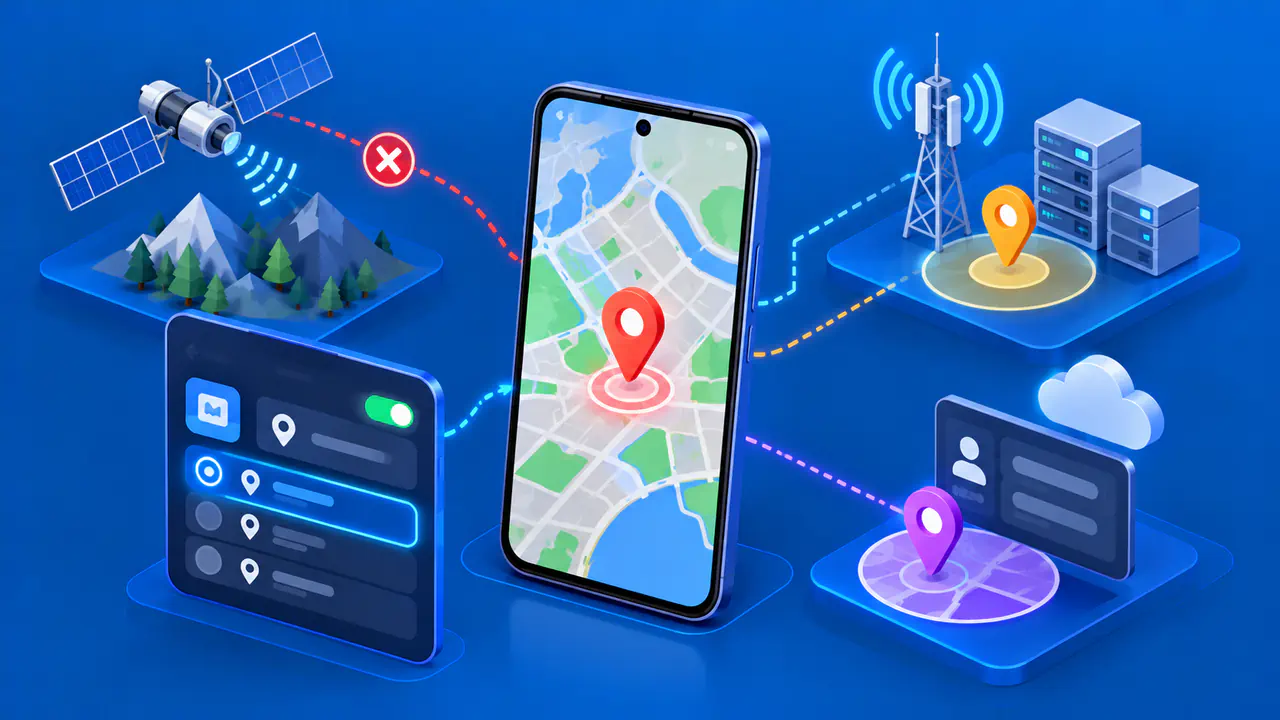
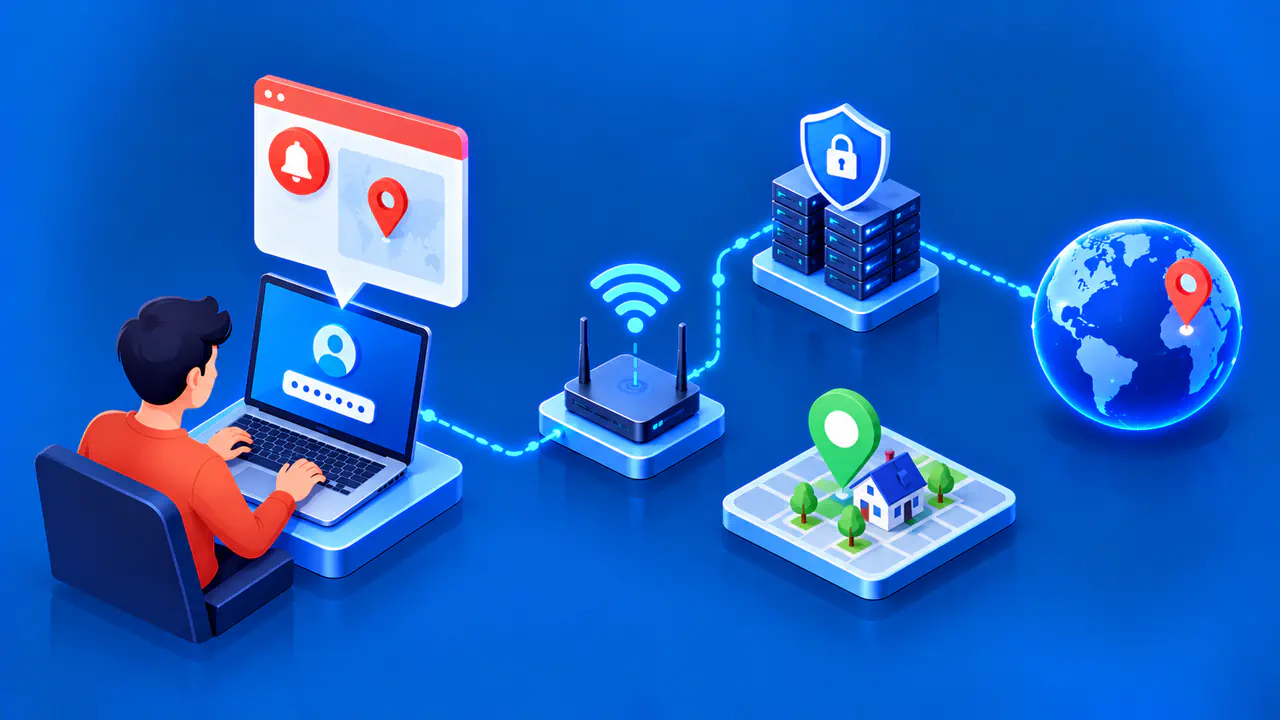
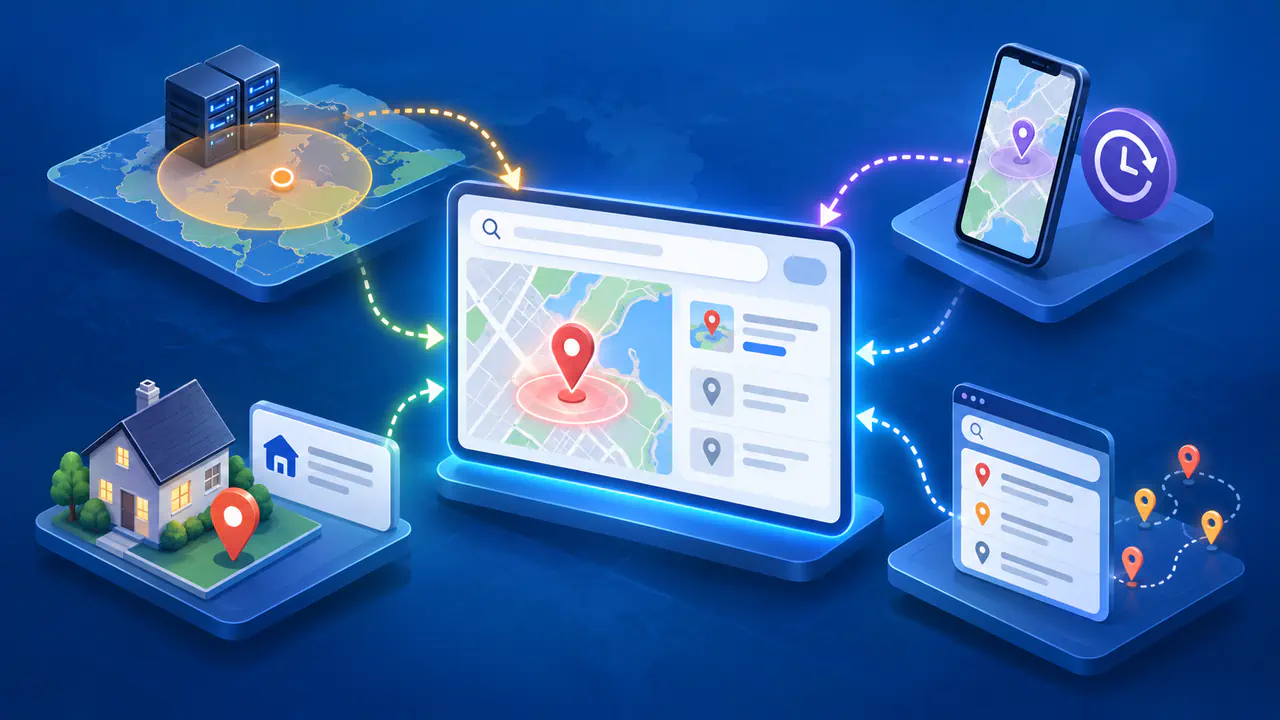
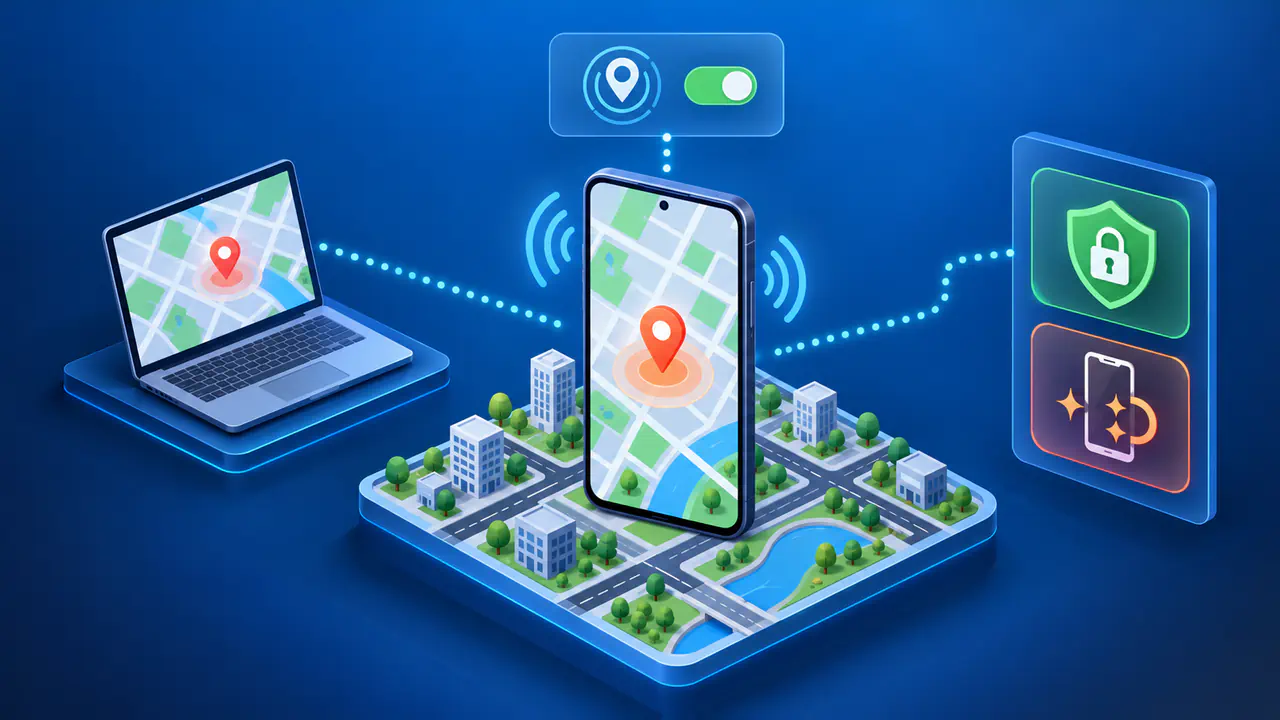
A wrong location on a phone does not have one universal cause. A map may be working from the device's position estimate, while a search page may use the internet connection's IP address or a place saved in an account. The first troubleshooting step is to identify which app shows the error, how far off it is, and which location signal that app appears to use.
Check the same place in another app only as a comparison. If one app is wrong and another is accurate, investigate the first app's permission, saved place, and data. If several apps put the device marker in the wrong position, inspect device location settings and the conditions around the phone. Do not begin by editing a map listing or changing your IP address without knowing which result is wrong.
Identify the Affected App and Location Signal
Describe the symptom precisely: is a moving position marker wrong, are nearby search results in the wrong city, or is the home address saved in your account outdated? A live position marker usually depends on device location services. A search result can use a broad IP-derived area or past activity. A saved home or work address is account data. These location sources can disagree even when the phone's sensors are working normally.
In Google Search, look for the location and its source in the results page's location information. On versions that show this at the bottom of the page, scroll there to read it. "From your internet address" and "From your device" describe different sources, so they call for different checks. Read the information for the affected account and connection; the layout can vary as Search settings change.
On a map, look for the current-position marker and any circle showing uncertainty. In Apple Maps, a larger circle around the marker means the position estimate is less precise. A wrong place label and a misplaced current-position marker are different problems: correcting a business name or street label does not correct the phone's reported position.
Check Permissions and Sensor Conditions
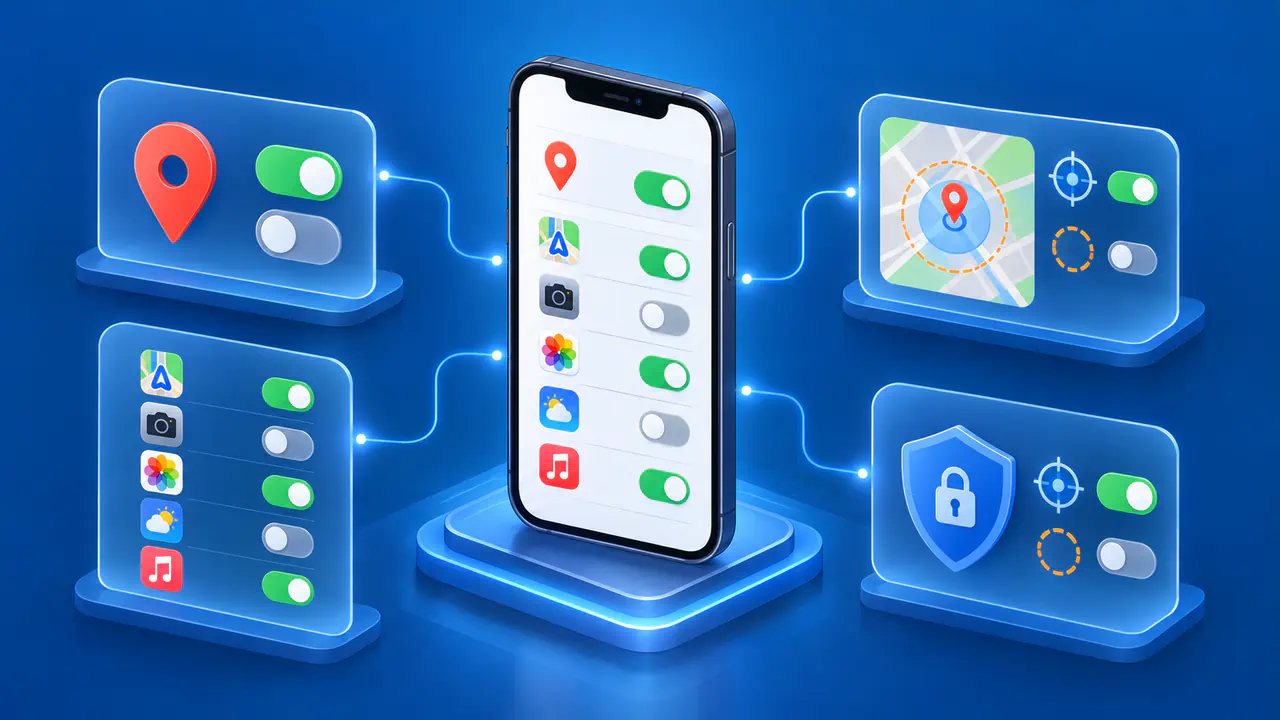
Confirm that device location is on and that the affected app is allowed to use it. On an iPhone, open Settings > Privacy & Security > Location Services, then select the app. Review its access and, on iOS 14 and later, the Precise Location setting when available. On Android, look under Settings > Location > App location permissions; menu names can vary by phone. Android 12 and later can offer a separate choice between precise and approximate access for an app.
Permission to use approximate location may be enough for nearby suggestions but less useful for turn-by-turn navigation. Grant precise access only when the feature calls for it and you want to share that detail. Conversely, if the app has no device location permission, it can still show a general area from the internet address or information you entered; a city name is not proof that it obtained GPS coordinates.
Satellite Reception and Wireless Signals
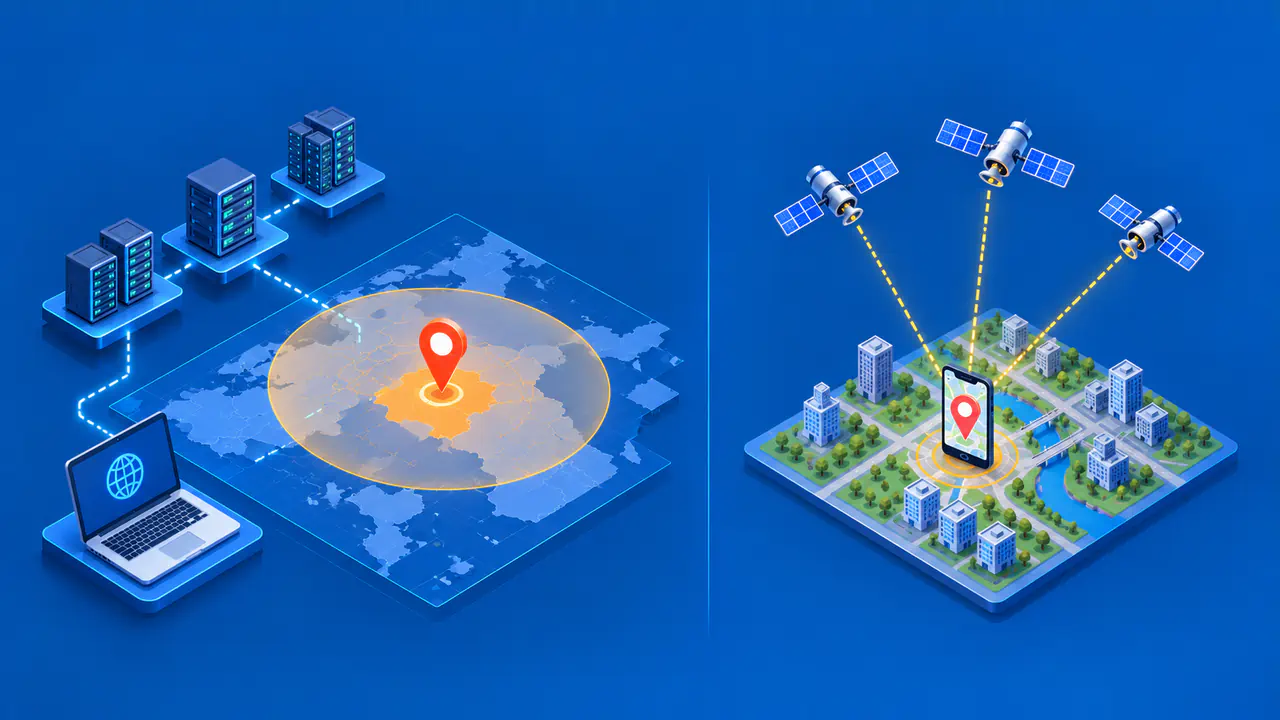
Next, consider the environment. A phone may take several minutes to locate visible GPS satellites, with the estimate becoming more precise as reception improves. Walls, vehicle roofs, tall buildings, mountains, and other obstructions can block the signals. Retest while stationary in a safe open area with a clear view of the sky, and allow time for a new reading.
Phones can combine satellite information with Wi-Fi, cellular networks, Bluetooth, and sensors. On Android phones with Google Play services, Location Accuracy can use available wireless and sensor signals, particularly where satellite reception is poor indoors or near large buildings. Check whether that service is on if the device struggles to locate itself in those conditions. Its device setting and the app's precise location permission are separate controls.
On Android 12 and later, look for Settings > Location > Location Services > Location Accuracy, then review Improve Location Accuracy. On Android 11 and earlier, look under Settings > Location > Advanced > Location Accuracy; menu names can vary by phone. Without available Wi-Fi or cellular signals, the phone may need more time or show a wider uncertainty area. Repeat the check after conditions change before treating one poor reading as a permanent hardware fault.
Compare IP and Account-Based Location
If a browser or search app shows a wrong city while the map marker is accurate, inspect the source of the search result. A VPN or another network can alter the internet address seen by a service. An IP address gives only a rough geographic indication, so its estimated city can differ from the phone's actual position. Turning on GPS alone does not force every website to use device location; the site and app permissions also matter.
Google Search can use a saved home or work address and past searches when relevant. Review those account settings if the result's location information refers to places or activity. A search for one city can also influence a later broad search. Add the intended city to the query as a quick check, but continue to investigate a misplaced device location marker separately.
If the problem affects only one app, check the app's location settings and any saved addresses in your account. If several apps using device location are wrong, compare their current-position markers under similar conditions. On an iPhone, Reset Location & Privacy removes existing access until you grant permission again, so leave that broad reset until after the app-specific checks.
Retest without Assuming One Cause
Change one relevant condition at a time, then repeat the same action in the same app. For a misplaced device marker, check the affected app's permission, retest in an open area, and observe whether the uncertainty circle narrows. For a search result, read the location information again after checking the applicable device, IP, or account signal. Note the network used, whether a VPN was active, and whether you were signed in.
If the city shown in search results changes between Wi-Fi and mobile data while the device marker stays accurate, investigate the IP-based result. A marker that improves outdoors instead points toward signal conditions. These observations narrow the checks, but they do not prove a single cause.
If device location remains far off across several apps and places, contact the phone maker's support team with the observed behavior and software version. If only an app's saved country or a map place is wrong, use that app's correction options.