DHCP Reservation vs Static IP Address
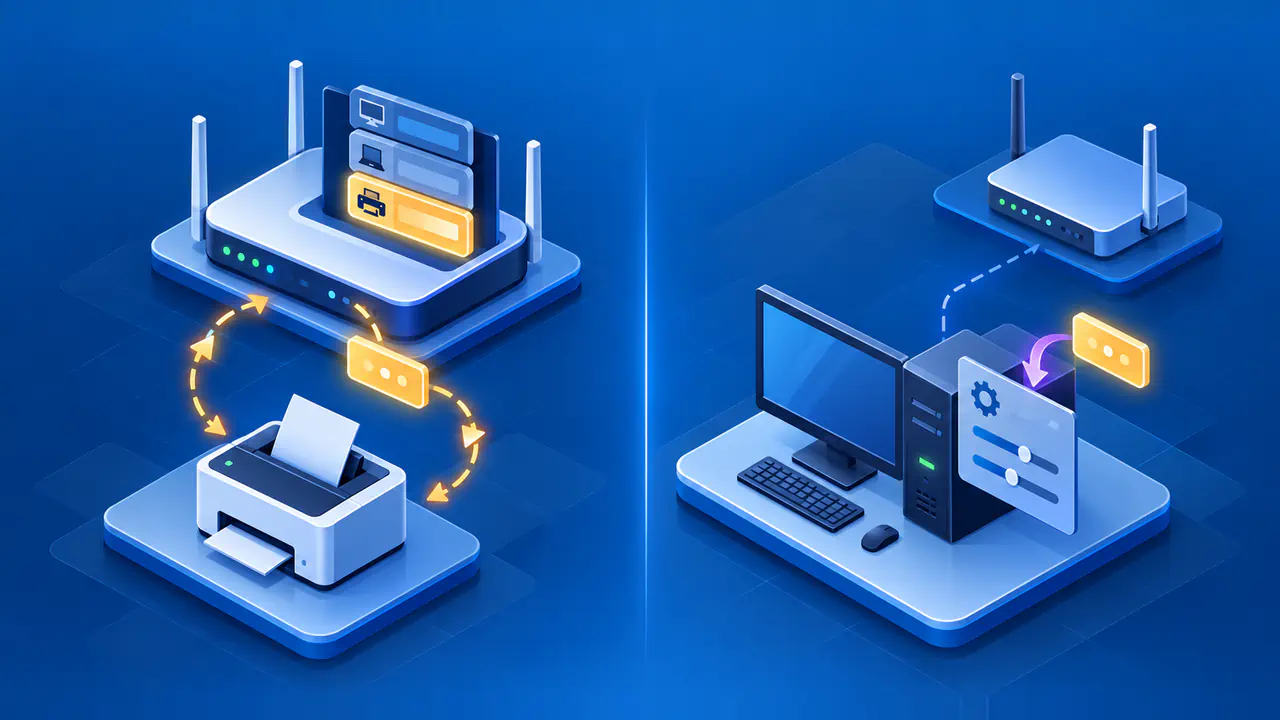
A DHCP reservation and a manually assigned static IP address can both keep a device at a predictable address on a local IPv4 network. They differ in where you configure the address. With a reservation, you choose the address on the DHCP server, which supplies it to the device automatically. With a manual static address, you enter the address in the device's own network settings.
A printer or network storage device often needs a stable local address so other devices can find it. A reservation is usually easier to manage when the device supports DHCP and the network's DHCP server supports reservations. A manual address can be useful when the device must keep its address without depending on DHCP. Neither method makes the public IP address assigned by your internet provider static.
How a DHCP Reservation Works
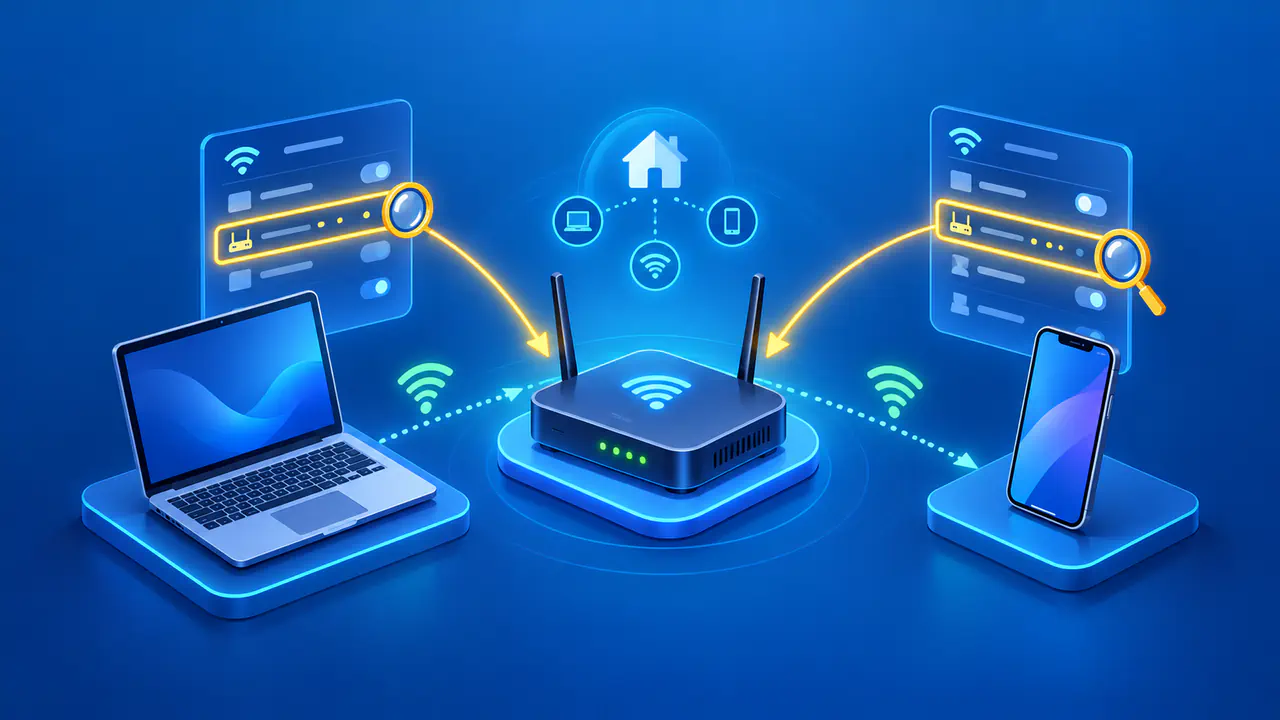
A DHCP server assigns IP addresses and other network settings to devices that request them. In many homes, the router runs this service; larger networks may use a separate server. A reservation pairs a chosen address with a device identifier, often the network adapter's MAC address. The device stays set to obtain its IP address automatically.
When the server recognizes a device with a reservation, it offers the reserved address. The DHCP response can also provide the subnet mask, default gateway, DNS servers, and lease information. The lease specifies how long the device may use the address. If the gateway or DNS servers change, clients using the settings supplied by DHCP can receive the new values without someone editing each device.
Saving a reservation on the server does not immediately update the device's current address. A device with an existing lease may keep its old address until it renews the lease or requests a new one. Check the device's current address after it obtains new settings, especially before changing a printer connection or another service that uses that address. The timing depends on the client, the DHCP server, and the existing lease.
How a Manual Static Address Works
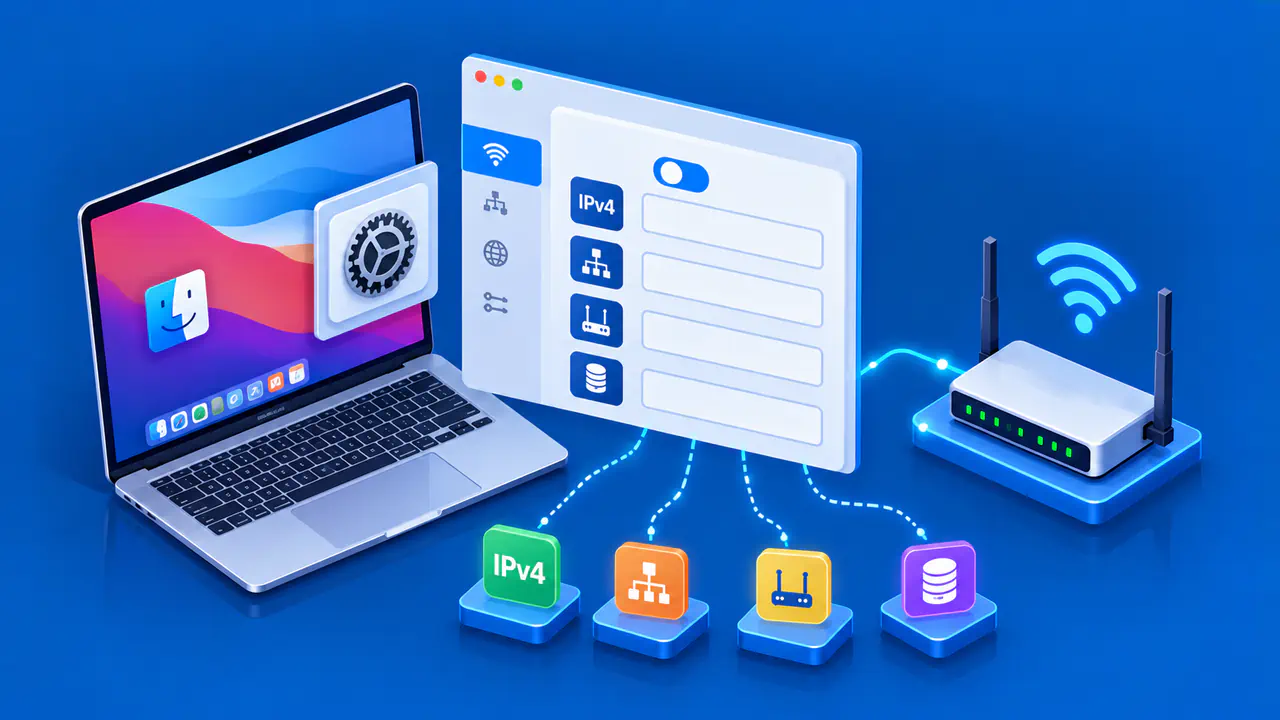
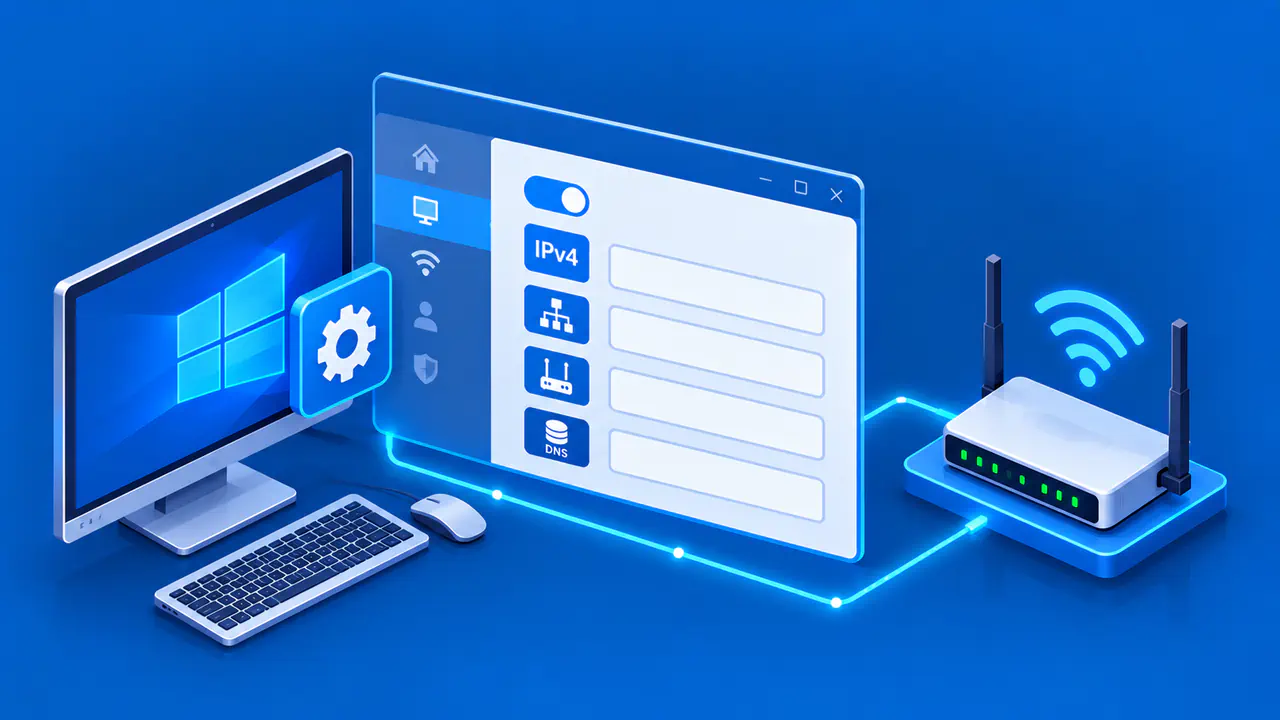
With manual addressing, you enter the local IP address in the settings for the device's network adapter. You also need the subnet mask or prefix length for that network, a default gateway to reach other networks, and DNS servers to look up names. An incorrect gateway or DNS setting can leave the device reachable locally while preventing it from reaching websites or other services.
The address must be valid for the local subnet and free for that device to use. Keep it outside the range that DHCP assigns automatically, or exclude it from that range in the DHCP server's configuration. Entering an address on the device does not stop the DHCP server from assigning that address to another device. A note in a spreadsheet is useful for tracking assignments, but it does not change what the server can assign.
For example, suppose a home network uses the subnet 192.168.50.0 with the mask 255.255.255.0, and its DHCP pool runs from 192.168.50.100 through 192.168.50.199. An unused address such as 192.168.50.20 could be suitable for a manually configured printer. The address is in the same subnet but outside that pool. You would still need to check that it is not already assigned to another device or reserved for a different purpose.
A manually configured device does not need DHCP to obtain that IPv4 address. Manual addressing can be useful for equipment that must remain reachable during a DHCP outage. However, you need to keep the device's other network settings up to date. If the router or subnet changes, you may need to enter new values in the device's network settings.
Leases, Address Conflicts, and Network Changes
A reservation still uses DHCP to deliver the address. If the lease has an expiration time, the client must renew the lease even when the address is reserved. Some servers also support leases with no expiration. A client may continue using an unexpired lease during a DHCP outage, but it must stop using the leased address if the lease expires without renewal. A reservation therefore does not guarantee that a device can obtain an address while the DHCP server is down.
Reservation rules differ between servers. Some let you reserve an address inside the dynamic pool and prevent it from being offered to other clients. Others require fixed address mappings to be outside that pool because a mapping alone does not stop the server from assigning the address to other devices. Check the rules for your server before choosing a reserved address.
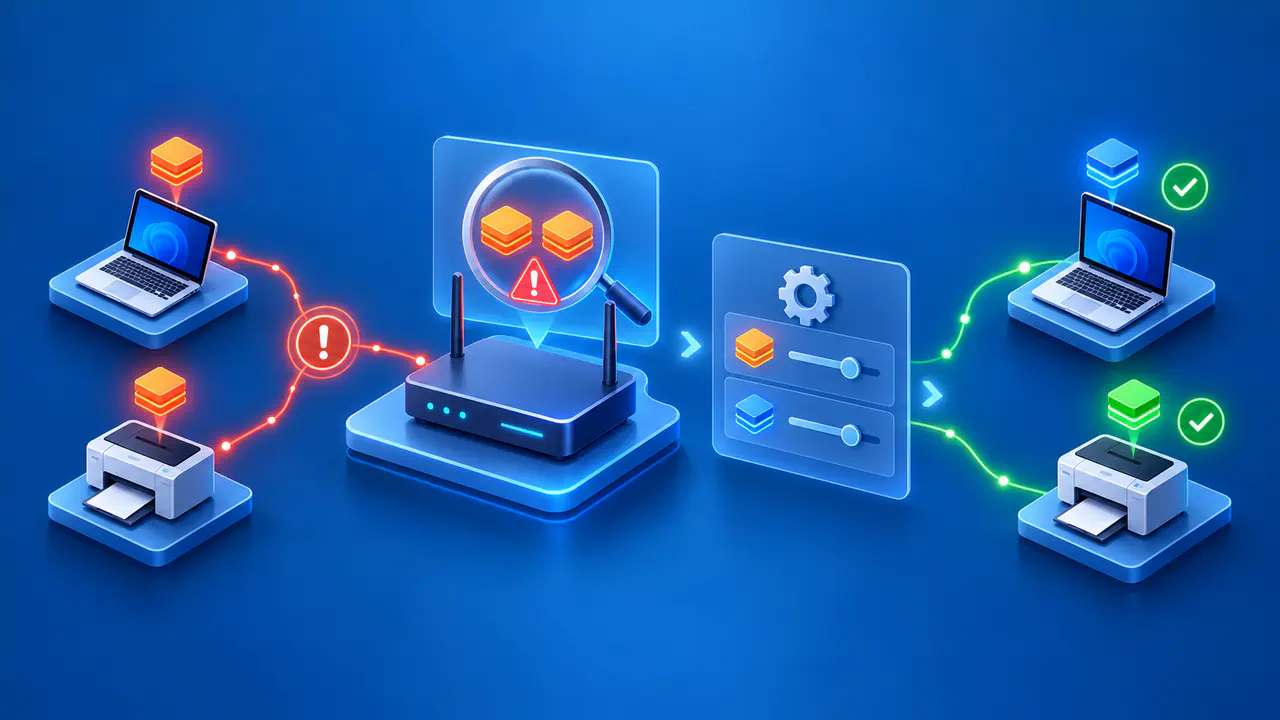
Neither method prevents someone from manually assigning the same IP address to a second device. That duplicate address can cause lost or intermittent connections even when the reservation itself is correct. Keep a record of both reserved and manually assigned addresses, and check it before assigning an address to another device.
If the router's LAN subnet changes, review the reservations on the DHCP server and the settings on manually configured devices. The old addresses may no longer be valid on the new network. Update the reservations and DHCP options on the server, and adjust the manual settings on each affected device. Then check that the devices can communicate again.
When to Use Each Method
A reservation is a practical choice for a home printer or storage device when you want to manage its address from the router. It is especially useful when the device's own menus are difficult to reach. If you manage several devices, a single reservation list makes it easier to review their addresses before replacing the router.
Check which adapter the reservation identifies. A laptop's WiFi and Ethernet connections normally have different MAC addresses, so a rule for one does not automatically cover the other. A WiFi privacy setting that periodically changes the MAC address can also stop an existing reservation from matching. If the reservation uses a MAC address, enter the address the device currently uses on that network. Check whether the device is set to rotate that address.
A manual address makes more sense when the device cannot use DHCP or needs its address even when DHCP is unavailable. Before assigning the address manually, consider how you will access and update the device's network settings if the network changes. Record its address, mask, gateway, and DNS settings alongside the device's name and location.
After either setup, check the address shown on the device itself. Test the local service that needs the stable address, such as printing or opening a shared folder. If the device also needs internet access, test a connection that uses a website or service name. A correct local IP address alone does not confirm that the gateway and DNS settings work.