Do Mobile Data and Wi-Fi Use the Same IP Address?
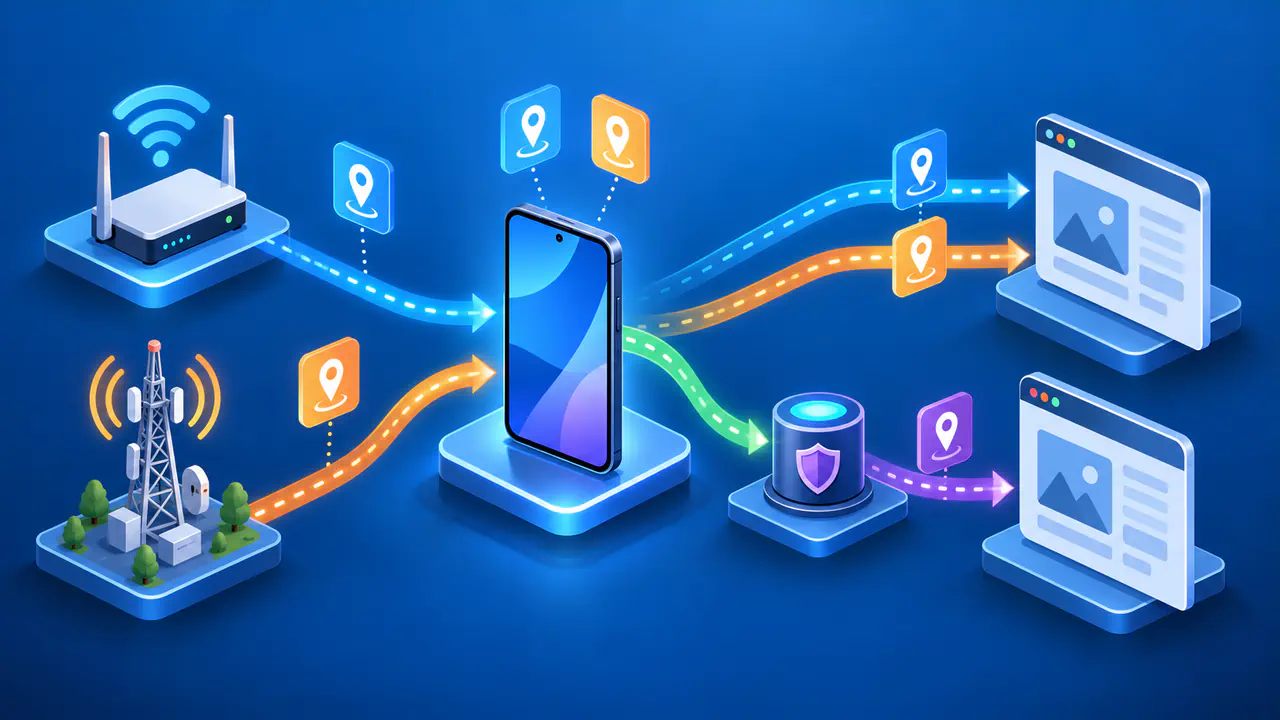
Wi-Fi and mobile data usually give your phone different IP addresses because they connect it to different networks. A website will often report a different public address when you switch between the two, but the result can stay the same. A VPN or the way a carrier shares public addresses can affect the address the website sees.
There are also two different things you might be comparing: an address assigned to your phone and an address reported by a website. Even without switching networks, those values may differ. To make sense of the results, first check where each address came from and whether both are IPv4 or both are IPv6.
Addresses Assigned to Your Phone
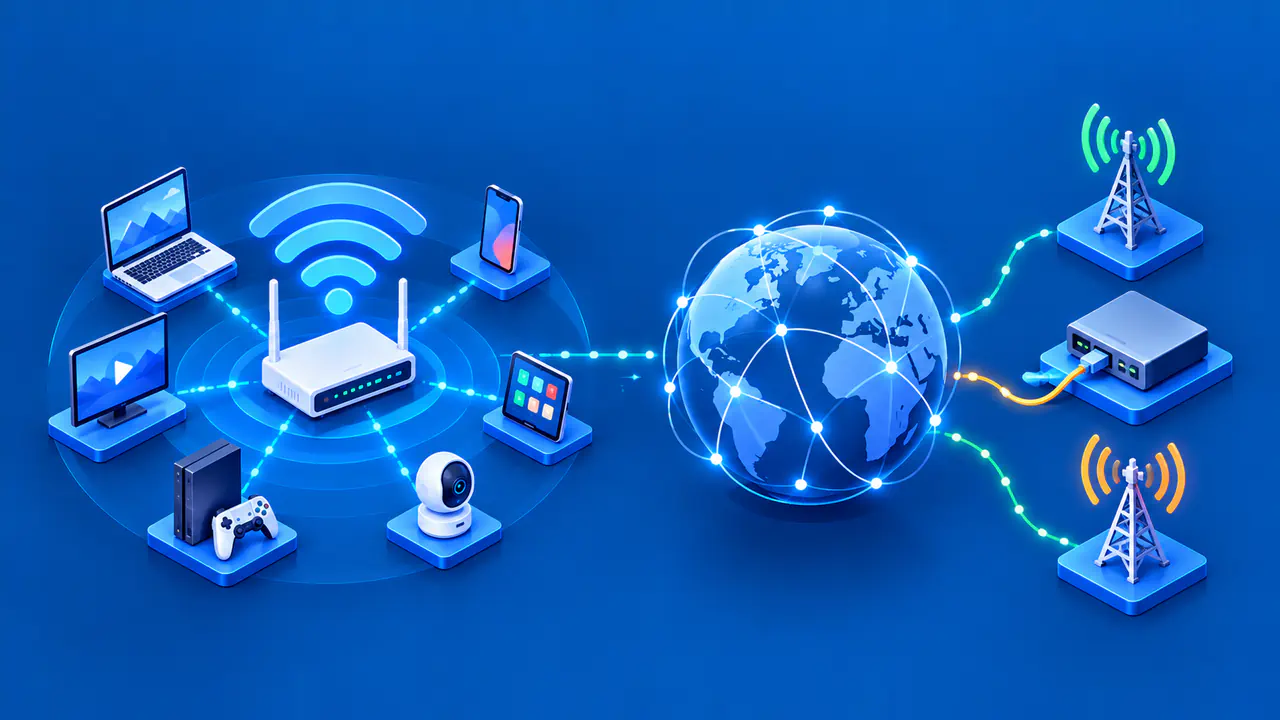
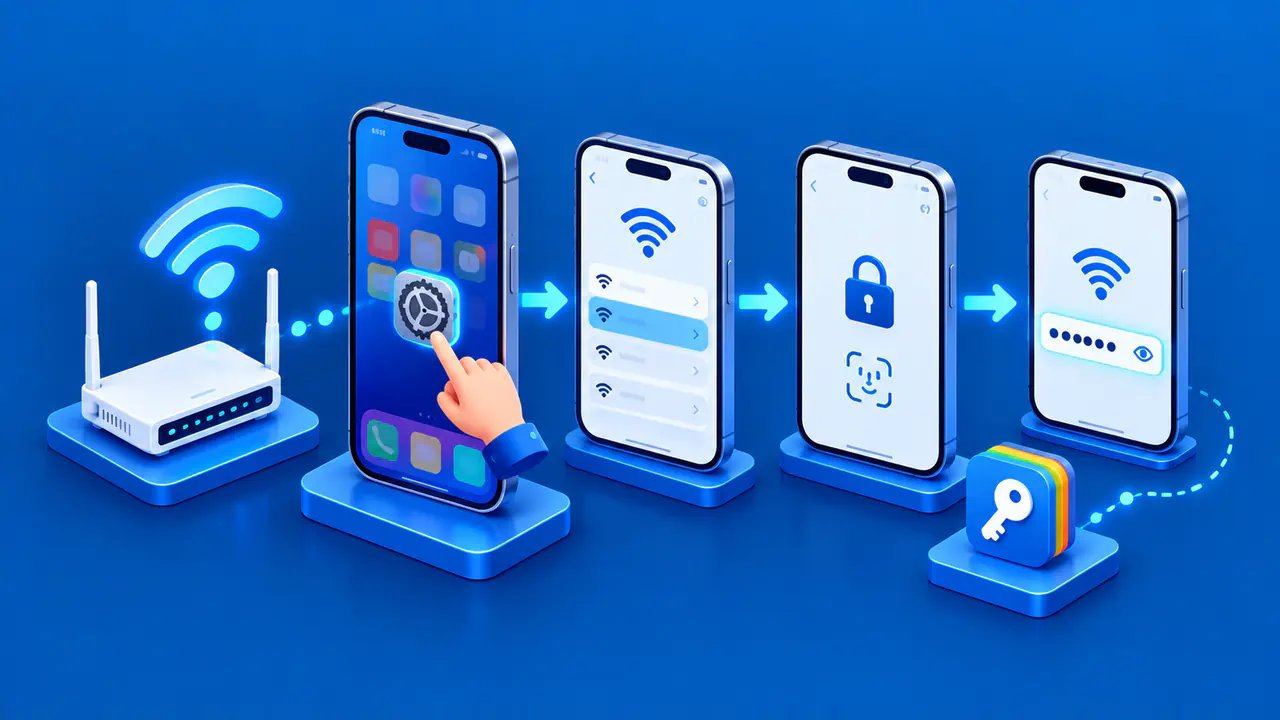
On a typical home Wi-Fi network, your phone receives a private IPv4 address from the router through DHCP. An address such as 192.168.1.24 might identify the phone within that local network. Another household can use the same private address for an unrelated device, so matching local addresses do not show that two devices share an internet connection.
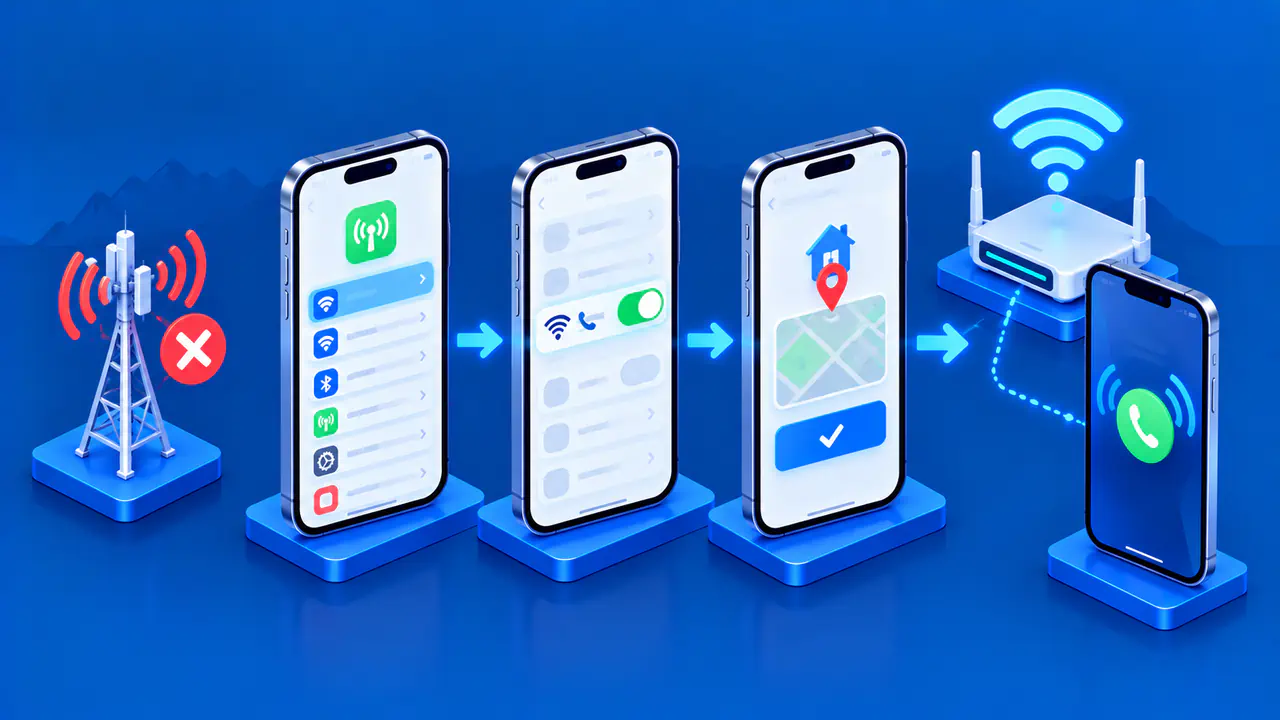
On mobile data, the carrier provides addressing for the phone's cellular connection. The service may support IPv4, IPv6, or both; an IPv4 address assigned within the carrier's network may be translated before traffic reaches a website. The Wi-Fi and cellular connections are separate network interfaces, each with its own configuration. An address listed for one interface does not describe the other.
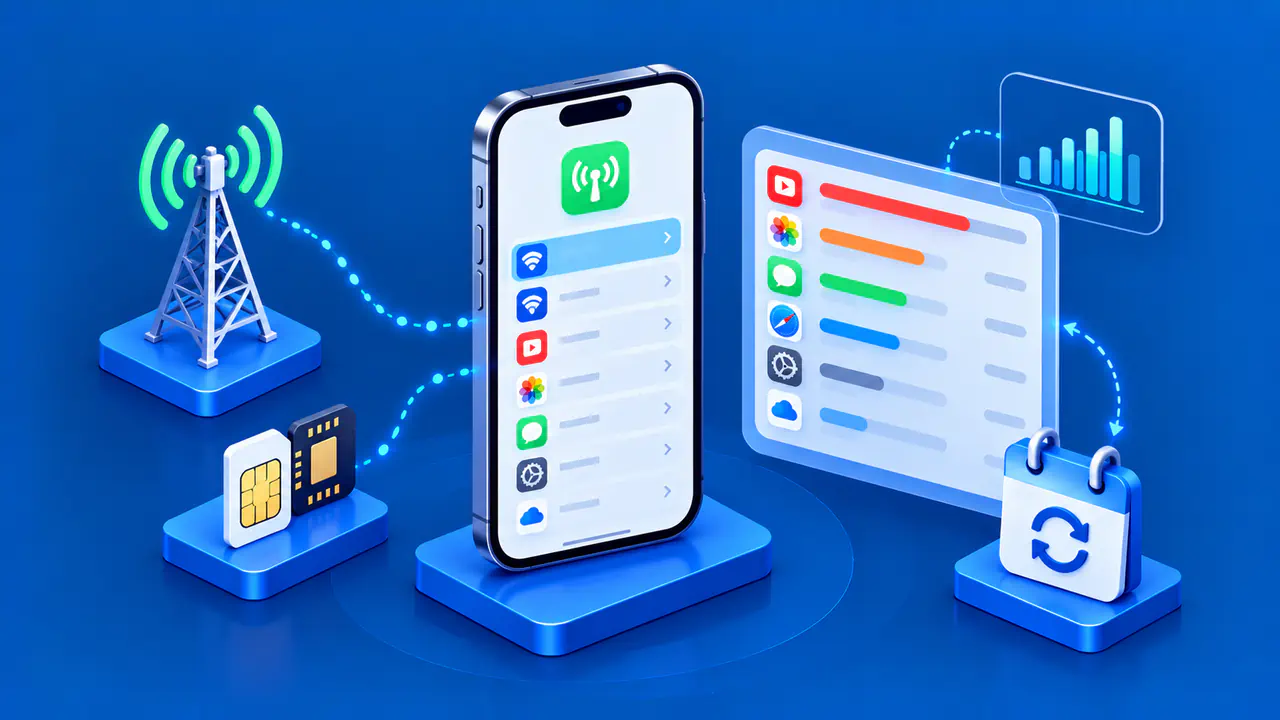
A phone can have several IPv6 addresses on one interface, including temporary addresses used for outgoing connections. The operating system and application help determine which address a particular connection uses. When checking the phone's settings, note the network name and the field labeled IP address. Not every address shown in the network details is the address that a website will report.
The Address a Website Sees
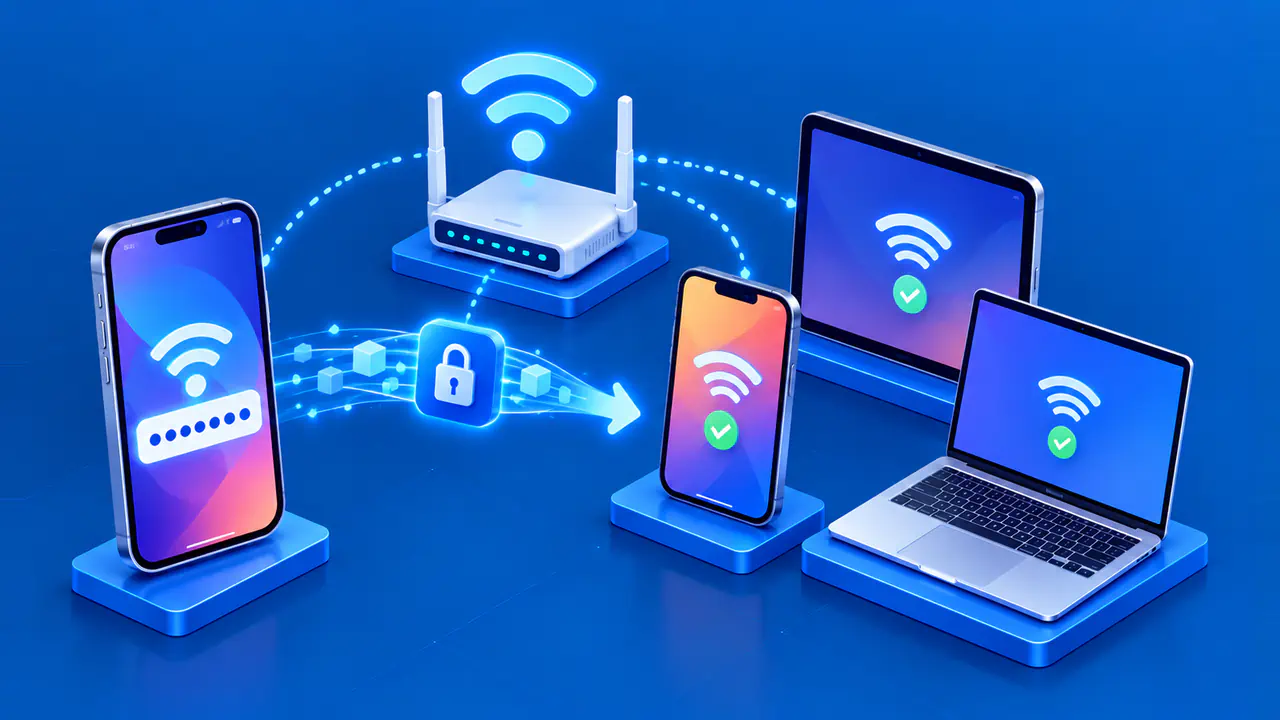
With ordinary home IPv4 networking, the router translates traffic from local devices to the address assigned to its internet connection. Your provider may perform another translation before the traffic reaches its destination. The phone, laptop, and television at home can therefore appear to websites under one public IPv4 address. An IPv6 connection can work differently: the website may see a globally routable IPv6 address assigned to the phone itself.
Mobile carriers can also share public IPv4 addresses among customers through carrier-grade NAT. The carrier keeps track of connections so replies can reach the appropriate customer, even when many customers use one public address. A website's IP report alone therefore cannot identify a particular phone. The city shown beside that address is an estimate associated with the network, not a reading of the phone's physical position.
An address lookup describes the connection that reached that particular service. Other traffic from the same phone may follow different routes, especially when a VPN, browser proxy, or privacy relay handles only some connections. For a useful comparison, use the same browser and lookup service each time and record whether a VPN, proxy, or relay is active. Results from different apps need not describe the same connection.
Comparing Wi-Fi and Mobile Data
Connect to the Wi-Fi network you want to check, load a public IP lookup, and record the address, IP version, and time. Then turn Wi-Fi off, make sure mobile data is available, and load a fresh result from the same service. If the service provides separate IPv4 and IPv6 results, compare each version separately. One IPv4 result and one IPv6 result show different types of address, not that a single address changed.
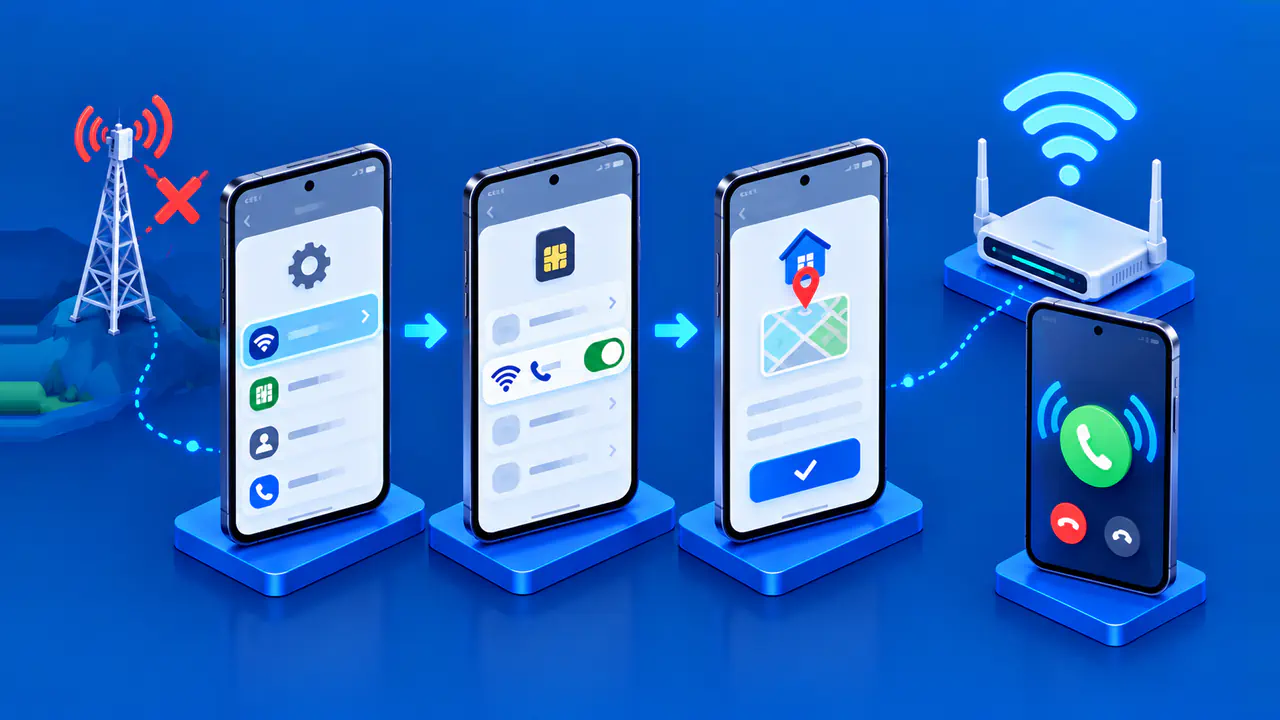
Some phones supplement a weak Wi-Fi connection with cellular data. A Wi-Fi symbol alone therefore does not establish which connection carried the lookup request. For a Wi-Fi-only check, reconnect to Wi-Fi, temporarily turn off mobile data, and load the lookup again; restore your usual settings afterward. If the lookup fails, there is no fresh Wi-Fi result to compare, and an address left on the screen may belong to an earlier request.
Switching networks can interrupt an existing connection, so a running app may need to reconnect before it uses the new network. A browser can also keep displaying an old lookup result until another request completes. Wait for the new result instead of treating an unchanged page as evidence that the address stayed the same. Note any failed request separately from a successful lookup that reports the same address.
Why Both Connections Can Show the Same Public IP
If your browser traffic passes through the same VPN server on both networks, the lookup may report that server's address twice. The connection between your phone and the VPN server changed, while the address visible to the website did not. Keeping the VPN active gives a valid picture of what that website sees, but it does not reveal the public address your provider would use for a direct connection.
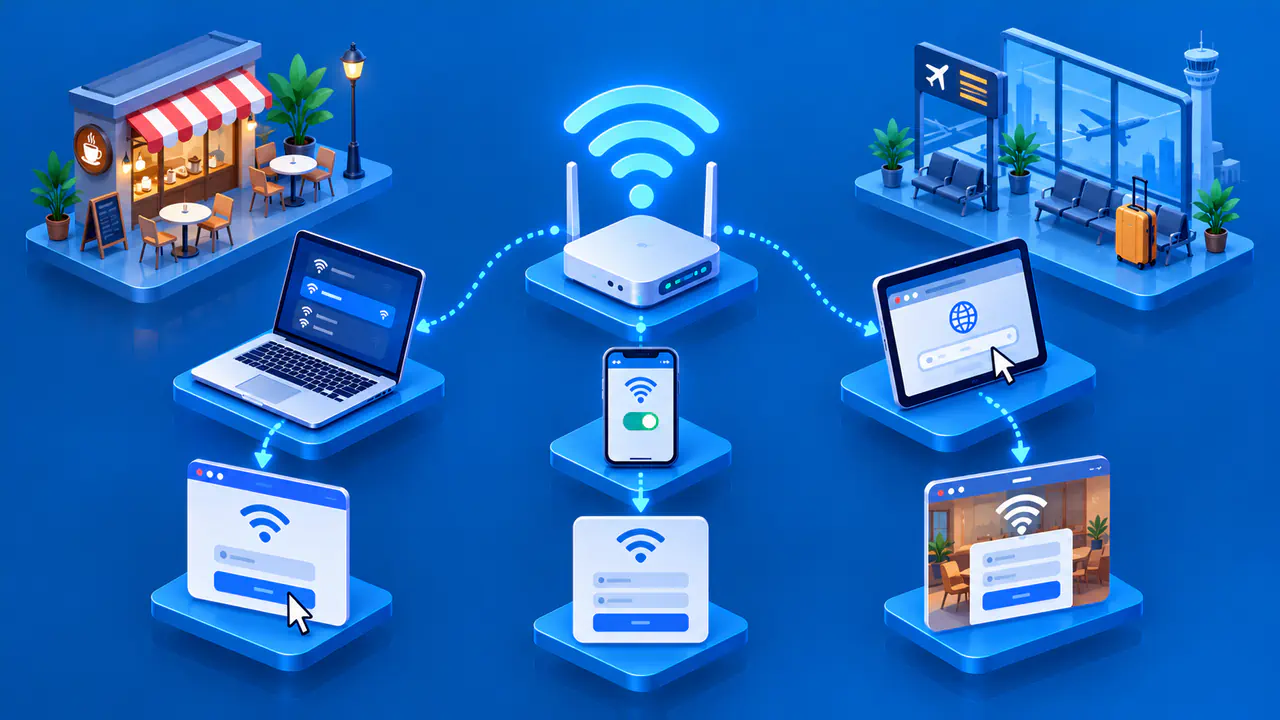
Wi-Fi also describes only the wireless connection to a nearby access point. That access point could be another phone's hotspot or a router using a cellular data plan. Two connections using the same carrier's shared public IPv4 pool may show the same address, although sharing a carrier does not guarantee a match. Likewise, buying home internet and mobile service from one company does not mean both services use one public address.
A change of public IP does not erase browser cookies or sign you out of every account. A site can still recognize an existing session or a signed-in user. Keep the conclusion specific to the comparison: the recorded request used a particular public address on that network at that time. The result does not establish that the phone has a permanent address or that every app used the same one.