How to Change App Location Permissions on Android
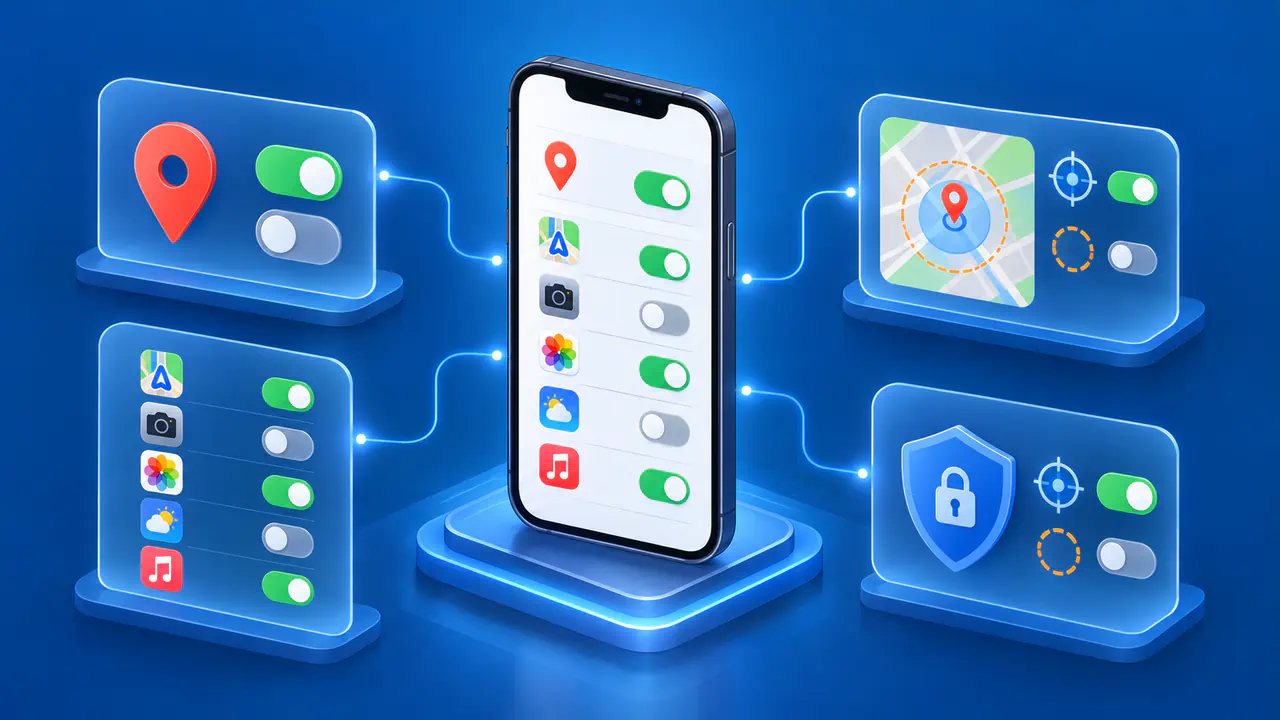
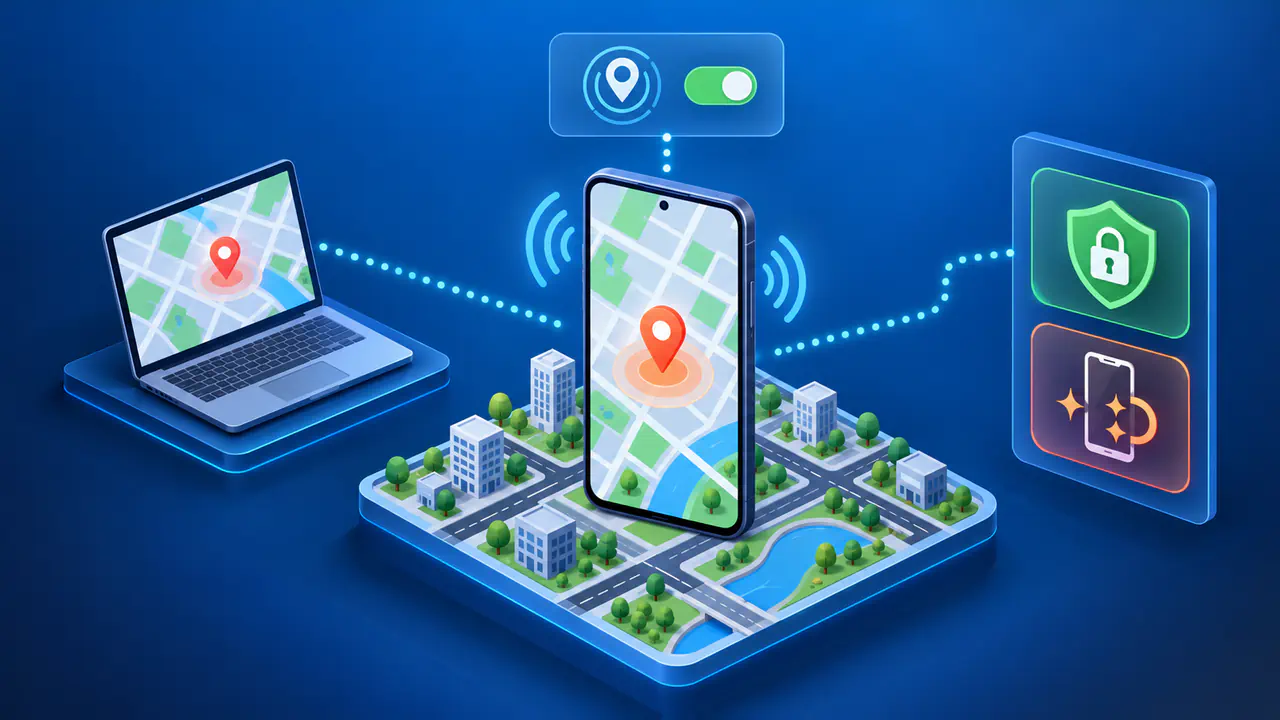
Android lets you decide whether an app can use the device's location, when it can use it, and, on supported versions, whether it receives precise or approximate location. The right setting depends on the app feature you intend to use. A navigation app may need location while it is open, while a simple place search may work with a broader estimate.
Open the app's Location permission in Settings to change its access. Choose the access duration first, then check the precise location control if it is available. Menu labels and available choices vary by Android version, phone maker, and what the app requests.
Find the Android App's Location Permission
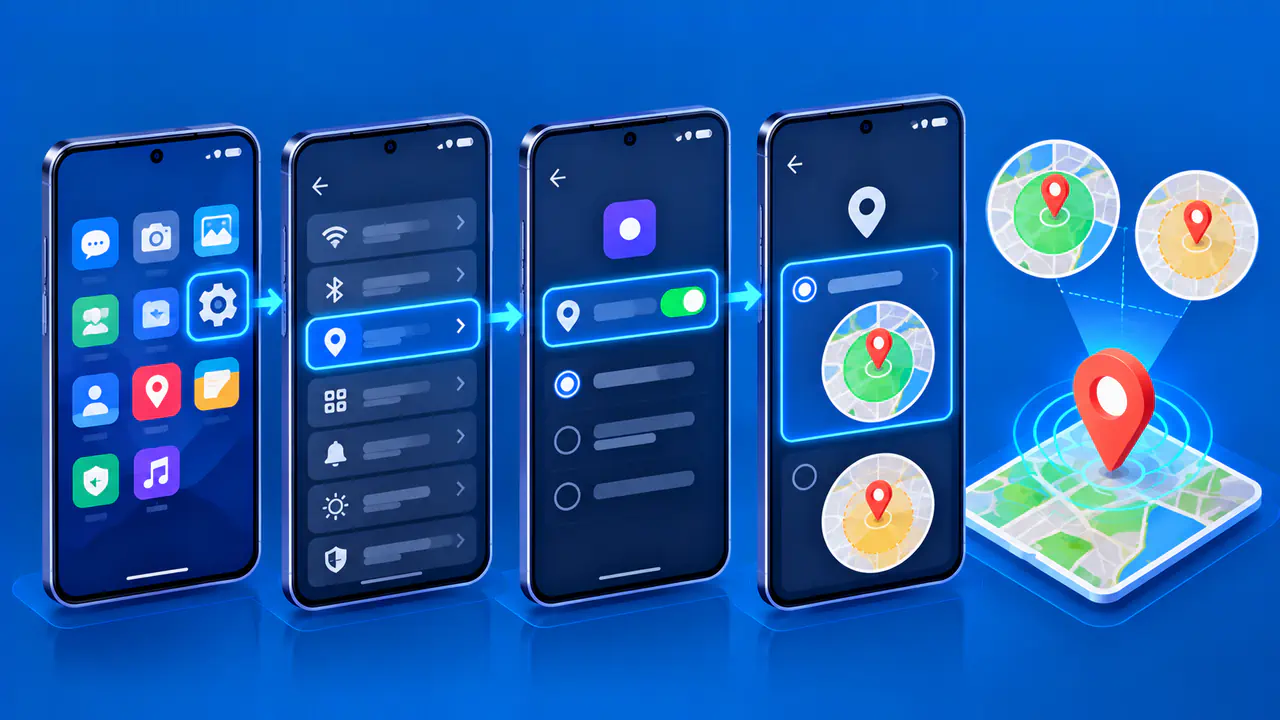
Open Settings > Location > App location permissions and select the app. The list groups apps by when they can use your location, from all the time to never. If your phone uses different labels, search Settings for app location permissions or use the app's own information screen. Check the choices shown for that app rather than expecting every permission option to be available.
For a direct route, touch and hold the app icon, select App info, and open Permissions > Location. You can also open Settings > Apps, select the app, and open Permissions. These routes help when you already know which app needs attention. Make sure you selected the intended app rather than a similarly named service or its companion app.
If Location is missing, open More > All permissions from the app's Permissions screen where that menu is available. The full list shows the type of location access the app requested. If Location is absent there too, the app has not asked for device location. That does not establish that the app cannot infer a rough region from a network address or information you enter.
Choose When the App Can Use Location
On the app's Location screen, choose when the app can access your location based on the feature you need. "Allow only while using the app" permits location while the app is visible or an allowed location foreground service is running. With "Ask every time," location is allowed for the current use after you grant it, and a later session requires a new decision. "Don't allow" denies access through the app's location permission, even while the app is open.
"Allow all the time" permits broader access, including requests when you are not actively using the app. Check whether a feature needs that access before granting it. Some apps instead offer a location button that shares precise location for a single session. This option depends on the app and version and does not automatically give the app continuous background permission.
After selecting a duration, return to the app and try the feature that needed location. If the app asks for broader access, read the reason it gives and decide whether that feature warrants the change. You can decline the additional request and keep the current permission setting. The feature may offer a manual place selection or remain unavailable without its required access.
A request for location does not establish that every part of the app needs it. Keep the choice tied to the feature you intend to use, and review the app's Location entry again if you are unsure what access you have allowed. Granting permission also does not guarantee that the phone can calculate an accurate position.
Precise versus Approximate Location
On Android 12 and later, an app can receive only approximate location even when it asks for precise access. When location is allowed, look for Use precise location in the app's permission settings. Turn it off if an approximate area is enough, or turn it on when you want the app to receive a more detailed estimate. This user choice also applies to older apps running on those Android versions.
Approximate location is designed to give an area rather than an exact point. Its actual usefulness and accuracy depend on the device, network signals, and app feature; do not rely on a fixed radius for every situation. Precise access allows the app to receive a more detailed estimate, but the estimate can still be imperfect, especially indoors or where signals are weak.
On Android 12 and later, reducing an app's access from precise to approximate restarts its process. Reopen the app and retry the feature if the change interrupts it. An app can also have its own setting for using or sharing location after Android grants access, so inspect that setting if Android allows location access but the feature still does not work as expected.
Review Background Access Separately
On Android 11 and later, the initial permission prompt does not offer "Allow all the time." If the app supports background access and requests it, review the separate Location permission page in Settings. Android 10 can offer the all-time choice in its permission prompt. An app that does not request background access may have no all-time option to select.
While-in-use access does not always end when the app leaves the screen. Android also treats a location foreground service as foreground use. Such a service shows a persistent notification and can keep receiving location when you press Home or turn off the display, subject to its permissions and system restrictions. Check for an active navigation or sharing service before treating a minimized app as inactive.
Background access and precision answer different questions. If an app has background permission but only approximate foreground access, its background access is approximate too. A foreground-only app can still receive precise location while allowed to operate. Review the duration and precision controls together, and reduce each only as far as the feature you intend to use permits.
Android's device-wide Location setting is another layer. Turning it off can stop device location access across apps, so use the individual app's permission page when the change concerns only that app. After changing the app's permission, retry the same feature and check the app's Location entry again. If the app has permission but still cannot obtain a position, check whether device location is enabled before allowing broader access.