How to Check Data Usage on Android
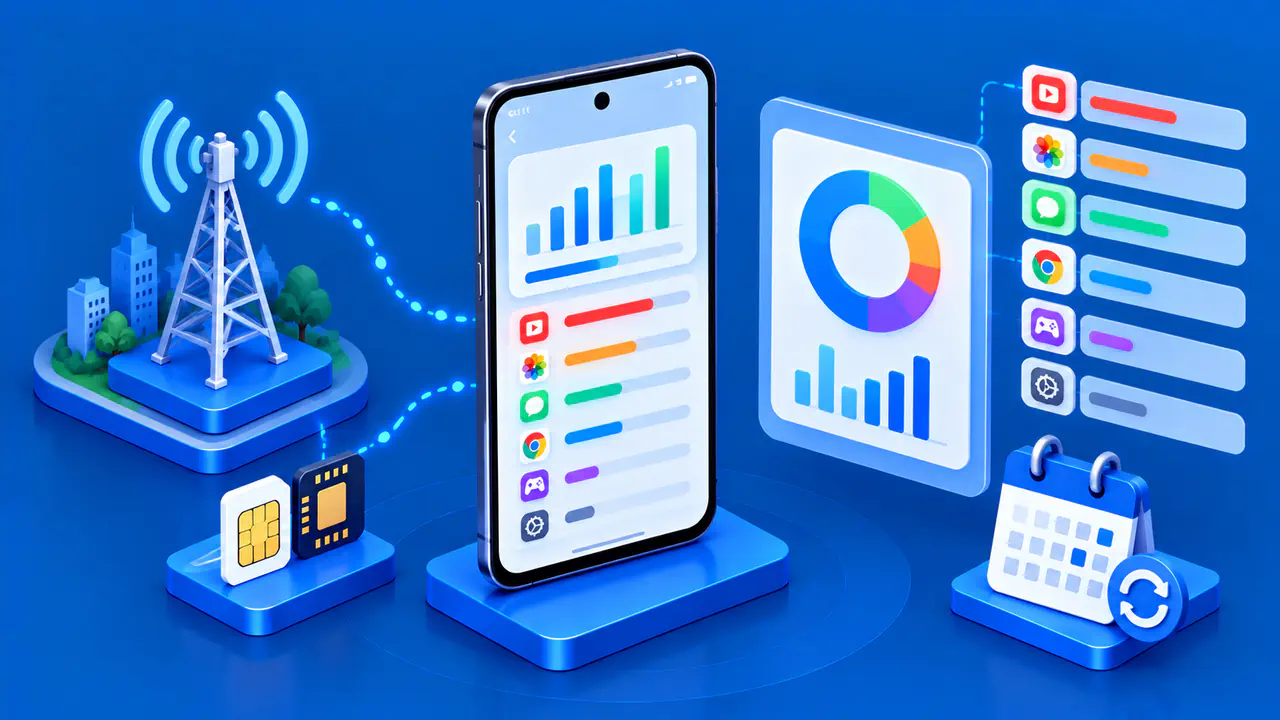
Android can show how much mobile data a phone has uploaded and downloaded, including a total and a breakdown by app. On a Pixel, open Settings, then Network & internet > SIMs, select the line if prompted, and tap App data usage for the graph and list. Choose the period shown on that screen before comparing the numbers with a data plan.
The main steps below use the Pixel interface. Menu names and locations may differ on other Android phones or carrier versions. Your phone's usage screen lists the apps that used mobile data, while your carrier's account records show the usage counted against your plan.
Identify the Data SIM and Carrier
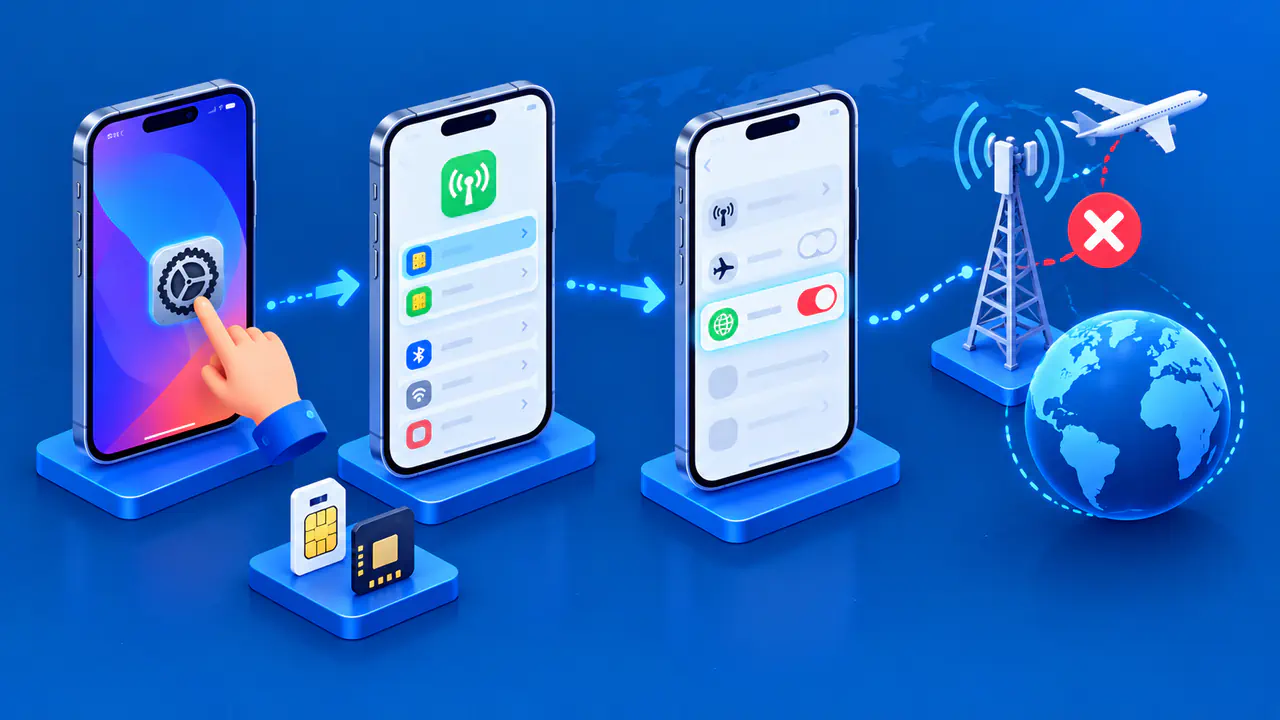
With one SIM or eSIM, note its carrier name; with two, check which line is assigned to mobile data. On a Pixel, open Settings > Network & internet > SIMs to review the default SIM for data. Calls and texts can use different lines. Looking at the wrong carrier's settings can make the usage total appear missing or smaller than expected.
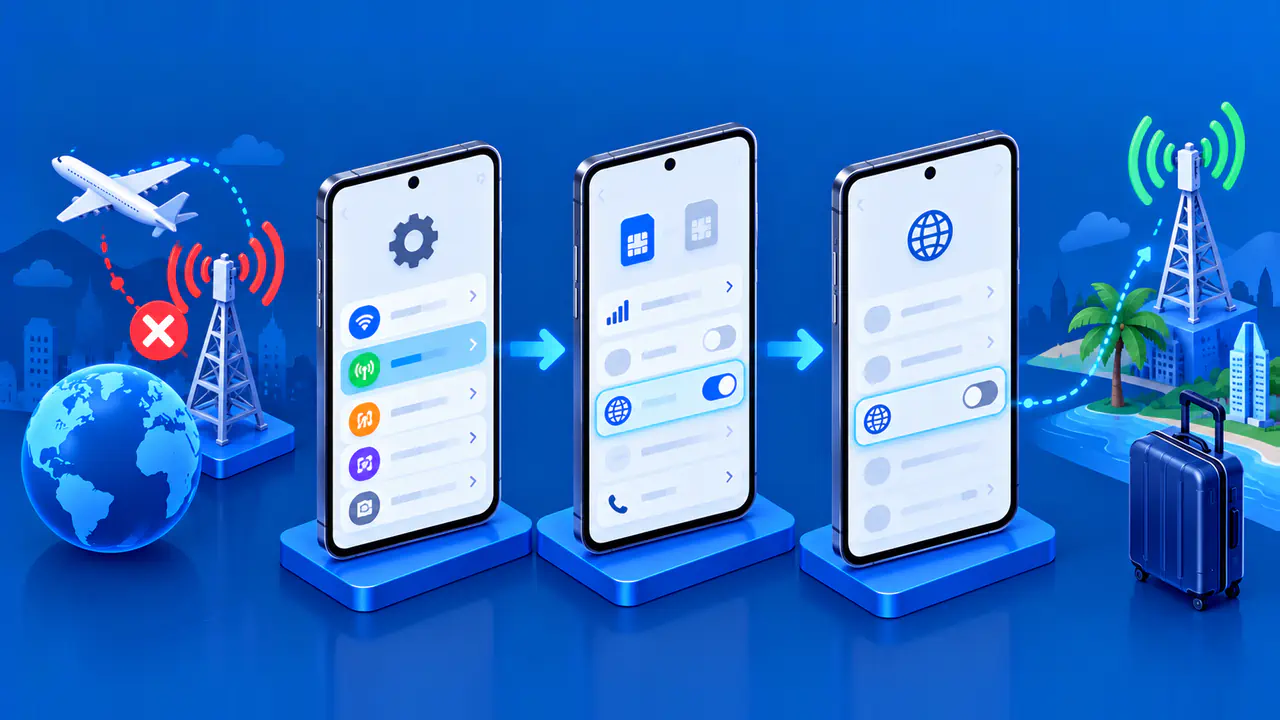
Your current data SIM may not be the only line you used during that period. For example, Data during calls on a Pixel 8 or earlier can use the calling SIM for data, and newer models have an Automatic data switching option. If you enabled such a feature or changed SIMs during a trip, inspect each affected line separately. Record which carrier each total belongs to before combining any figures.
Read Total and Per-App Usage
- On a Pixel, open Settings > Network & internet > SIMs.
- Select the carrier line if the phone presents a choice.
- Read the mobile data total, then tap App data usage for the graph and details.
- Use the down arrow beside the period to choose an available interval.
- Read each app's amount below the graph for that interval.
On a Samsung Galaxy, the corresponding route is Settings > Connections > Data usage > Mobile data usage. This opens the cellular breakdown; Wi-Fi data usage on the preceding screen measures a different connection. If neither route matches your phone, search Settings for data usage and check the network named on the result before reading its counter.
An app can use mobile data even when it is not open on your screen. Updates, synchronization, and other background activity can contribute. If an app's total seems high, check what the app does, whether it transfers media, and whether the app's activity changed during the selected period.
Check the Time Window before Comparing Totals
Use the graph's period selector rather than assuming it always represents the latest calendar month or your plan's renewal period. Read the start and end dates shown for the selected interval. For example, a phone graph beginning on the first of the month will not cover the same dates as a bill that begins on the fifteenth.
Where a Galaxy provides Billing cycle and data warning, its Start billing cycle on setting lets you choose the monthly start date. Match that date to the carrier's cycle when appropriate. Changing this setting does not move your provider's billing date or give you a fresh data allowance.
For comparisons over time, record the date range alongside the amount. A larger total over a longer period does not necessarily mean your daily use increased. For example, 6 GB over 30 days and 3 GB over 15 days have the same average daily use, although either interval may contain individual days with much higher transfers.
Understand a Warning versus a Limit
On a Pixel, Data warning & limit is in the SIM's settings. Enable Set data warning, open Data warning, enter an amount in MB or GB, and tap Set to receive a notification at that threshold. A warning alone leaves mobile data available.
Set data limit is a separate switch. If enabled, the phone turns mobile data off when its counter reaches the amount entered under Data limit. To resume mobile data after that cutoff, turn off Set data limit; doing so allows further use that your plan may charge for. Wi-Fi remains a separate way to get online.
Choose thresholds with room for measurement differences, since a phone counter and a carrier counter may disagree. A warning below your allowance gives you time to check the account before deciding whether to continue. Neither device setting changes the terms of the plan.
If the Numbers or Menus Look Wrong
If mobile usage options are missing, check that the phone recognizes an active SIM or eSIM and has a line assigned to mobile data. A screen containing only Wi-Fi options may not be the cellular usage screen you need. Note the phone model and Android version when looking up its menu layout.
If your phone and carrier show different totals, note the SIM label, date range, and app totals rather than changing settings just to make the figures match. Account updates can also lag behind use: the Google Fi website, for example, can take about a day to show data usage, while its app updates much closer to real time. Compare the totals again after the carrier's normal reporting delay, and ask the carrier to explain any remaining difference.