How to Find Your MAC Address on Android
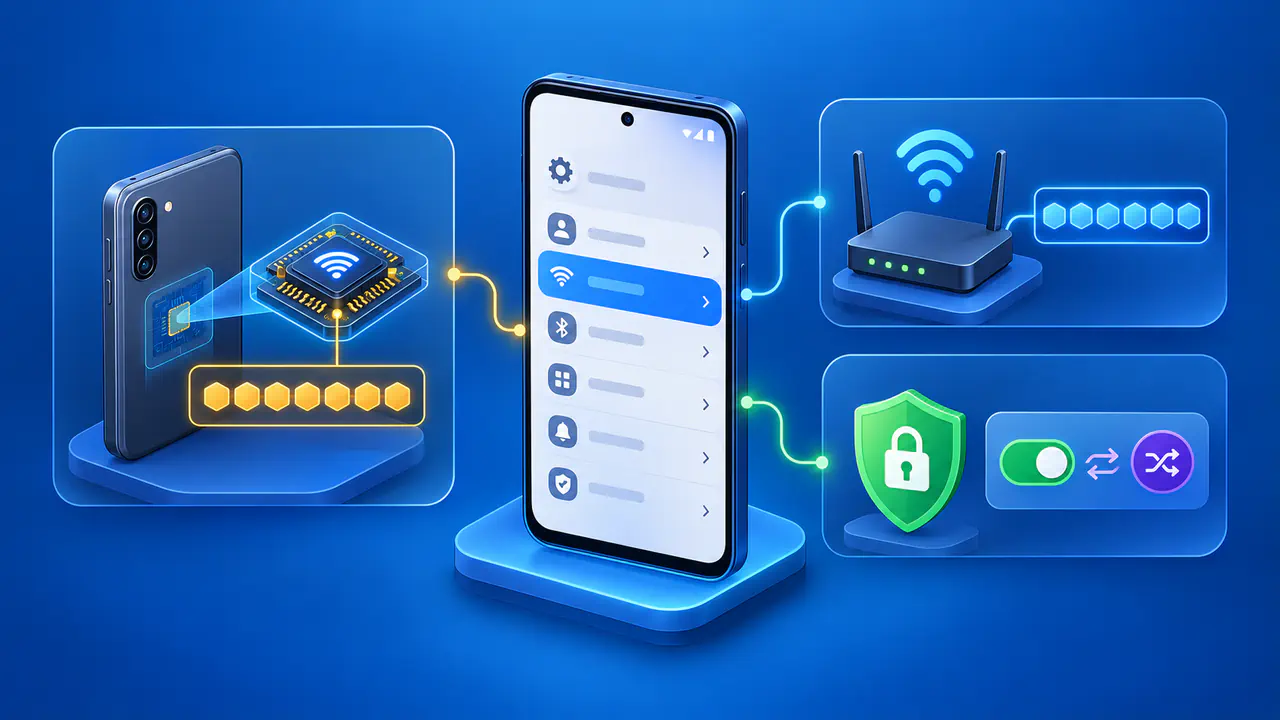
To find your Android phone's hardware Wi-Fi MAC address, open Settings, choose About phone, and look for Wi-Fi MAC address. To check the address used on a particular Wi-Fi network, open that network's details instead. Android can use a randomized address for the connection, so the two values may differ.
The address you need depends on the request. For an equipment record, you may need the hardware address; Wi-Fi registration usually needs the address your phone will use on that network. Menu names vary between manufacturers and Android versions, but the field labels help you distinguish the two.
Your Phone's Hardware Wi-Fi Address
On a Pixel phone, start in Settings > About phone and scroll down to Wi-Fi MAC address. On some Galaxy models, open Settings > About phone > Status to find the same field. Other versions may group device information differently, so look for a status page if the address is not listed directly under About phone.
Read the label as well as the characters beside it. A field called Phone Wi-Fi MAC address or Device MAC address refers to the phone's hardware address. A field marked Randomized MAC address refers to an address generated for a network connection. If the wording is unclear, compare the device information page with the selected Wi-Fi network's details before deciding which value to copy.
The usual display contains twelve hexadecimal characters, grouped into six pairs. Hexadecimal uses the digits 0 to 9 and the letters A to F, so a round character is a zero, not the letter O. Copy all six pairs, including any leading zeros; a missing pair makes the address incomplete.
If you are collecting the hardware address for an equipment record, label the entry with the phone's model and the field name. Keep that entry separate from any address recorded for a specific network. Otherwise, two valid values can look like a copying mistake when someone reviews the record later.
The Address Used for a Wi-Fi Network
Turn on Wi-Fi, then open Settings > Network & internet > Internet on a Pixel. Tap the settings icon beside the network you want to check and find Randomized MAC address in its details. On Galaxy phones, the Wi-Fi list is usually under Settings > Connections > Wi-Fi; open the relevant network's settings from there.
Check the network name at the top of the details page. Your home network and a guest network are separate choices, even if the same router provides both. Copying an address from the guest network's page may not give you the address used on the main network.
Also read the network's MAC setting, if the phone displays one. The selected option may indicate a randomized address or the device address. Leave the selection unchanged while recording the value; changing the option can change the address that the network sees.
On Android 10 and later, MAC randomization is normally enabled for new Wi-Fi networks, although support can depend on the device. Android usually keeps the same randomized address for a saved network. Some configurations use addresses that change when a new connection starts, so “randomized” does not mean a new address appears every time you join.
If you are checking an existing connection, confirm that the phone is connected to the intended network. If you are registering before connecting, look for the network's saved details where available. The address in those saved details is the one selected for that network; seeing the address does not mean the network has already accepted the phone.
The Right Address for Network Registration
An allowlist matches the address presented by your phone against an approved entry. For a network using the phone's randomized address, entering only the hardware address can leave the actual connection unrecognized. Follow the registration instructions and use the address associated with the intended network and its selected MAC setting.
Some networks require registration before they allow a connection, which means “connect first” is not always a workable instruction. If the phone has no saved details for that network, or the address is not displayed, ask the administrator how to enroll the device. Report which fields you can see instead of guessing that an address from another network will work.
Send the chosen address with the network name and its field label. If an administrator specifically asks for both hardware and randomized addresses, identify each one separately. If you are unsure why both are requested, ask which network or device record each value will be used for.
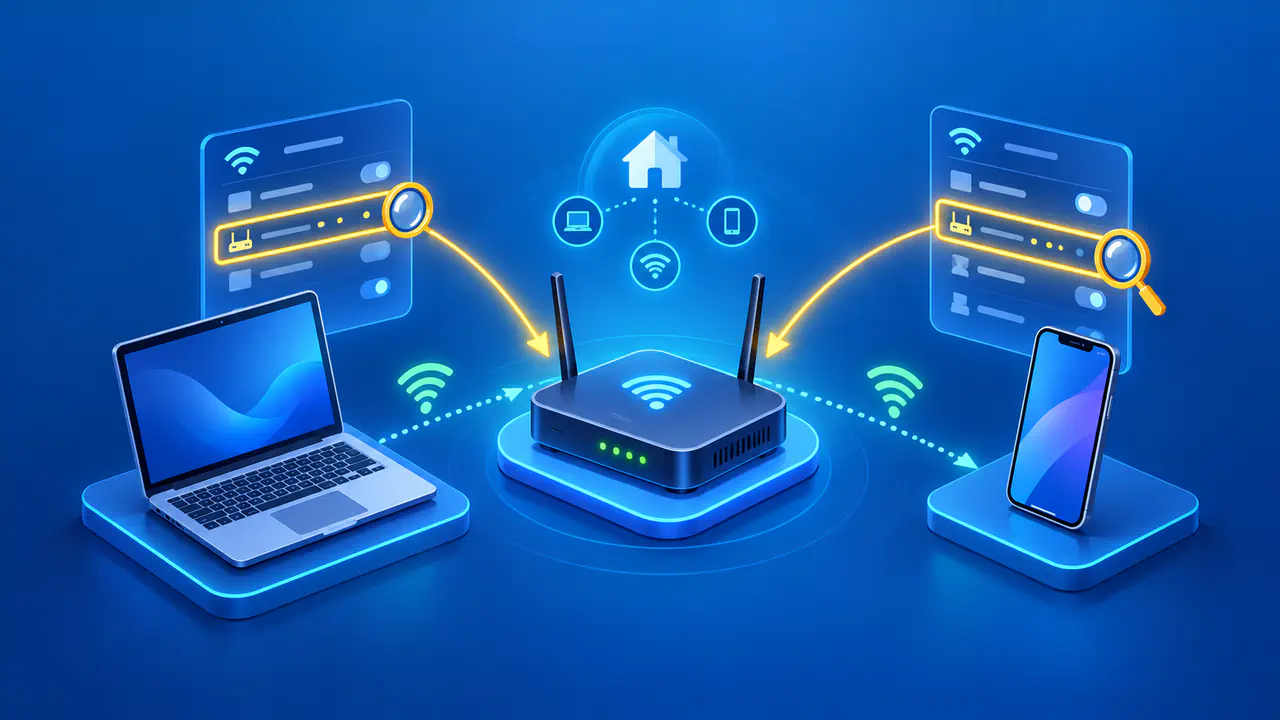
When checking a router's device list, compare the phone's current address with the client entry for that connection. The displayed device name may be generic or outdated. If the address matches but access still fails, the administrator can check the registration record and other connection requirements; a matching MAC address alone does not guarantee access.
When the Address Is Missing or the Menus Differ
If the expected field is missing, search Settings for “MAC address.” Check that Wi-Fi is turned on and reopen the relevant settings page. Search results may lead to device information or to Wi-Fi settings, so check the destination and the field label before copying anything.
A blank field or an “Unavailable” message is not an address you can register. Note the exact message and whether you were viewing device information, a saved network, or an active connection. Those details give support staff a useful starting point without requiring a guess about a hardware fault.
If the menu path still does not match, check the manufacturer's instructions for your model and software version. Describe the missing field and the pages you have already checked when requesting help. For a registration problem, also tell the network administrator whether the phone can join the network at all or reaches Wi-Fi but cannot access the internet.