How to Set Up a VPN on Android
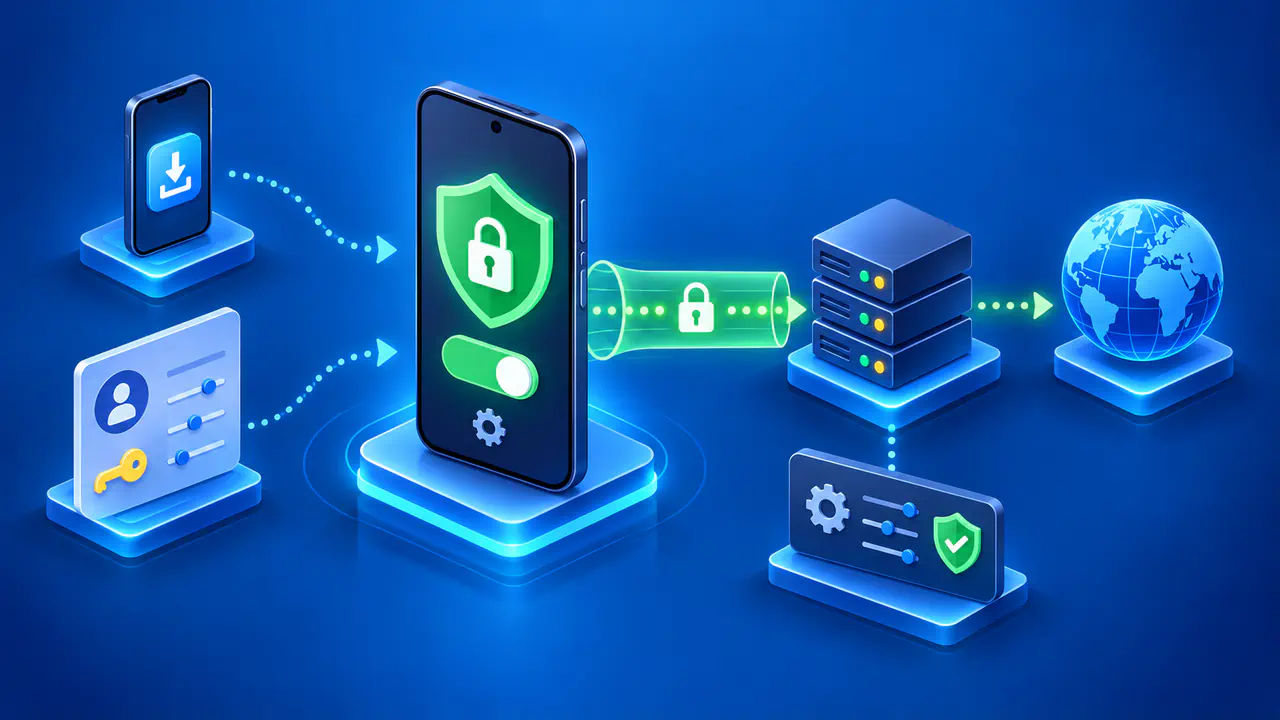
Android offers two common ways to connect to a VPN: use a VPN app or add a connection profile in Settings. Your VPN provider or workplace administrator can tell you which method to use. A profile stores the settings for an existing VPN service; creating a blank profile does not give you a VPN service of your own.
Before you begin, make sure your phone has internet access over WiFi or mobile data. You will also need a compatible app or the connection details for your VPN. Menu names vary by Android version and phone maker, so a path shown on one phone may look different on another.
Get the Details for Your VPN
For a work or school connection, ask your administrator for the Android setup instructions. Your organization may install the app and connection settings for you, or it may ask you to enroll the phone first. Follow those instructions before creating a separate personal configuration.
If you use a personal VPN service, check whether the provider supports your Android version and recommends its own app or another VPN client. An app often handles server settings for you. Manual setup requires the correct server address, VPN type, and authentication details, which may include a username, password, or certificate. The VPN type determines how your phone establishes the connection.
Use the provider's current instructions for the method you choose. A protocol listed in an old tutorial may be absent from your phone, and a similarly named option may use different authentication. If the required type is missing, ask for a supported app or configuration instead of guessing which option will work.
Set Up the VPN App
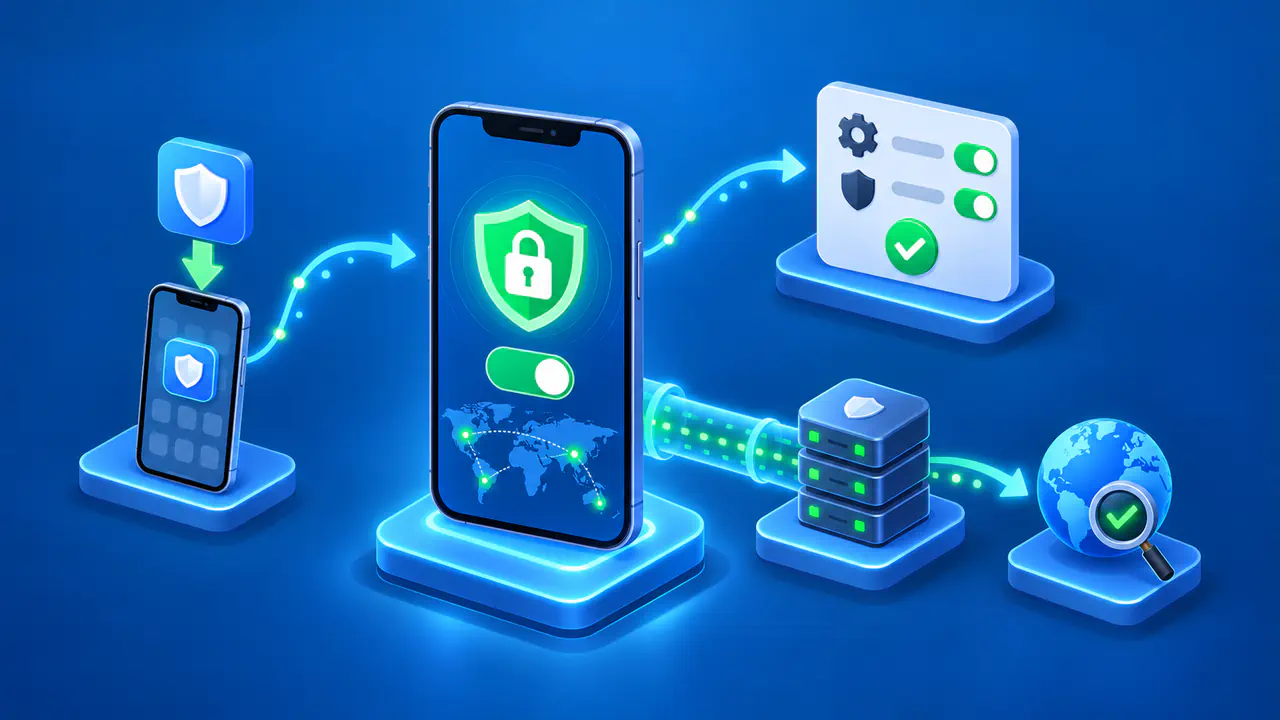
Install the app identified by your provider or administrator. On Google Play, check the developer's name against the provider's download instructions. If your organization distributes the app itself, use the installation method it gives you. A matching app name alone does not establish who made it.
Open the app and follow its sign-in or account setup steps. Some apps select a server automatically; others ask you to choose a server or import settings. Use the connection button once the required details are in place. You normally do not need to add a second profile in Android Settings for a connection managed by an app.
The first connection attempt may bring up Android's VPN connection request. Check that the request names the app you just opened, then approve it if you want that app to manage the VPN connection. The permission prompt authorizes the app; it does not by itself confirm that the VPN server has accepted your sign-in.
Add a VPN Profile Manually
If your provider supports Android's built-in client, open Settings and search for VPN. A common path is Network & internet → VPN. On many Samsung phones, look under Connections → More connection settings → VPN. Labels and available fields depend on your device, so use the instructions for your phone if the screens differ.
- Tap the add button, which may appear as a plus sign or Add VPN profile in a menu.
- Give the profile a recognizable name and select the VPN type specified by your provider.
- Enter the server address and the remaining connection details exactly as supplied.
- Save the profile, select it from the VPN list, enter any requested sign-in details, and tap Connect.
If the form asks for a certificate or an identity value that your instructions do not include, ask the provider or administrator for that information. Do not choose an unrelated certificate or enter your email address just to fill a required field. Different authentication methods need different values.
A managed phone may prevent you from adding or changing VPN settings. If a setting is locked or the app requires enrollment, contact the administrator. Removing a work configuration can also remove access you still need, so use the approved setup process for that device.
Check That the Connection Works
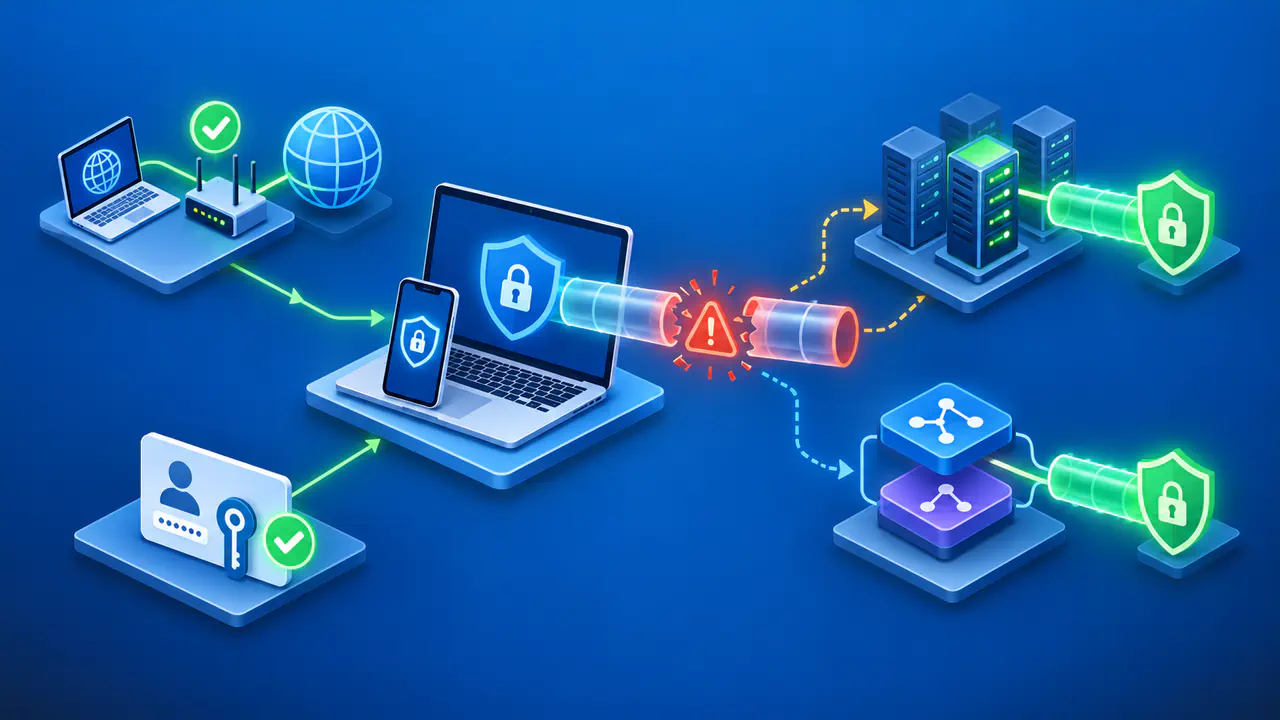
Wait for the app or saved profile to show a connected status. Android also displays a VPN indicator, often a key icon, when a VPN connection is active. A profile appearing in the list only means that its settings have been saved. Check the active connection before testing access.
For a personal VPN intended to carry your browsing traffic, compare your public IP before and after connecting. Use the same browser and internet connection for both checks, and compare the address itself rather than a city label. IP location estimates can be inaccurate. A changed address confirms what that browser exposes during the check, rather than proving that every app uses the VPN.
A work VPN may route only traffic for your organization's private network. In that case, your browser's public IP can stay the same while the VPN works correctly. Open the internal website or service your administrator named and check whether you can use it. Ordinary web browsing alone does not test access to that private network.
If the connection fails, note the exact error and the step at which it appeared. Check your internet connection, then compare the server address and sign-in details with the provider's instructions. Report your phone model, Android version, app name, and whether you used WiFi or mobile data. Keep passwords, private keys, and authentication codes out of public screenshots or posts.
Edit or Disconnect Your VPN
To change a manual profile, return to the VPN list and tap the settings control beside its name. Correct any typing error or enter the updated details supplied by your provider, save, and reconnect. For a connection managed by an app, the settings control may open that app instead. After editing, repeat the same access check so you can tell whether the change worked.
When you finish using the VPN, disconnect through Android Settings or the app and confirm that the connected status ends. Disconnecting keeps the saved configuration for later use. If you no longer need a manual profile, the Forget option removes it from the VPN list. Ask your administrator before removing a work profile or a managed VPN configuration.