How to Set Up a VPN on a Mac
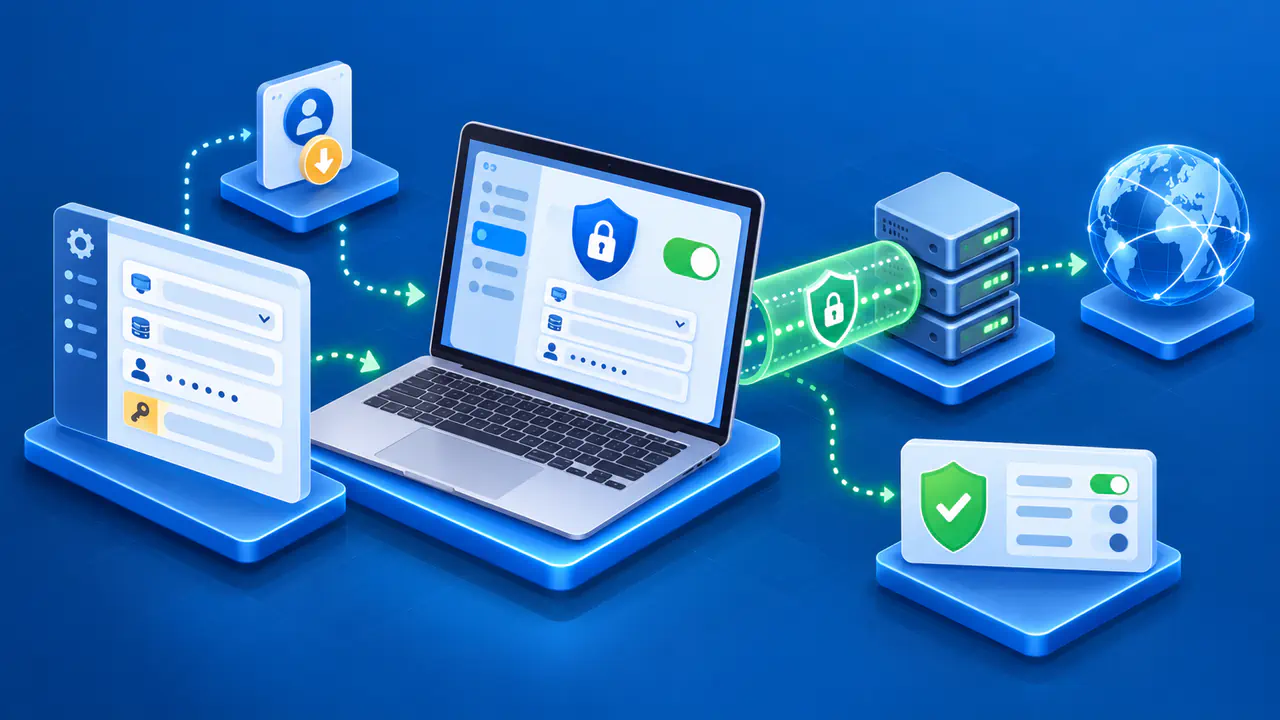
macOS has a built-in VPN client that can connect to a service using settings from your VPN provider or network administrator. Creating a configuration saves those settings on your Mac; it does not create a VPN subscription or grant access to a private network. You need an existing service that supports the connection type you plan to use.
For manual setup, you add the connection in System Settings, enter the supplied details, and turn on the saved VPN. Your provider may instead supply a settings file or require a separate app. Check which method your service supports before entering anything, since the built-in client cannot replace every provider's app.
Get the VPN Settings You Need
Ask your provider or administrator for the VPN type, server address, account name, and authentication instructions. Authentication verifies the identity of the user or device connecting to the VPN. Depending on the setup, you may need a password, certificate, shared secret, or identity values such as a remote ID. Use the instructions for your macOS version and the particular service you are joining.
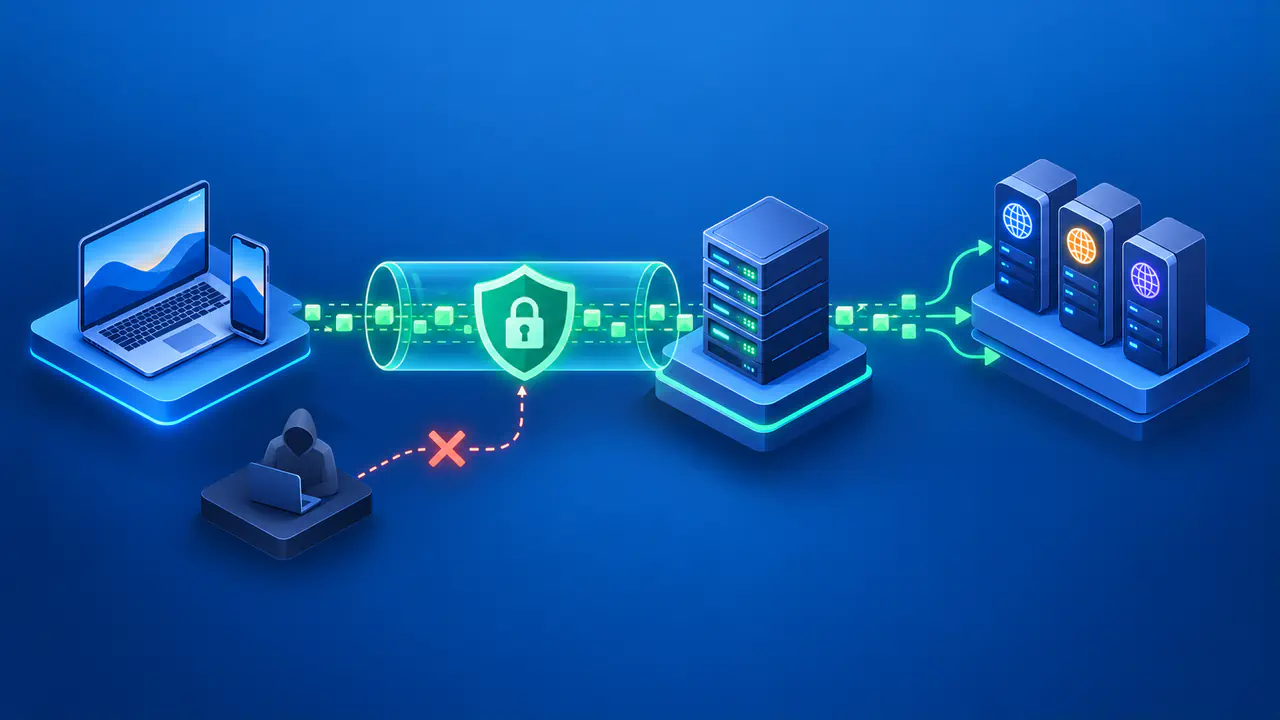
Also ask what the connection should let you access. A workplace VPN may connect you to internal websites or shared files, while a personal service may carry your internet browsing traffic. Knowing the intended destination gives you a useful way to check the connection later. Do not assume that every VPN sends all of your Mac's traffic through the same server.
On a work or school Mac, check whether the organization has already installed the VPN settings. The connection may be part of a managed configuration profile, and enrollment may be required before you can connect. Follow your administrator's setup process if the settings are managed or locked. Creating a second, manual configuration will not give you access that the organization has not granted.
Add the Connection in System Settings
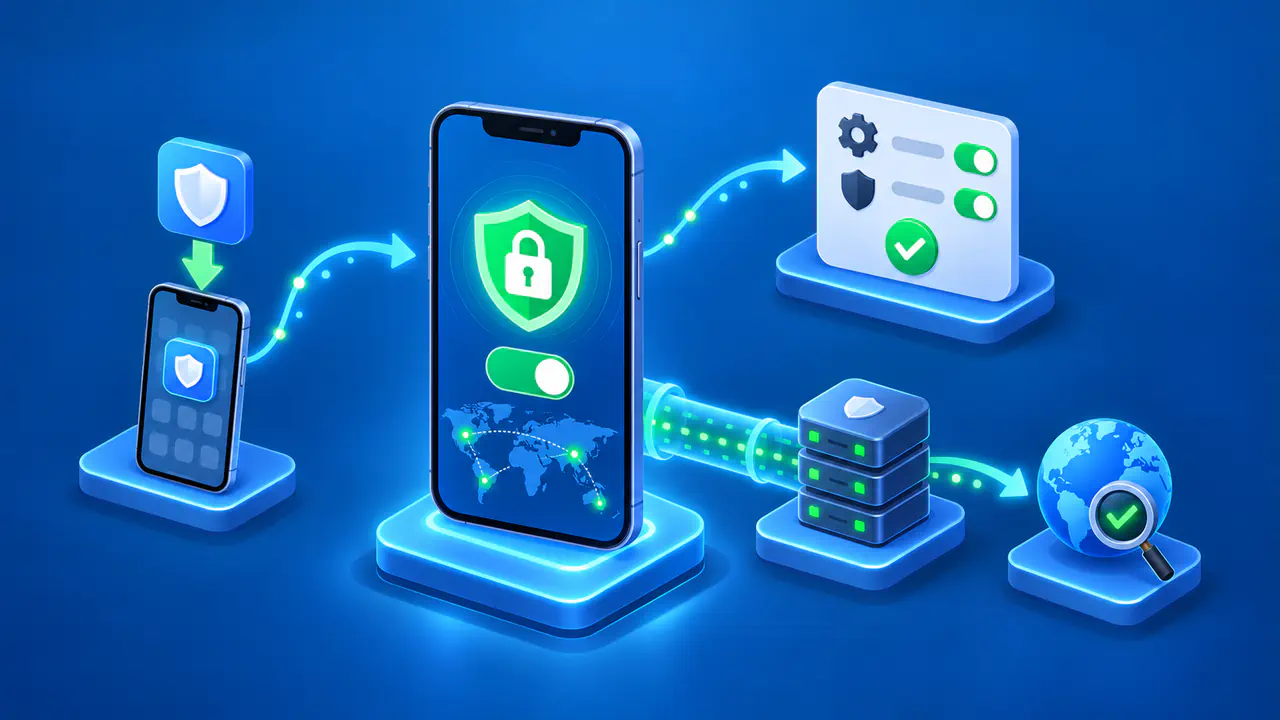
First make sure your Mac can reach the internet through WiFi or Ethernet. The VPN uses that existing connection to reach its server. If your provider has supplied a compatible settings file, use the file method below instead of retyping the same configuration.
- Open the Apple menu, choose System Settings, and select Network in the sidebar.
- Open the Action menu, choose Add VPN Configuration, and select the VPN type your provider specified.
- Enter a recognizable name in Display Name so you can identify this connection later.
- Fill in the server address and the account or identity fields shown for that VPN type.
- Enter the required authentication details and any additional settings supplied by your provider.
- Click Create to save the connection.
The fields change with the VPN type. For L2TP over IPSec, a Configuration menu lets you choose a saved set of settings; use Default if you do not need multiple configurations. IKEv2 has separate remote and local identity fields. If a required value is missing from your instructions, ask for it instead of copying an unrelated value from another field.
DNS and proxy settings may also be available. Enter those values only when your provider's instructions call for them, and keep the settings associated with the correct VPN service. Selecting the wrong certificate or entering an incorrect identity value can prevent authentication. If your screens differ, check the instructions for your macOS version before changing the connection type.
Use a Supplied Settings File
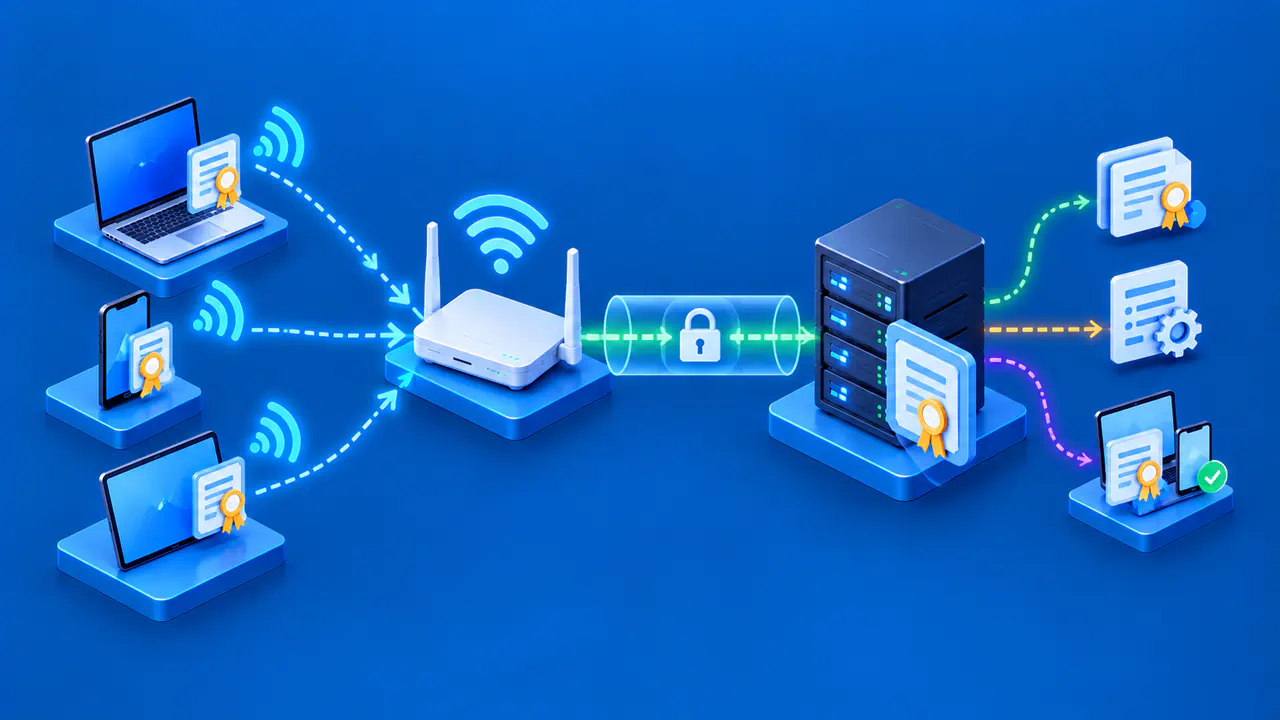
Before opening a VPN settings file, confirm that it came from your provider or administrator, especially if you were not expecting new connection settings. A compatible file lets you import the configuration without entering every value manually. Once you have confirmed the source, open the file and follow the installation prompts.
If the file is a macOS configuration profile, open System Settings → General → Device Management after opening the file. Double-click the profile in the Downloaded section, review its contents, and follow the displayed installation steps. A profile can contain settings for services besides the VPN, so check the full description before approving it. Menu labels can differ on older macOS versions.
Connect and Check Access
Open System Settings → VPN and turn on the service you created. Complete any sign-in prompt using the credentials required for that connection, then wait for a connected status. A name in the VPN list only shows that a configuration exists. The status tells you whether macOS has established the connection.
For a workplace VPN, open the internal website or shared resource your administrator asked you to test. An unchanged public IP can be normal when the VPN carries only traffic for the organization's private network. Access to an ordinary public website does not show whether that internal resource is reachable.
If the VPN should carry your browsing traffic, compare your public IP before and after connecting. Keep the same browser and internet connection for both checks, and request a fresh result after the VPN connects. Compare the addresses themselves, since a city shown beside an IP is only an estimate. This check shows the address exposed by that browser; it does not prove that every app follows the same route.
For quicker access later, you can show the VPN status menu in the menu bar. On macOS versions with Menu Bar settings, open that section of System Settings and select VPN. The menu lets you connect or disconnect without reopening the full settings page, and it can display the connection status and elapsed time.
Correct a Failed Connection
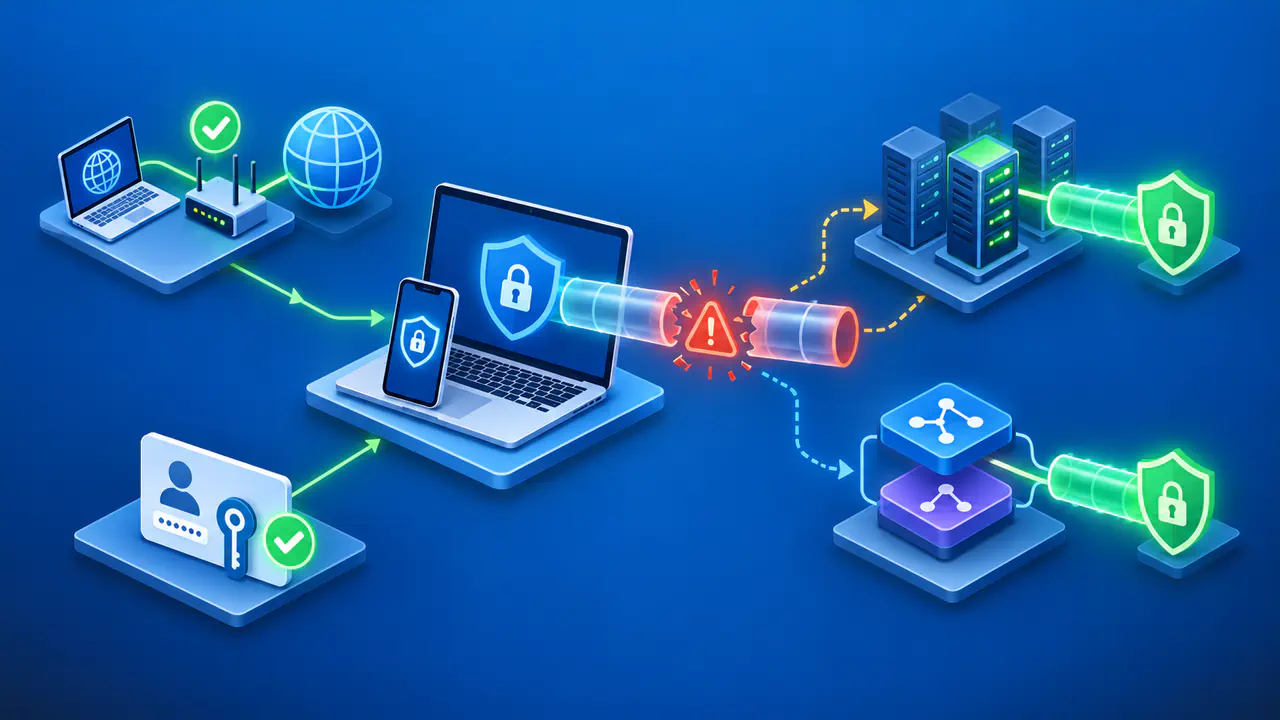
If setup fails, note the exact error and whether it appeared while saving the configuration, signing in, or connecting. Check ordinary internet access, then compare the VPN type, server address, and authentication details with your instructions. Correct one confirmed error at a time and reconnect so you can tell whether the change helped.
To edit a saved connection, open System Settings → VPN, click the Info button beside its name, update the relevant fields, and click OK. If the settings are correct but the connection still fails, send your provider the error, macOS version, VPN type, and time of the attempt. Keep passwords, private keys, and authentication codes out of screenshots or public support posts.
Disconnect or Remove the VPN
To end the connection, turn off the service in System Settings → VPN or use the VPN status menu. Check that the connected status ends. Disconnecting leaves the saved settings available for your next session, so you do not need to recreate the connection each time.
If you no longer need a manually added VPN, click its Info button, choose Remove Configuration, and confirm. Removing the configuration deletes the saved connection from your Mac; it does not close your account with the VPN provider. Ask your administrator before removing an organization-managed profile, which may also contain settings for other services.