How to Set Up Proton VPN on an iPhone
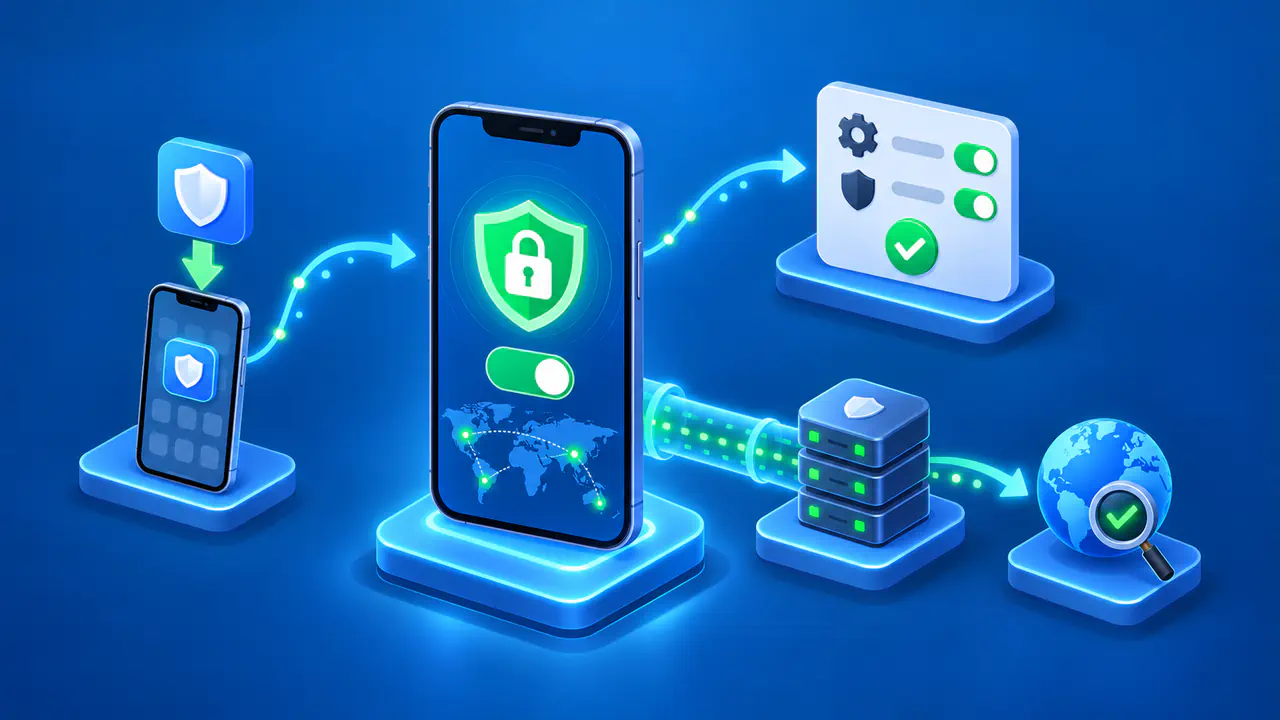
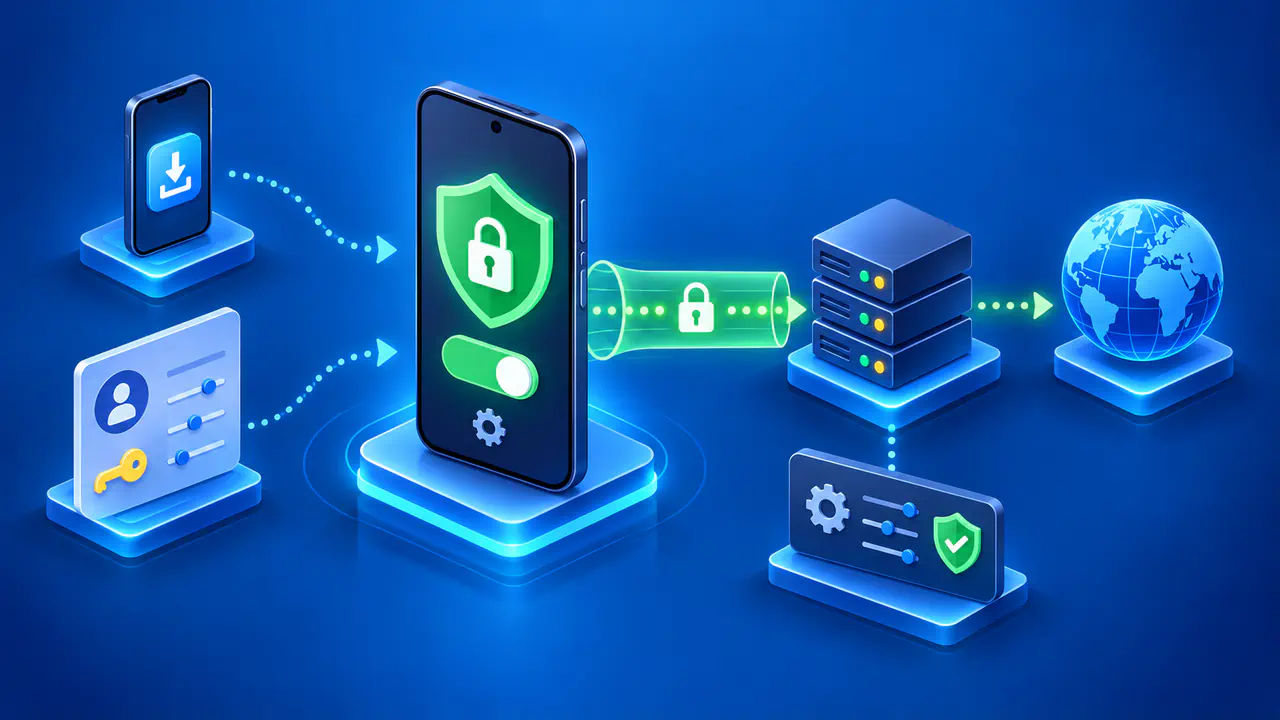
You can set up Proton VPN on your iPhone by installing the official app from the App Store. After installation, you sign in or use guest mode, start a connection, and let iOS add the VPN configuration. Installing the app does not turn the VPN on by itself.
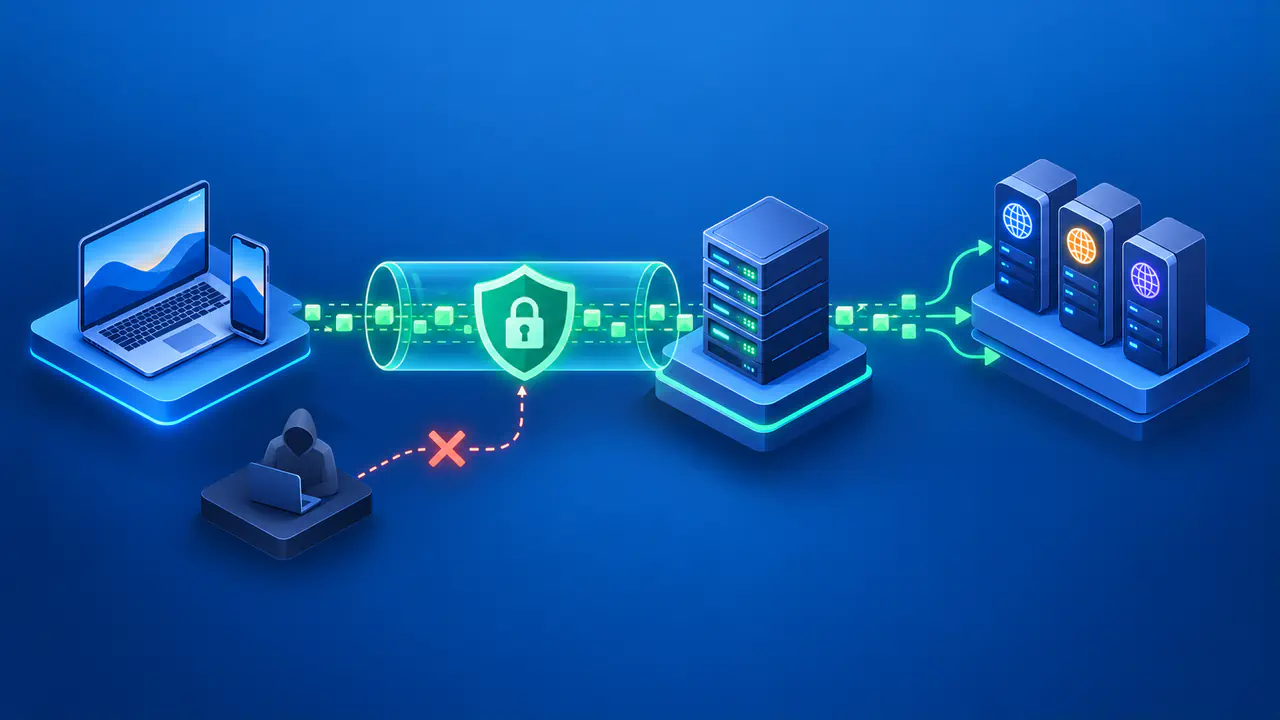
Once connected, your iPhone sends internet traffic through an encrypted connection to a VPN server. Checking the app's status and your browser's public IP address helps confirm that the first connection is working. You can use a free or paid plan; a subscription is not required for a basic connection.
Check the App and Account Requirements
First, check your iOS version in Settings → General → About. The current Proton VPN app requires iOS 17.0 or later. Check the Compatibility section of its App Store listing before downloading, since a future release may require a newer version.
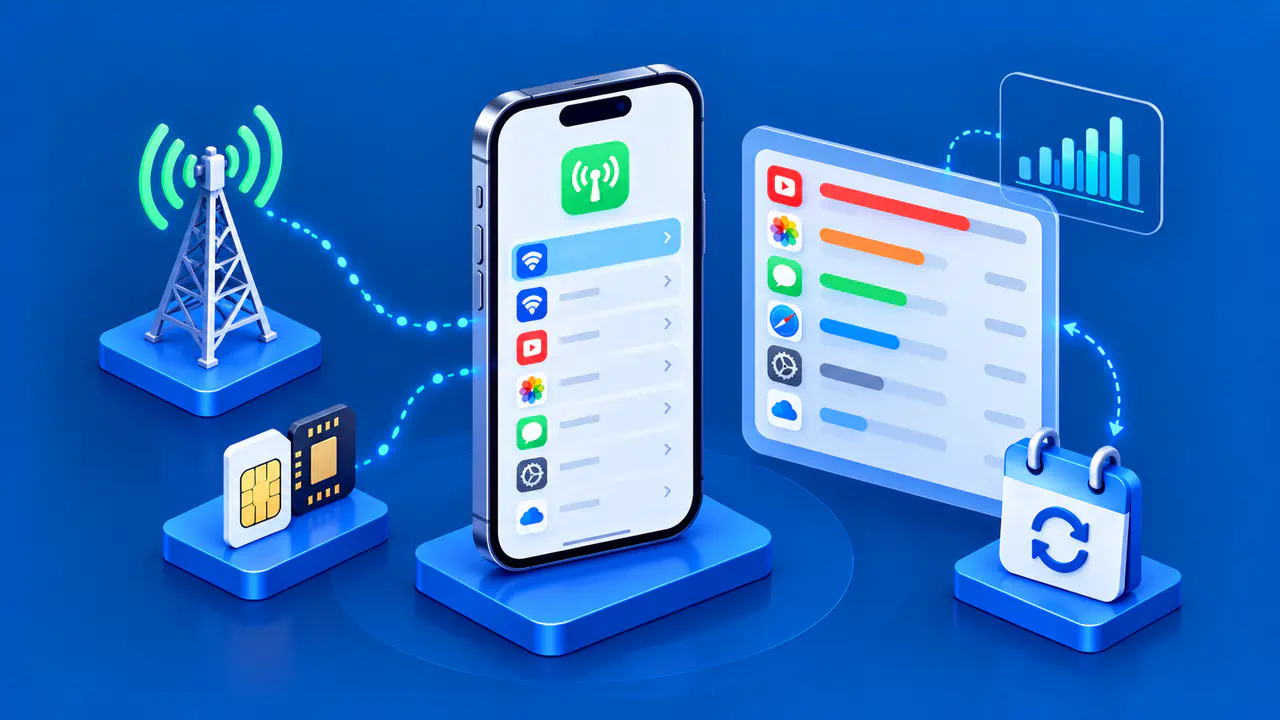
Make sure your iPhone has a working WiFi or cellular internet connection. Try opening a web page before you install the app; a VPN needs an existing internet connection to reach its servers. If you are setting up a work or school iPhone, ask the administrator whether you can install Proton VPN and add its VPN configuration. Device management rules may block either action.
You need an Apple Account to download apps from the App Store. Your Proton account is separate: it is the account you use inside Proton VPN, and an existing Proton Mail account works too. If you already pay for Proton VPN, use the Proton account associated with that subscription. Otherwise, you can use a free account or continue as a guest without creating one.
Install Proton VPN and Sign In
Open the App Store and search for Proton VPN. Check that the developer is Proton AG, then tap Get or the cloud download button if you have downloaded the app before. Complete any authentication the App Store requests and wait for the download to finish. A similarly named app from another developer is a different product.
Open Proton VPN and tap Sign in to enter your Proton username and password. If you want to create an account, choose Create an Account and follow the prompts. If you prefer to use the free features without an account, select Continue as guest instead. Enter your account details only in the official app or the Proton account pages it opens.
A free connection is enough to finish setup, but it does not let you choose any country you want. The app selects an available free server for you. Paid accounts have more location choices and additional features. You can ignore upgrade offers if you only need a free connection.
Connect and Allow the VPN Configuration
For your first connection, use the app's automatic server selection. The app will choose an available server under your plan:
- Select Fastest country and tap Connect.
- When iOS asks whether Proton VPN can add VPN configurations, tap Allow.
- Complete any device authentication requested by iOS, then let the connection finish.
- Check that the Home screen shows the connected state and a server location.
The permission request lets Proton VPN create the settings that iOS needs for the VPN connection. It is separate from signing in to your account or approving the App Store download. If you accidentally choose Don't Allow, try connecting again in Proton VPN to bring back the request. If device management blocks permission, ask your administrator to resolve the restriction.
The connected Home screen turns green. You can tap the active connection to see details such as the VPN server's IP address and the protocol in use. A server name in a list or a Connecting message does not mean the connection has finished. Wait for the connected state before checking your public IP.
Leave Smart Protocol enabled for the initial attempt so the app can choose a suitable way to connect. You do not need to select a protocol manually just to install and start the VPN. If the attempt fails, note the exact error and check that your internet connection still works before changing several settings at once.
Check Your Public IP Address
A public IP checker shows the address that a website sees for your browser connection. For a useful comparison, note the address before connecting to Proton VPN, then reload the same checker after the app reports that it is connected. If you have already connected without noting the earlier address, disconnect briefly to record it, then reconnect and check again.
The browser should show a different public IP when its connection goes through the VPN server. Compare the addresses themselves, not just the city or country labels beside them. Location estimates can be inaccurate, and a server in your own country can still give you a different IP address.
Keep the browser and WiFi or cellular connection the same during the comparison. If you also use another proxy or privacy relay, the checker may already show an address different from your internet provider's address before Proton VPN connects. A changed IP confirms what that browser connection exposes at the time of the check; it does not prove that every app or every type of traffic has been tested for leaks.
Disconnect from Proton VPN
To stop using the VPN, open Proton VPN, tap Disconnect, and wait for the status to change to Unprotected. Internet traffic can then use your normal connection, subject to any other VPN, proxy, or blocking settings. If you have enabled an advanced kill switch, that setting can block internet access even after you disconnect. Reconnect through the app when you want to use Proton VPN again.
Get Help with Setup
If setup still fails, open Settings in Proton VPN and choose Report an issue. Describe the step that failed and include the exact error, your iOS and app versions, and whether you were using WiFi or cellular data. Keep passwords and authentication codes out of the report. Send any diagnostic information through the support form rather than posting account details or screenshots publicly.