How to Change Your WiFi Password
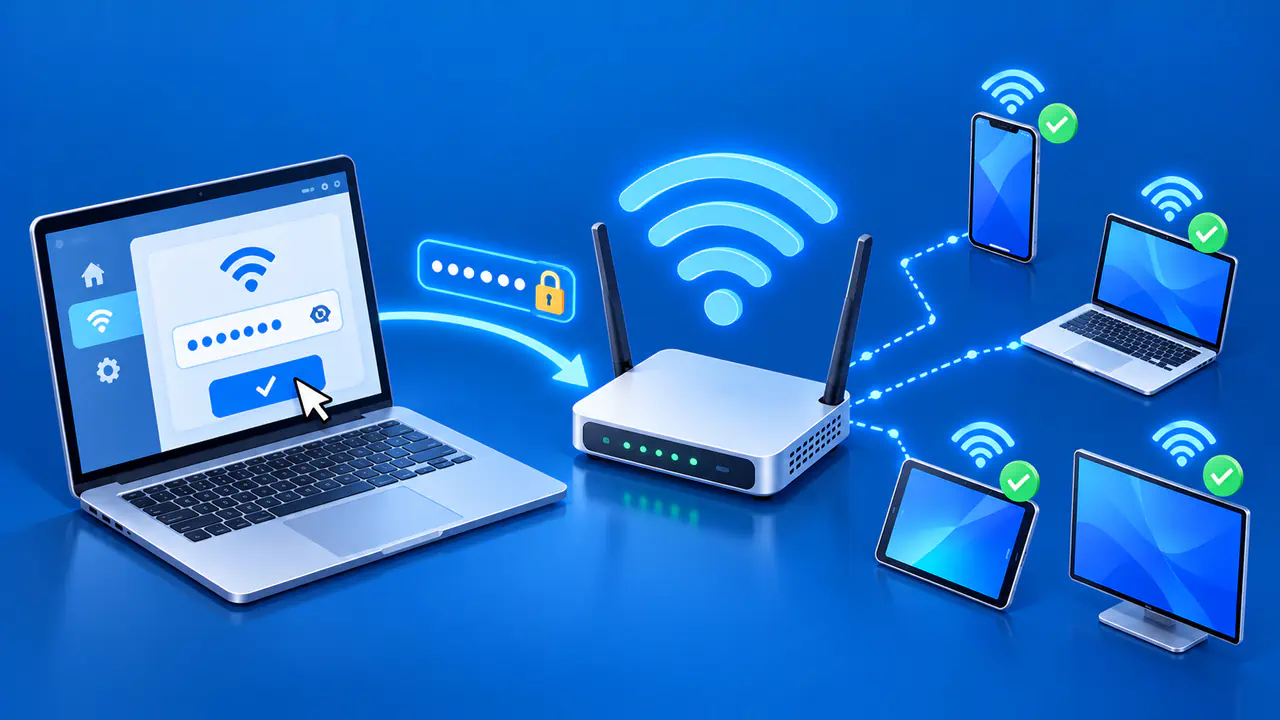
To change your home WiFi password, open the router's app or settings webpage, replace the password for the intended network, and apply the change. Devices using the old password will need the new one to reconnect. This changes the password used to join WiFi, rather than the login used to manage the router.
Use the current instructions from your router manufacturer or internet provider for your exact model. Menu names differ between brands, firmware versions, and apps. Plan for a brief interruption, and choose a time when the people using your network can pause calls, games, or other online activity.
Before You Change the Password
Identify the router or internet provider's gateway that provides the WiFi network you want to change. Check the network name, also called the SSID, on a connected device and in the router's settings. If the network belongs to a workplace or is managed for your building, ask its administrator to make the change.
A router administrator password gives access to the router's settings. An internet provider's app may instead ask you to sign in with your internet service account. These logins are separate from the WiFi password entered on phones, laptops, and other wireless devices. Make sure you can sign in to the correct management page or app before changing anything.
If you have lost access to the router settings, follow the recovery instructions from the router manufacturer or your internet provider. A factory reset can erase your custom network settings, so it is not a routine step for changing a WiFi password. You may need help from the provider if it manages the equipment.
Before saving a new password, note which devices depend on the network, including computers, televisions, printers, and smart home devices. Keep a computer connected by Ethernet if practical, because a phone using WiFi may disconnect as soon as the change takes effect. Have a private record of the new password available so you can reconnect that phone.
Change the Password in Your Router Settings
Sign in through the router maker's supported app or the router's local management page. If your internet provider manages the gateway through its own app, use that app's WiFi settings. Select the intended network and look for a field labeled WiFi password, wireless password, passphrase, or network key.
Check the SSID beside the password field. If the router has separate settings for different frequency bands, confirm which network you are editing. A guest network can have its own password, so changing the main network may leave guest access unchanged.
- Replace the existing WiFi password with a long, unique password that the router accepts. Follow the router's limits on password length and supported characters. Avoid personal details, predictable patterns, and passwords you already use for online accounts.
- Review the changes before saving. For a password change alone, the network name, LAN IP address, and DNS settings can stay as they are. Check that you edited the wireless password rather than the administrator login.
- Select Save or Apply, then wait for the router to apply the settings. The phone or computer you are using may lose its WiFi connection. If that happens, reconnect with the new password before reopening the router's settings.
Keep wireless security enabled. WPA3 Personal is an option when the router and devices support it, while WPA2/WPA3 Transitional allows compatible older devices to use WPA2. If your network uses an outdated mode such as WEP, a stronger password alone will not fix that weakness. Before switching security modes, check which modes your router and devices support, since older devices may not support WPA3.
Examples in NETGEAR and ASUS Apps
In the NETGEAR Nighthawk app, open WiFi Settings and choose the network whose password you want to change. Change only the password field if you want to keep the existing network name, then tap Save. These steps apply to routers supported by the Nighthawk app.
In the ASUS Router app, supported routers running firmware 3.0.0.6.102_35404 or later use Settings > Network > Main network profile. The earlier layout uses Settings > WiFi > Wireless Settings > Network Settings. Open the network's password setting, enter the new password, and tap Apply.
Check the model and firmware if those menus do not match your screen. Your internet provider may supply a router or app with different menus. Follow the instructions for that equipment instead of changing a similarly named account password.
Reconnect Phones, Computers, and Other Devices
After the router applies the new password, select the same SSID on a phone or computer and enter the password exactly, including uppercase and lowercase letters. Some devices prompt automatically, while others keep trying the old saved password. In that case, edit the saved network details or forget the network and join it again.
Reconnect the other wireless devices you listed before the change. For some smart home devices, you need to enter the new WiFi password in the device's app or run its setup process again. Follow the product's instructions, since changing the router's setting does not automatically update every connected device.
If a device rejects the password, compare the network name and exact characters with your private record. Check for an old saved password, incorrect capitalization, or an accidental extra character. If several devices fail, confirm that the router saved the change and that you edited the network those devices use.
Store the New Password and Check the Connection
Store the new WiFi password in a trusted password manager or another private record accessible to the network owner. Label the saved password with the SSID and keep it separate from the router administrator password. Share the WiFi password only with people who are allowed to join the network. Replace old printed notes or saved sharing codes that contain the former password.
Confirm that a reconnected device has joined the intended WiFi network, then open a website to check internet access. Joining WiFi does not by itself confirm that the internet connection works. If the device joins but cannot browse, check the router's internet status before changing the password again.
Check a second device if one is available, then confirm that printers and other devices you rely on are back online. If one device still cannot connect while the others work, check that device's saved network details and setup requirements.