How to Find Your IP Address on a Mac
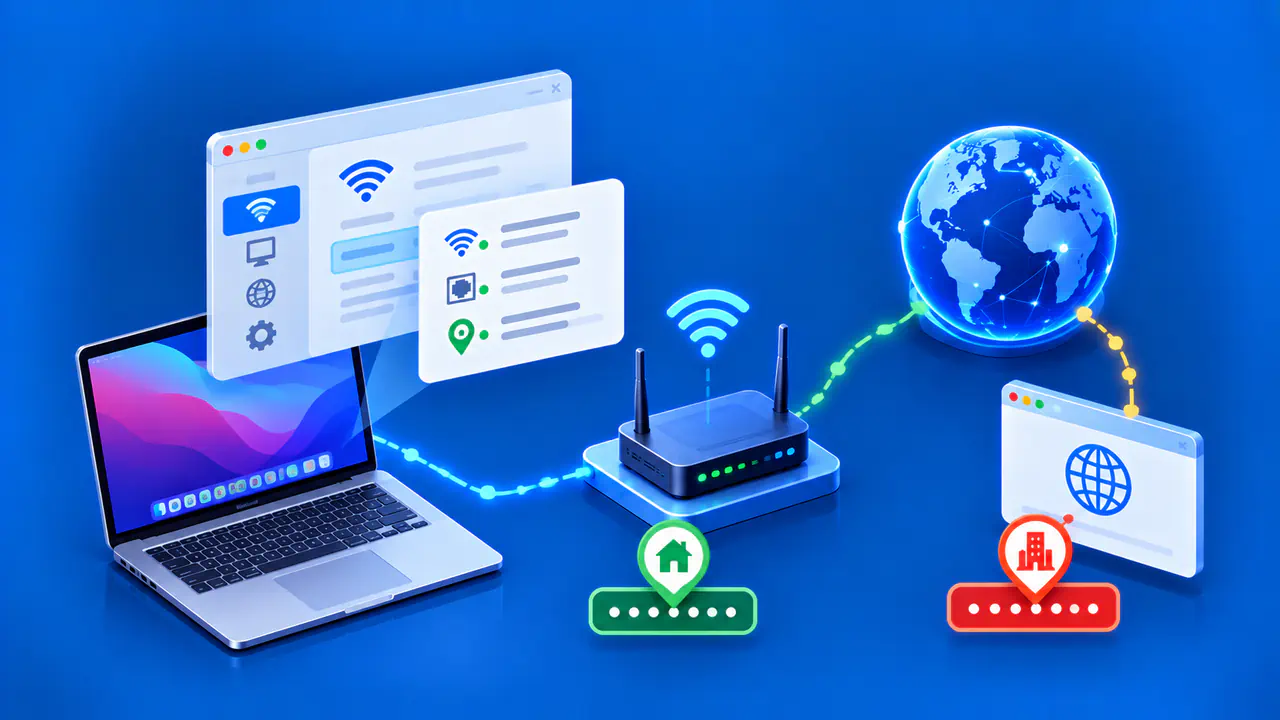
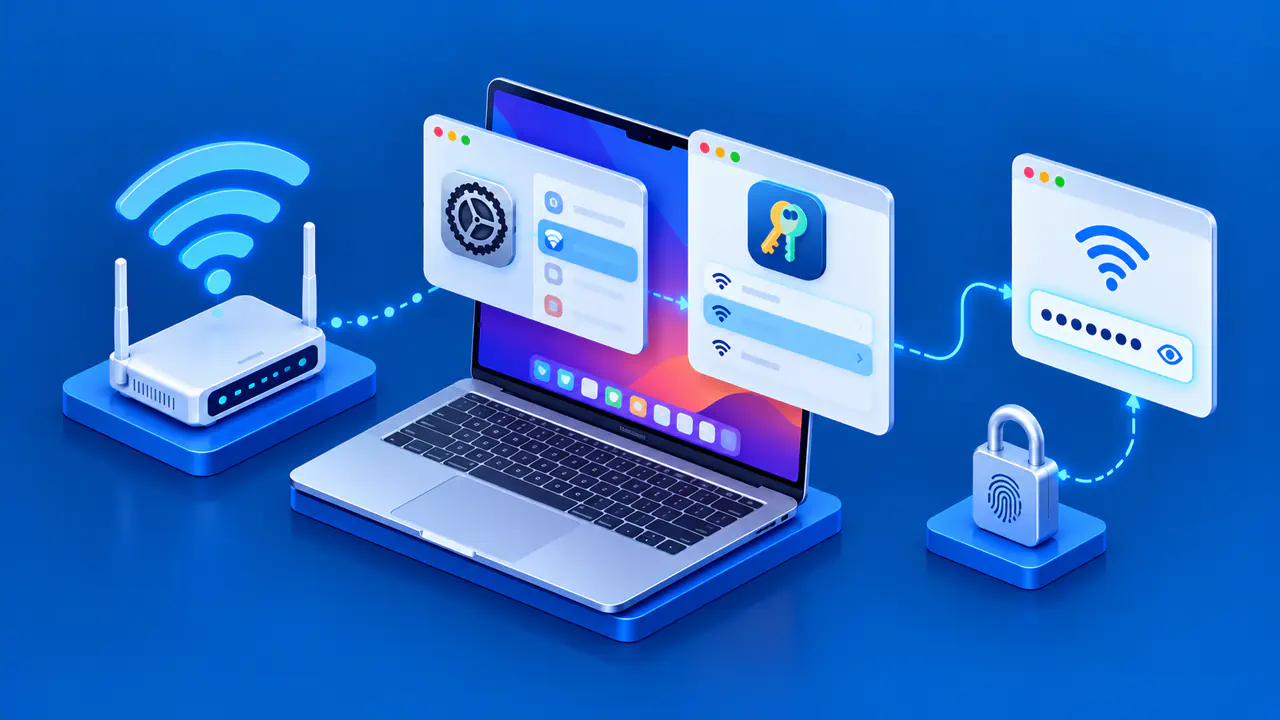
To find your IP address on a Mac, open System Settings, select Network, choose the connected network service, then open Details and TCP/IP. The IPv4 and IPv6 fields show addresses assigned to that connection. A website may see a different address if the request passes through a router that translates addresses, a VPN, or a relay.
Start with the connection you want to inspect. A Mac can use Wi-Fi and Ethernet at the same time, and a VPN can add another connection. An address listed for one service does not identify every connection on the Mac or prove which route a particular browser request used.
Select the Connected Network Service
In macOS versions that use System Settings, open the Apple menu and select System Settings, then Network in the sidebar. Check the status shown beneath each service name and select the connected Wi-Fi or Ethernet service you want to inspect. A service can remain in the list when its cable is unplugged or its wireless connection is disconnected.
For Wi-Fi, check the name of the network you joined. An Ethernet connection through a dock or USB adapter may have a name associated with that adapter. Service names can also be customized, so use the connection type and current status to identify the right entry.
Older macOS versions use System Preferences instead of System Settings. The Network pane has a different layout, but you still select a connection before viewing its TCP/IP information. Instructions for another macOS version may use different buttons or place the same fields on another screen.
Read the IPv4 and IPv6 Address Fields
With the service selected, click Details and then TCP/IP. The available fields depend on the type of connection and its configuration. Read the IPv4 address field if it contains a value, and check the IPv6 address information as well. The Configure IPv4 and Configure IPv6 menus describe how addresses are obtained; their labels are not the addresses themselves.
For example, Using DHCP means the Mac obtains its IPv4 configuration automatically from a DHCP server. On a home network, the router commonly provides that service. Reading the current value does not require changing the configuration method or requesting a new address.
Identify the Address to Copy
An IPv4 address consists of four numbers separated by periods. Private IPv4 addresses fall within 10.0.0.0–10.255.255.255, 172.16.0.0–172.31.255.255, or 192.168.0.0–192.168.255.255. A Mac might, for example, have 192.168.1.24 on a home Wi-Fi network. Another household can use that same address for a different device, so the value does not identify a unique internet connection.
IPv6 addresses contain hexadecimal digits grouped with colons. An interface can have a link-local address beginning with fe80: and other IPv6 addresses with a broader scope. The link-local address is used on that network link and is not a source address for traffic to a remote internet site. Do not assume that several IPv6 entries mean the configuration is wrong.
The Router field is separate from the Mac's own address. The listed router provides a next hop for traffic that needs to leave the local network through that connection. A subnet mask or prefix length describes the network portion of an address. For the Mac's IP, copy the address value, not the router or mask, and keep the IPv4 or IPv6 label with it.
Copy the complete value, including all four IPv4 numbers or the entire IPv6 address. If a support request specifically asks for IPv4, an IPv6 value is not a substitute. Check the end of a long IPv6 entry when selecting text so that part of the address is not left behind.
Compare Multiple Connections
If both Wi-Fi and Ethernet are connected, inspect each service separately. Each connection can have its own addresses, and macOS uses a service order to establish a preference among available connections. VPN routing can also affect where traffic goes. The first service you click is not necessarily the one used to reach a particular destination.
When the Mac joins a phone's Wi-Fi hotspot, inspect the Mac's Wi-Fi connection to that hotspot. If the phone uses cellular data, the Mac can receive a local address while the internet request leaves through the phone's carrier network. A VPN's virtual interface can have another address without replacing the Wi-Fi service's local address.
A local address can change when the Mac joins another network or receives a different DHCP assignment. When comparing readings, keep the service name, address family, and time with each value. An earlier screenshot describes the configuration at that earlier time, so reopen the connection details after a network change.
Check the Address a Website Sees
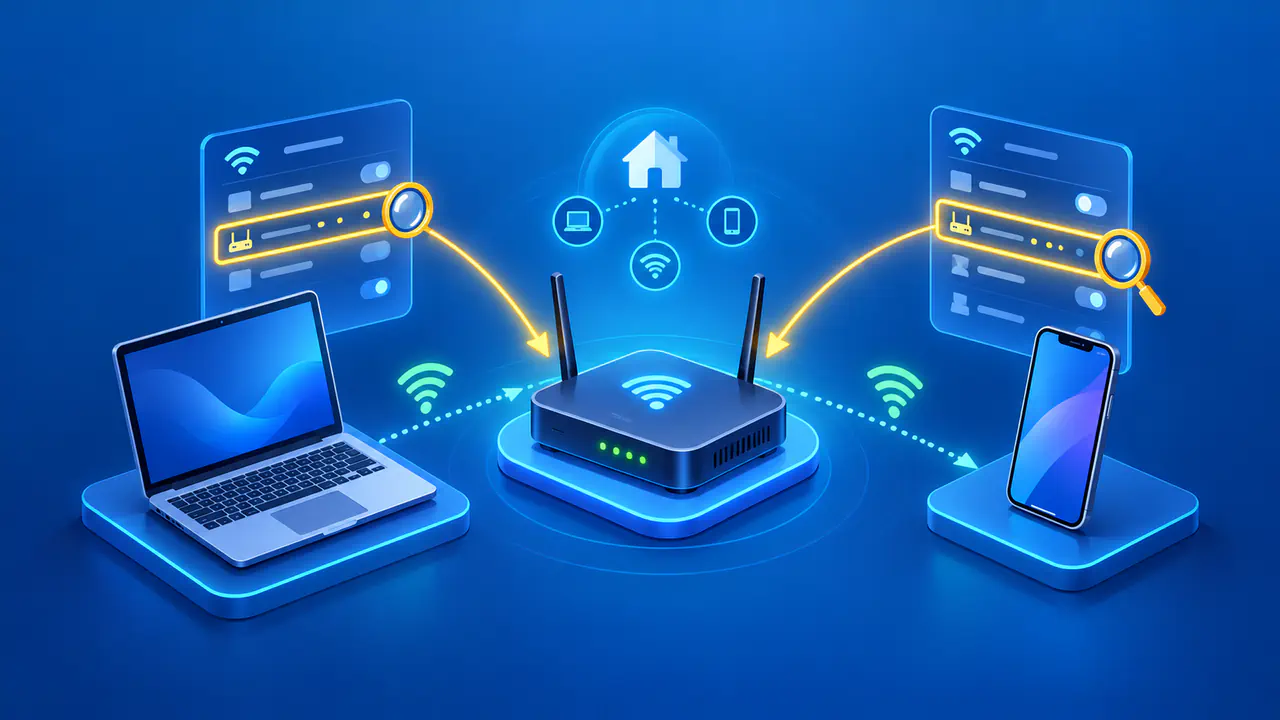
A public IP lookup reports the source address observed for the request sent to that service. Open the lookup in the browser and on the connection you want to check. On a typical home IPv4 network, address translation at the router or internet provider lets devices with separate private addresses share a public address. The website's result can therefore differ from the address in the Mac's TCP/IP settings.
If the browser request uses a VPN, privacy relay, or proxy, the lookup may report that service's exit address. A result from one website does not establish that every app follows the same path. When comparing results, note which app made each request and whether a VPN, proxy, or relay was enabled.
Check whether the lookup used IPv4 or IPv6. The site's available addresses, the Mac's network connectivity, and the browser's connection choices can all affect which family is used. Two lookups can therefore produce different results on the same Mac. If a request uses an IPv6 address assigned directly to the Mac, the website may report the same address that appears locally.
After switching networks, reload the lookup to obtain a result for a new request. Keep the local and public readings labeled when sending them to support, and omit unrelated network details from screenshots. An address read from TCP/IP settings describes the Mac's configuration; an address returned by a website describes what that site observed.