How to Find Your IP Address on an iPhone
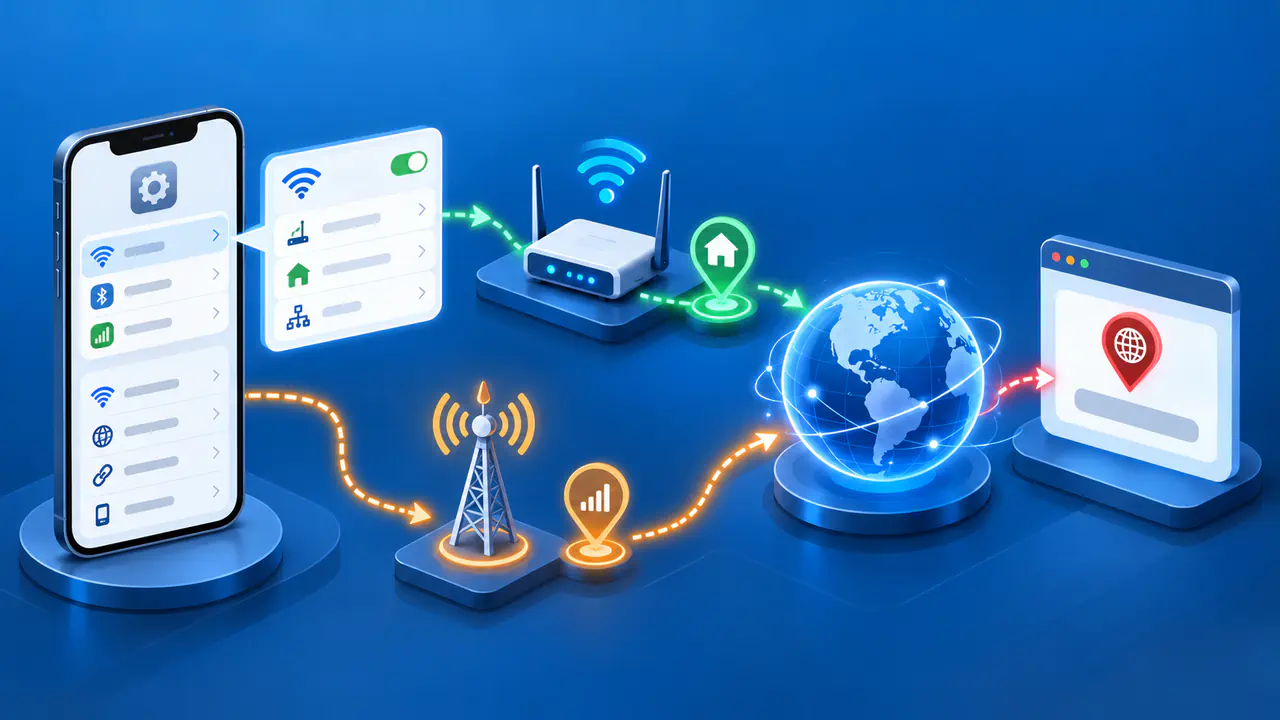
On an iPhone, open Settings, tap Wi-Fi, and tap the information button beside the connected network. The IP Address field shows the address assigned to the phone on that Wi-Fi network. A public IP lookup in a browser instead reports the address seen by the lookup service.
The address you need depends on what you are checking. A Wi-Fi address can help identify the phone on a local network, while a website's access log records the address used for that request. Cellular data, a VPN, or iCloud Private Relay can change what a website sees without changing the address shown in the Wi-Fi details.
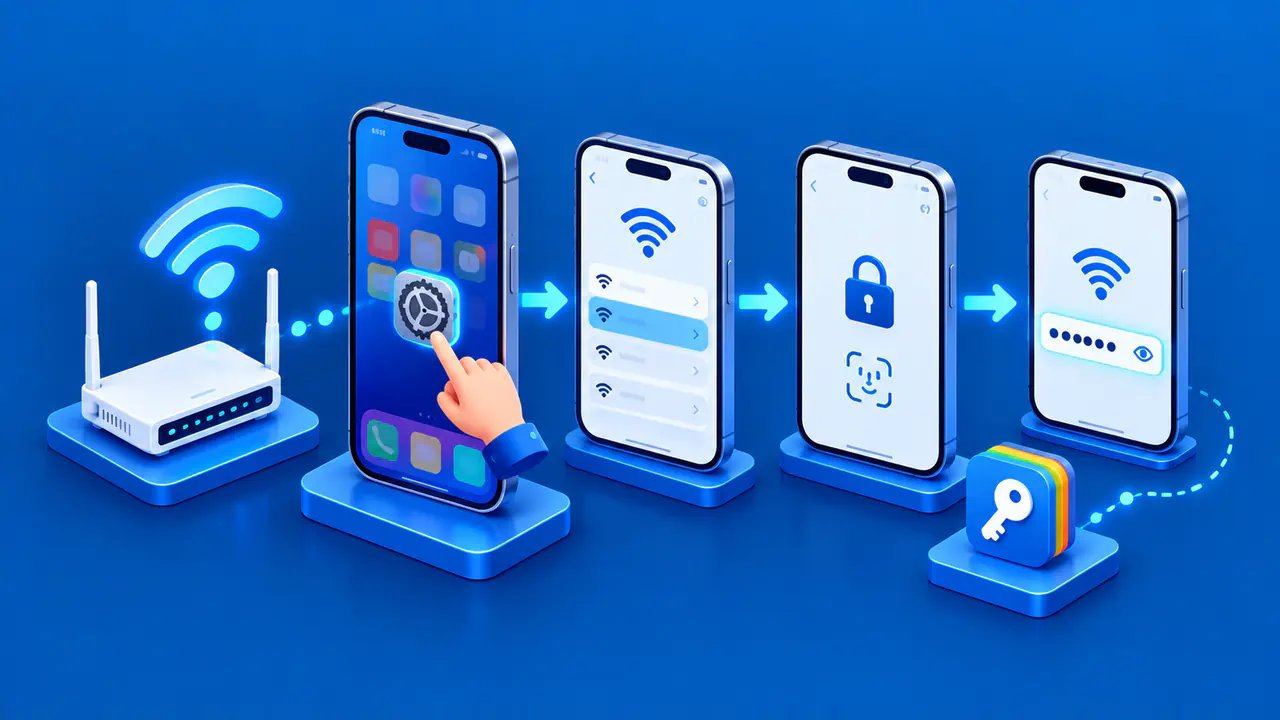
Open the Connected Wi-Fi Network Details
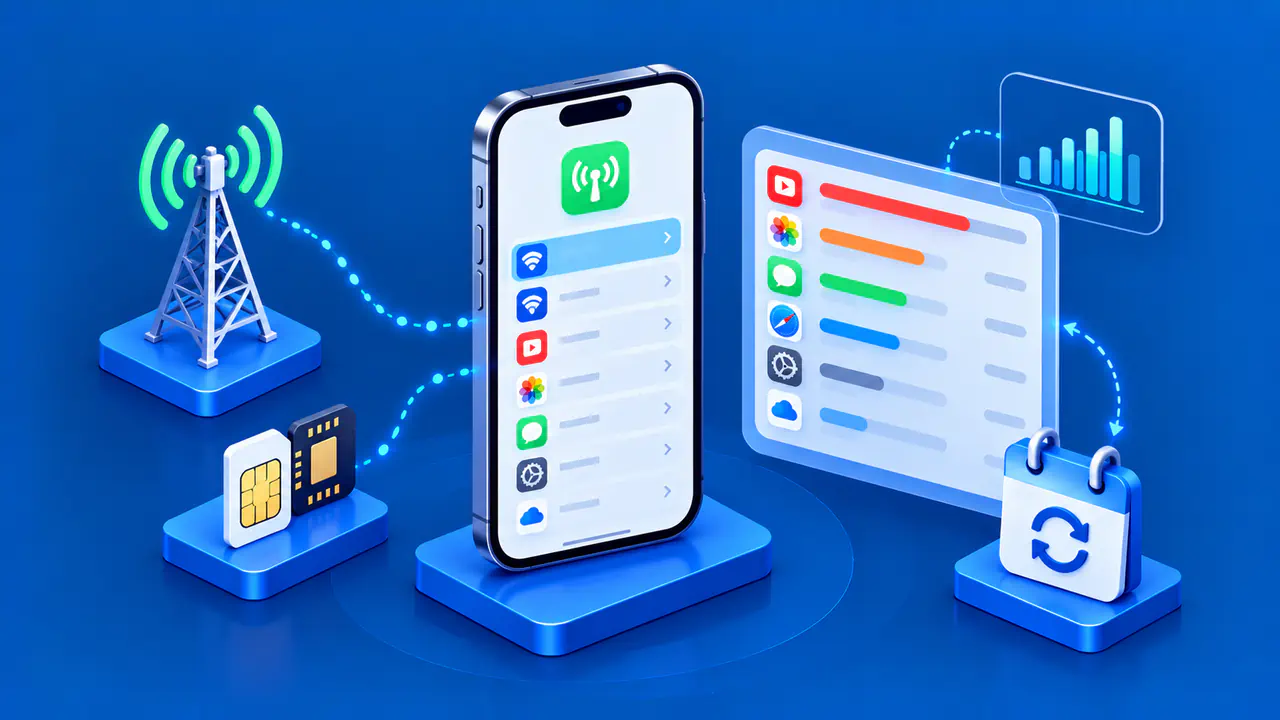
In Settings, tap Wi-Fi and look for the blue checkmark beside the network name. The checkmark identifies the network the iPhone has joined. Tap the information button, shown as a small i in a circle, next to that network.
Scroll to the IPv4 address section and read the IP Address field. The same screen can contain saved settings and other network options, so check the field label before copying a value. The layout may vary with the iOS version, but the network name tells you which Wi-Fi connection the details describe.
If Wi-Fi is disconnected, a saved network entry is not evidence of a current address on that network. After joining a different network, reopen its details and read the current value. An address copied earlier may no longer describe the connection you are using.
Read the Address Fields
An IPv4 address contains four numbers separated by periods. Many home networks assign addresses from the private ranges 10.0.0.0–10.255.255.255, 172.16.0.0–172.31.255.255, and 192.168.0.0–192.168.255.255. These ranges can be reused on separate networks, so a value such as 192.168.0.20 does not uniquely identify an iPhone across the internet.
The Router field identifies a gateway for that connection, rather than the iPhone's own address. The subnet mask describes which part of the IPv4 address identifies the local network. Neither field should be substituted for the IP Address value when someone asks for the phone's assigned address.
If IPv6 addresses appear in the network details, read them separately from IPv4. IPv6 uses hexadecimal digits and colons, and an interface can have addresses with different scopes. A link-local address beginning with fe80: is for communication on that local link, while another IPv6 address may support connections to internet services. The presence of both IPv4 and IPv6 is not itself a fault.
Copy the complete address, including every IPv4 number or the full IPv6 value. Keep the address-family label with the result, especially if a support request asks for a particular type. Reading an address does not require changing the configuration, forgetting the network, or resetting network settings.
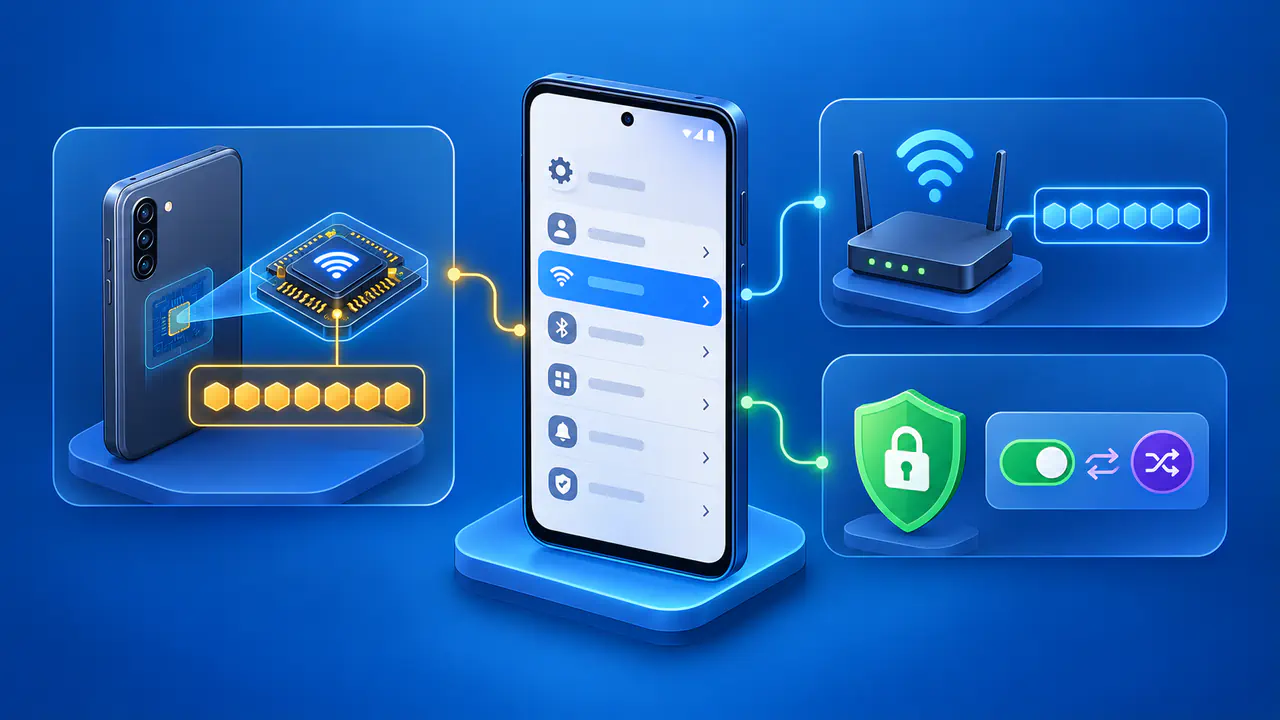
Other controls in the details have different purposes. Private Wi-Fi Address concerns the phone's MAC address, which identifies it on the Wi-Fi network. Limit IP Address Tracking is related to privacy protections, including iCloud Private Relay when available and enabled. Neither control is the field containing the phone's assigned IP address.
Distinguish Wi-Fi from Cellular Connections
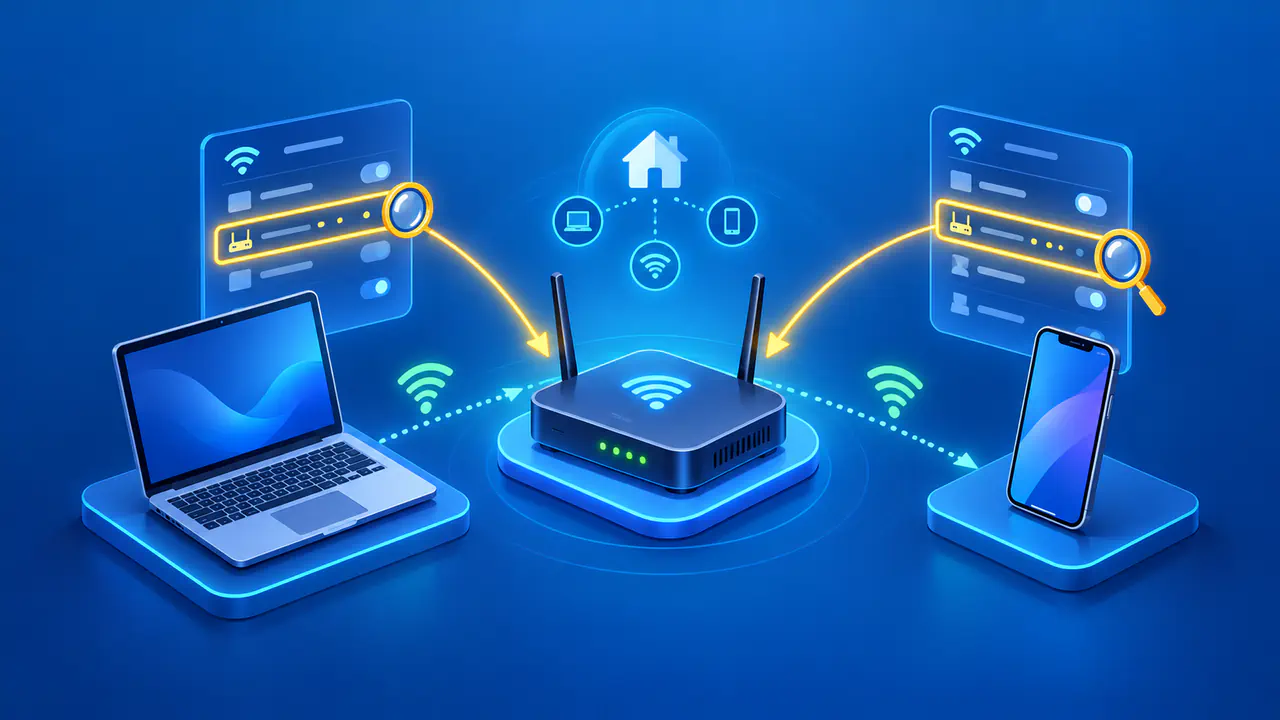
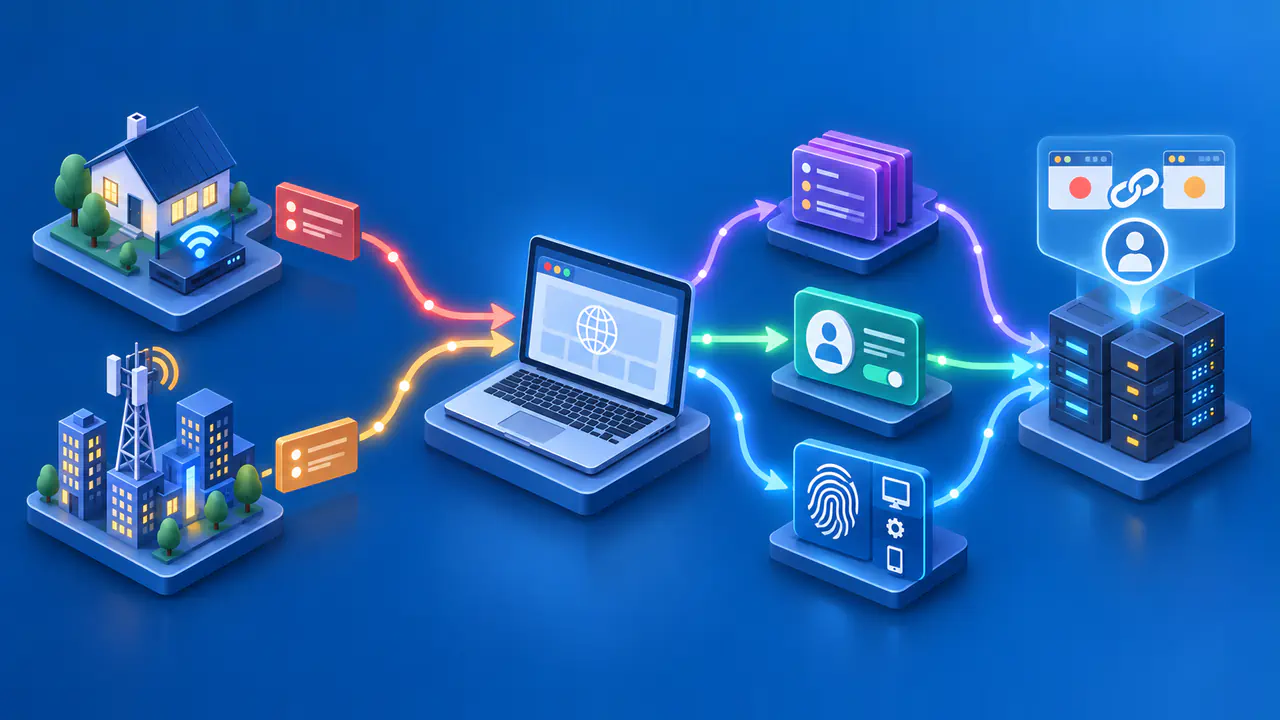
A Wi-Fi request normally travels through the local network's router and internet provider. On a typical home IPv4 network, address translation lets several devices with different private addresses share a public address. A website then sees that public address as the source of the request, rather than the private address in the phone's settings.
Cellular data uses the mobile carrier's network. A carrier can also share a public IPv4 address among customers, so the observed address need not belong exclusively to one iPhone. The Wi-Fi details screen does not display the public address of the cellular connection. Cellular signal bars show service availability or strength, not the source IP address of a browser request.
Depending on the iOS version, Connectivity Assist or Wi-Fi Assist can use cellular data when Wi-Fi is poor. A connected Wi-Fi entry therefore does not, by itself, prove that a particular request used only Wi-Fi. Check the connection indicators and the relevant assist setting when a lookup produces an unexpected result.
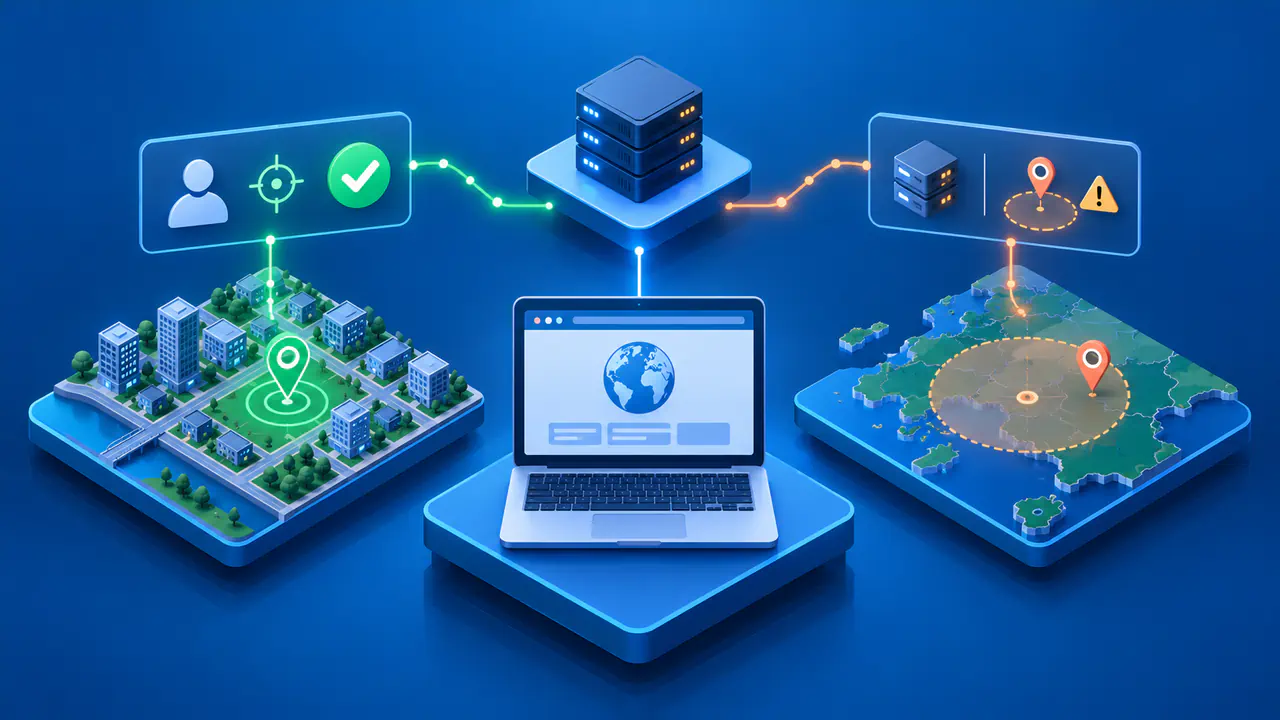
For example, an iPhone might show 192.168.0.20 in Wi-Fi details while a website reports a different IPv4 address. The local address describes the phone's configuration on that network; the website reports the source address it observed. Loading the page later over cellular data may produce another result. None of these readings alone identifies the phone's precise location.
Check the Public Address Separately
Open a public IP lookup in a browser and request a current result. When comparing Wi-Fi and cellular readings, record the connection in use and whether each result is IPv4 or IPv6. Compare results from the same address family if you are trying to determine whether the source address changed.
If the request passes through a VPN or proxy, the website may see that service's exit address. Safari requests handled by iCloud Private Relay can also appear to come from a relay address. One browser result does not establish which address every other app uses, so include the app name when reporting a discrepancy.
A globally reachable IPv6 address assigned to the iPhone may appear both in the network details and in a website's result when the request uses that address directly. A mismatch is also possible because the phone has several addresses or the request follows a different route. The web result describes one request, rather than listing every address assigned to the device.
After a network change, reload the lookup instead of relying on a page left open from an earlier connection. Keep the time and connection type with each reading. For a support request, label the local and observed public addresses separately, and leave unrelated network information out of screenshots.