How to Find Your IP Address on Android
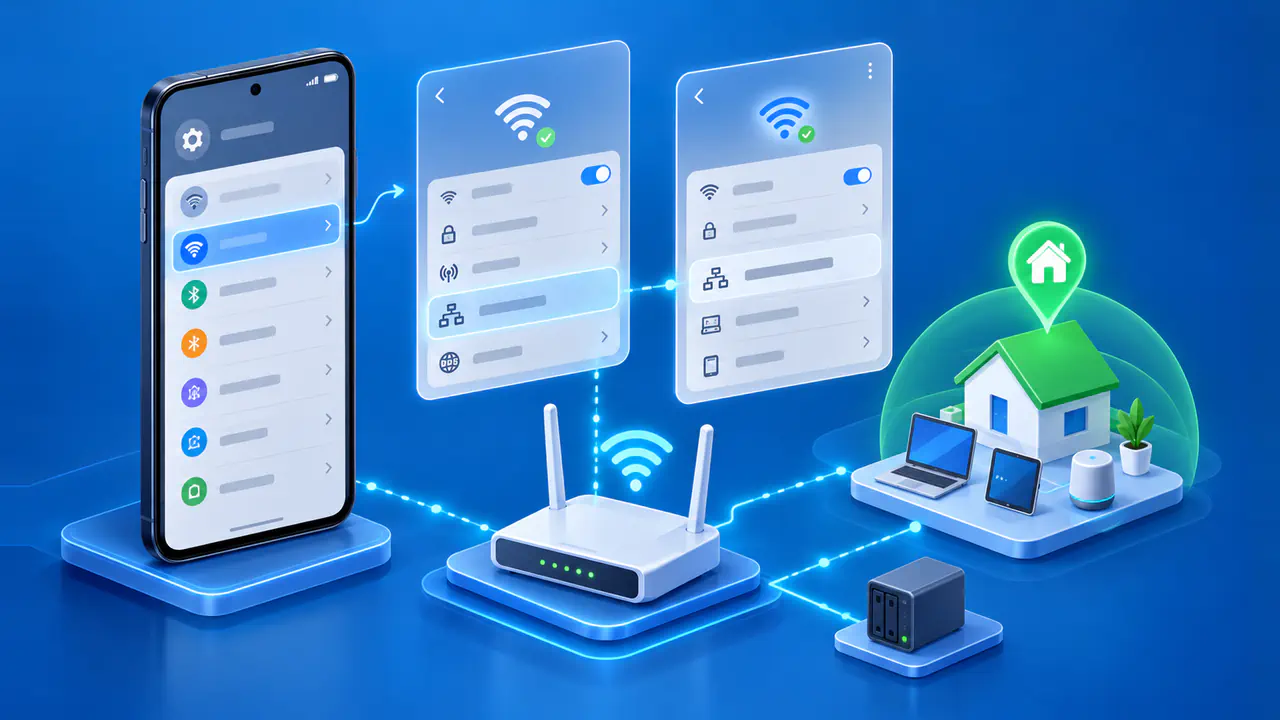
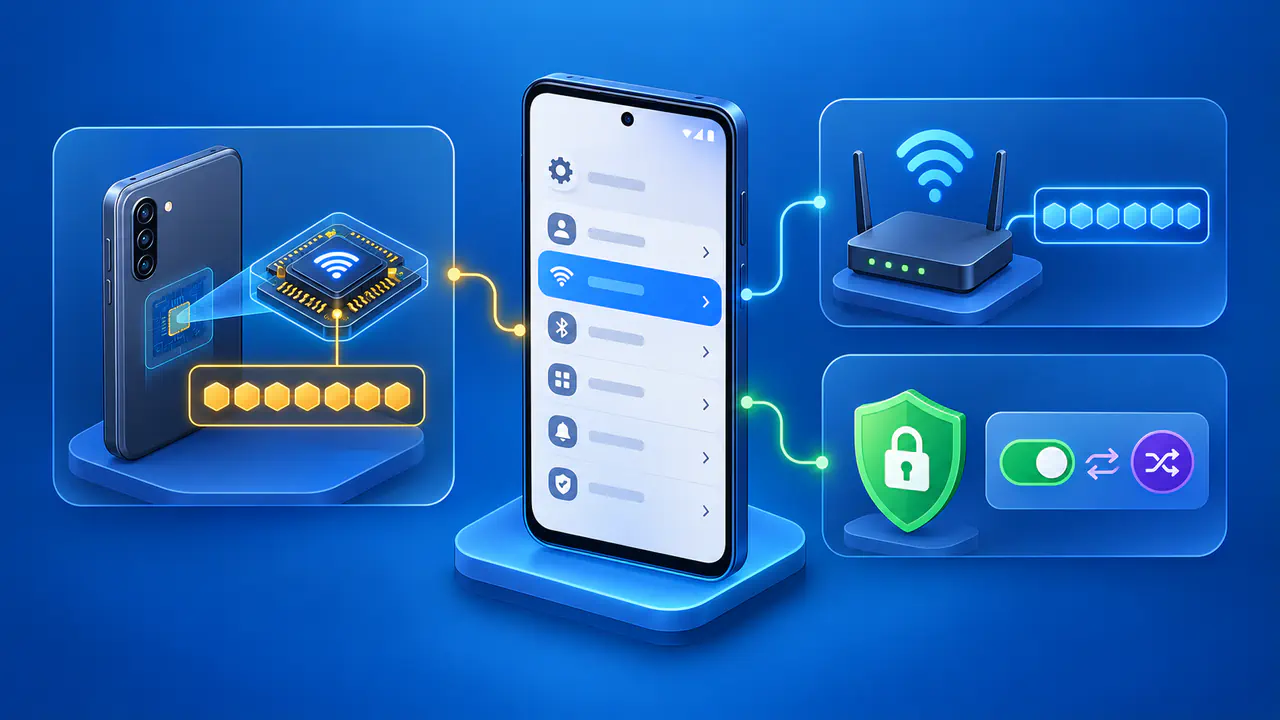
To find an Android phone's Wi-Fi IP address, open Settings and select the connected network in the Wi-Fi or Internet section. Look for the IP address field in that network's details. The menu names depend on the phone maker and Android version, but the field identifies an address assigned to the phone for that connection.
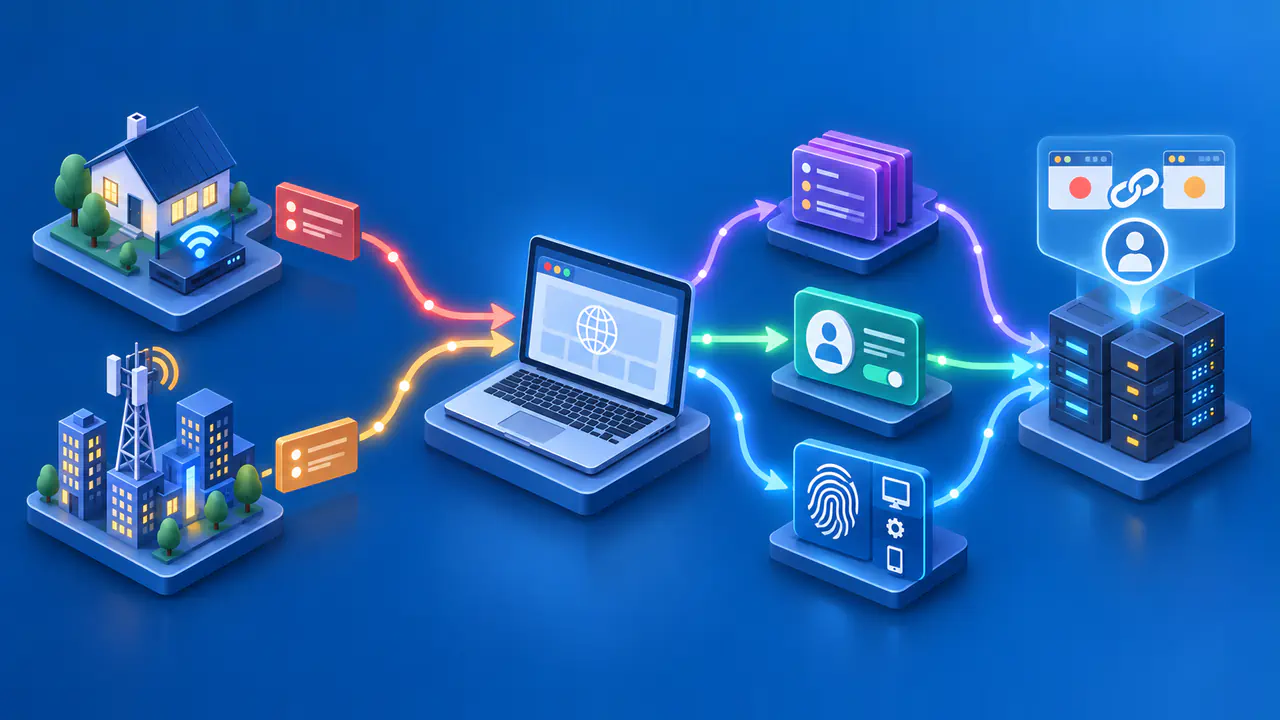
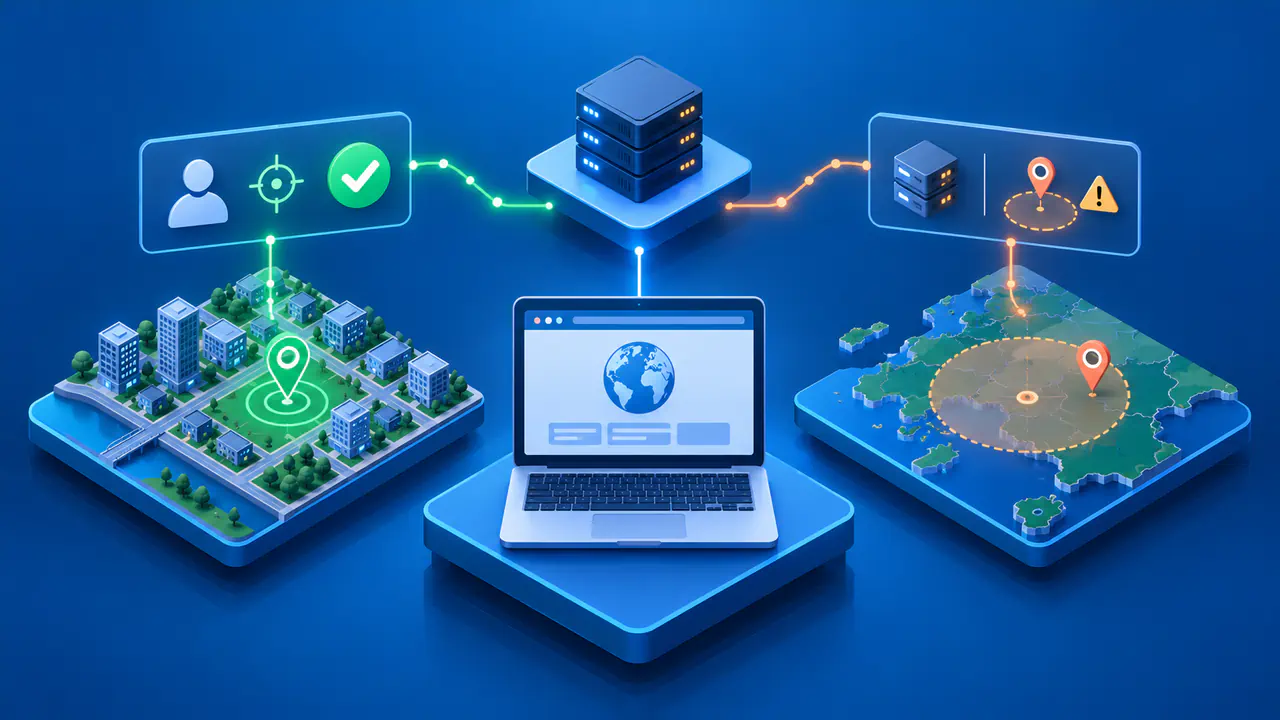
A public IP lookup answers a different question: which address did the website see when the phone contacted it? The result can differ from the address in Wi-Fi settings, particularly over mobile data or a VPN. Decide whether you need the phone's address on the local network or the address observed by an internet service before copying a value.
Open the Connected Network's Details
A common path is Settings, Network & internet, then Internet. Galaxy phones commonly use Settings, Connections, then Wi-Fi. Some devices use the label WLAN instead of Wi-Fi, so an unfamiliar menu name does not necessarily mean the setting is missing.
Find the network marked as connected. Tap its name or the settings icon beside it to open the details, depending on the interface. A saved network that is not currently connected does not establish which address the phone is using now.
Check the connection again if you have just moved between networks. Some phones can use mobile data when Wi-Fi becomes unstable, even though a Wi-Fi network remains listed. For example, supported Galaxy models have a Switch to mobile data option under Intelligent Wi-Fi. The details of one Wi-Fi network describe that connection, rather than proving the route taken by every app request.
Read the IP Address Field
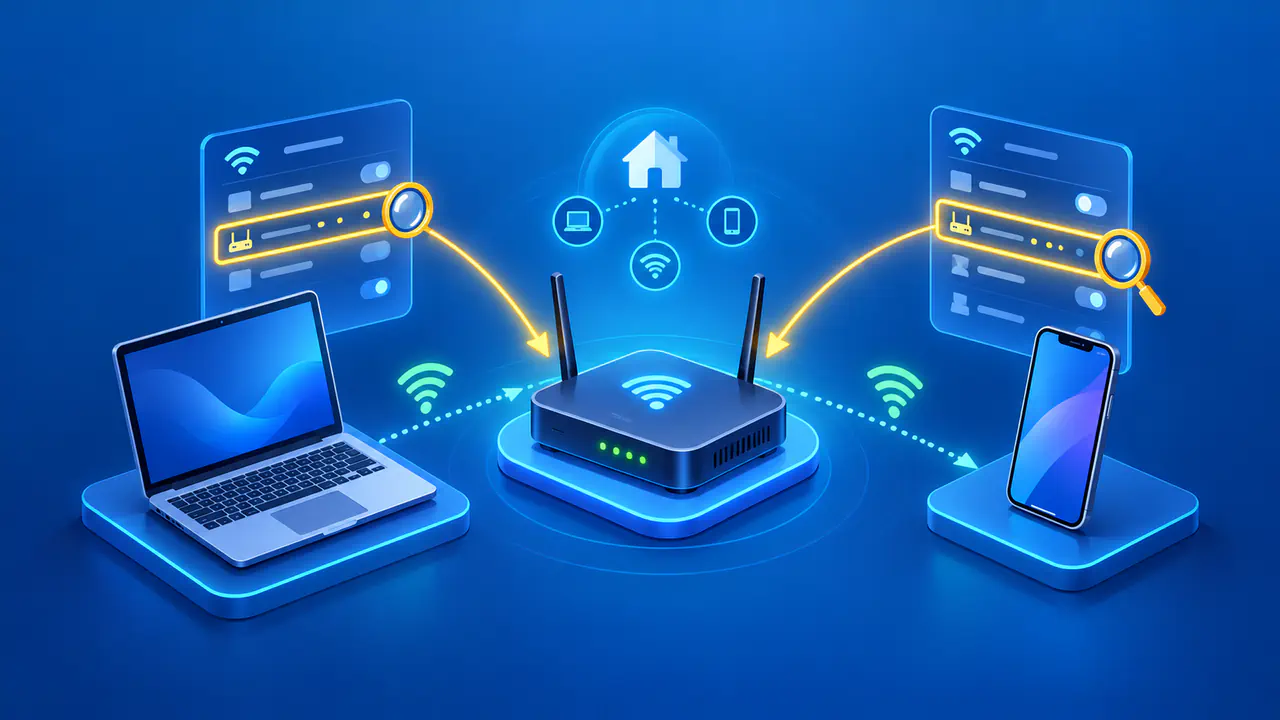
Look for IP address or IPv4 address and read the complete value. An IPv4 address contains four numbers separated by periods, such as 192.168.1.25. Home networks commonly use the private ranges 10.0.0.0–10.255.255.255, 172.16.0.0–172.31.255.255, or 192.168.0.0–192.168.255.255. These ranges can be reused on separate networks, so the address does not identify one phone across the internet.
The same screen may list a gateway, subnet information, DNS servers, and a MAC address. The gateway is the next device used to reach destinations outside the local network, often your router. A MAC address identifies a network interface and is separate from its IP address. Check the field label before copying a value from the screen.
If IPv6 addresses are shown, keep them separate from IPv4. IPv6 uses hexadecimal digits and colons, and a phone can have several IPv6 addresses with different scopes. An address beginning with fe80: is limited to the local link; another address may be usable for internet connections. The entries available in Settings depend on the device and network.
Copy the entire address without dropping digits or adding spaces. Include whether the value is IPv4 or IPv6 when sending it to support. Reading an assigned address does not require switching to a static configuration, editing a proxy, or resetting the phone's network settings.
Find the Details When Menus Differ
If the expected Wi-Fi section is missing, search Settings for Wi-Fi or Internet. Open the connected network's information and scroll through the available fields. A section labeled Advanced or Network details may contain information that is not visible at the top of the page.
Use instructions for the phone's manufacturer and software version when the layout still does not match. The absence of a field from one screen is not enough to conclude that the connection has no IP address. A guide for another model may describe a menu that your phone does not provide.
Record the model and Android version when asking someone to help locate the field. Keep the network name with the address in your own notes so you can distinguish readings from home, work, or a hotspot. After changing networks, read the current details again instead of relying on an earlier screenshot.
Check the Address Seen by Websites
For a public address, open an IP lookup in a browser over the connection you want to check. Record whether the result is IPv4 or IPv6. Comparing an IPv4 result with an IPv6 result does not tell you whether one particular address changed.
On a typical home IPv4 network, several devices share a public address through address translation while keeping separate private addresses. For example, the phone's settings might show 192.168.1.25 while a website reports the network's public IPv4 address. The two results describe different parts of the connection. A globally reachable IPv6 address assigned to the phone can match the website's result if that request uses the address directly.
Over mobile data, the carrier supplies the connection and may share a public IPv4 address among customers. The Wi-Fi details page does not show the public address used for a cellular request. If a request passes through a VPN or proxy, the website may instead report that service's exit address.
Reload the lookup after a connection change so a page left open does not mislead you with an old result. Note the connection type, the time, and any active VPN when comparing readings. For a support request, label the address from Wi-Fi settings and the address from the web lookup separately, and share only the information needed for the issue.