How to Find Your IP Address on Windows
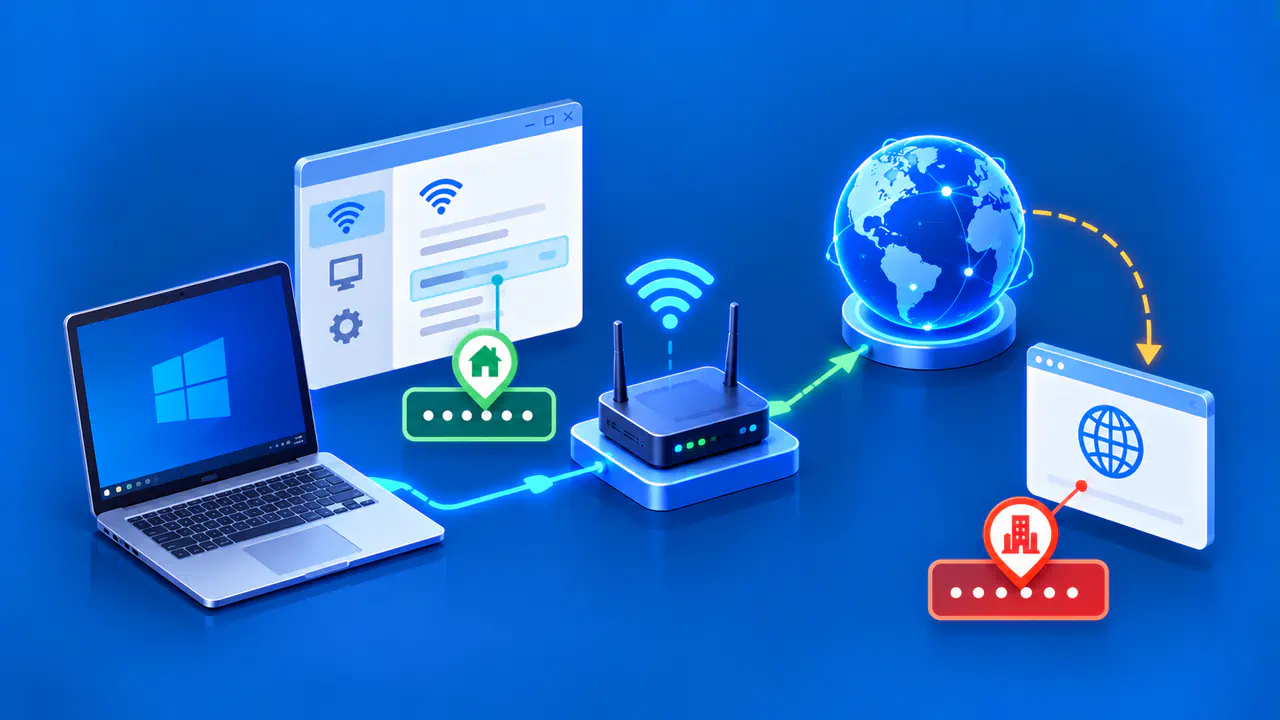
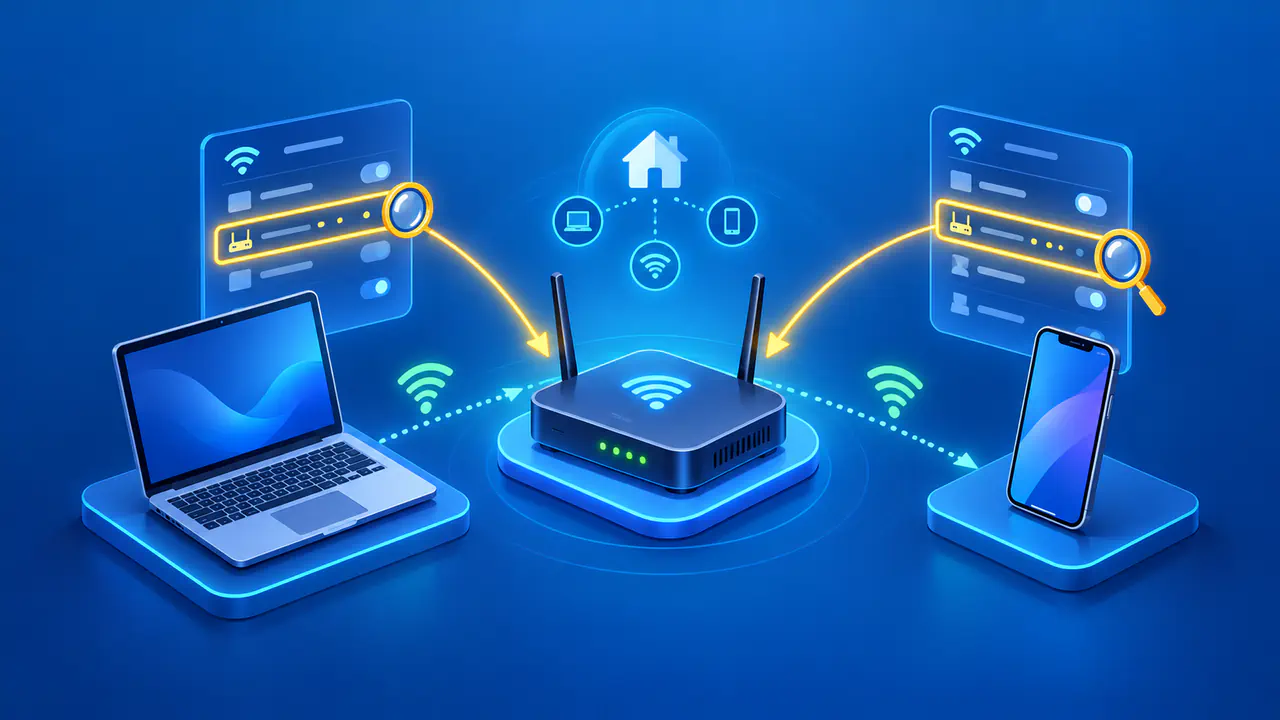
Windows can show the IP addresses assigned to each network adapter, but the value a website sees may be different. To find the address used on your current Wi-Fi or Ethernet network, open that connection's properties in Windows Settings. You can also run ipconfig in Command Prompt. If you need the address visible to an online service, check it with a public IP lookup while using the connection you want to inspect.
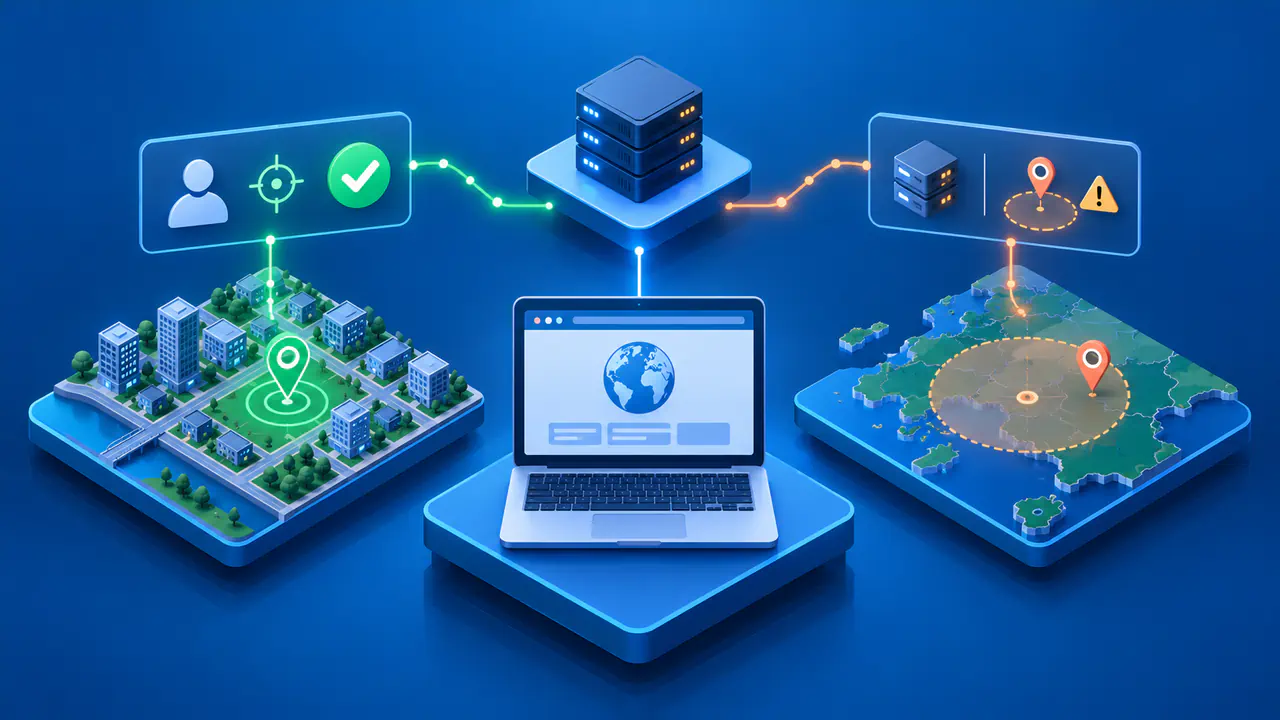
Before copying an address, decide whether you need to identify the PC on your local network or the source of an internet request. For a device on the same home network, the PC's local IPv4 address may be the relevant value. A remote website often sees an address used by your router, internet provider, or VPN service instead. With IPv6, the website may see an address assigned directly to the PC.
Choose the Connected Windows Adapter
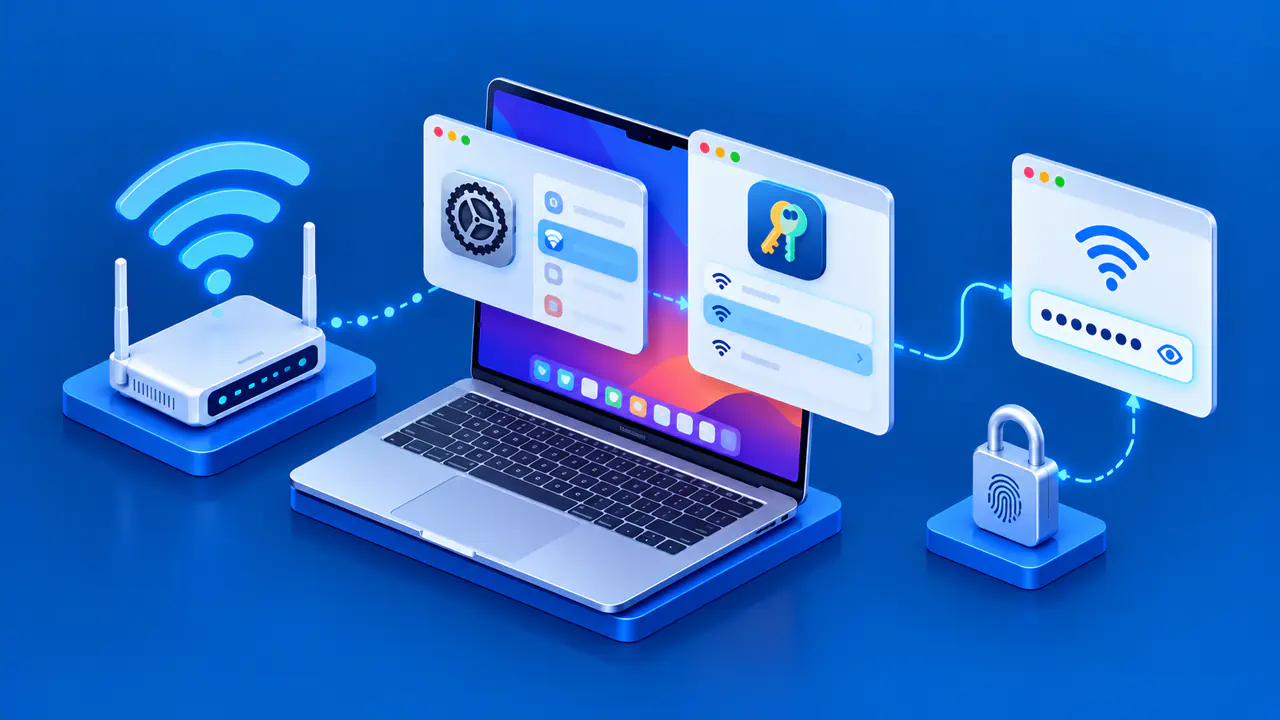
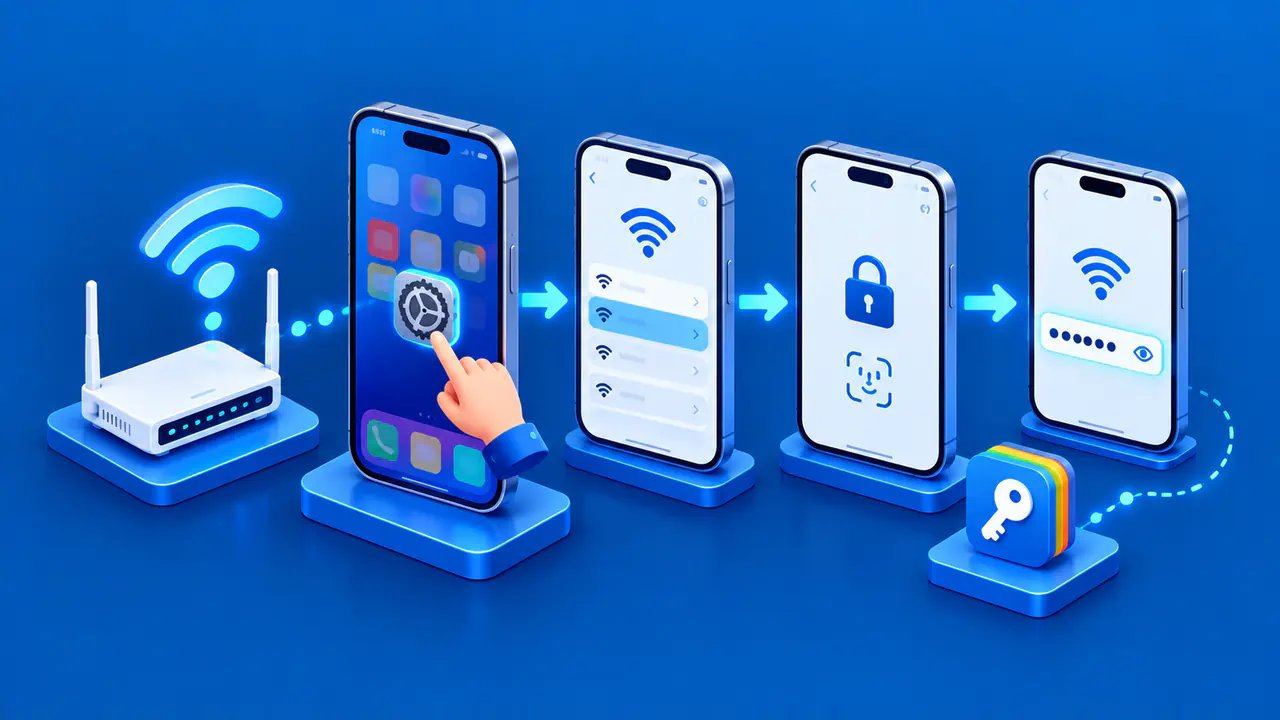
In Windows 11, start with the network that is currently connected. A saved Wi-Fi profile for a network you used earlier is not a record of your present connection. Use the connection details to read the assigned address:
- Open Start, select Settings, and choose Network & internet.
- For a wireless connection, select Wi-Fi and then the network you are connected to.
- For a wired connection, select Ethernet.
- In the connection's properties, locate the IPv4 address and any IPv6 address entries.
You can also select Properties beside the connected network on the Network & internet page. Menu placement can vary with the Windows version, so match the network name and connection type before copying a value. Reading these properties does not require editing IP assignment or changing the connection.
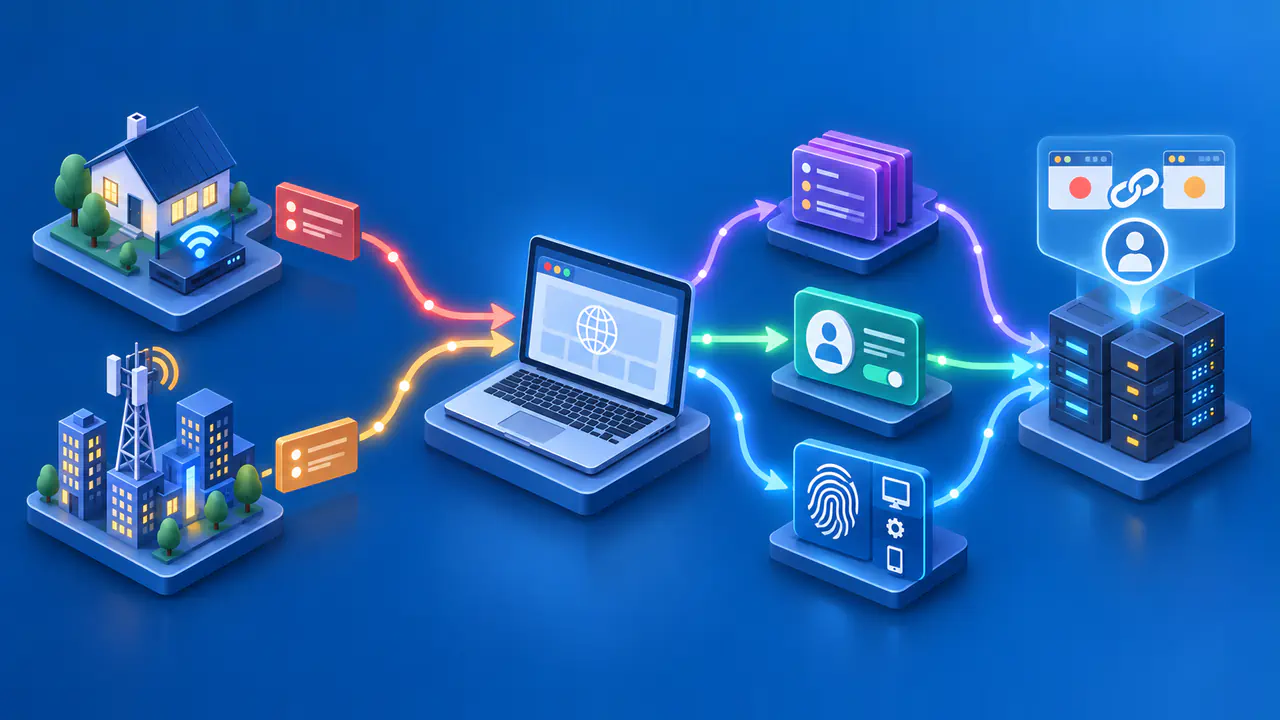
A Windows PC can list more than one adapter: Wi-Fi, Ethernet, a VPN, a virtual machine interface, or an adapter that is currently disconnected. Each adapter has its own configuration. If both Wi-Fi and Ethernet are connected, the route to a particular destination helps determine which interface is used. An address assigned to an interface does not, by itself, prove that a browser request used that interface.
Read the Address Fields
The IPv4 address field identifies an address assigned to the selected adapter. Home networks commonly use private addresses in the ranges 10.0.0.0–10.255.255.255, 172.16.0.0–172.31.255.255, or 192.168.0.0–192.168.255.255. For example, a hypothetical PC might have 192.168.1.20 on its Wi-Fi adapter. That address identifies the PC within its local network, and a different household can reuse the same value.
You may also see one or more IPv6 address fields. IPv6 addresses contain hexadecimal digits grouped with colons, and a double colon can abbreviate a run of zero groups. A link-local IPv6 address commonly starts with fe80: on Windows and is used only on the local link, not as the source for a request to a remote internet site. An adapter can also have other IPv6 addresses, including temporary addresses. Multiple entries do not necessarily indicate a problem.
Do not confuse the default gateway with your PC's own address. The default gateway identifies the next hop for traffic sent through the default route, commonly a router on your network. A subnet mask or prefix length indicates how much of the address represents the network portion. Copy the value labeled IPv4 address or the relevant IPv6 address, rather than the gateway or mask, when you need the PC's address.
If a support request asks for IPv4, supply the IPv4 value for the relevant adapter rather than an IPv6 value from the next line. Preserve all four IPv4 numbers or the complete IPv6 notation. An IPv6 address can be much longer than an IPv4 address, so check that selecting or copying it has not omitted the end.
Check the Address with ipconfig
Open Start, search for Command Prompt, and open the application. Enter ipconfig and press Enter. Without additional options, the command lists basic IP configuration for the adapters, including assigned IPv4 and IPv6 addresses, subnet masks, and default gateways. The command is also available on Windows 10, where the Settings layout may differ from Windows 11.
Find the section for the connection you are inspecting, such as Wi-Fi or Ethernet, before reading its address lines. An adapter name can be customized, so compare the heading with the connection shown in Settings instead of assuming every PC uses the same name. An entry marked Media disconnected is not a connected network path. A VPN or virtual adapter may have its own addresses even when your physical connection uses another adapter.
The output is a snapshot of configuration when the command ran. If you have switched networks since then, run it again before using the result. The first address in the output is not automatically the address you need, and the listed gateway is not evidence of the public address a website observed.
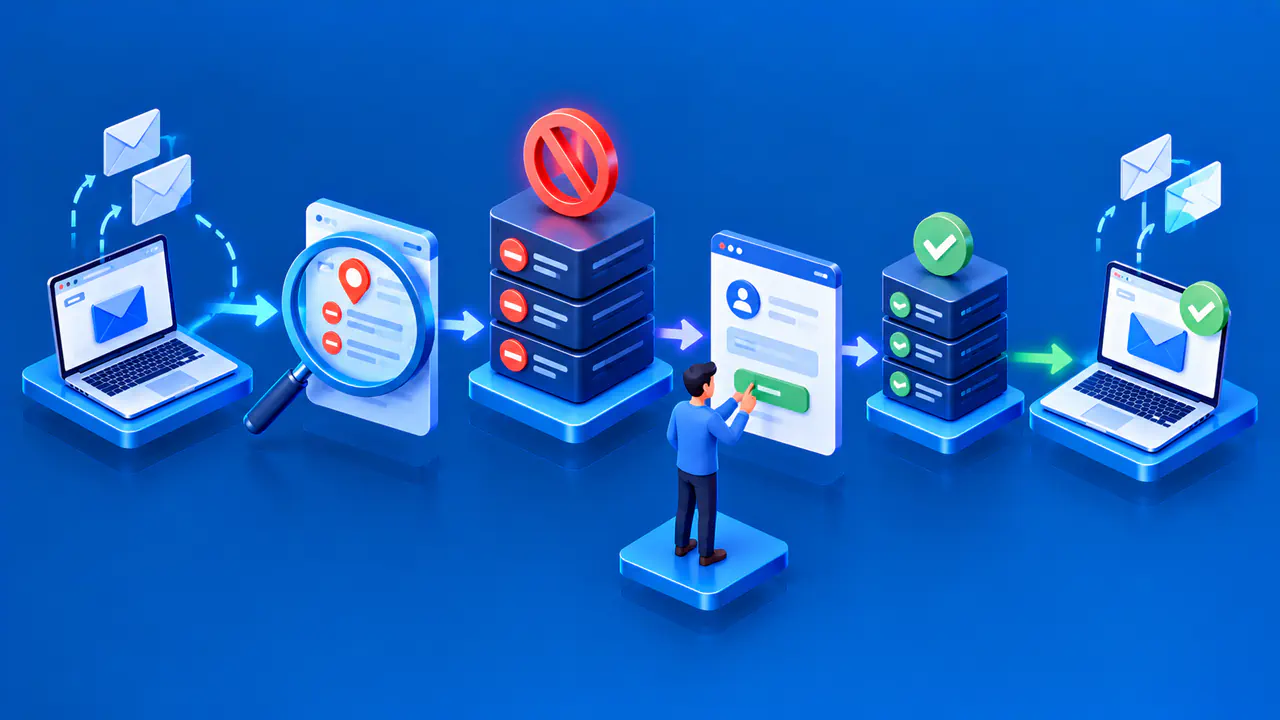
An IPv4 address beginning with 169.254 is a link-local address. Windows may assign one automatically when the adapter cannot obtain its expected configuration from a DHCP server, which normally supplies network settings. The address does not provide normal routed internet access. If the connection is failing, keep the address and adapter name for troubleshooting; changing or renewing addresses is a separate task from reading them.
Compare the Result with a Public IP Lookup
A public IP lookup reports the source address observed for a request to that service. Open the lookup in the browser you want to check, using the relevant network connection. On a typical home IPv4 network, several devices have different private addresses but share a public address through address translation at the router or internet provider. If that browser request passes through a VPN or proxy, the lookup may report the service's exit address.
An IPv4-only lookup and an IPv6-only lookup can return different addresses on the same PC. A browser tab that has not reloaded can also show an old result after a network switch. Make a fresh request and note which address family the service reports. If the request uses one of the PC's IPv6 addresses directly, the web result can match that adapter entry.
Keep the adapter name, address family, and observation time alongside the value when asking for help. A screenshot of the command output can include information about other adapters that is unrelated to the problem. Copy only the details needed for the support request, and distinguish an address read from Windows from one reported by a website.