How to Find Your Printer's IP Address
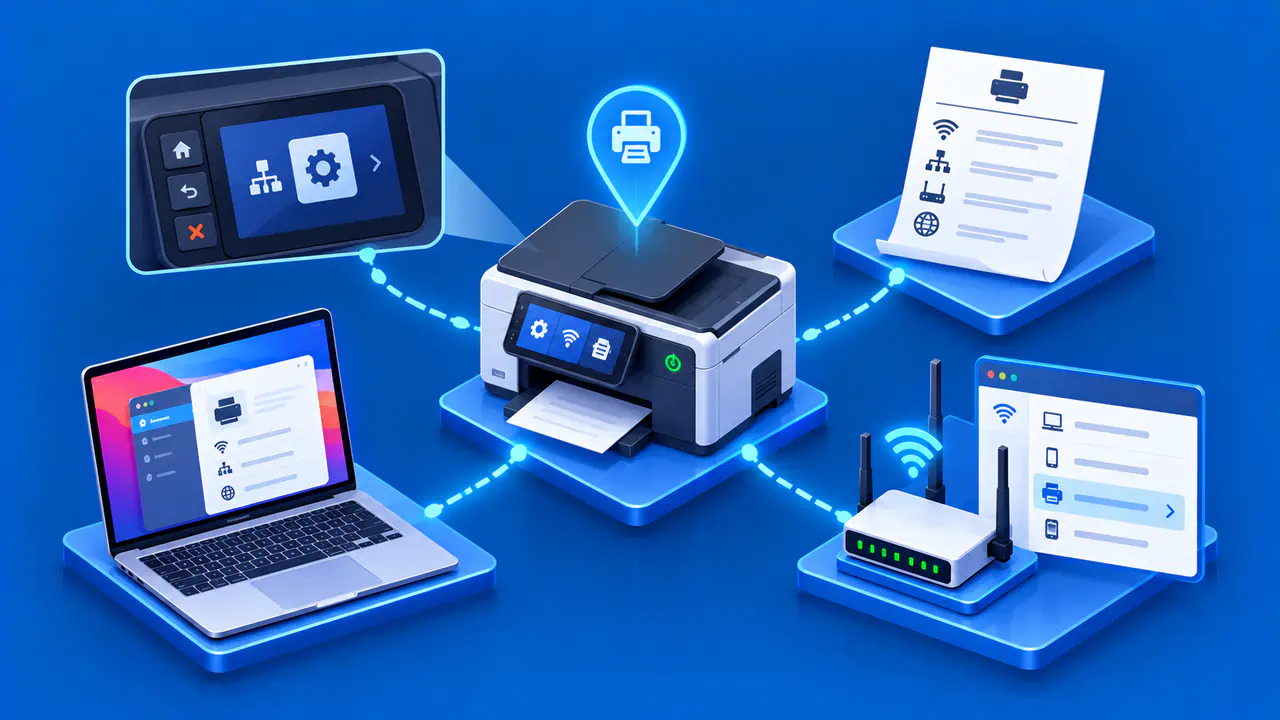
A network printer usually has an IP address on the local wired or Wi-Fi network. You can find it on the printer's display, on a network information report, in the manufacturer's app, or in the router's connected-device list. The useful address is the one assigned to the interface the printer is actively using. A USB-only printer connection does not require a separate printer IP address.
Before looking, confirm that the printer is powered on and connected to the intended network. Keep the model name nearby, since menus and report buttons vary by manufacturer and model.
Read the Printer's Display or Network Report
On a printer with a screen, open its Network, Wireless, or Information area and look for an IPv4 or IPv6 address. On supported HP touchscreen models, the Wireless Summary or Network Settings menu displays the address. On supported HP Enterprise touchscreen models, select Information, then Network to view the address or hostname. The exact labels depend on the model and firmware.
If the printer has no screen, print its information or network configuration report using the control-panel instructions for that model. Some HP models have an Information button that prints an Information Report. On HP Laser MFP 300 and 30000 models, press Menu, select Network and press OK, then select Network Configuration and press OK. Select Yes and press OK to print the report.
Look for the assigned addresses and connection status on the page. If the report lists a wireless network name or SSID, check that it matches the intended network. Do not assume a button sequence documented for one model works on another.
An IPv4 address normally appears as four decimal numbers separated by dots, such as 192.168.1.35. An IPv6 address uses hexadecimal groups separated by colons. These are formats, not proof that the printer is reachable. A report may also show a MAC or hardware address, which is a different identifier and should not be entered as an IP address.
Check the Printer App or Router's Device List
When the printer appears in the manufacturer's app, open its device or network information screen. In the HP app, select the printer image and open Network Information. Some versions instead provide Product Information > More information and reports > Network. The HP app replaces HP Smart, so an older installation may show the earlier app. Keep the phone or computer on the same local network when using a local discovery feature.
If the app does not show the address, sign in to your own router's administration page and inspect its connected devices, clients, or DHCP lease list. Match the printer by model name and, if needed, the hardware address shown on its printed report. Router labels and menu paths vary, and a stale lease can remain after a device disconnects. Confirm the printer is currently connected before treating a listed address as current.
A computer's print queue may show a port name, hostname, or old address rather than the printer's live network setting. Use the printer report or current router list to resolve disagreement. Do not change the printer's network configuration just to read its current address.
Confirm the Active Wired or Wi-Fi Address
Many printers support both Ethernet and Wi-Fi. A configuration report can show separate status and addresses for each interface. Identify which interface is connected now, and record the address next to that interface. If Ethernet is plugged in while Wi-Fi is disabled, a stored wireless address is not the one to use for the active connection.
Check that the computer or phone and printer are on a network that permits them to communicate. A guest Wi-Fi network or isolation setting can block local discovery even when both devices have addresses. On your own network, you can check the printer's model and network details on its embedded web page when that feature is supported. Do not bypass browser security warnings or enter device credentials into an unexpected page just to validate a number.
Record the address family as well as the value. An IPv6 link-local address has limited scope and may need an interface context when used from another device. A private IPv4 address is typical on a home network and can change after a router or printer reconnects. If a stable local address is needed later, plan that with the network administrator rather than guessing a replacement here.
Handle a Printer with No Assigned Address
If the network report shows no address, first check the physical Ethernet link or Wi-Fi connection status. Confirm the printer joined the intended network and that the router or network service is assigning addresses. A wireless setup prompt or password failure can leave the printer disconnected.
An IPv4 address starting with 169.254 can be a self-assigned link-local address when the expected IPv4 assignment was not obtained. That address may not be usable for the planned printer connection. Recheck the printer's network status and the router's DHCP service instead of treating the number as a working address. If only IPv6 appears, confirm whether the intended client network supports that address and scope.
If the only address you find belongs to the computer connected by USB, that number identifies the computer, not a separate printer network interface. Once the printer is connected to the network and reports an active address, compare the display, printed report, and app or router entry to settle any conflicting information.