How to Access Your Home Network behind CGNAT
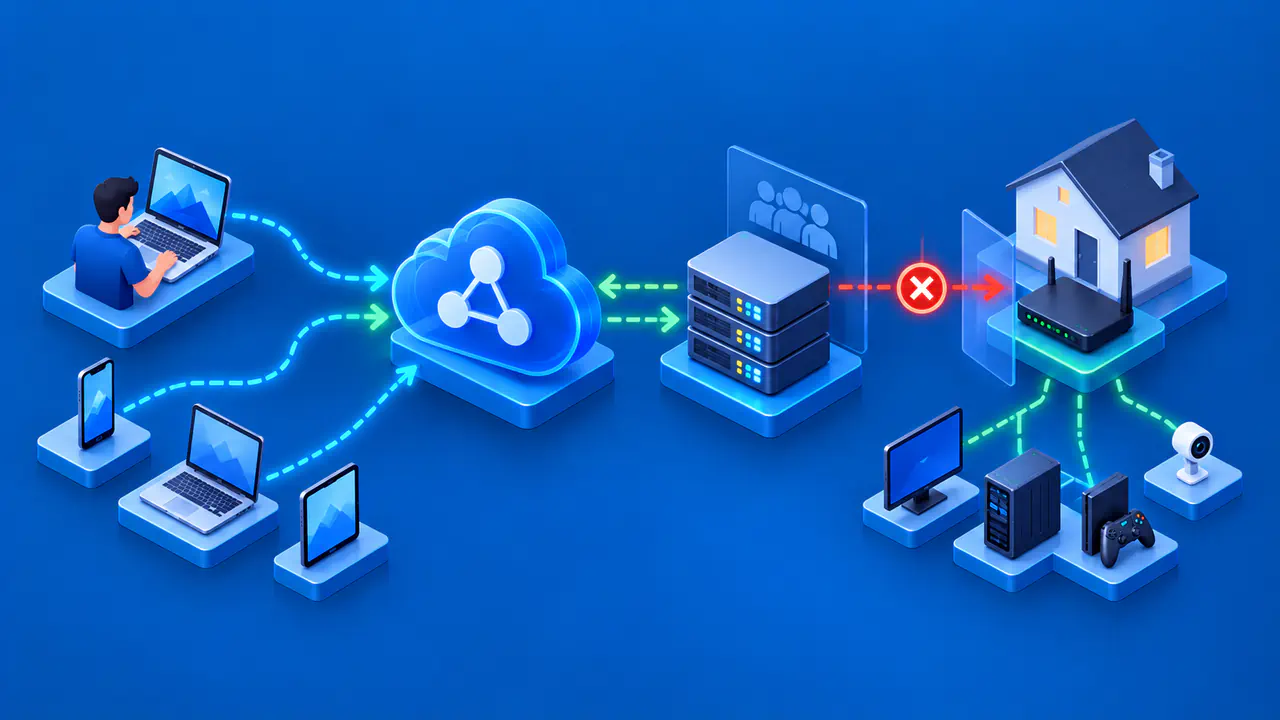
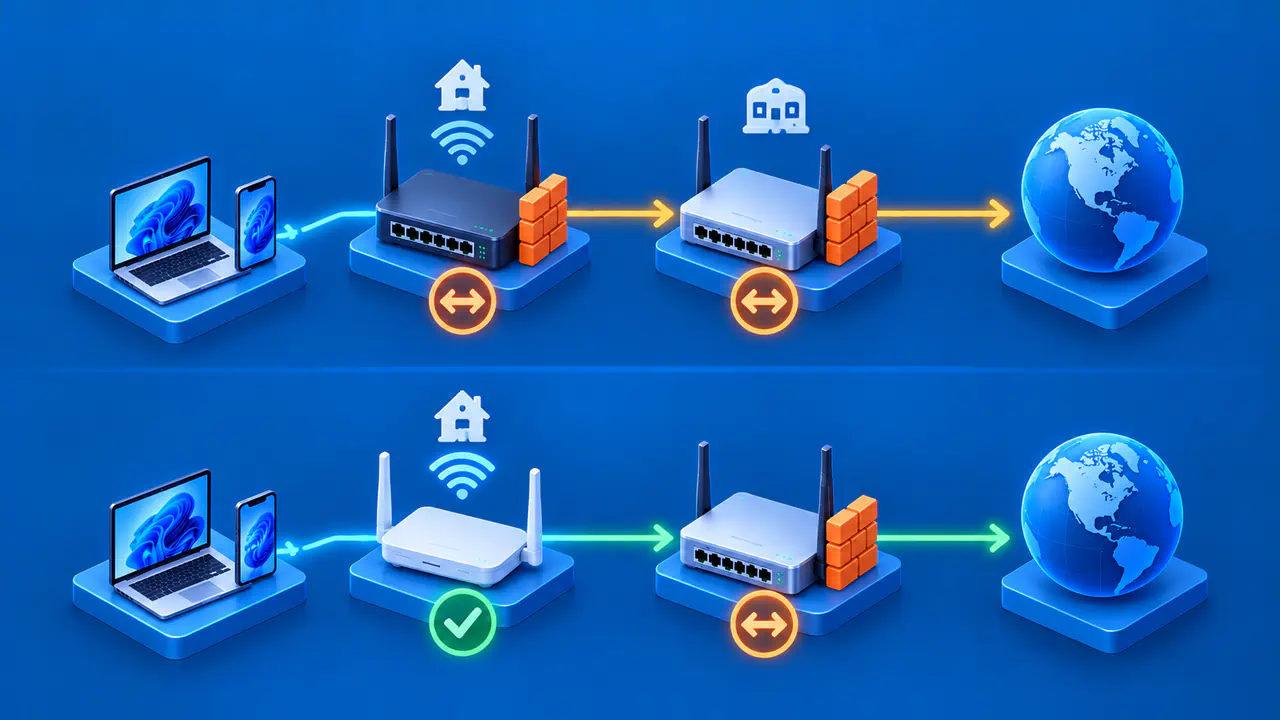
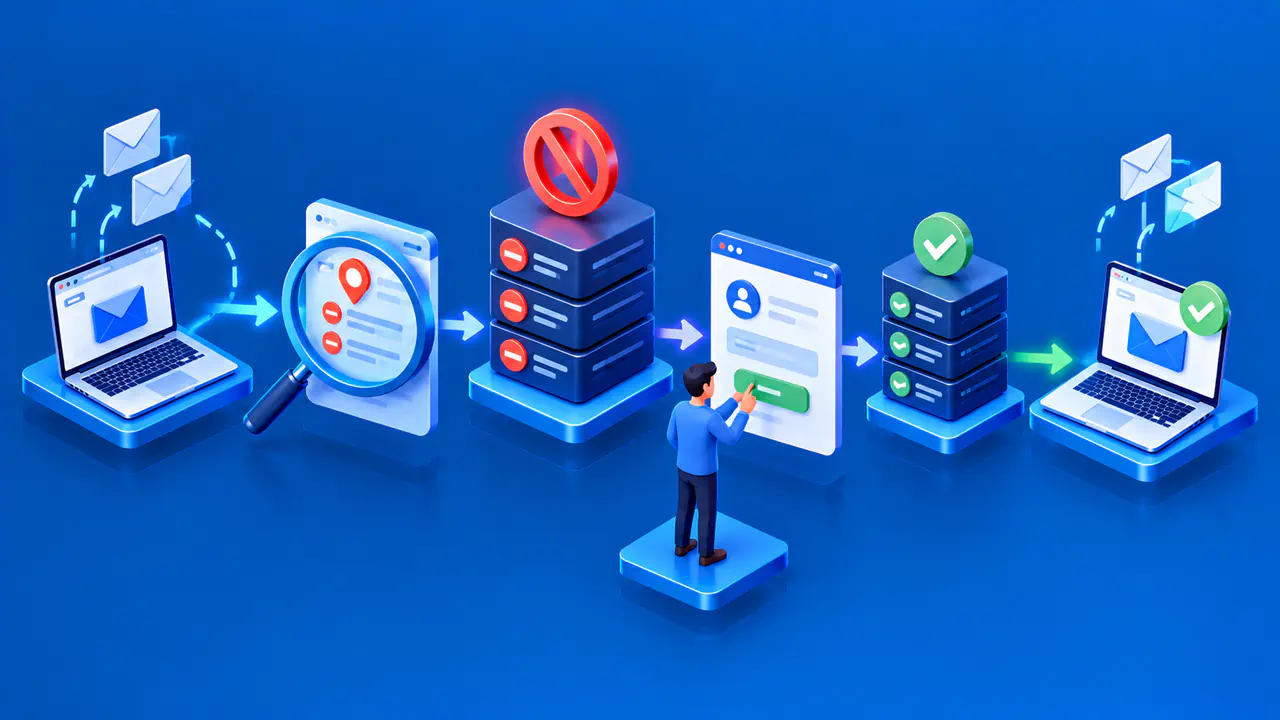
Carrier-grade NAT, or CGNAT, lets an internet provider share a public IPv4 address among several customers. The provider translates traffic between each customer's connection and the public internet, beyond the control of the home router. A port-forwarding rule on your router does not open a matching inbound port on the provider's router. Dynamic DNS keeps a hostname pointed at an address, but it does not remove that barrier.
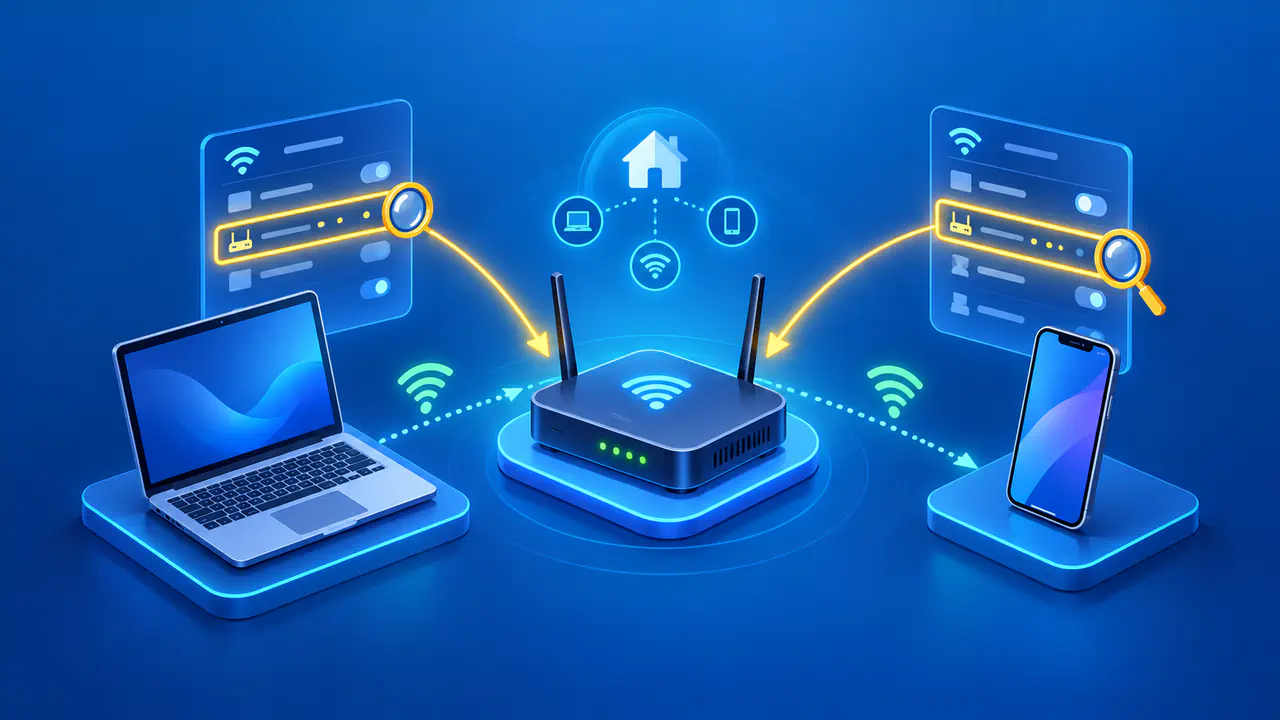
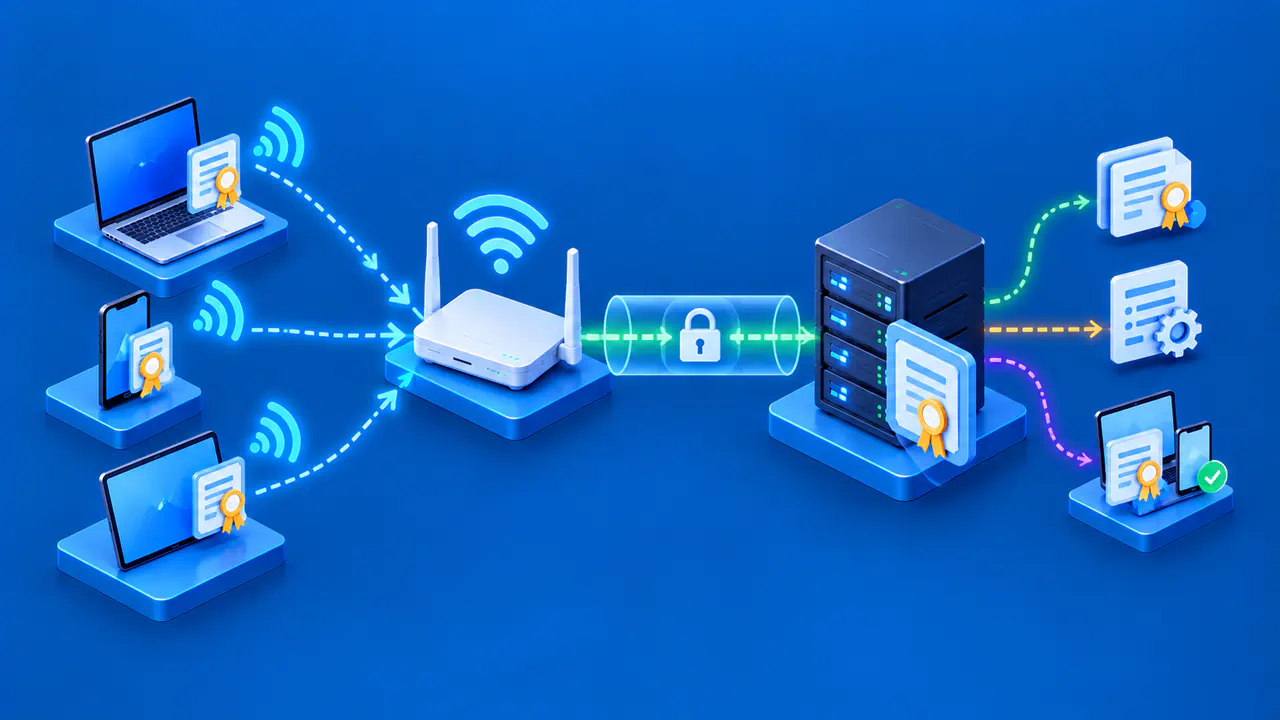
Tailscale creates a private network, called a tailnet, over existing internet connections. Its clients initiate connections from inside each network. Once your remote device and home device have joined the same tailnet and have permission to communicate, they can connect without inbound port forwarding. A subnet router extends that access to home devices that cannot run Tailscale themselves.
Use this approach only for a network and devices you own or administer. A stolen account or compromised device could give someone access to home services, so the setup also needs rules that limit who can connect and what they can reach.
Check Your Connection and Devices
Compare your home router's WAN IPv4 address with the public IPv4 address reported by an address-checking service on a device at home. Make sure that check is not going through another VPN or a proxy. A WAN address in 100.64.0.0/10 belongs to shared address space and is a strong sign of CGNAT; a private WAN address can also indicate another NAT router upstream. An address mismatch alone does not prove that your internet provider uses CGNAT.
Ask your internet provider whether the connection uses CGNAT and whether public IPv4 or native IPv6 is available. Then decide what you need to reach: one server, a camera, a storage device, or several devices across the LAN. If the only device you need supports Tailscale, installing the client there avoids giving remote devices a route to the rest of the home subnet.
Check whether the home and remote networks use overlapping private address ranges. If both use 192.168.1.0/24, for example, the remote device may send traffic to its local network instead of your home. Changing the address range on a network you administer can resolve the conflict. Installing Tailscale directly on the home device, when supported, also avoids relying on that device's LAN address.
Direct and Relayed Connections
Tailscale initially connects devices through a DERP relay, a server that passes encrypted traffic between them. It then tries to establish a direct UDP connection through the routers' NAT and firewall rules. A direct connection generally has less delay and higher throughput, but whether it works depends on the networks at both ends.
Some NAT behavior and restrictions on UDP traffic prevent a direct connection. Tailscale can then use a configured, accessible peer relay in the tailnet or continue through DERP. Relayed access can work even when a direct connection cannot, although the extra network path may reduce performance. Two devices being online does not mean that their connection is direct.
Set Up a Subnet Router
Choose a subnet router that can remain powered on and connected reliably to the home LAN. A small server or a compatible router can perform this role. The remote connection to devices behind that router depends on the router staying available.
A Tailscale subnet router forwards traffic from the tailnet to a specified local subnet. Advertising a route tells Tailscale which home addresses that router can reach. Setting one up involves several separate steps:
- Install Tailscale on the chosen home device and connect it to your tailnet.
- Enable packet forwarding if the device's operating system requires that step.
- Advertise the home subnet or individual address that remote clients should reach.
- Approve the route in the admin console, unless an automatic approval rule already approves it.
- Review the tailnet's access rules and allow only the intended users, devices, and services.
Advertising a route does not grant access by itself. Route approval makes the route available to the tailnet, while access rules determine which users or devices may reach destinations through it. Remote clients also need to accept subnet routes, and the setting differs by operating system.
Advertise only the addresses needed for remote access. For one device with a stable address, a route to that single address may be enough instead of a route to the entire subnet. Check that the device's firewall allows the intended service and that replies can return to the remote client. By default, Tailscale uses source NAT on subnet routes, so a home service may log the subnet router's address rather than the remote client's address.
Packet forwarding and firewall settings depend on the subnet router's operating system and Tailscale version. Keep a record of the address range you advertise and a way to administer the router locally. If a change breaks remote access, you need another way to repair the configuration.
Access Rules and Device Security
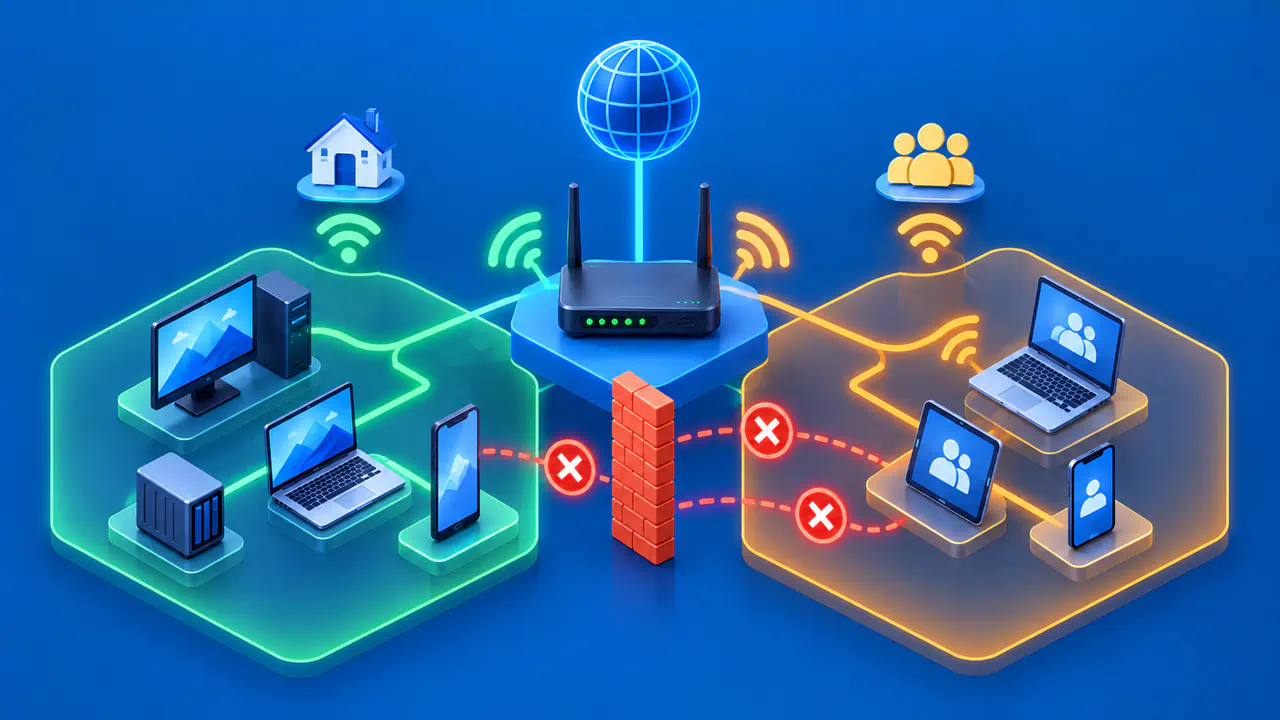
Decide which users need access, which devices they need to reach, and which service ports they may use. Access to one storage service grants fewer permissions than access to every address and port on the home LAN. Use individual accounts or managed groups, enable multi-factor authentication with the sign-in provider, and remove accounts and devices that no longer need access.
Keep the remote laptop or phone locked when unattended, encrypt its storage, and install security updates. Update the subnet router's operating system and Tailscale client, and run only the services needed on that device. Home devices behind the subnet router still need their own strong credentials and updates; Tailscale does not fix vulnerabilities in a camera or storage device's web interface.
Review device approval and key expiration settings so you know how devices can join and when they need to sign in again. Check which permissions are assigned to users, groups, or device tags, and use the access logs available for your account. Keep authentication keys out of shell history and shared notes. If sensitive equipment shares the home network, place it on a separate subnet and permit only the access it needs.
Tailscale encrypts traffic between its clients, but a device without Tailscale is outside that encrypted connection. Traffic between the subnet router and that local device needs separate protection, such as HTTPS, to remain encrypted on the LAN.
Testing and Removing Remote Access
Test from a separate internet connection, such as a phone using mobile data with Wi-Fi turned off. Confirm that the remote device and subnet router are connected to Tailscale, then try the permitted service at its home address. Success while connected to your home Wi-Fi does not show that access works from outside.
Use Tailscale's status or ping diagnostics to check whether the connection is direct, peer relayed, or DERP relayed. Test both an allowed connection and a connection your rules should block, using only devices you administer. First confirm that the target service works from an allowed device, because a timeout alone does not prove that an access rule blocked the connection. When a brief interruption is acceptable, restart the client and subnet router and repeat the test to check that the settings survive a restart.
Plan how to remove access before you depend on the connection. If a remote device is lost, remove it from the tailnet in the admin console. Secure the associated sign-in account and revoke exposed sessions or credentials as well, because a removed device may be able to join again without administrator approval if device approval is disabled.
If the subnet router is compromised, disconnect it from the home network. Disable its advertised routes in the admin console, then remove the device from the tailnet. If you are retiring remote access entirely, also disable any other routes or access rules that still provide access and test from an external network.