How to Find Your WiFi Password in Windows

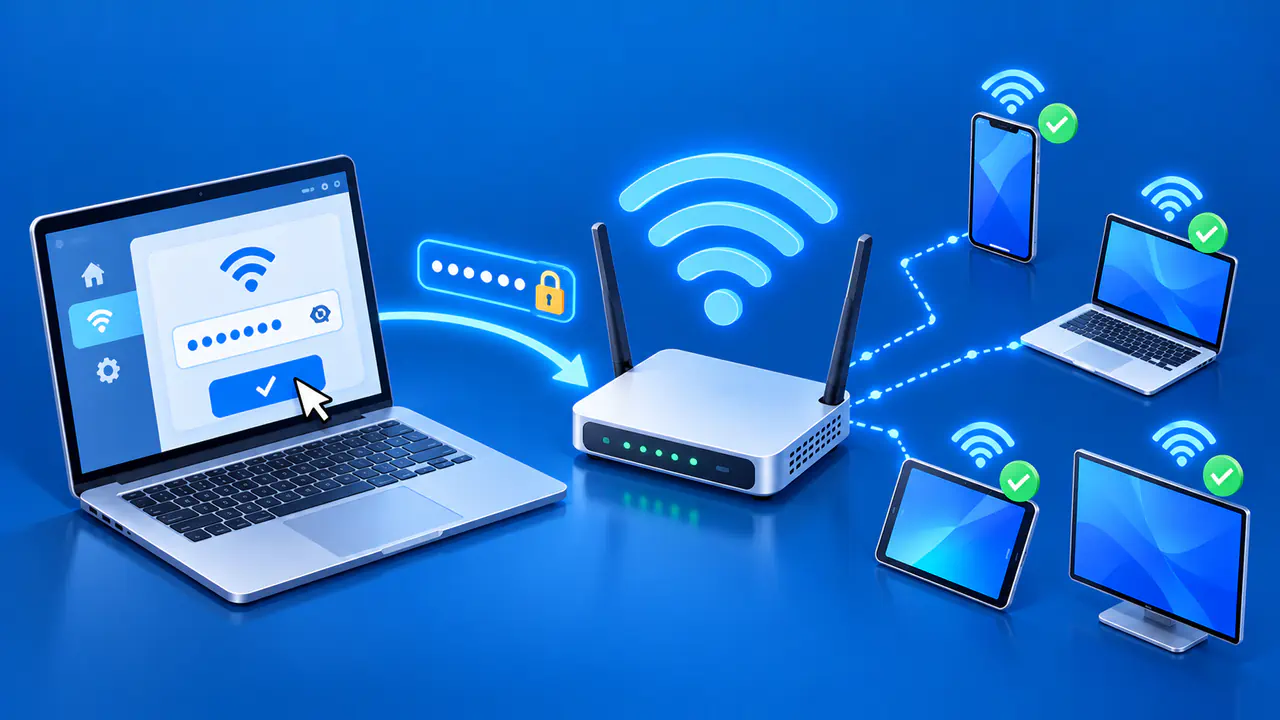
Windows can show a WiFi password that is already saved on the PC. On Windows 11, select Show beside Wi-Fi network password in network settings; on Windows 10, use Show characters in the connected WiFi network's properties. This lets you read the stored key when you are authorized to connect another device.
For a network that uses a shared password, the network security key is the password a device needs to join. It is separate from the router administrator login, your Microsoft account password, and website passwords. Viewing a saved key does not change the router's settings.
Identify the Saved WiFi Network
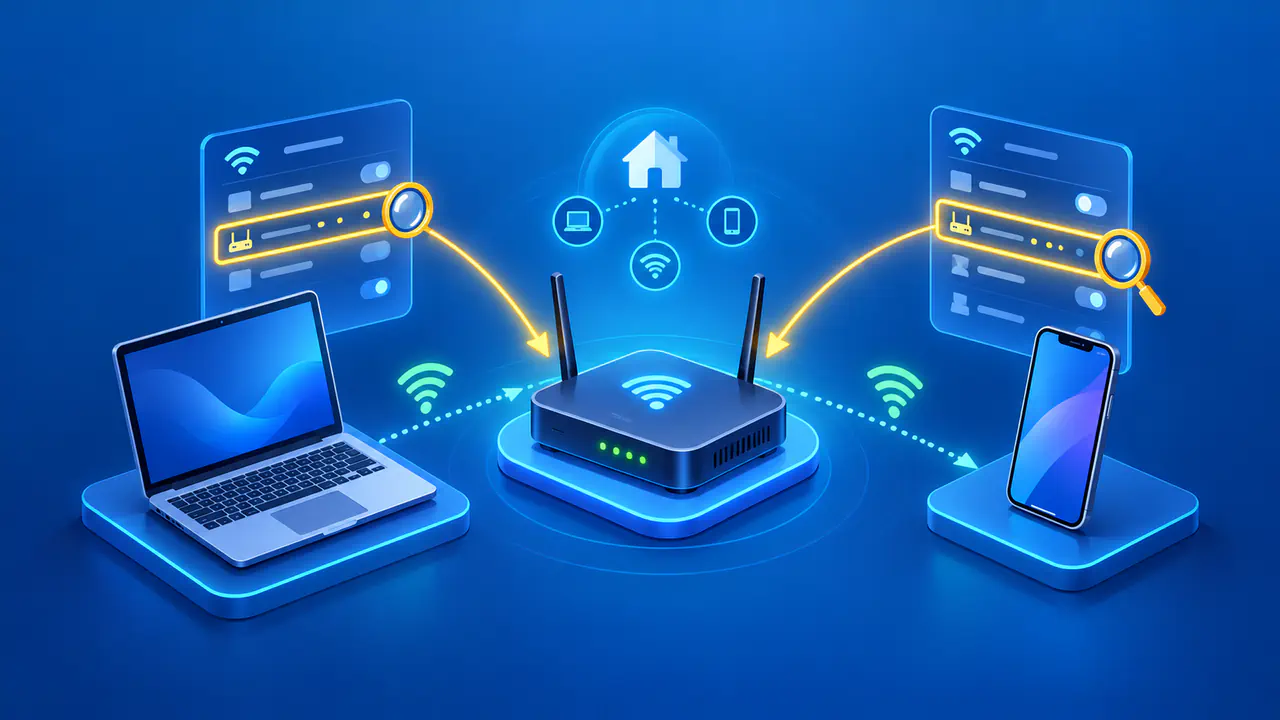
Check the network name, also called the SSID, on the device you want to connect and on the Windows PC. Homes and offices may have a main network, a guest network, and separate names for different bands. A key saved for a similarly named network may not work for the one you intend to join.
Use a PC that has the relevant password saved, and make sure you have permission to view and share it. A profile can be saved after a successful connection or installed through an approved setup process. Having physical access to a shared or managed computer does not mean you are authorized to disclose every credential stored on it.
A saved profile can remain available when the network is out of range. However, the network's name appearing in a list does not prove that Windows has a usable password for it. If no key is stored, obtain the current credential or approved joining instructions from the network owner.
Show the Password in Windows 11
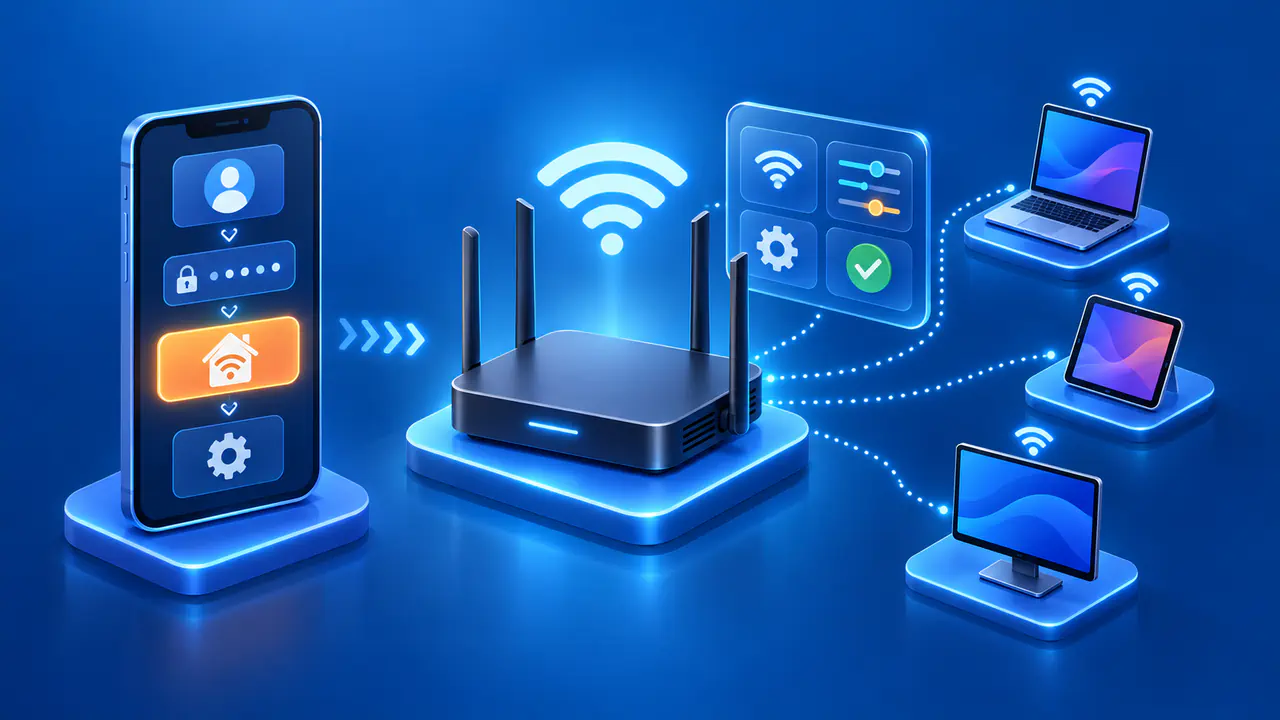
Open Settings, then Network & internet. For the connected WiFi network, open Properties and select Show beside Wi-Fi network password. Check the network name at the top of the page before reading the displayed password.
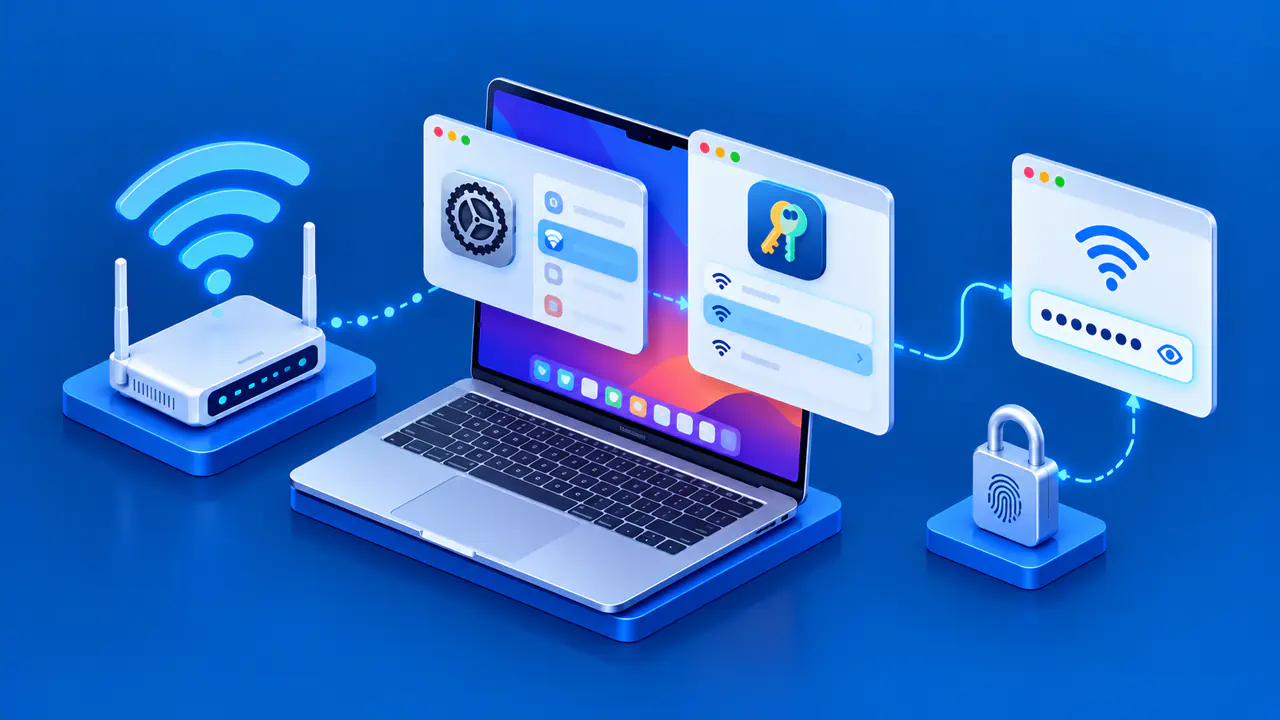
For another saved network, open Settings > Network & internet > Wi-Fi > Manage known networks. Select the network you want, then select Show beside Wi-Fi network password. This route lets you inspect the selected saved profile without first switching your connection to that network.
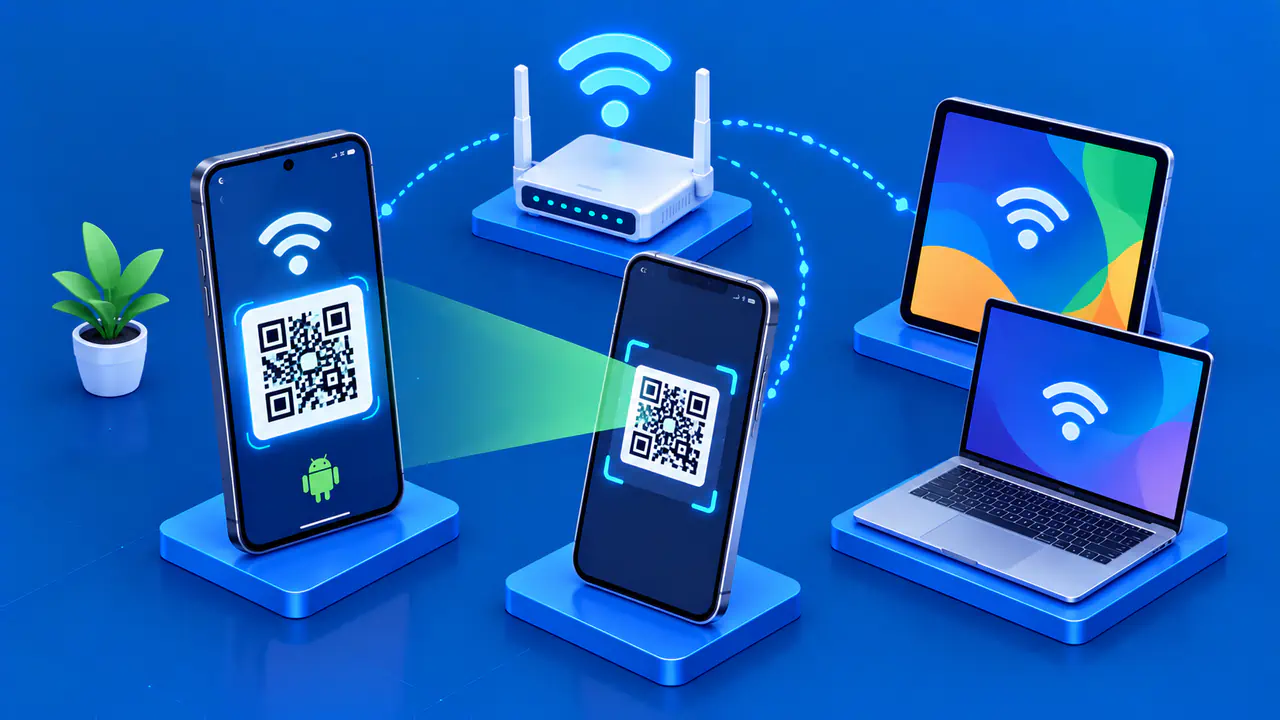
Windows 11 can also display a QR code containing the selected network's connection details. A compatible device can scan that code to join without the user typing the password. Before scanning, check that the receiving device identifies the network you intended to share.
The available controls depend on the Windows version, profile, and management policies. If Show is missing or blocked, check that you selected a saved network that uses a shared password. On a managed PC, ask the administrator for the approved way to connect another device instead of installing a password recovery utility or bypassing restrictions.
Find the Key in Windows 10
For the WiFi network currently connected on Windows 10, open Settings > Network & Internet > Status > Network and Sharing Center. Select the WiFi network name beside Connections. In the Wi-Fi Status window, select Wireless Properties, open the Security tab, and check Show characters.
Read the value in Network security key. Wireless Properties is different from the adapter's general Properties dialog, which contains items such as network protocols. If you are looking at those items, return to the connection's Wi-Fi Status window and choose Wireless Properties.
This procedure shows the key for the active WiFi connection, so it is not a way to inspect an unrelated saved network. If the PC is connected only through Ethernet, there is no active WiFi connection to select in that step. After reading the key, clear Show characters or close the window without editing the security settings.
Check What the Displayed Password Means
The displayed value comes from this PC's saved configuration, not a fresh request for the password currently set on the router. If the owner changed the wireless password after the profile was saved, the old value may no longer work. Confirm the current key with the owner rather than assuming that a readable password must still be valid.
If the new device rejects the password, check that you selected the correct network and typed the password exactly as shown, including uppercase and lowercase letters. A password printed on a router may be a factory default that has since changed, and an administrator password on the same label serves a different purpose. Changing the router's WiFi password is a separate task that requires other devices to use the new key when they reconnect.
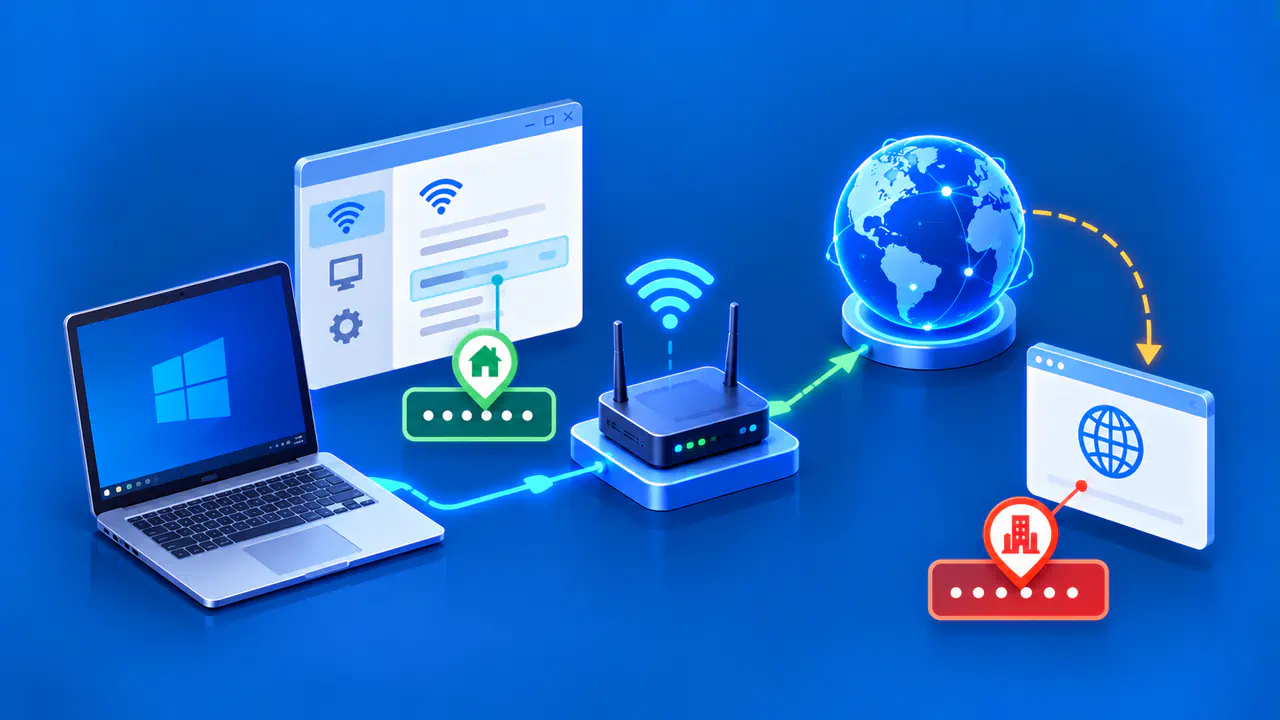
A work or school network may authenticate devices with individual accounts or certificates instead of a shared passphrase. A hotel sign-in page is different again: it can require a separate login after the device has joined WiFi, even when that WiFi network also uses a shared password. Follow the operator's instructions for the specific login being requested.
Share the Password Privately
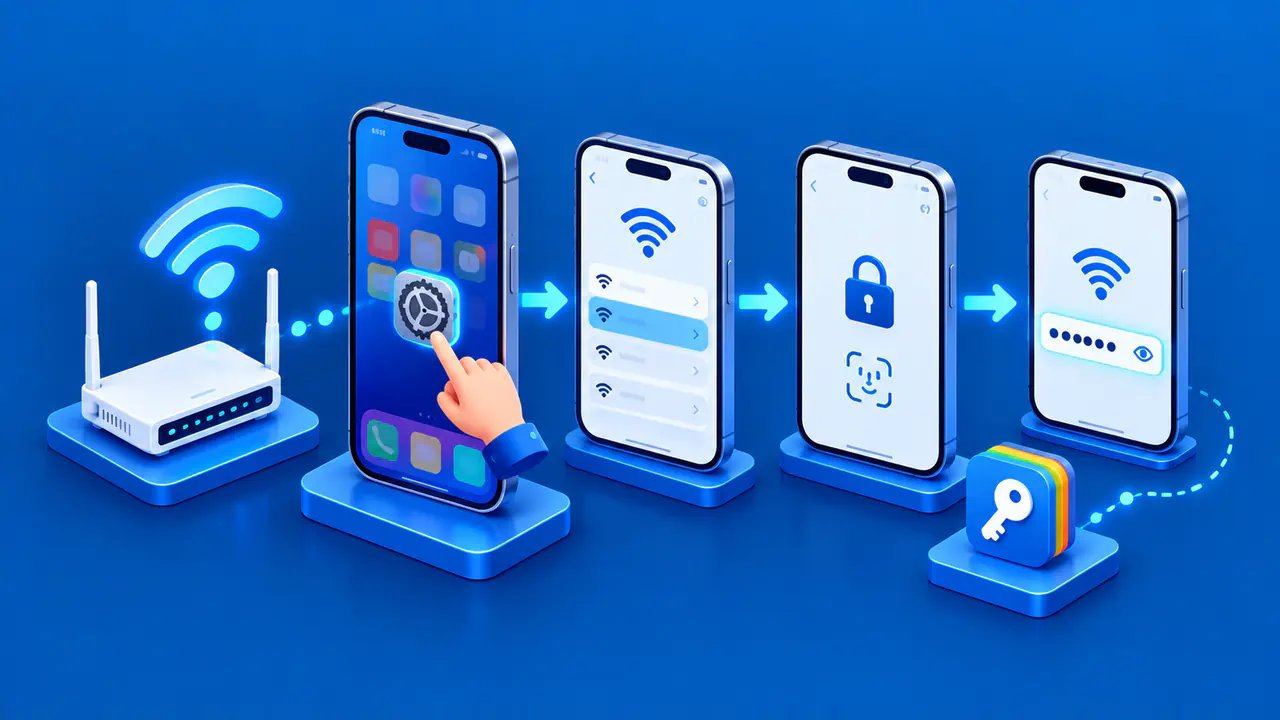
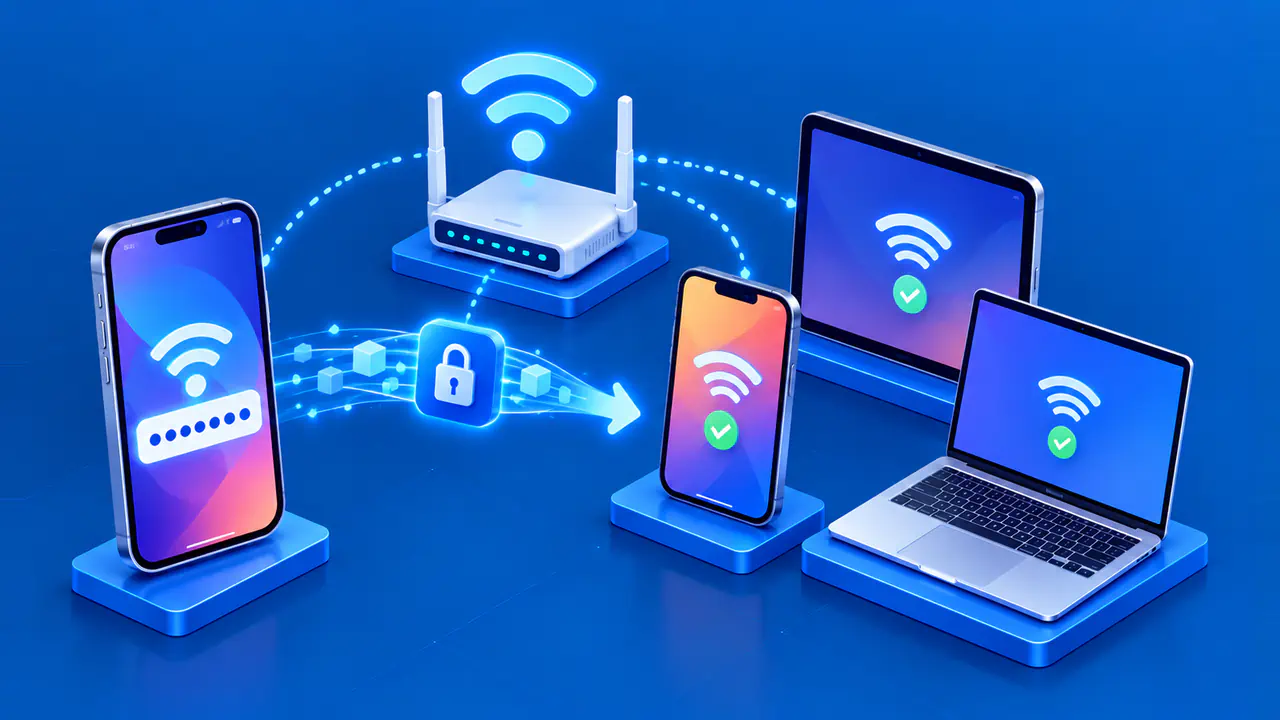
Before revealing the password or QR code, stop screen sharing and check for active recordings or remote support sessions. Someone who sees or photographs the code may obtain the same connection details as someone who reads the password. Share those details only with people and devices the network owner allows.
Enter the password directly on the receiving device when practical, and avoid leaving it in a screenshot, chat, or plain-text note. After the device connects, close the screen that displays the credential. If an unauthorized person saw the key, tell the network owner so they can decide whether to change it.