How to Manage a Spectrum WiFi 7 Router
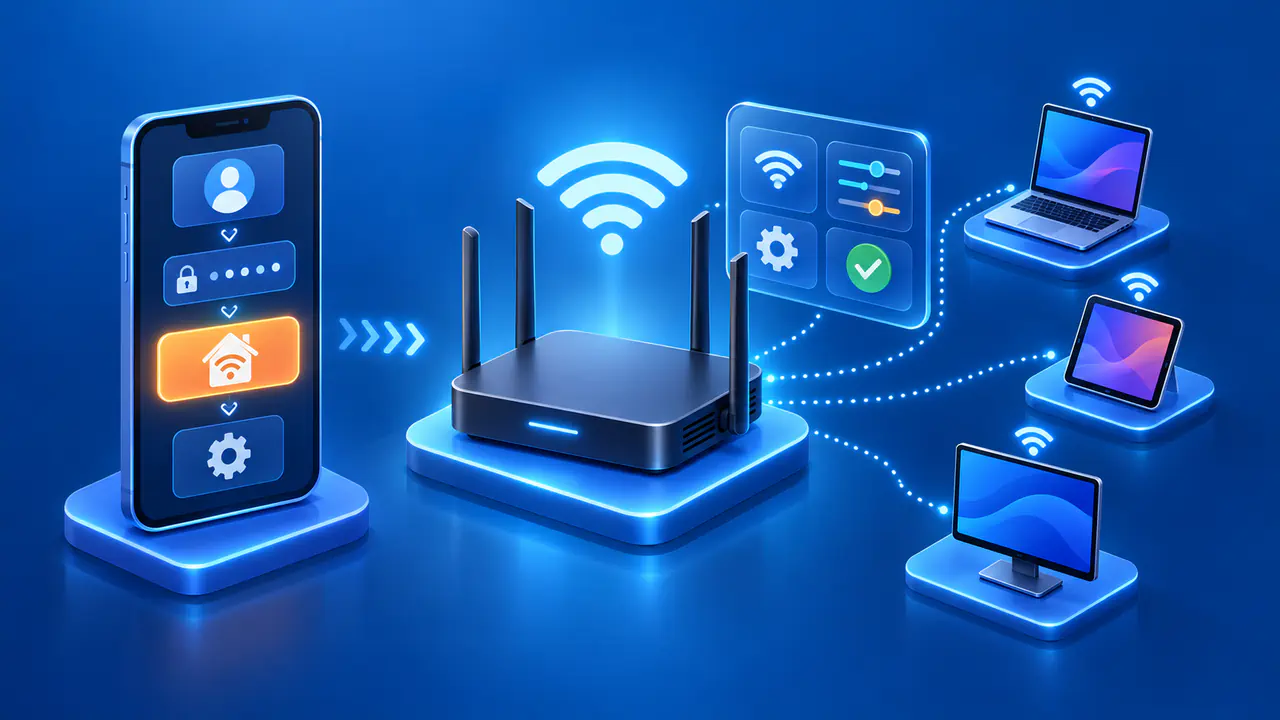
The My Spectrum app lets you manage your Spectrum WiFi 7 router without signing in to a separate router administration page. You can change the WiFi name and password, control connected devices, and adjust the advanced settings available for your equipment. Check your router's label to confirm that you have the SBE1V1X model described here.
Use the Spectrum username and password for the account associated with your internet service. The WiFi password lets devices join your wireless network but does not sign you in to the app. Keep the account password private when sharing WiFi access with someone else.
Sign In to the My Spectrum App
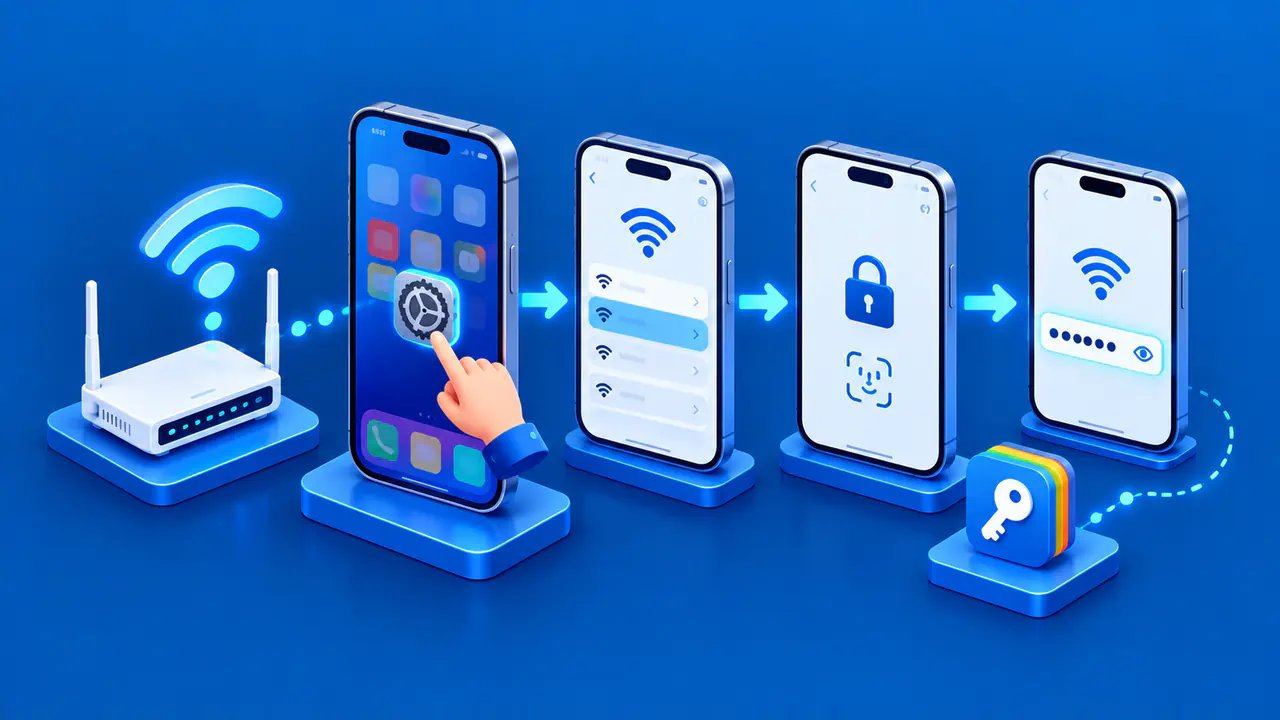
Open the My Spectrum app and sign in with your Spectrum account credentials. If you have not created a username, select Create a Username, verify the account using your phone number, email address, or account number, and follow the prompts to set a password.
If you have forgotten your login details, select Forgot Username or Password? on the sign-in screen. Follow the identity verification prompts to recover the username or reset the account password. Changing the WiFi password will not help you sign in to the app.
Find Your Router in the App
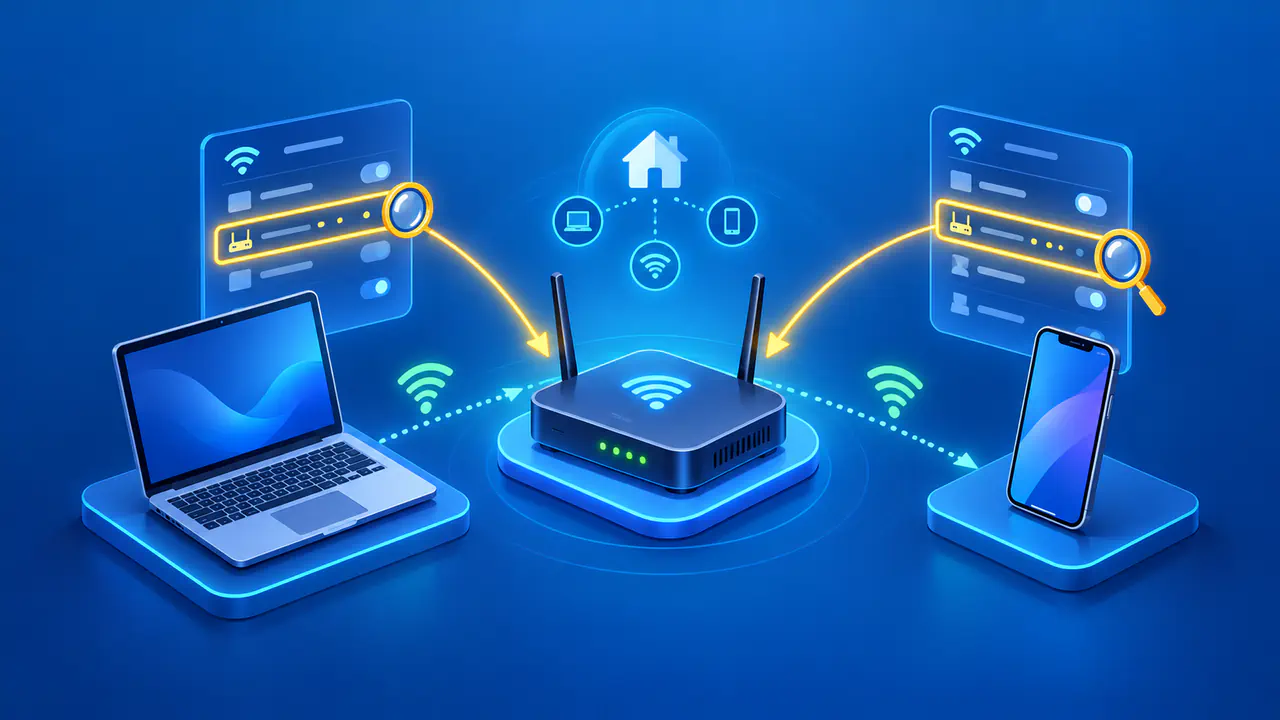
Open Services and find your internet service and WiFi network. Select the router under the equipment details to open its settings. To view or change the WiFi name or password, select the network information instead. Menu labels can vary with the app version, so look for the router or network rather than selecting the modem by mistake.
Check the equipment details against the router you are using, especially after a replacement. If the app shows the wrong service address or does not list your router, ask the account holder or Spectrum support to check which equipment is linked to the account. For a router you bought yourself, use the manufacturer's app or local administration page; My Spectrum does not manage its WiFi settings.
Change the WiFi Name or Password
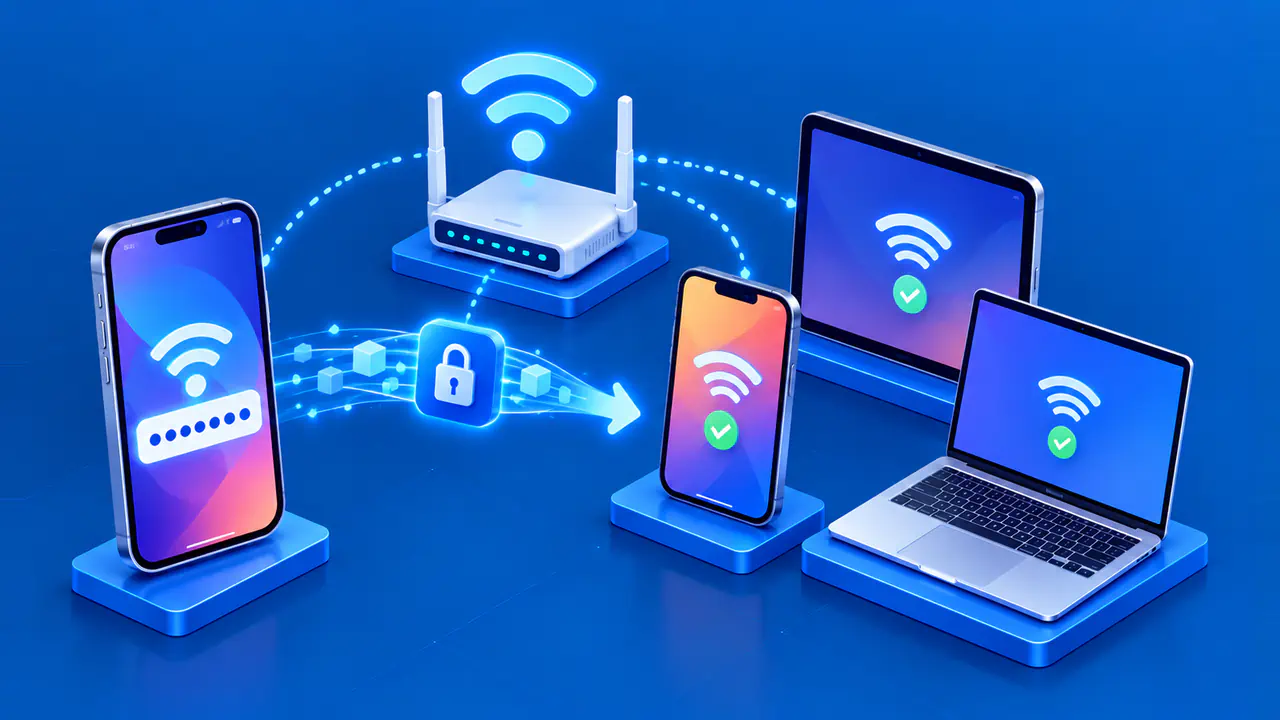
From the WiFi network information, select Edit Network Info or the equivalent edit control. Enter the network name and password you want to use, then select Save or the check mark shown in the app. Review any confirmation before applying the change so that you do not accidentally replace a password you only wanted to view.
Choose a name that is easy for your household to recognize without including a full name or home address. Use a strong, unique WiFi password, and keep a secure copy for reconnecting your devices. After you change the WiFi name or password, the label will still show the original details. Use the updated information in the app.
Saving a new network name or password can disconnect devices using the old details. Reconnect your phone, computers, televisions, and other WiFi devices with the updated information. Make this change when a brief interruption will not disrupt a call or another household member's work, and check that your essential devices reconnect afterward.
Manage Devices and Access Schedules
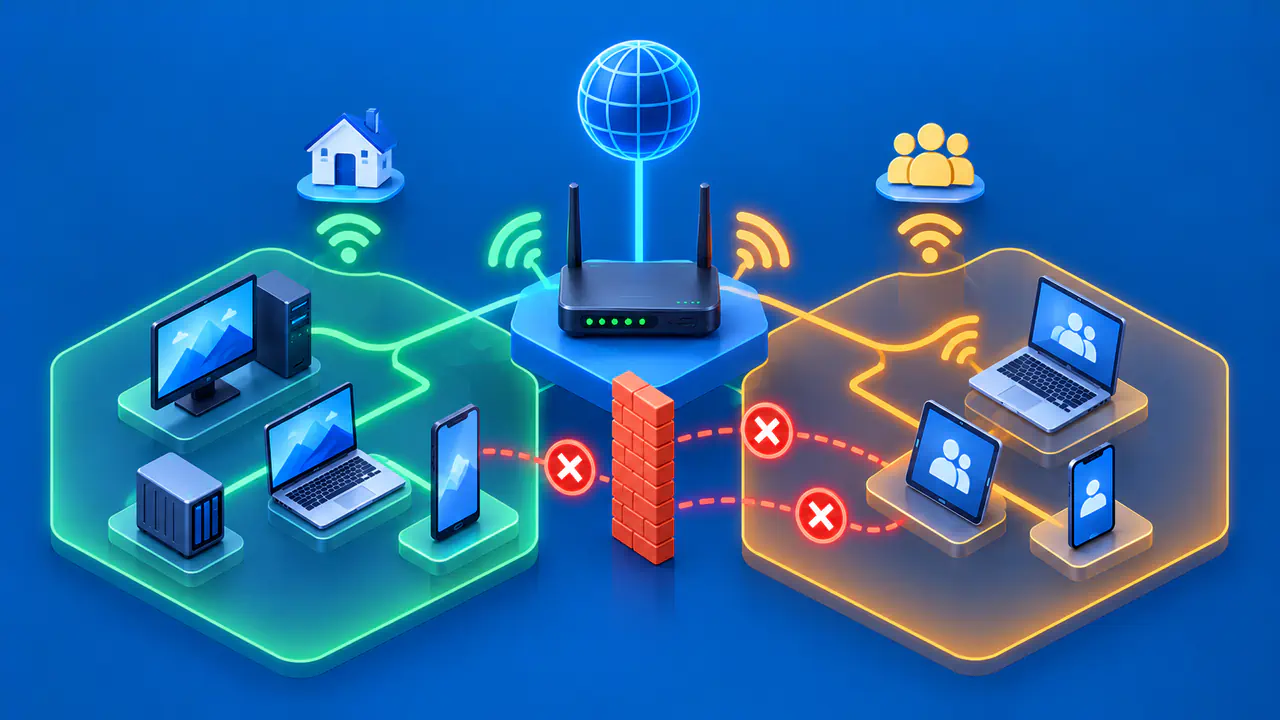
Open the connected-device list to see the equipment using your network. Select a device and check its details before pausing its internet access or changing its settings. If a name is unfamiliar, compare the listed details with your own devices first. The app may show a manufacturer's name instead of the name you gave a phone or television.
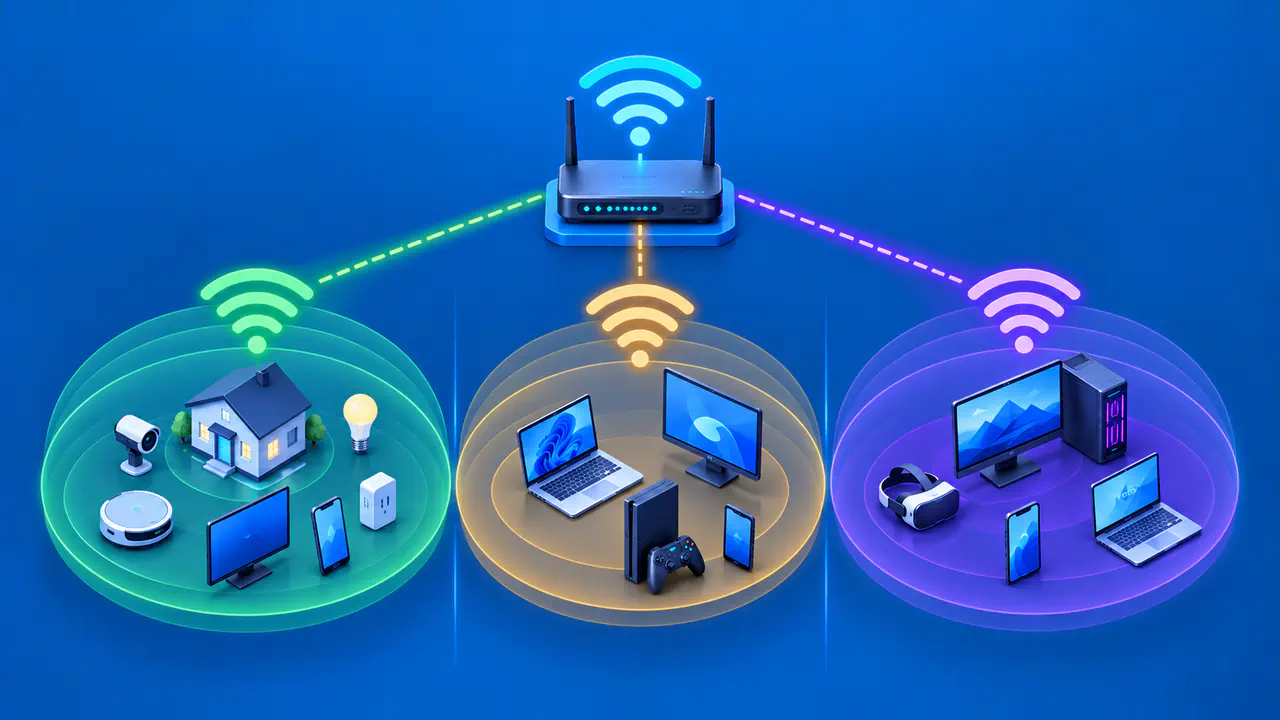
Give devices clear nicknames in the app so that you can recognize them later. Groups let you manage several devices together, which can be useful when the same access schedule should apply to a child's tablet and game console. Check which devices are in a group before pausing the whole group.
Use Pause to temporarily stop a device's internet access through this router, or set a schedule to block access at set times. Check that the app shows the pause or schedule you intended. Resume access when the pause is no longer needed, and review existing schedules if a device repeatedly loses access at the same time of day.
Review Advanced Settings and Security
Open the router's details and look for Advanced Settings. Port forwarding directs incoming traffic for a specified port to a device on your network. UPnP lets compatible applications request port mappings automatically. DNS settings let you choose the servers used to look up domain names.
Keep a note of the current settings before editing them so that you can restore a value if the change causes a problem. Change an advanced setting only when you know which application or device needs it. For a port-forwarding rule, check the destination device and the required port and protocol before saving. Avoid copying settings from an unrelated router tutorial just because the interface looks similar.
The Security Shield section shows suspected threats and websites that the service has blocked. If a site will not open, check whether a Security Shield warning names that site. Disabling Security Shield changes protection across the network, so ask Spectrum to review a block you believe is incorrect.
If a Setting Is Missing or Will Not Save
Confirm that you selected the correct router and that you are using an account authorized to manage it. If you cannot find a control in the app, check the router settings in your Spectrum account through a browser. The account website is another supported way to manage this router, although the screens may be arranged differently.
If the problem continues, tell Spectrum support which setting you need, the router's model number, and any error shown when you try to save. Explain whether the router is missing entirely or whether only one control is unavailable. Those details help distinguish an account or equipment problem from difficulty finding a menu.
Do not factory-reset the router just to recover your account login or find a missing setting. A factory reset erases personalized settings, including your WiFi name and password. If Spectrum support recommends a reset, confirm how to restore your network settings and reconnect your devices afterward.