How to Hide Your IP Address
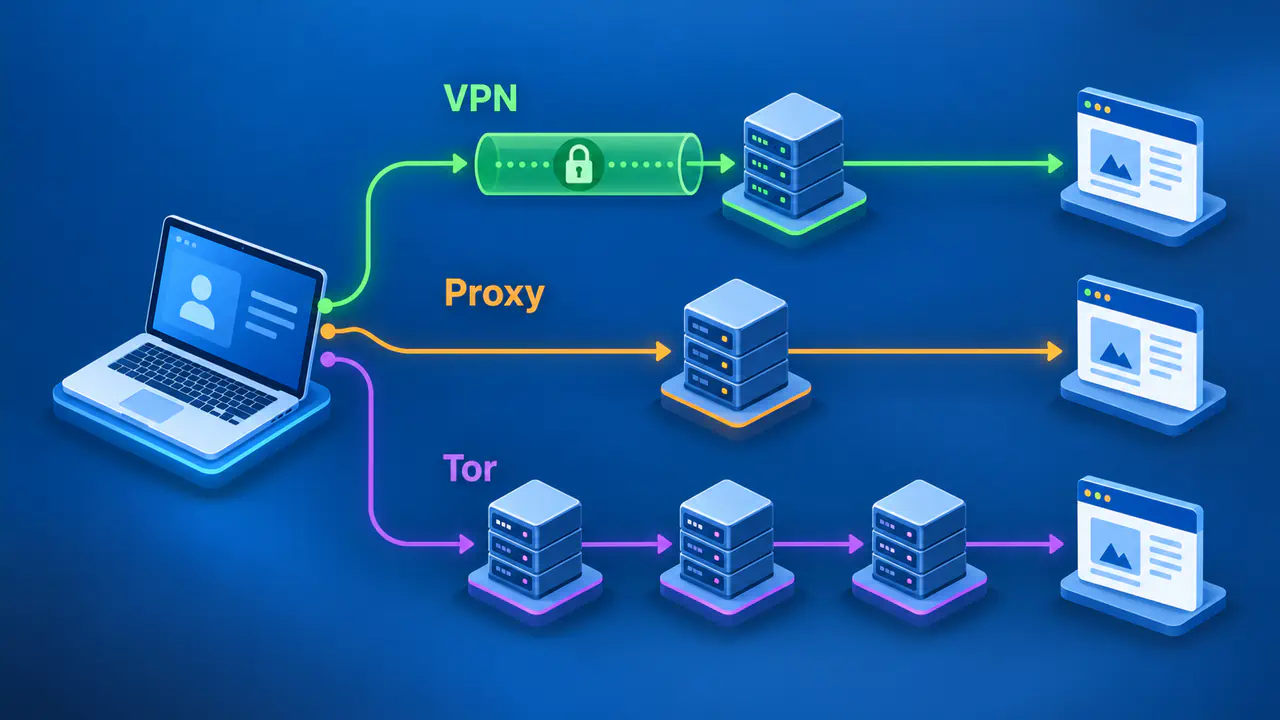
You can hide your usual public IP address from a website by connecting through a VPN, a suitably configured proxy, or Tor Browser. The website then receives the connection from another server instead of directly from your home or mobile network. The method you choose determines which apps use that route and who handles your traffic.
Choose a method that covers the apps you use: a browser proxy may suit a single browser, while a device VPN can cover more applications. Neither approach makes you anonymous to a website where you sign in, and a changed browser IP does not prove that every app has changed its route.
Public and Local IP Addresses
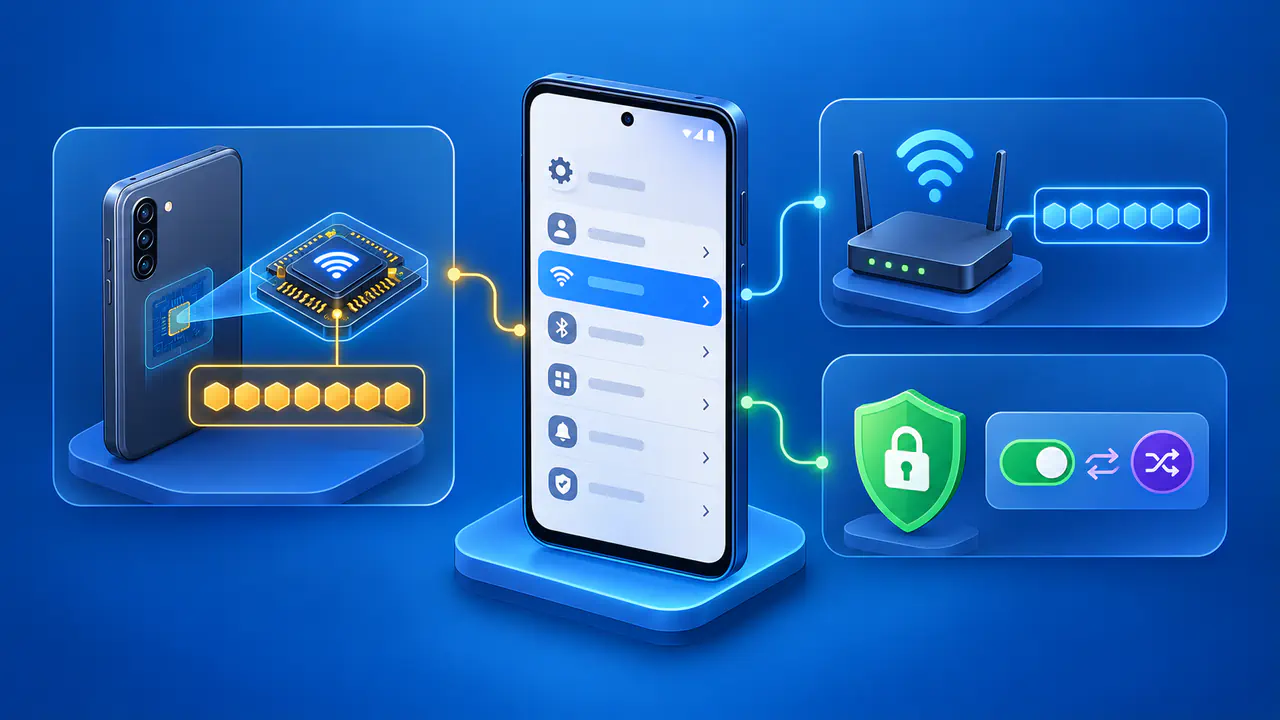
Your device may have a private IP address on Wi-Fi while your router uses a public address for internet connections. Editing the device's private address does not hide the public address a website sees. Restarting the router is also unreliable as a privacy measure: the internet provider may assign the same public address again.
Switching from Wi-Fi to mobile data can change your public address because another network carries the connection. That gives you a different network address, but it still leaves you trusting the network operator. An intermediary can conceal your usual IP from the destination website; it does not remove your internet provider's knowledge of the address assigned to your connection.
Use a VPN for the Apps You Need
A device VPN creates an encrypted tunnel to a VPN server. For internet traffic routed through that tunnel, websites generally see the server's public IP address. The local network can see the connection to the VPN server, and the VPN provider becomes another organization you must trust with your traffic.
Install the provider's official app for your device, follow its connection instructions, and wait for the app to confirm that the VPN is connected. Before browsing, check which apps and destinations the VPN covers. Split tunneling can leave selected connections outside the tunnel, and a work VPN may carry only traffic for internal company resources.
A connected icon alone does not establish that a particular website sees the VPN's address. You still need to check the connection from the app you intend to use. Review the provider's data policy as well: hiding an IP from a website does not mean that no service can record the connection.
Check What a Proxy Forwards
A forward proxy receives requests from an app and passes them to a destination server. You can configure a browser to use a proxy, but other applications may continue connecting directly. Even a system proxy setting does not necessarily cover every app, because some applications use their own connection settings.
Some HTTP proxies include the original client's IP address in request headers sent to the website. The site can then receive your address even though the network connection comes from the proxy. Check the service's forwarding behavior before relying on it to conceal your IP.
A proxy also does not automatically encrypt the connection between your device and the proxy server. Check which transport the service uses and what information its operator handles. A reverse proxy is different: it sits in front of a website's servers and is normally chosen by the site operator, so it is not a visitor setting for hiding your address from that site.
Use Tor Browser for Web Browsing
Tor Browser sends browsing traffic through the Tor network. An ordinary public website reached through the browser normally sees a Tor exit relay's address. Other people may use that same exit, so websites can present extra verification challenges.
Get Tor Browser from its official download service, install the version for your supported platform, and connect to Tor before browsing. Use that browser for the visits you want to route through Tor. Opening Tor Browser does not redirect unrelated applications, and pointing another browser at a Tor proxy does not give it all of Tor Browser's protections.
Verify the Address in the App You Use
Compare the actual public IP address before and after connecting. Keep the comparison private; you do not need to publish your address to confirm a change. For a browser, use these steps:
- Before enabling the VPN or proxy, open a public-IP checker in the browser you plan to use and note the address.
- Enable the chosen method and wait for its connection to finish. For Tor, perform the next check inside Tor Browser.
- Load the checker again and compare the address with the original result.
- If the original address still appears, review connection status, proxy settings, and any VPN exclusions before relying on the setup.
Check both IPv4 and IPv6 if your connection supports them. A service can route one address family through an intermediary while leaving the other on a direct path. A checker that shows only IPv4 does not establish what an IPv6 connection would reveal.
A browser test cannot establish the route used by a separate app. For that app, use its diagnostics or a destination service's connection logs when available and authorized. If neither provides the necessary information, leave the app's coverage unconfirmed instead of inferring it from the browser result.
Check for Leaks and Disconnections
DNS and WebRTC need separate attention when assessing possible leaks. A web IP result does not show where every DNS lookup went, and browser communication features can expose additional addresses under some configurations. A test result applies to the connection and settings tested, so repeat relevant checks after a network change or software update.
If traffic must stop when the VPN disconnects, check the app's kill-switch options for your platform. Test that behavior with a harmless connection before depending on it. Features and exceptions differ between products; a VPN may otherwise allow traffic to resume through the original network.
What an IP Change Leaves Visible
Changing your visible IP does not remove cookies, sign you out of accounts, or turn off device location permissions. A website can still associate a signed-in visit with your account. A phone app with precise-location permission can receive location information independently of its public IP address.
Keep using HTTPS when sending information to websites. HTTPS protects the content exchanged with an HTTPS site, including the connection beyond a VPN server, but the site itself receives what you submit. Hiding your usual IP does not make an unfamiliar site trustworthy or prevent it from recognizing information you choose to share.