How to Log In to an AT&T Gateway
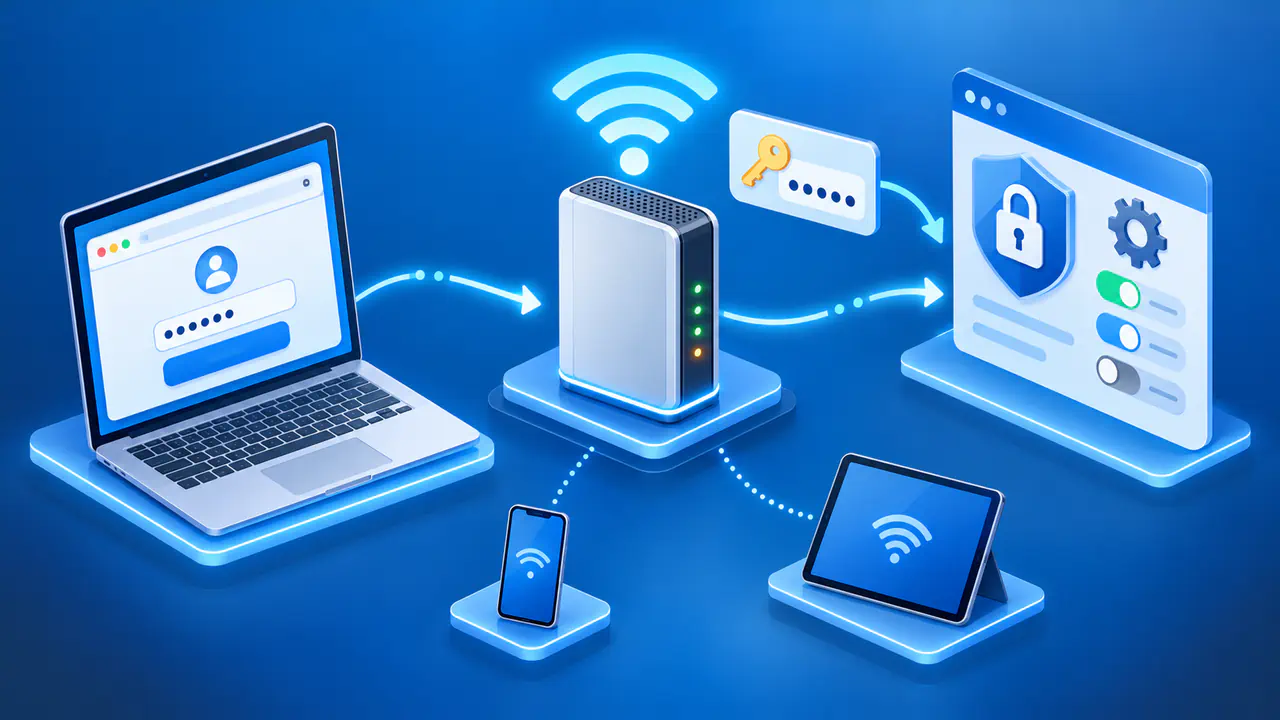
To log in to an AT&T home internet gateway, connect to its network and open http://192.168.1.254 in a browser. The page may show connection information immediately, then ask for the Device Access Code when you open or save a protected setting. You do not necessarily see a separate login screen as soon as the page loads.
The code for gateway settings, the password for joining WiFi, and your AT&T account password serve different purposes. Have the gateway's current access code ready, and check the model name on the device before following instructions for a particular menu. Only change settings on a gateway you own or have permission to manage.
Connect to the Gateway's Network
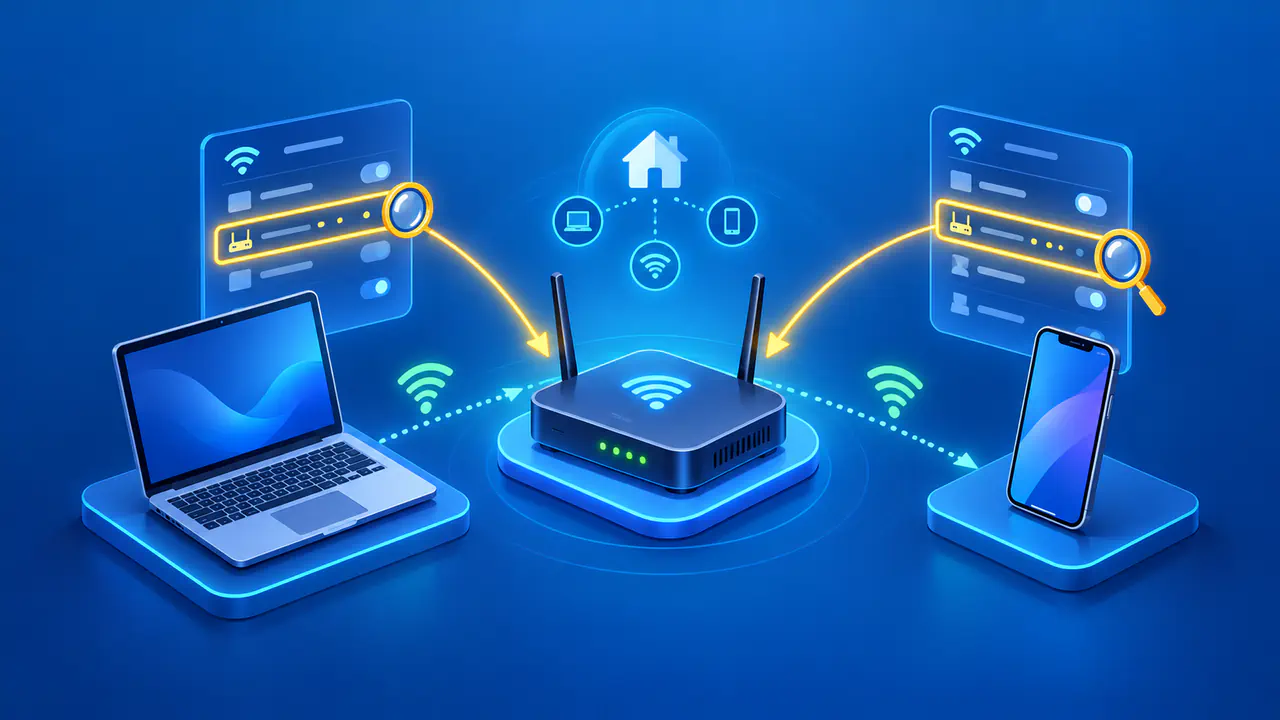
On a phone or laptop, select the WiFi network provided by the AT&T gateway. A computer can connect by Ethernet using one of the gateway's LAN ports. Leave the broadband cable connected to its existing port.
If you use a separate router at home, connect your phone or computer directly to the AT&T gateway to open its settings. A guest network or a network behind another router can restrict access to the gateway's settings. On a phone, make sure you are still connected to the gateway's WiFi network.
Enter http://192.168.1.254 in the browser's address bar and press Enter or Go. If you get search results, select the address bar and enter the full address again. The gateway interface is hosted on the device in your home. You do not need to find an AT&T account sign-in page to open these local settings.
Find the Right Access Code
Look for Device Access Code on the gateway's label. On some models, the code is called a system access code. The same label may also show the model number, WiFi network name, WiFi password, serial number, and MAC address. Read the label beside the value you need rather than choosing the first password or number you see.
The printed access code is the factory value for that gateway. If someone changed the code in the gateway settings, use the new code instead. If you are unsure which code to use, ask the person who manages the network.
The WiFi password gets your device onto the wireless network, while the access code authorizes changes in the gateway interface. The serial number and MAC address identify the equipment; neither can be used as the WiFi password or access code. Keep the access code private, including when sharing screenshots of a settings page or the device label.
Open and Save Protected Settings
Once the gateway page appears, choose the setting you intend to view or change. Menus and access-code prompts differ among models, so seeing status information without a prompt does not mean that all settings are open for anyone to edit. A prompt may appear when you enter a protected section or when you submit a change.
For example, a Pace 5168 shows its WiFi name and password in Gateway Status as Network ID and Network Key. To change that model's wireless details, select Wireless in the section labeled Key Things to do Using Your Gateway and edit the relevant field. After you select Save, enter the Device Access Code if requested, then select Submit.
These steps are for the Pace 5168. Other models, including the BGW210 and BGW320, may use different menu names. Read the field name and its current value before making a change. Leave unrelated broadband, firewall, and local IP address settings unchanged.
If you change the WiFi name or password, your wireless connection may drop as the new settings take effect. Reconnect using the new details, then reopen the gateway page to check the saved value. A lost WiFi connection at that point does not by itself show that the access code was rejected.
If the Gateway Page Will Not Open
A page that never loads is a different problem from a page that rejects your code. First, check that the gateway has power and that your phone or computer is connected to its network. After a restart, allow the gateway to finish starting before trying the address again.
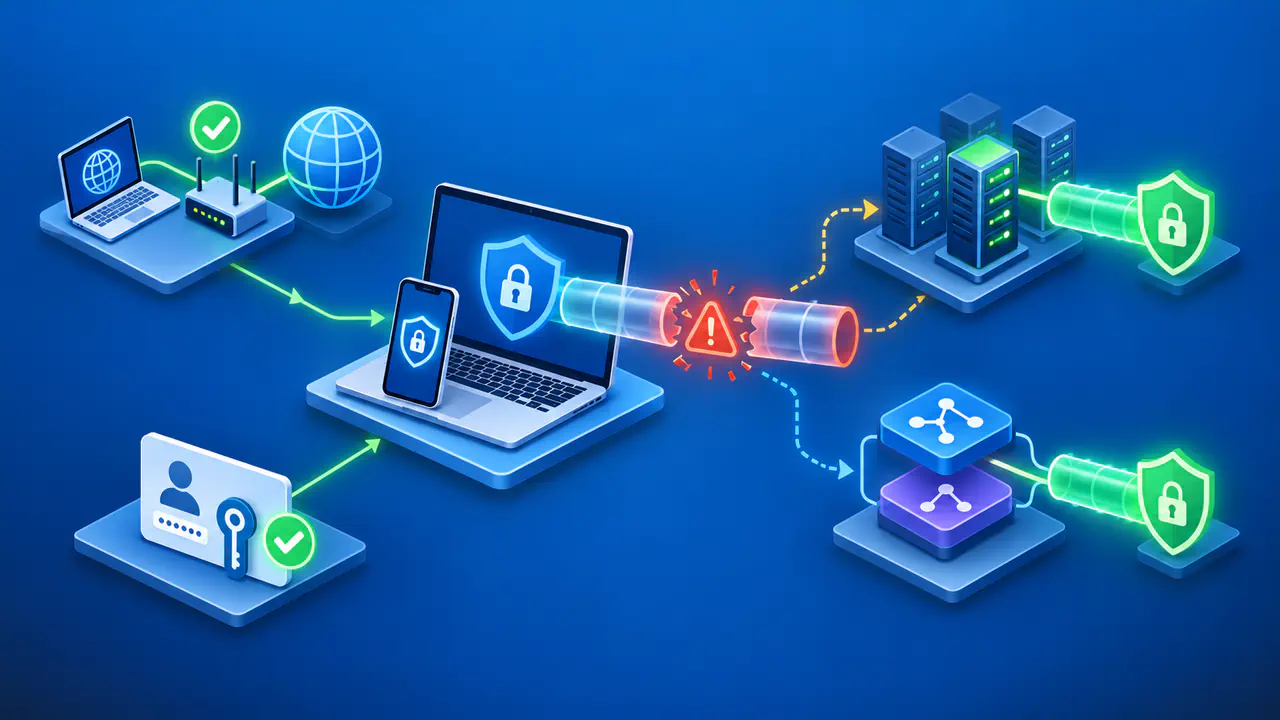
Try another browser on the same device, then another device on the gateway's network. If either can open the page, the gateway is responding; focus on the device or browser that cannot connect. A VPN can also block access to local devices. If you manage the VPN settings, check whether local network access is allowed. On a managed work device, ask the administrator about that restriction rather than changing its security settings.
If no device can reach the page over WiFi, try an Ethernet cable connected directly to the AT&T gateway. If someone changed the gateway's local IP address, 192.168.1.254 may no longer be the right address. Ask the person who manages the network for the current address, or check the default gateway in the network details of a directly connected device.
The local settings page can still be reachable during an internet outage. Opening it confirms communication with the gateway, not that the broadband connection is working. Check the gateway's service status separately if websites remain unavailable.
If the Access Code Is Rejected
When the page opens but will not accept the access code, check the entry against the current code for that specific gateway. Pay attention to uppercase and lowercase letters and any extra spaces introduced by copying. If the gateway was replaced, use the replacement unit's details rather than a code saved for the old device.
If the screen asks for an account user ID and password, check which page you opened before entering anything. A separate router or an AT&T account page can have its own sign-in requirements. Verify the device and model instead of trying a generic administrator password from an unrelated router guide.
If you have forgotten a custom access code, you may need to restore the gateway's factory settings. A factory reset also erases custom network settings, so be prepared to restore your WiFi name, password, and any other settings you changed. Check the recovery procedure for your model or ask AT&T support for help before using the Reset button. Do not erase the configuration simply because a browser cannot load the settings page.