How to Set Up OpenVPN on an ASUS Router
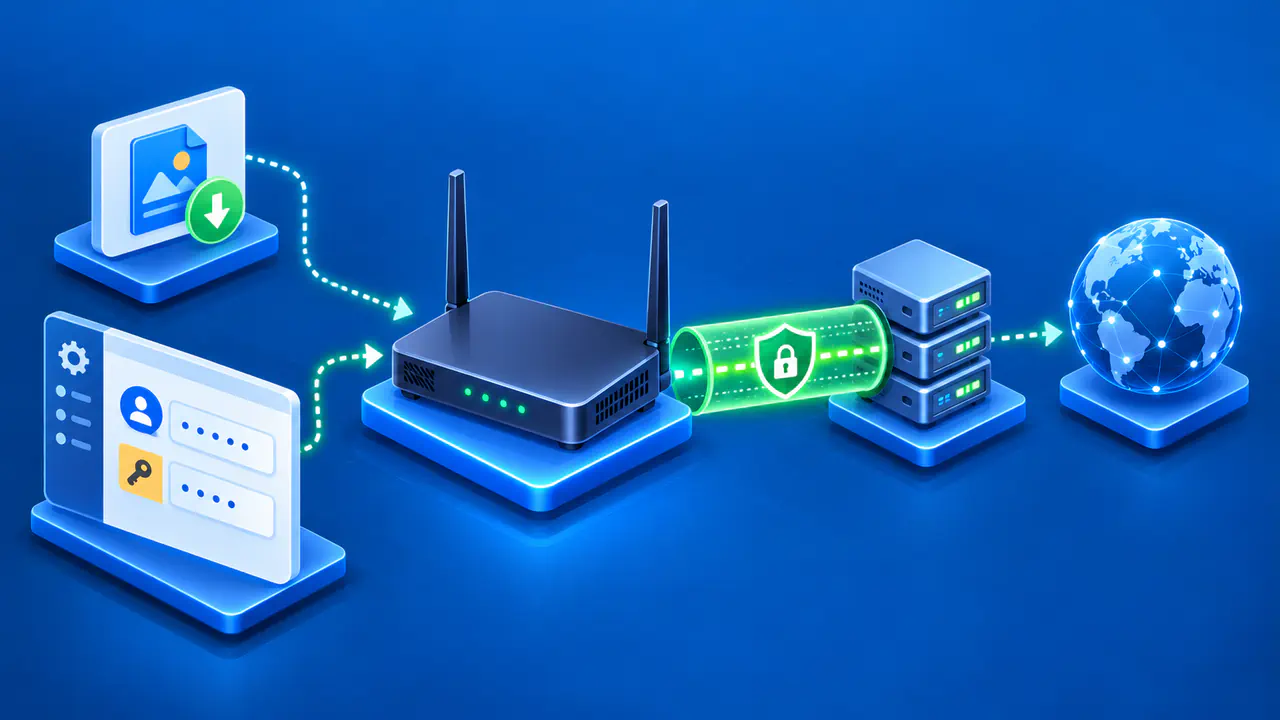
An ASUS router can connect to an OpenVPN service and send traffic from devices on its network through that connection. The router needs OpenVPN client support, and your VPN provider must supply settings that work with the router's firmware. Setting up the client connects your network to a remote VPN service; hosting an OpenVPN server for access to your home network is a different task.
The setup screens depend on your router. Many newer models use VPN Fusion, which can assign devices to different connections, while older interfaces have a VPN Client tab. Check the menus and supported features on your own model before following either procedure. A profile that works on one ASUS router may need different settings on another.
Check the Router and Get Your VPN Profile
Find the exact model and firmware version in the router's administration page. Confirm that the model supports OpenVPN as a client, rather than only as a server. If you need per-device selection, check for VPN Fusion support as well. Use setup instructions for your installed firmware, and check for a supported update if your VPN provider requires a newer version.
Download an .ovpn configuration file from your VPN provider or obtain one from your network administrator. The file contains the connection settings and may also include certificates or keys, so keep it private. Get any required username and password from the same source. An ASUS router's VPN menu does not provide a VPN account or subscription by itself.
Before changing settings, confirm that devices on the router can reach the internet normally. Record the current default connection and any device assignments so you can restore them if needed. Plan the change for a time when a brief interruption will not disrupt calls or other work. Where the router allows it, start with one device before changing the connection for the whole network.
Import the Profile in VPN Fusion
Connect your computer to the ASUS router through Ethernet or WiFi, then open the router's local administration page. Use the LAN address and router login you normally use to manage the network. The router login is separate from the credentials that the VPN provider may require.
- Open VPN → VPN Fusion and use the add control to create a profile.
- Select OpenVPN as the VPN type and enter a recognizable connection name.
- Choose Import .ovpn file, select the provider's file, and wait for the Complete message.
- Enter the VPN username and password if your provider requires them.
- Click Apply and Enable to save the profile and start the connection.
Wait for the profile to show Connected. The Complete message confirms the file import, while Connected confirms that the router established the VPN connection. Neither status tells you which devices are assigned to the profile. Check the device settings next, before relying on the VPN for traffic from a particular device.
Use the Older VPN Client Interface
If your router has a VPN Client tab, open VPN → VPN Client → Add profile and select OpenVPN. Enter the requested description and authentication details. Choose the .ovpn file, click Upload, and wait for the Complete! message before clicking OK to save the profile.
Click Activate beside the saved profile. A checkmark in the connection status column indicates a successful connection. Routers without VPN Fusion generally send connected devices through the active VPN client, so check the effect on the whole network. Do not assume that a per-device control shown in a newer router's instructions is available on this interface.
Choose the Devices That Use the VPN
On a supported VPN Fusion router, you can edit the profile to select particular devices. Use the following sequence when the profile offers Apply to all devices and Edit Device:
- Turn off the VPN connection and open the profile's settings.
- Turn off Apply to all devices.
- Open Edit Device and select the devices that should use this VPN.
- Click OK, then Apply all settings to save the selection.
- Turn the VPN connection back on.
Match each selected entry to the actual device. The router's Network Map and client details can show each device's name, current local IP address, and MAC address. Compare those details with the device's network settings when a name is unfamiliar. A similar name is not enough to identify the right phone or computer.
To make the profile the default connection for the network, enable Apply to all devices where that setting is supported. Review any existing device assignments as well. If your router lacks device selection, use the behavior documented for that model instead of copying routing rules from another router. A connected profile alone does not establish which path each device uses.
Check Access from the Selected Devices
For a VPN intended to carry internet browsing, compare a selected device's public IP before and after connecting. Use the same browser on the same router connection and request a fresh result after activation. The address should reflect the VPN service when that browsing traffic goes through the VPN. Compare the addresses rather than relying on a displayed city, since IP locations are estimates.
A workplace profile may send only traffic for the organization's private network through the VPN. In that case, an unchanged public IP does not by itself indicate a fault. Open the internal website or other resource that your administrator expects you to reach, and confirm access using the required account.
If you chose selective routing, also check a device that should remain on the ordinary internet connection. Confirm that both devices can reach the services they need. A browser check covers that browser's connection, so it does not establish how every app or IP version is routed. Follow your provider's requirements for DNS and IPv6 rather than assuming an IPv4 result confirms the entire setup.
Resolve a Failed Connection
Note whether the failure happened during file import, authentication, or connection. Check the router's ordinary internet access, then compare the VPN type, profile, and credentials with your provider's instructions. Use the exact error message to guide the next check. Avoid changing unrelated LAN settings while you are still identifying the cause.
If your provider permits it, try the same profile on another supported OpenVPN client. A failure there may point to the profile, account, or server rather than the ASUS configuration alone. For further help, provide the router model, firmware version, error, and time of the attempt. Remove passwords and private keys from screenshots or logs, and never post the raw profile publicly.
Turn Off the VPN or Restore Your Settings
To disconnect, turn off the profile in VPN Fusion or click Deactivate in the older VPN Client interface. If the change disrupted service, restore the previous default connection and device assignments you recorded, then check access again. A factory reset should not be the first response to a failed VPN profile, since it removes unrelated router settings too.