How to Tell if a Website Is Safe
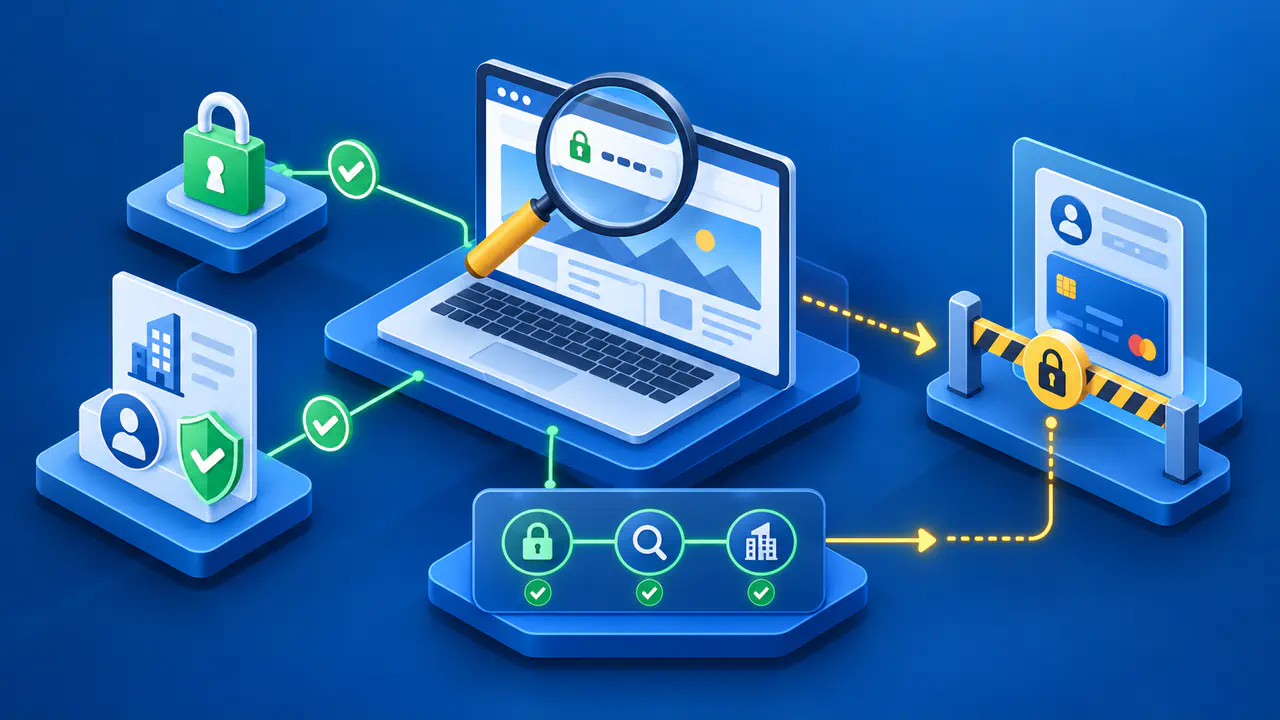
To assess whether a website is safe to use, check its exact address, verify the organization through a separate source, and consider whether the information it requests fits what you want to do. Pay attention to browser warnings before signing in, paying, or uploading documents. A professional design, familiar logo, or high review score does not establish who runs the site.
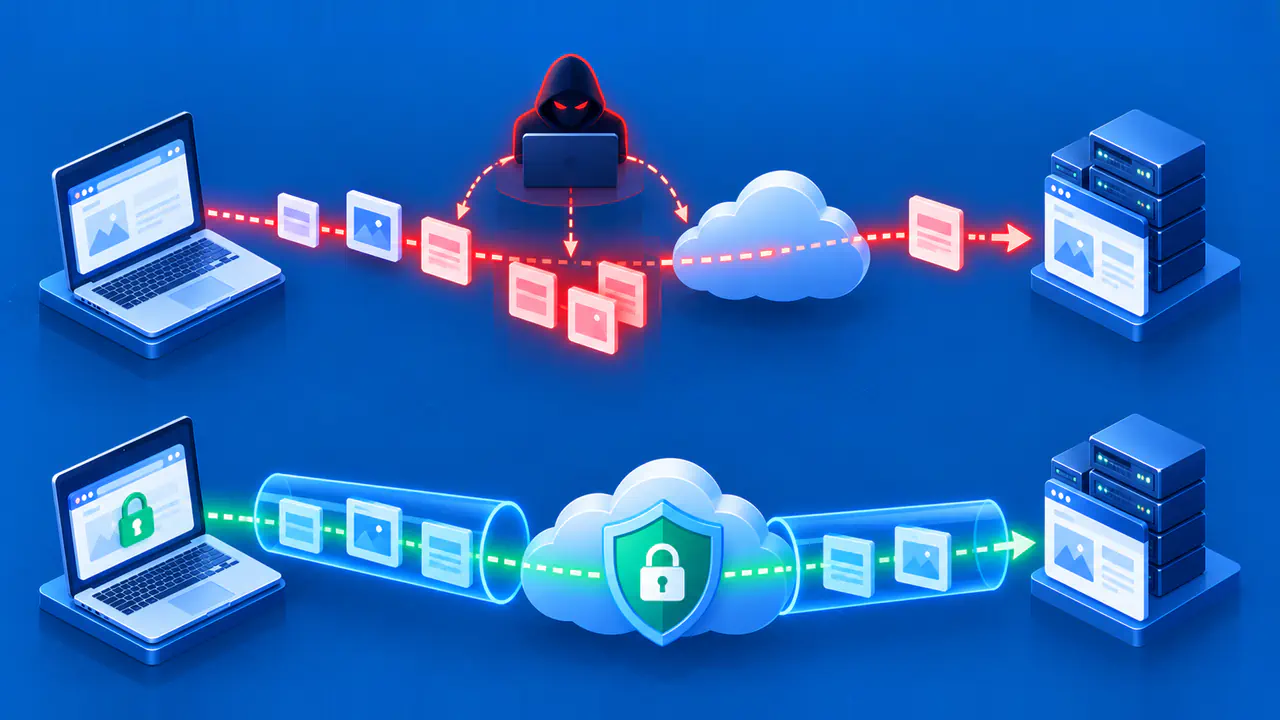
HTTPS protects information while it travels between your browser and the website. That protection matters, but a fraudulent site can use HTTPS too. An encrypted connection cannot stop the recipient from misusing information you willingly send. No single check can guarantee that a website is safe.
Check the Address before Entering Information
Tap or click the browser's address bar to see the full address. On a small screen, part of the domain name may be hidden. Compare the name carefully with the organization's known address, including spelling and the domain ending. Words such as “secure” or “support” do not make an unfamiliar address official, and a familiar name elsewhere in the URL is not enough.
For example, accounts.example.com is a subdomain of example.com, while example.com.signin.example.net is under example.net. The second address merely includes the familiar-looking example.com at the beginning. These are illustrative names, not sites you need to visit. If a long or confusing address makes the destination unclear, open a bookmark you previously saved for the organization or use its official app instead.
Also distinguish the address bar from text on the page. A link can display an organization's name while leading somewhere else. A page reached through a message, advertisement, search result, or QR code still needs checking before you enter sensitive information. For an important account, you can leave that page and navigate independently to the service you already use.
Verify Who Runs the Website
If the site claims to represent an organization you know, confirm an unfamiliar address or request through contact details you already trust. A phone number on an earlier account statement is more useful than one shown only on the questionable page. For a work account, ask your employer's IT team through your usual channel. Contacting the number supplied by a suspicious site may simply connect you to the people running it.
When considering a new seller, read its contact information, delivery terms, return policy, and description of what you are buying. Compare the details with independent information about the business. Look beyond the star rating: detailed reviews from several sources may reveal recurring complaints, though reviews can also be fabricated. Missing or contradictory information gives you a reason to investigate further before paying.
A site's age does not settle the question. A new business may be legitimate, and an established website can be compromised or change hands. Likewise, a “verified” badge or payment logo displayed on the page may be copied. A reputable website checker can flag known threats, but a clean result does not rule out a recently created or altered malicious page. Use the result alongside your other checks.
Consider Why the Site Wants Your Information
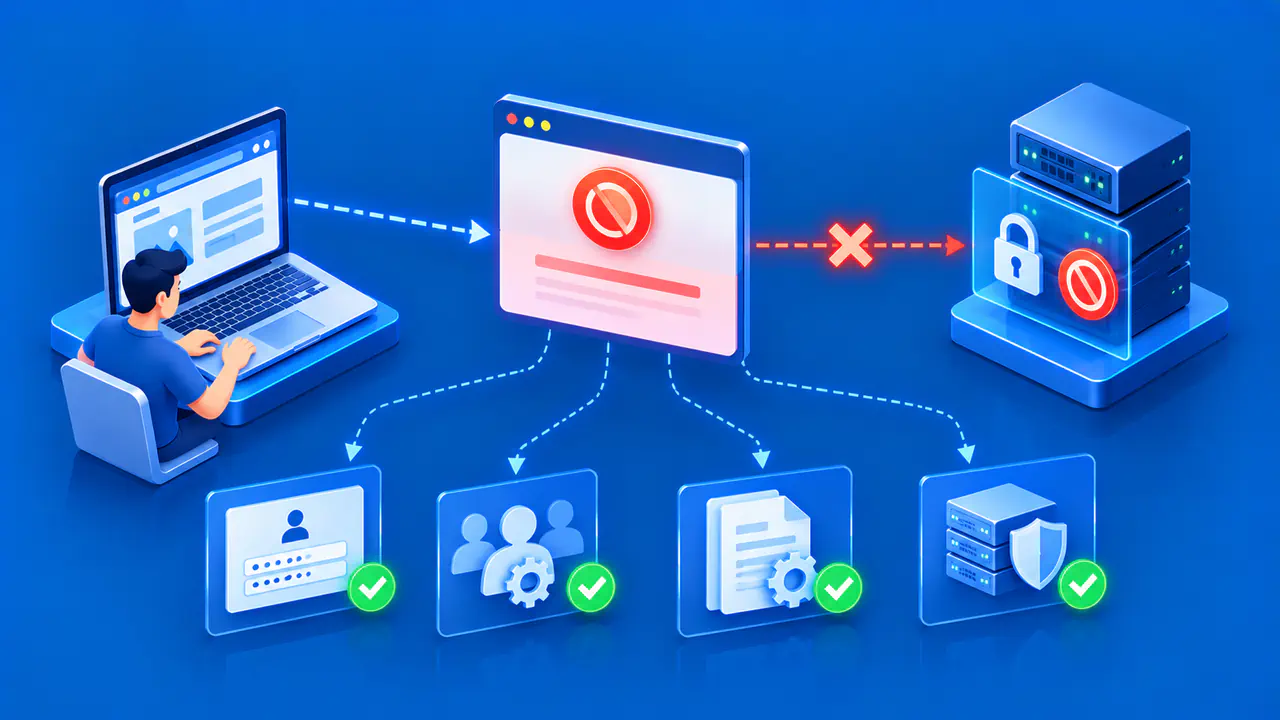
Compare each request with the transaction or account action you intended to complete. A store shipping an order needs a delivery address; it does not need the password to your bank account. A real sign-in page may ask for a verification code, but an unexpected caller claiming to be support should not receive the code that lets you sign in. Treat requests for account recovery keys with the same caution.
Watch for a change of destination during checkout or sign-in. Some services legitimately send you to a payment processor or a separate identity provider. An unfamiliar domain is therefore a reason to verify the relationship before entering information, rather than proof of fraud by itself. Check the service's trusted help pages or ask through a known support channel if the change is unexpected.
Consider the amount of information requested as well as the type. Identity documents may be necessary for a regulated service, but a basic newsletter subscription should not require them. Read why the service says it needs sensitive data and how it will use it. Do not let a countdown, prize offer, or threat of immediate account closure push you into sending information before you can verify the request.
Respond to Browser Warnings before You Proceed
Check the browser's connection information, rather than relying on a security symbol drawn inside the page. An HTTP page does not provide the protection of HTTPS, so avoid entering passwords or payment details there. Browser icons vary; the important distinction is whether the browser reports a protected connection to the address you intended to reach.
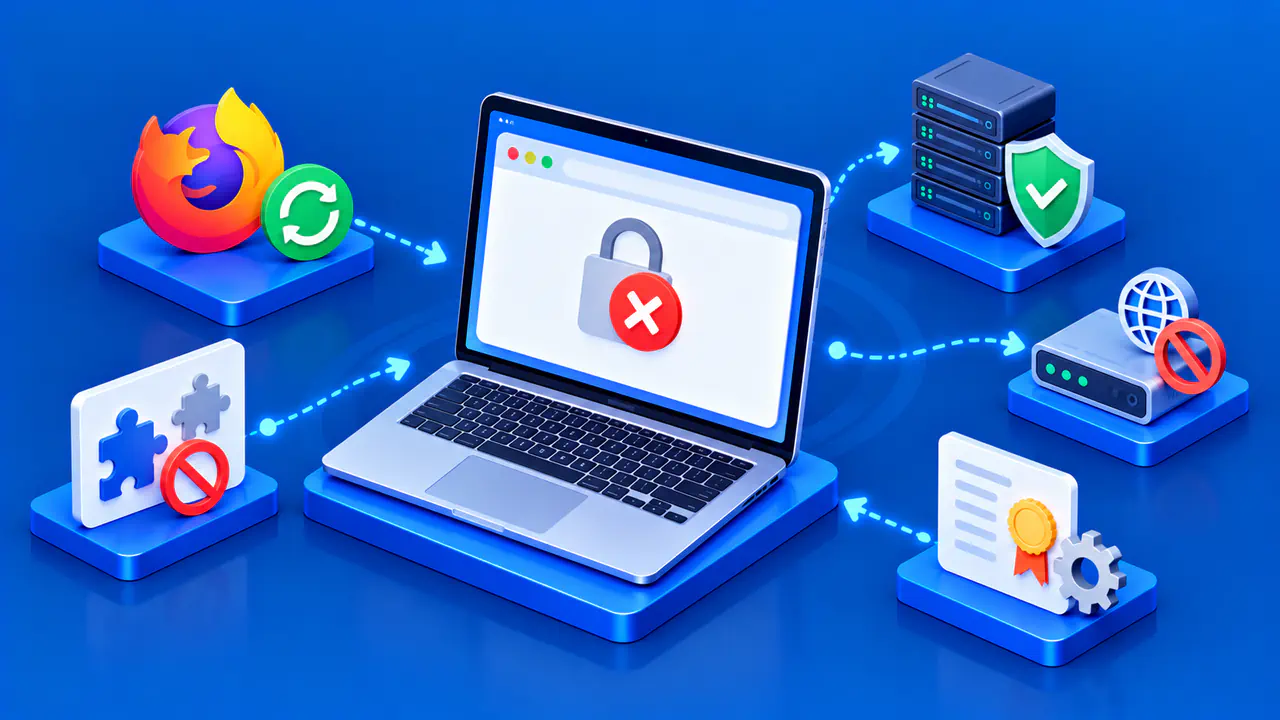
A certificate error or “Your connection is not private” warning means the browser cannot establish the expected trusted connection. The cause might be a website configuration problem, an incorrect device clock, or interference on the network. A warning that a site is dangerous is different: the browser may have identified phishing, malware, or other harmful content. A correct clock will not resolve that kind of warning.
Do not dismiss either warning just to finish a purchase or sign-in. Leave the page and contact the organization through a known route if you need to continue. Keep your browser and operating system updated so security fixes and warning features remain available. If you still cannot verify the destination or understand the request, postpone sharing your information or use another service.