How to Test for Packet Loss

To check for packet loss, send a short series of probes to a known target and record how many replies return. Repeat the test when the problem occurs, using both your local gateway and an internet target you are allowed to test. Compare the results with the affected application's delivery statistics, if available, rather than drawing a conclusion from a single timed-out ping.
A ping test sends Internet Control Message Protocol (ICMP) Echo requests and waits for replies. It does not directly measure every application packet. Some devices restrict Echo traffic, so an unanswered probe may reflect filtering or a limit on replies without affecting a call or download.
Choose Targets You Can Test
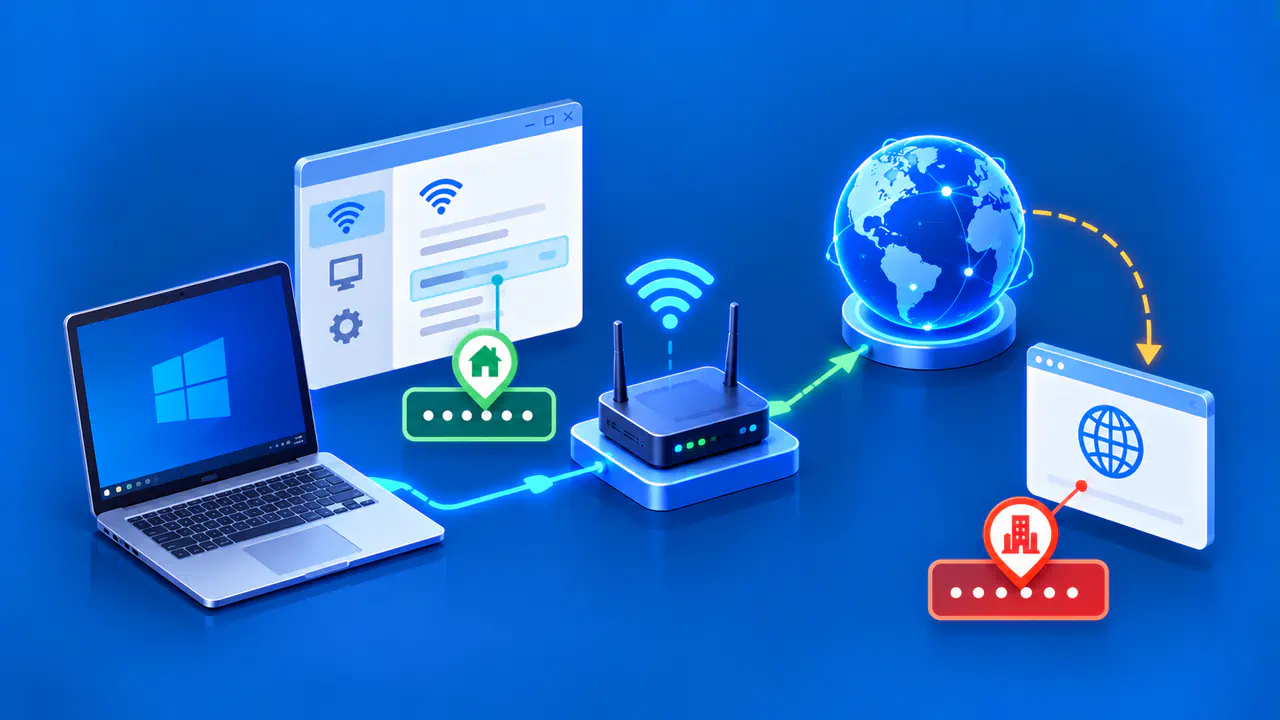
Begin with the default gateway on your own network, which is usually your router. On Windows 10 or 11, open Command Prompt and run ipconfig to display network settings. Find the default gateway listed for the WiFi or Ethernet adapter you are using, rather than selecting a disconnected adapter or a VPN entry. The steps below use IPv4 addresses for the first comparison, so choose the IPv4 gateway address if one is listed.
Next choose an internet target that permits ordinary ICMP probes and is relevant to the problem, ideally a service you operate or one whose operator allows testing. Use its IPv4 address for this comparison. A target may stop answering Echo requests because of its configuration, so check whether it normally responds before interpreting a run with no successful replies.
If the affected application provides call statistics or transfer counters, use them to check delivery during the session where the problem occurs. A service status page can describe a wider outage, but it does not measure packet loss on your individual connection. The application's ports, protocols, routes, and servers may differ from those used by ping, so its counts need not match the probe results.
Run a Short Windows Ping Test
Run ping /n 20 GATEWAY_ADDRESS, replacing GATEWAY_ADDRESS with the IPv4 gateway address you found. The Windows /n option sets the number of Echo requests. Save the response lines and final statistics, along with the run's start time. Twenty requests provide a small first sample; intermittent loss may not occur during it.
Next run ping /n 20 TARGET_ADDRESS, replacing TARGET_ADDRESS with the permitted internet target's IPv4 address. Keep the device, connection, and test settings the same, and run the two series close together. Record whether a VPN is active, because it can change the route to the remote target.
If the problem occurs during an upload, repeat both tests while uploading and while the connection is idle. Use an upload you would normally make or a controlled transfer to a service you are allowed to test. Avoid continuous or high-volume probes to external services merely to force a failure.
Read the Replies before Calculating a Percentage
Check the response lines before relying on the summary. A successful Echo reply comes from the target and includes a round-trip time. A line saying Destination host unreachable is an error, even if it begins with Reply from. Windows can include such error responses in its received count, so zero percent loss in the summary does not always mean the destination answered successfully.
Keep successful Echo replies, timeouts, and other errors separate. A Request timed out line means the expected Echo reply did not arrive within the waiting period. An unreachable error provides different information: a device is reporting that it could not deliver the probe. Preserve the error text and the address that reported it instead of treating every unsuccessful probe as silent loss.
For a run containing only successful Echo replies and timeouts, divide the number of unanswered requests by the number sent and multiply by 100. If two of 20 requests time out and the other 18 receive Echo replies, the unanswered rate is 10 percent for that run. This percentage describes ICMP exchanges with that target during that sample, not a long-term loss rate for the application.
Compare the Local and Remote Results
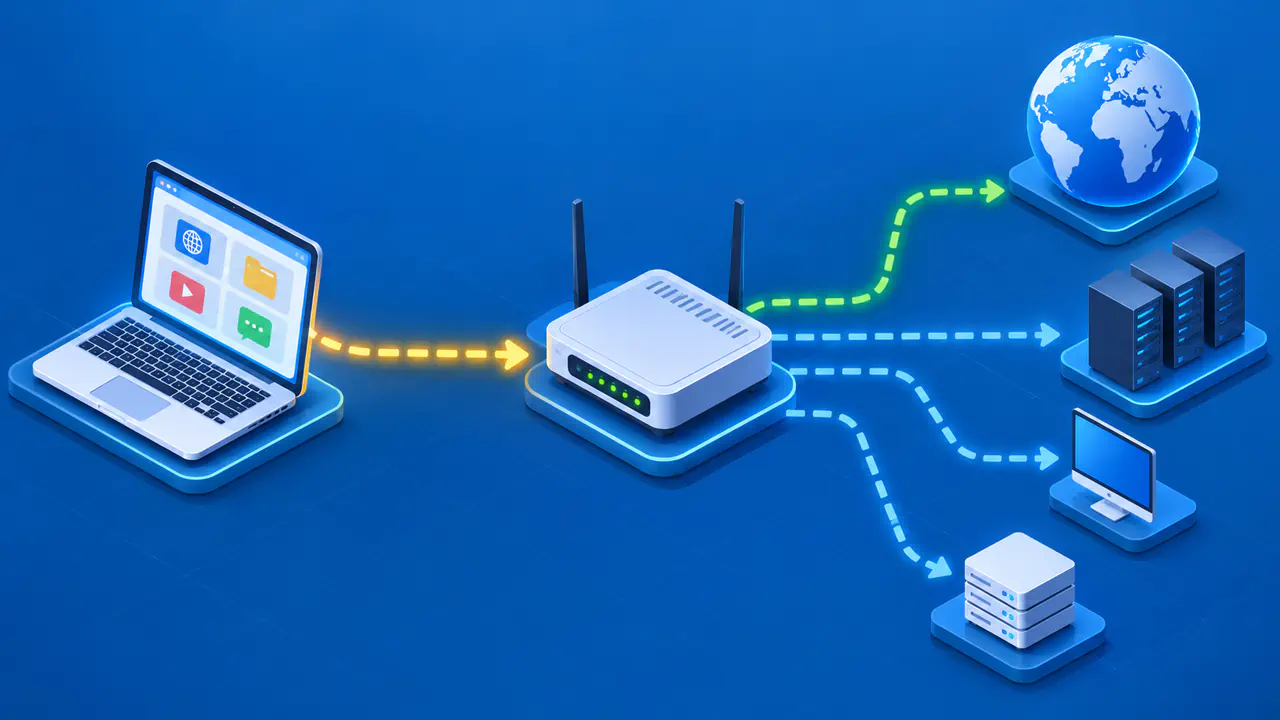
If replies from the gateway are missing while the problem occurs, start by checking the connection between your device and the gateway. WiFi conditions, a cable, adapter problems, or the gateway's handling of probes may be involved. To compare WiFi with Ethernet, use the same device, router, and target under similar traffic conditions. If you test a second device, record that change so a difference is not automatically attributed to the network connection alone.
If the gateway answers consistently but the internet target does not, compare the result with replies from another internet target you are allowed to test. Traffic to each target may take a different route, and devices may handle Echo requests differently. Missing replies therefore do not prove that an internet service provider is dropping application traffic. Check whether the affected application has problems at the same time before drawing a conclusion about the internet connection.
If both targets answer while the application stalls, check for a separate application route, server delay, or filtering specific to that application's traffic. A problem can also affect traffic in only one direction. A short test with no missing replies cannot rule out packet loss at other times.
Check the Affected Application
For a real-time call, inspect per-call statistics if the application provides them. Calls using the Real-time Transport Protocol (RTP) may report reception statistics through the RTP Control Protocol (RTCP). An RTCP reception report can describe the fraction of expected media packets lost since the previous report, rather than loss to an unrelated ping target. Check the application's metric definitions: late and duplicate packets can affect these counts, and arrival alone does not establish that a packet was usable for playback.
For other applications, use documented transfer logs or connection metrics when available. Record the server name, session time, and connection type, and describe the problem, such as a failed upload, failed download, or pause while using the application. Share only the details needed for diagnosis, removing account identifiers and unrelated private data from logs or screenshots.
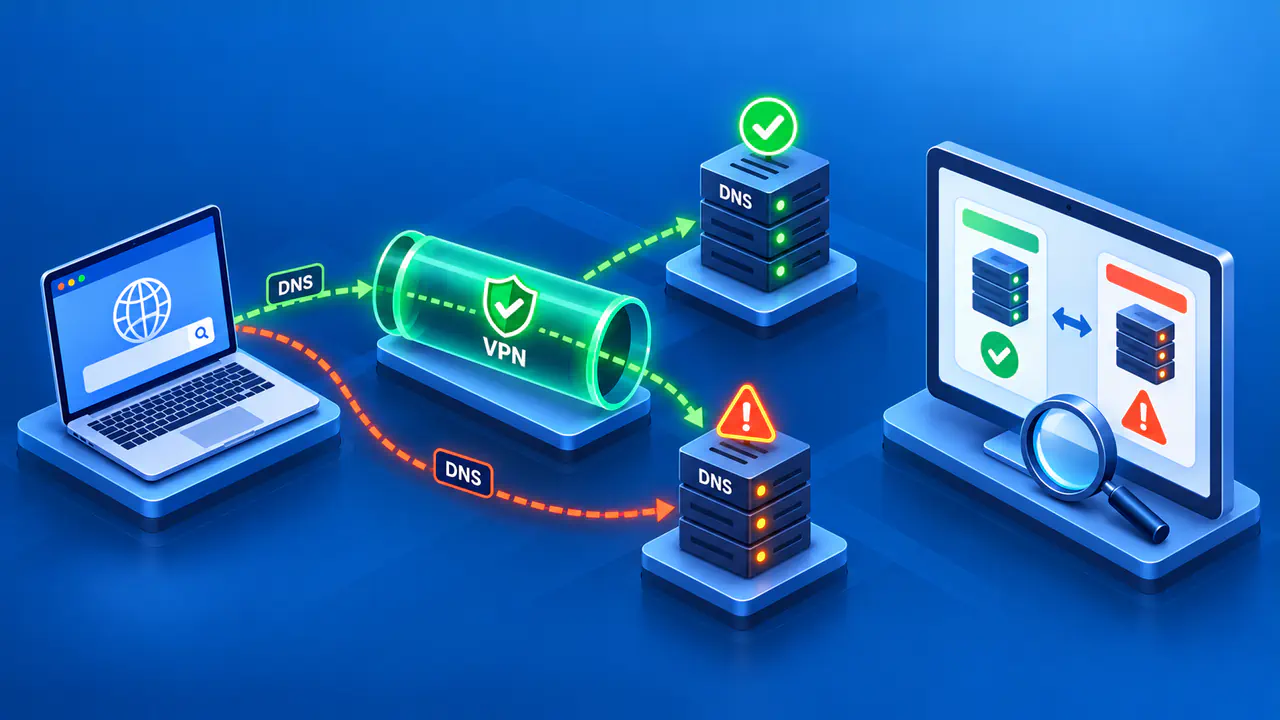
Compare the times of the ping failures and application problems. If ping replies are missing when the call also reports media loss, check the connection they share; timing alone does not identify the faulty component. If the call reports loss while the gateway replies normally, compare its statistics with the internet target's results and check for problems with the call service. If only ping shows failures, check the target's Echo response policy before treating them as an application fault.
Share the Test Conditions and Results
When asking for help, provide the operating system, connection type, target addresses, commands, and start times. Give separate counts for successful Echo replies, timeouts, and errors, and describe what happened in the application. Compare results from busy and idle periods to show whether failures occur under load, and mention whether the target normally answers ping.
If a run has three timeouts among 20 requests, with 17 successful Echo replies, you can report a 15 percent unanswered rate for that target and period. That does not establish that your internet service provider lost 15 percent of all application packets. If an error message or changed test condition explains the result, include that detail before deciding which connection, device, or service needs further investigation.