Is Public WiFi Safe to Use?
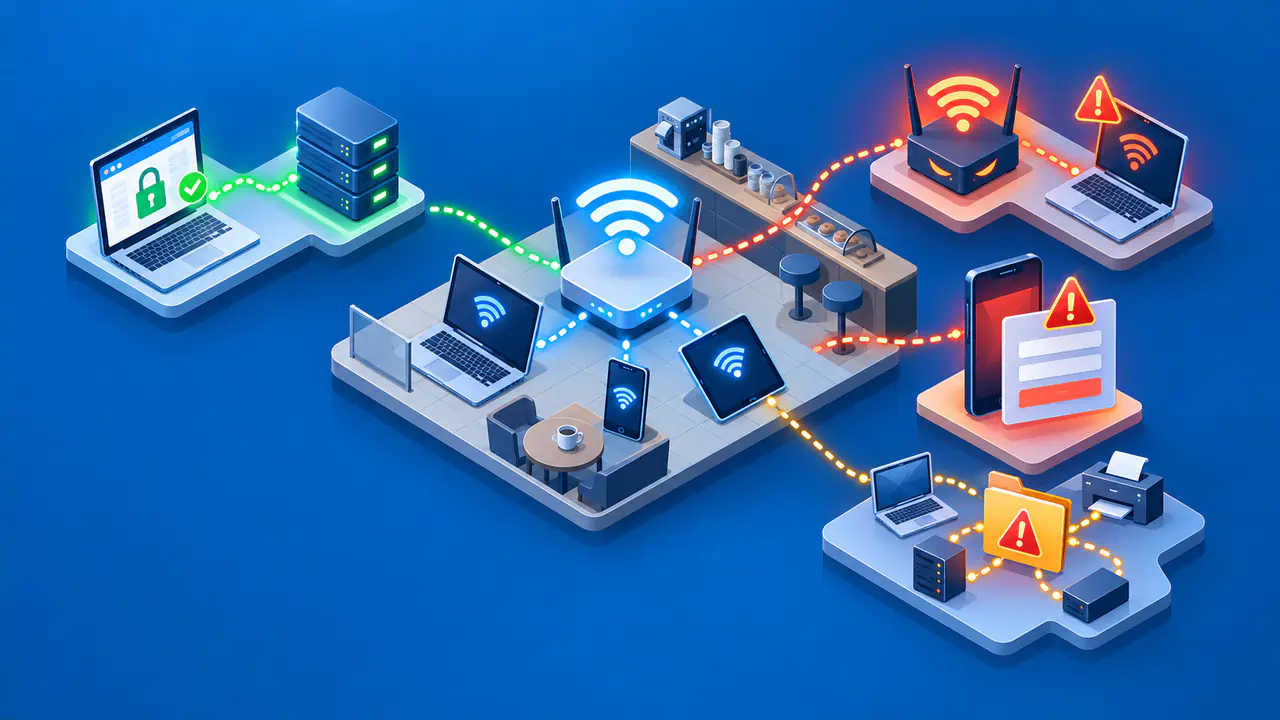
Public WiFi is generally safe for everyday browsing when you use legitimate websites with valid HTTPS connections. Someone sharing an airport or café hotspot cannot simply read the encrypted contents of those connections. Check who runs the hotspot, which website you intend to use, and what the sign-in page asks you to share.
An unfamiliar hotspot still calls for care. A fake network can lead you to a convincing login page, and a real venue may ask for personal details you would rather keep private. You can also expose files through your device's sharing settings.
Check the Website and Its Connection
HTTPS protects the contents of a connection between your browser and a website, including passwords and form submissions. The protection applies while the information travels across the network; the website receiving a form can still read what you submit. An unencrypted HTTP connection does not provide the same protection against someone observing or changing traffic along the way.
Before entering sensitive information, check the full website address and the browser's connection information. The address should begin with https://, and the browser should report a secure connection without certificate warnings. If a warning appears, stop instead of making an exception just to get online. A hotel sign-in page does not make a certificate warning on your bank's website harmless.
An encrypted connection can also lead to a fraudulent website. For important accounts, use a bookmark you already trust or carefully type the service's address instead of following an unexpected login link. Check the domain even when the page looks familiar. A VPN cannot make a lookalike bank or shopping site trustworthy.
Understand What the Network Can See
The hotspot operator can see that your device is connected and observe details such as connection times, traffic volume, and destination IP addresses. Some domain names may also be visible, depending on how your browser and DNS service protect them. HTTPS protects the actual page content and form data in transit; it does not automatically conceal every detail of the connection.
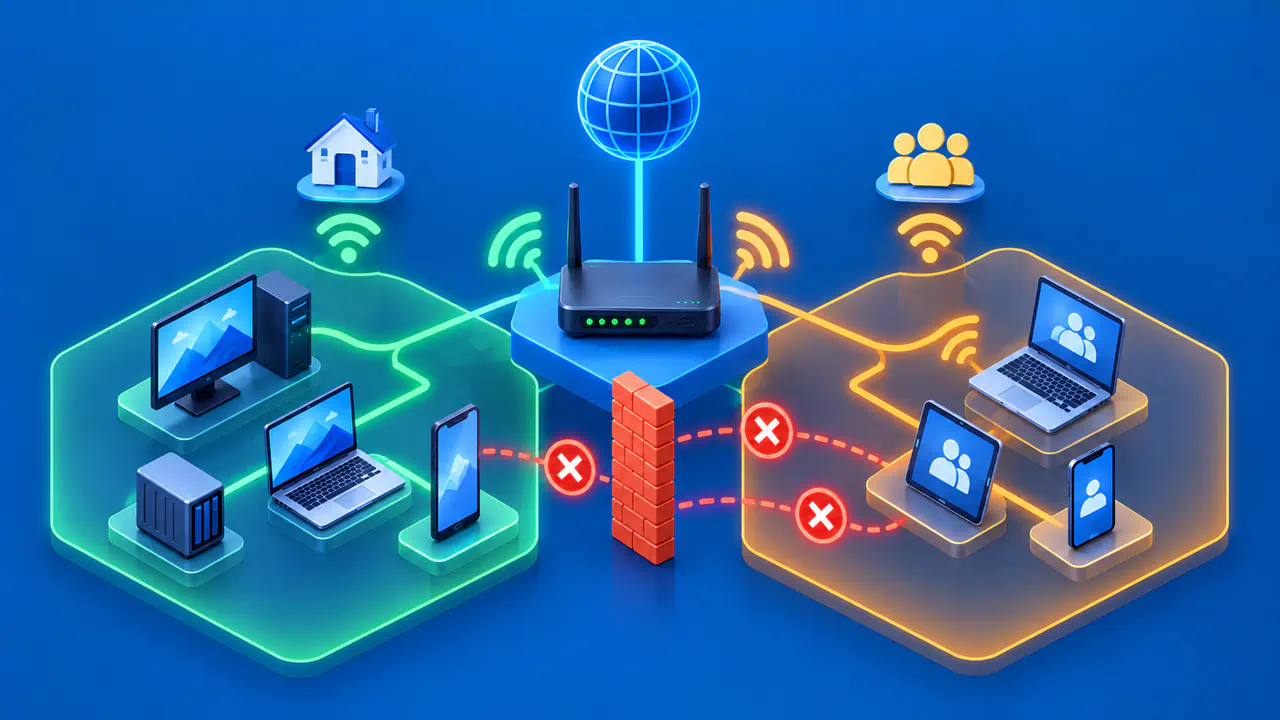
Nearby users have a different view from the operator. The WiFi network's encryption and settings for separating connected devices affect what other guests can observe or reach. Sharing a hotspot does not give another guest a readable copy of your HTTPS sessions. However, an exposed shared folder can create a separate problem even while your browser connection is secure.
A password printed on a café receipt limits who can join, but many guests may know that same password. It does not establish that every device on the network is trustworthy. Equally, a hotspot without a join password can still carry encrypted HTTPS traffic. The WiFi login and the website connection provide different kinds of protection.
A VPN can hide more of your activity from the local network by sending covered traffic through an encrypted tunnel to the VPN service. The hotspot can still see the connection to that service, while the VPN provider may see the destinations reached through the tunnel. Properly protected HTTPS content remains encrypted between your browser and the website after it leaves the VPN tunnel. You are choosing which provider to trust with more connection information, not making all of your activity anonymous.
Decide What to Share on the Sign-In Page
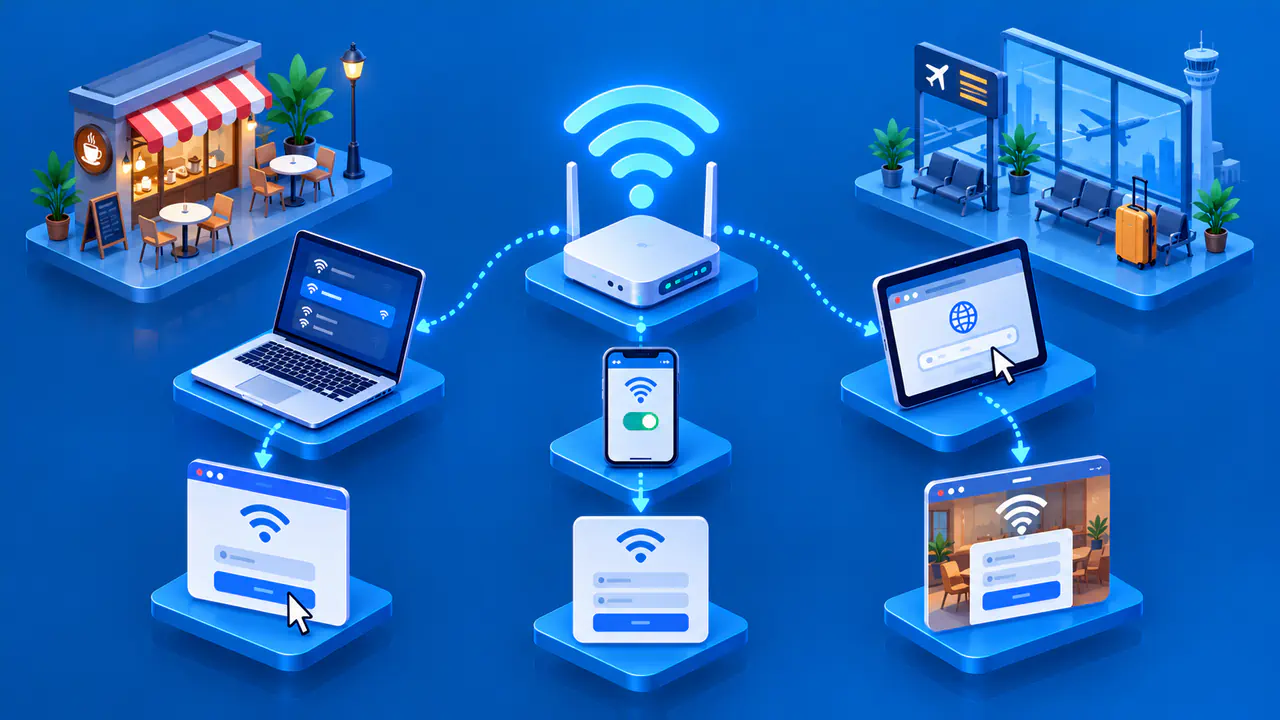
A captive portal is the page a hotspot shows before granting ordinary internet access. It might ask you to accept terms, enter a venue access code, create an account, or pay for a connection. Check the network name against the venue's instructions or ask staff before joining. Names can be copied, so a familiar-looking name alone is not proof that the hotspot belongs to the venue.
If an unexpected form appears, confirm the provider and the expected sign-in address with staff or the venue's official instructions. A paid service may legitimately request card details, and an account form may ask you to create a password. Neither request is automatically a scam, but you should understand what you are buying or registering for before submitting anything. Use a unique password for a new hotspot account.
Creating a hotspot account does not require the password you already use for email or banking. Do not type an existing account password into a form merely because the form displays the account provider's logo. Use mobile data or wait for another connection if you cannot verify the request.
Read the privacy notice and distinguish required fields from optional marketing choices. The hotspot service receives information you submit, even when the form uses HTTPS. Decide whether a short connection is worth sharing those details, and ask about an alternative if you are uncomfortable with the terms. Once access is granted, open your intended website yourself and check the address again.
Prepare Your Device for a Shared Network
Before traveling, update your operating system, browser, and apps. Updates address software weaknesses that website encryption cannot fix. Protect important accounts with unique passwords and multi-factor authentication so that a stolen password alone is less useful to an attacker.
Turn off file sharing and unnecessary device discovery for an unfamiliar network. On Windows, choose the Public network profile for a shared hotspot rather than the Private profile intended for networks you trust. The Public setting restricts discovery and file sharing; it does not certify that the hotspot or its sign-in page is genuine. Check any separate sharing apps as well.
If your employer requires a VPN, follow the organization's instructions for public hotspots. A portal may need to grant internet access before the VPN can connect, so use the approved sign-in method instead of bypassing an enforced security setting. With a personal VPN, check that the connection is active and that the app you want to use is included; traffic excluded from the tunnel does not gain its protection.
When you finish using a temporary hotspot, disconnect and review its saved-network settings. Disable automatic joining or forget the network if you do not want your device to reconnect on a later visit.