What Is Network Latency?

Network latency is the time a packet takes to travel between two points. Latency is usually measured in milliseconds and can affect how long you wait for a response during a video call or after clicking in a remote application. You can notice these delays even on a connection that transfers large files quickly.
The direction and endpoints matter. The time a packet takes to travel from your device to a server is a one-way delay. A measurement that includes a reply returning to your device is a round-trip time, or RTT. Treating those numbers as interchangeable can lead to the wrong diagnosis.
Where Network Delay Comes From
A packet must cross a physical path. Signals take time to travel through fiber or copper cables or over a radio link. A higher download speed cannot eliminate the time a signal needs to cover that distance. Internet routing may take a longer path than a straight line on a map, so geographic distance alone cannot predict the result.
Each link also needs time to place the packet's bits onto the medium. The time depends on packet size and link rate. A router or other device must process the packet and choose where to forward it. The packet may then wait for an outgoing link, and that waiting time can increase sharply as traffic grows. These propagation, transmission, processing, and queueing delays add up across the path.
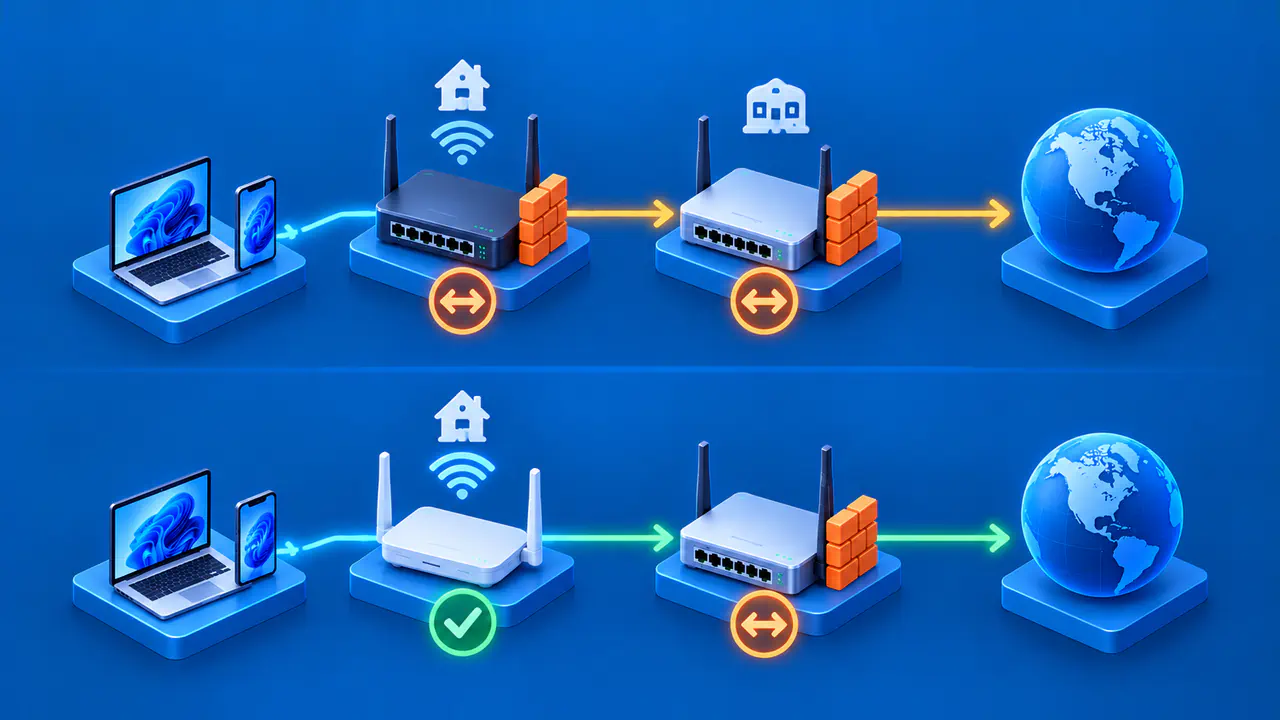
When testing latency at home, check the connection between your device and the router. WiFi interference, a weak signal, and competition for airtime can add delays before traffic reaches the router. A congested access link can have the same effect even when the remote server is healthy. Repeating the test over a wired connection can help you identify how much delay comes from WiFi. That comparison does not identify every router or source of delay farther along the path.
One-Way Delay and Round-Trip Time
One-way delay measures the time a packet takes to travel from a sending point to a receiving point. Measuring it accurately requires the clocks at both endpoints to be synchronized closely enough for the delay being examined. You usually cannot control the clock on a public server.
RTT measures the time from sending a request until its reply arrives back. It includes the outbound trip, the destination's handling of the request, and the return trip. A ping result is an RTT for an Internet Control Message Protocol (ICMP) Echo request and reply, not a direct measurement of one-way delay or the full time to load a webpage.
Dividing RTT by two gives a rough estimate of one-way delay that assumes similar delays in both directions. Forward and return routes can differ, and queueing delays can vary by direction and over time even on the same links. The reply may also be handled differently from the original packet. A 40 ms RTT therefore does not prove a 20 ms outbound trip. If a one-way value is necessary, use a measurement method with suitable clocks at both ends rather than inferring it from ping.
Why a Fast Connection Can Still Feel Slow
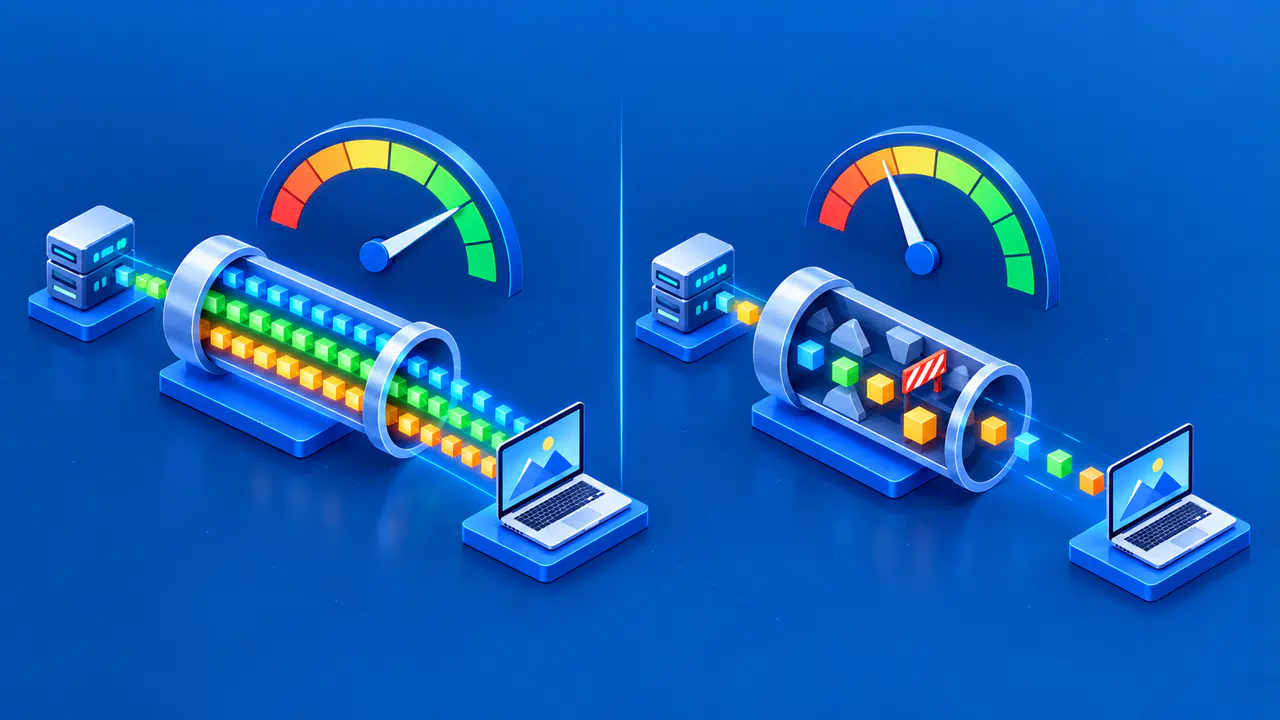
A connection can transfer data at a high rate and still respond slowly because throughput and latency measure different things. Throughput describes how much data actually transfers per unit of time, commonly shown in megabits per second. Bandwidth describes a link's capacity.
Imagine a file download that runs at 300 Mbps once the server starts sending data, but leaves you waiting for the server's initial response. The download has high throughput once data arrives, yet the initial wait can still make the application feel slow. A nearby endpoint can also answer quickly while a link with limited capacity takes much longer to deliver a large file. Many interactive actions also require several exchanges, so individual delays can accumulate before the user sees a result.
When traffic fills a link, packets may wait in buffers. In that situation, throughput may remain high while RTT rises under load. Comparing measurements during a quiet period and while the connection is busy helps reveal that difference. Use the same destination and method for both tests. If you also change the server, route, or test type, you cannot tell whether the extra traffic explains a change in delay.
Delay Variation and Packet Loss
Latency describes how long a journey takes, while delay variation describes how that time changes between packets. This variation is often called jitter, although tools can calculate it in different ways. A voice call over a path with steady delay can sound different from a call over a path with the same average delay but frequent spikes.
Packet loss means expected packets are missing at the receiver; a test needs a waiting limit to decide when an unanswered probe counts as lost. The Transmission Control Protocol (TCP) can retransmit missing data, which adds recovery time to the application's wait. In a real-time call, missing packets may cause an audible gap, or the application may estimate the missing audio. Low delay among the packets that arrive does not rule out loss affecting the service.
How to Interpret a Latency Reading
Interpret a latency reading by identifying its endpoints, direction, and test method before comparing the number. A default Windows ping test sends four ICMP Echo requests to its selected target and reports reply times. A result such as 18 ms, 21 ms, 19 ms, and 44 ms describes four round trips to that target at those moments. The 44 ms sample shows a higher delay at one moment, but it does not establish a persistent fault or identify the device responsible.
Record the destination IP address, IP version, connection type, time, and whether the link was idle or busy. Compare several samples to the same target using the same packet size and method, instead of assigning a universal good or bad label to a single figure. A local gateway may answer quickly while a distant server responds later because their paths are different. Some destinations restrict or deprioritize Echo replies, so a slow or unanswered ping does not necessarily mean that an application will perform poorly.
If delay increases only during uploads or downloads, check for congestion while the link is busy. If delay is also high when the link is idle, compare readings for a nearby target and the intended service, then repeat over a wired connection where possible. These comparisons can help locate the cause, but one RTT value cannot show where each delay occurred.
Choose the Right Measurement for the Problem
Run repeated ping tests to see whether RTT to one destination changes over time. Use a speed test to measure sustained transfer rates, and note whether the test measures latency while the connection is idle or busy. Throughput and response time describe different aspects of the connection, so keep both results when investigating a problem.
If only one application feels slow, measure how long its individual stages take. You may be waiting for a domain name lookup, connection setup, server processing, or content transfer as well as for packets to cross the network. Compare those application timings with the network measurements; the application's total response time includes more than network latency. If application timing shows most of the wait before the server starts responding, investigate that stage rather than assuming the file transfer itself is slow.