Does a Phone VPN Protect Hotspot Traffic?
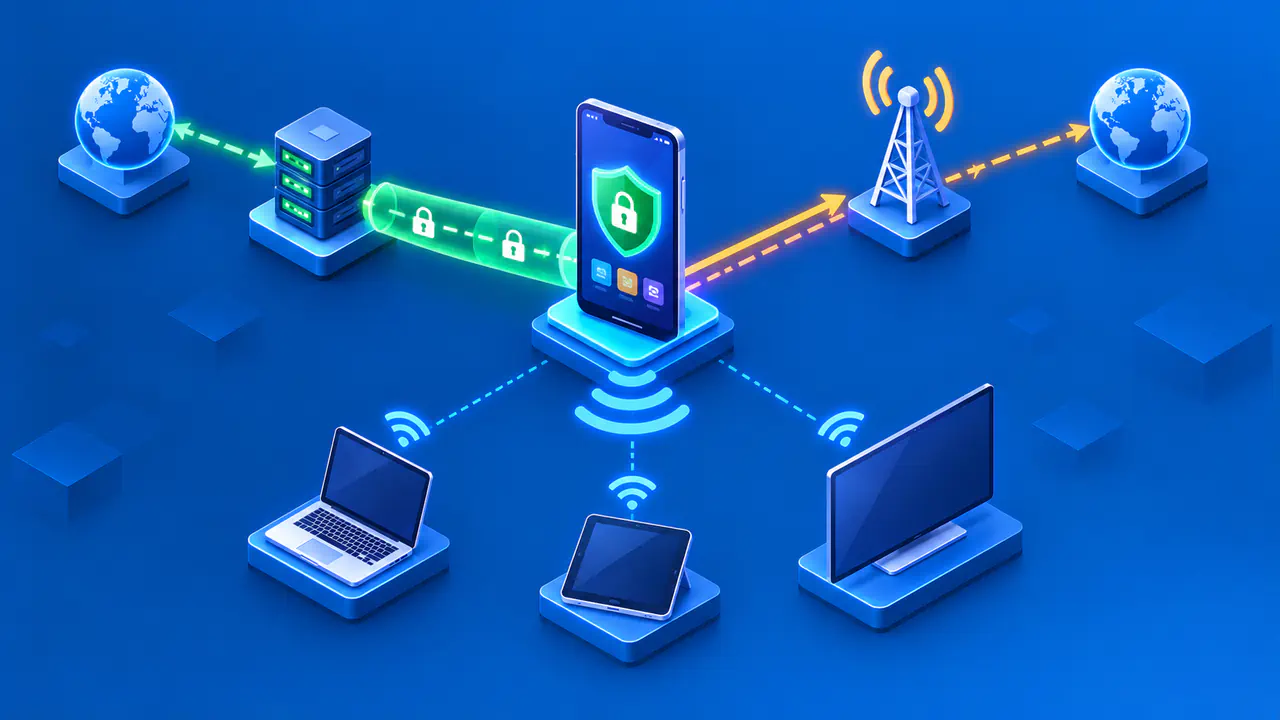
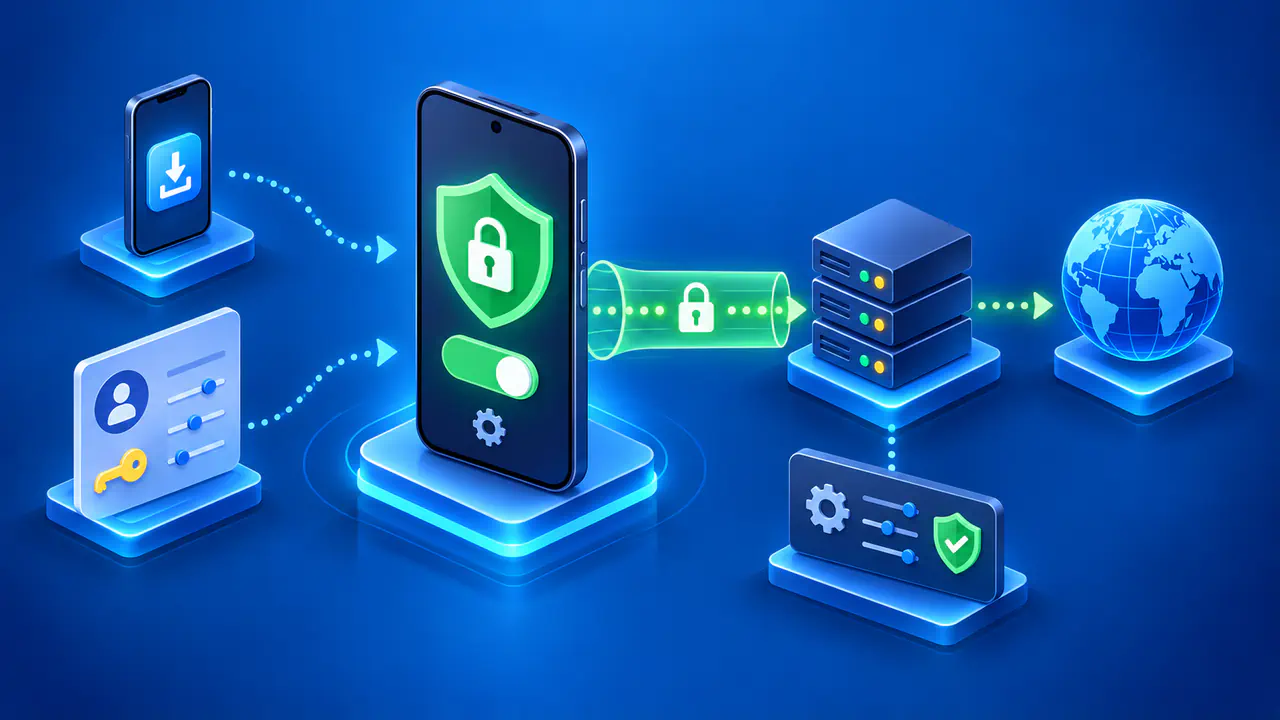
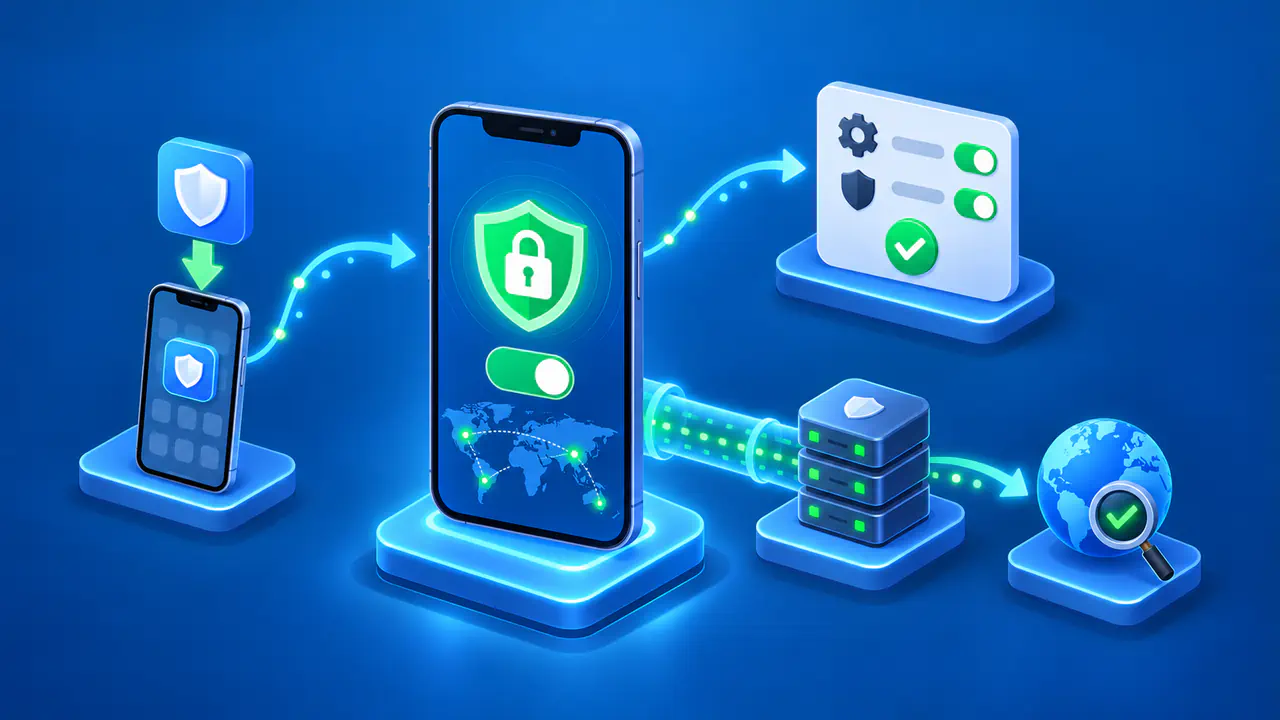
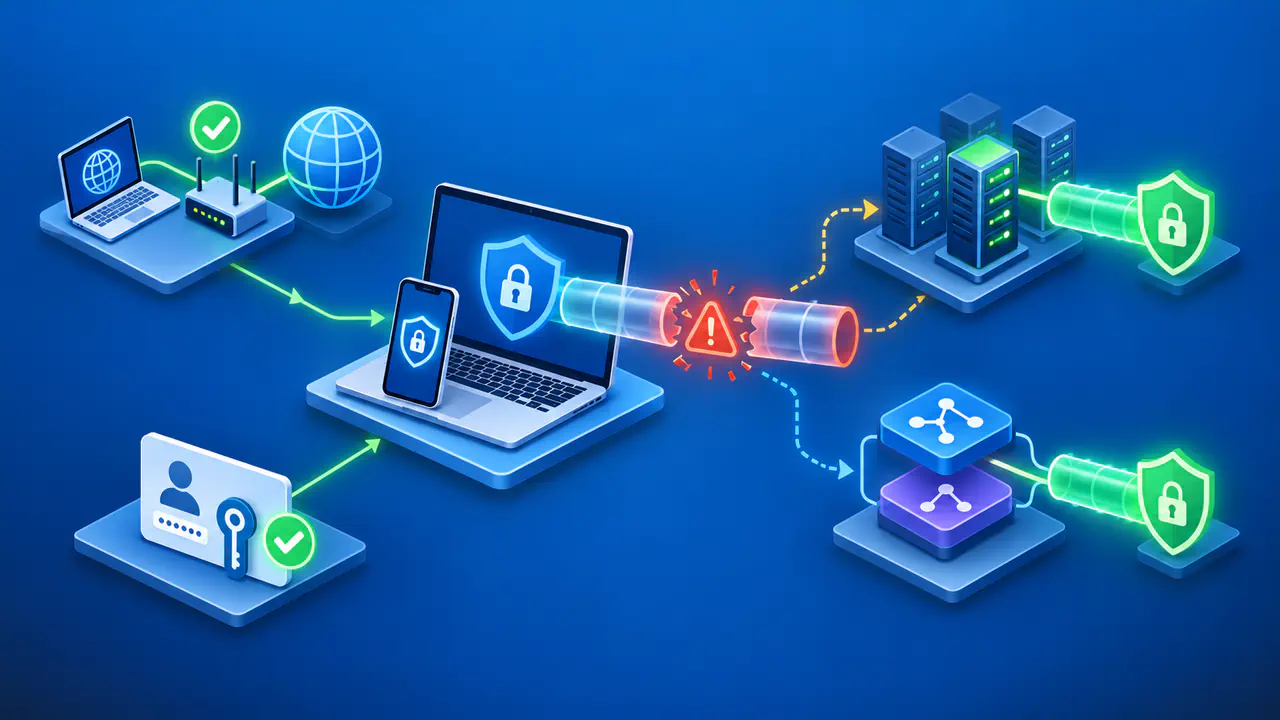
A VPN running on a phone does not necessarily protect devices that use the phone's hotspot. The phone may send its own apps' traffic through a VPN tunnel while forwarding a connected laptop's traffic directly to the mobile network. Seeing a VPN badge on the phone is therefore not proof that the laptop shares the tunnel.
Check the connection from the device using the hotspot as well as from the phone. Comparing the public IP addresses shown on the phone and the connected device can help establish where their browser traffic goes. If the laptop or tablet needs VPN protection, running a VPN directly on that device usually avoids having to change how the phone forwards traffic.
Phone Traffic and Hotspot Traffic
A mobile hotspot gives nearby devices a Wi-Fi connection and forwards their internet traffic through the phone's upstream network, usually a cellular connection. Sharing an internet connection this way is called tethering. The phone acts as a router for the connected devices, which are also called hotspot clients.
A phone VPN app sets up a tunnel for traffic that the operating system sends to the app's VPN interface. Traffic created by an app on the phone and traffic arriving from a hotspot client can follow different routing rules. Passing through the same physical phone does not make the two kinds of traffic part of the same VPN connection.
For example, a website opened on the phone may receive the request from a VPN server's public IP address. The same website opened on a laptop using the hotspot may receive the request from the mobile carrier's network. Both devices can have working internet access while using different routes. The laptop's connection to the phone tells you how the laptop reaches the internet, but not whether a VPN carries its traffic.
Android and iPhone Hotspots
In a standard Android setup, turning on a VPN app and enabling the hotspot does not automatically send connected devices' traffic through the phone's VPN. Android can direct traffic from particular apps into or around a VPN. Per-app VPN settings apply to apps installed on the phone, not to a laptop connected through the hotspot. Custom firmware and specialized routing software can change that behavior, so a result from one modified device does not establish the default for other phones.
On an iPhone, Personal Hotspot shares the cellular internet connection. Enabling Personal Hotspot does not by itself enable VPN sharing. For example, running Proton VPN on an iPhone does not extend its tunnel to devices using Personal Hotspot. Check the current guidance for the specific phone and VPN app before relying on a shared tunnel, particularly if a product claims to support VPN sharing.
Checking the Hotspot Device's Public IP Address
Use the same public IP address checker in a browser on both devices. Keep the phone connected to its VPN throughout the comparison. The following checks help avoid mistaking a separate connection for the phone's VPN:
- Check the VPN app on the phone and note the selected server. Confirm that the phone's browser is included in the VPN; a split tunneling rule may exclude that browser.
- Open the IP address checker on the phone. Note the displayed public address and network name, if the service provides one.
- Connect the laptop or tablet to the phone's hotspot and confirm that the client is not using another Wi-Fi or Ethernet connection. Open the same checker on that device and refresh the page.
- Check whether the client has its own VPN, a browser proxy, or another service that changes its public IP address. If so, the result cannot by itself show whether the phone shared its tunnel.
You do not need to sign in to a sensitive account to compare addresses. If a work device requires a VPN, leave that VPN enabled and ask the administrator which traffic the work VPN covers. Note the phone, client, VPN app, and connection settings so you can recognize what changed if a later check gives a different result.
Understanding the IP Address Results
If the phone shows a known VPN exit address but the client shows a mobile-carrier address, the client's tested request is bypassing the phone's VPN. If both show the same known VPN exit address, and the client has no separate VPN or proxy, the result supports the conclusion that those browser requests use the shared tunnel. It does not establish that every client app or type of traffic follows the same route.
If both devices show a carrier address, first check whether the phone's browser is using the VPN. Matching addresses alone are not proof of VPN protection: carriers can share a public IPv4 address among several customers. An address checker may also display the company hosting a VPN server rather than the VPN brand, so compare the result with the server information available from your VPN provider.
Different addresses do not automatically mean that one connection is unprotected. A client running its own VPN may use a different exit server from the phone. Interpret each result alongside the settings on that device, and repeat the comparison after a VPN update or a change in the connection you intend to use.
Running a VPN on the Connected Device
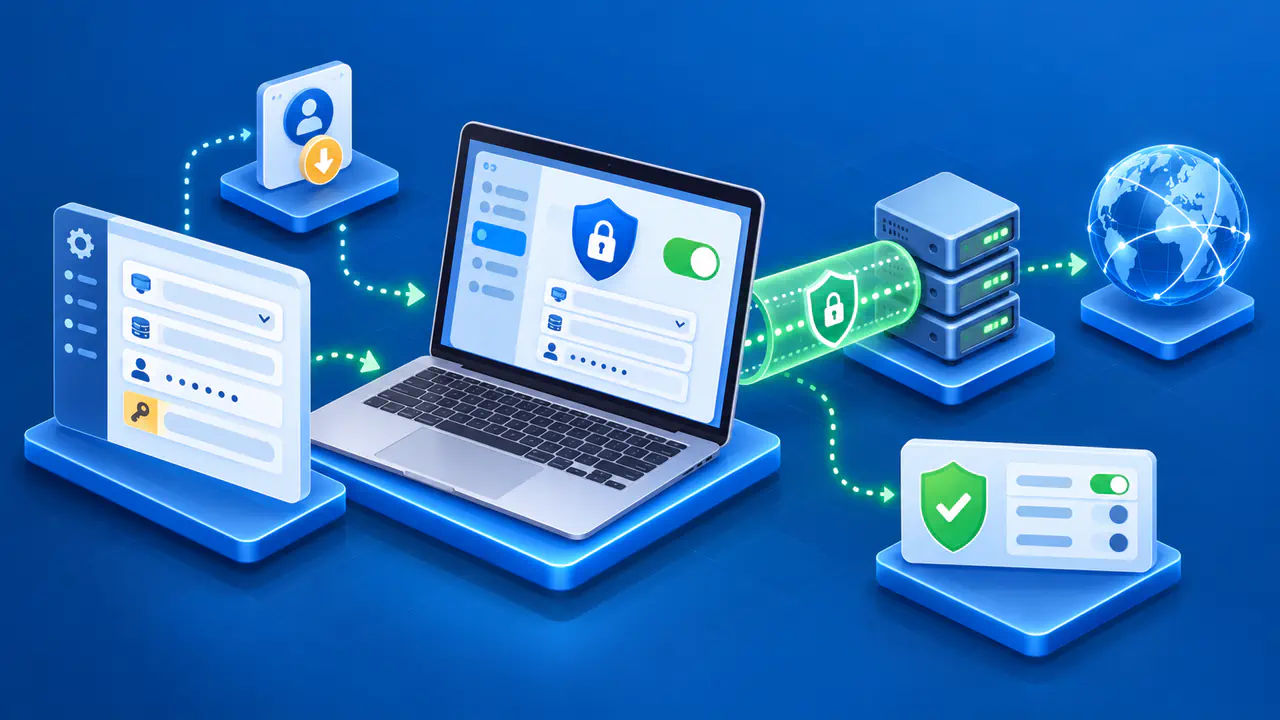
If the tethered laptop or tablet needs a VPN, use a supported VPN app on that device. The client establishes its own encrypted connection to a VPN server over the internet access supplied by the hotspot. Confirm the connection in the client's VPN app and check the public IP address from the client. This puts control of the laptop's VPN connection on the laptop itself.
A device that cannot run a VPN app may need a separate VPN-capable router or a supported computer-based sharing setup. The router or computer must be configured to send the relevant device's traffic through the VPN; simply providing another Wi-Fi network is not enough. Follow the VPN provider's instructions for that equipment, and check the connected device after setup.
Rooting a phone can remove operating-system restrictions and create security or reliability problems if the changes are mishandled. Root access is not necessary for the address comparison or for running a VPN on a supported client. On a managed laptop or tablet, use the VPN and network settings approved by the organization responsible for that device.