How to Access Local Devices While Using a VPN
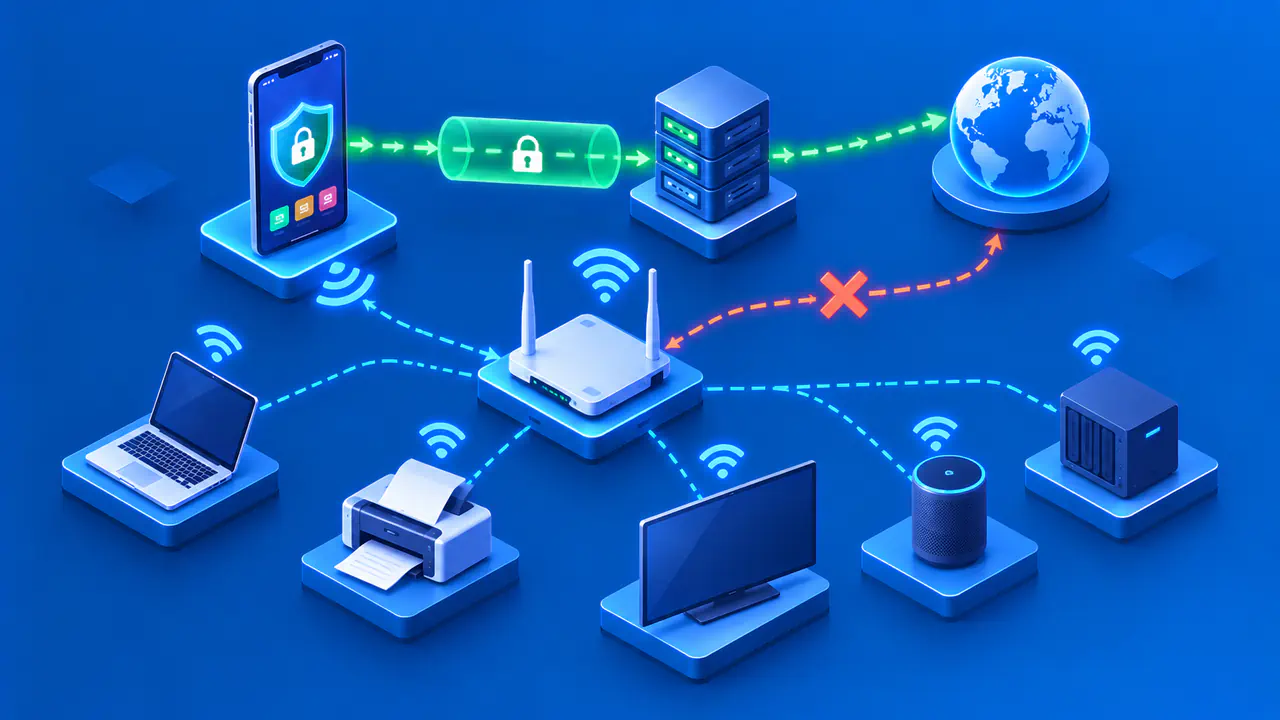
To reach a local printer, speaker, or file server while using a VPN, the VPN app must allow the connection to that device. Many apps have a setting that lets traffic to devices on your local area network, or LAN, bypass the tunnel. First confirm the device's current address and that the service you need is available, then adjust the VPN's local access setting if necessary.
These checks are for devices on a trusted network you are connected to, such as your home network. A nearby printer may be offline or separated from your computer by a guest network, so the VPN is not always the cause. Keeping the investigation focused on one device and one service helps avoid unnecessary changes to the rest of your VPN connection.
Check the Device and Its Network
Make sure the target device is powered on and connected to the expected Wi-Fi or Ethernet network. Check the network your computer or phone is using too. A guest network or an access point's client isolation setting can prevent devices from communicating even when both have internet access. A VPN setting cannot remove that separation.
Find the device's current local IP address on its display, in its companion app, or in the router's list of connected devices if you manage that router. Match the entry to the device you intend to use. An example address in a manual may not be the address your network assigned, and an address saved from another network may belong to a different device here.
If the computer has both Wi-Fi and Ethernet connections, note which connection leads to the target device. The VPN can add a virtual network adapter and change how the computer routes traffic. If you need help from an administrator, provide the device address and the networks involved. Avoid changing the default route or copying a rule that sends every private address outside the tunnel.
Test the Service with the VPN Connected
Try the function you actually need. Send a small test print, open the approved file share, or use the speaker's normal connection app. A printer's local administration page can be a useful separate check if the printer provides one, but opening that page does not prove that printing works. Note the exact error and whether the failure occurs before or after the device asks you to sign in.
Where the application supports it, try the same service using the device's IP address instead of its name. If the connection by address works but the connection by name fails, investigate local naming or device discovery separately. Do not widen the VPN exception to solve a name lookup failure. Keep the service and connection method otherwise the same so the comparison tells you something useful.
Ping sends a diagnostic request to an address, but a reply does not show whether printing or file sharing is available. A failed ping is also inconclusive because a device or firewall can block those requests while allowing the service you need. If a comparison with the VPN disconnected is permitted, consider whether other apps could send sensitive traffic during that interval before making the comparison.
Local Network Settings in the VPN App
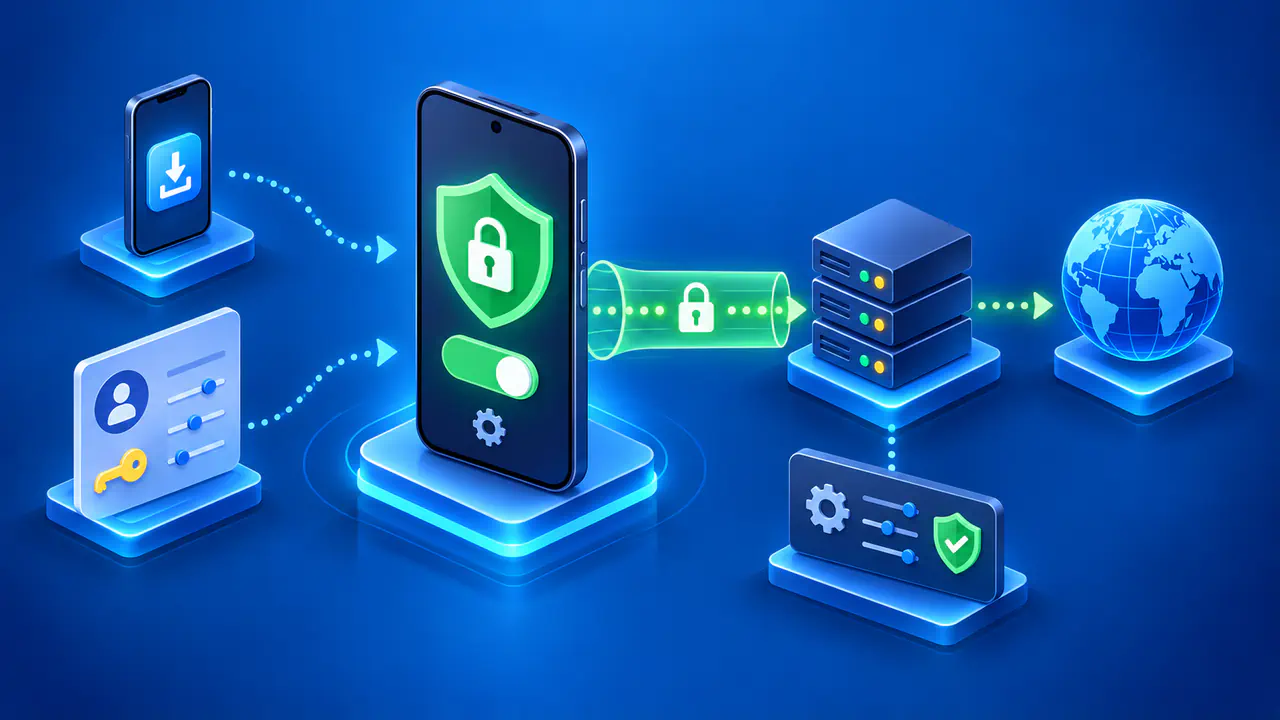
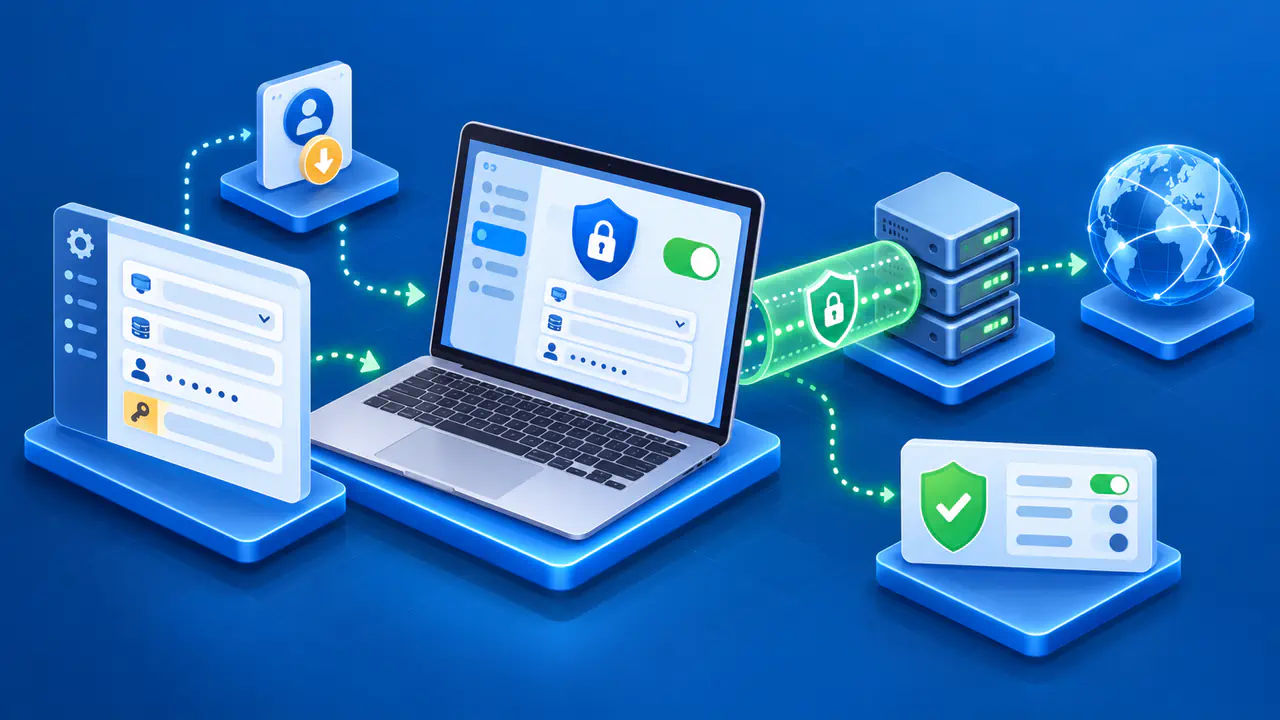
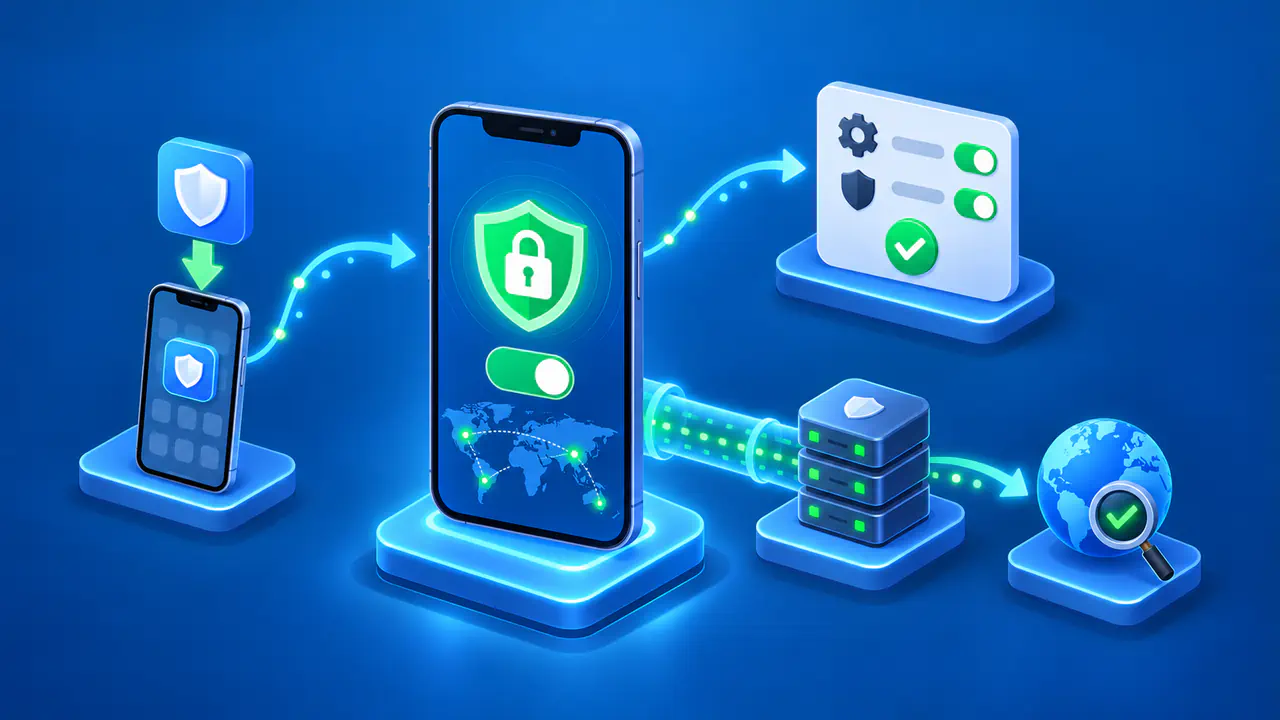
Look for the VPN app's LAN or local network setting. A label such as Allow LAN connections usually controls whether the app permits direct connections to nearby devices outside the tunnel. The exact behavior, supported platforms, and subscription requirements vary. Check the instructions for the app and operating system you actually use instead of assuming that another provider's switch works the same way.
Enable local access only on a network you trust and only when you need it. Some apps offer a broad LAN switch rather than a rule for one printer or speaker. Read the setting's description to understand its scope. Apply the change and reconnect if the app requires a restart of the VPN connection; moving the switch alone may not activate the new behavior.
A work VPN may intentionally block access to local devices. On a managed computer, ask the administrator whether local access is permitted and which setting to use. Keep the device's firewall and the VPN's required protections enabled. If local access is prohibited, use an alternative approved by the organization.
Choosing Which Traffic Bypasses the VPN
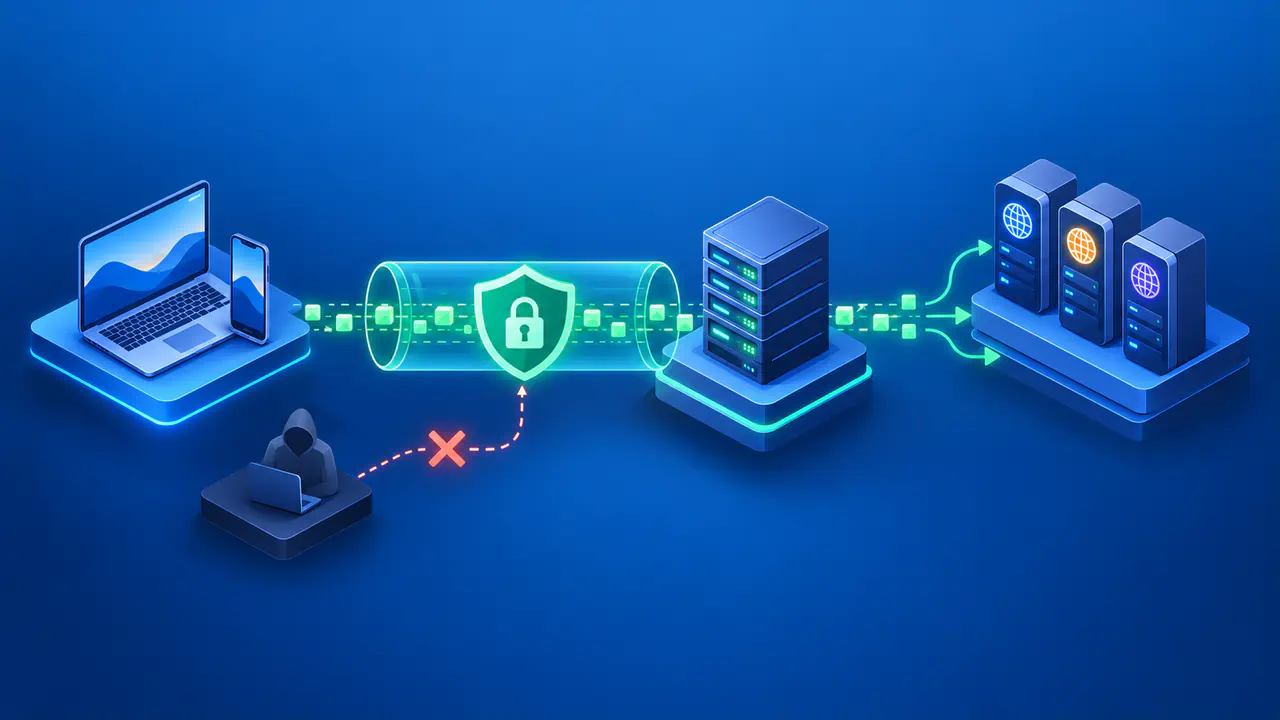
Some apps support split tunneling, which sends selected traffic outside the VPN while other traffic uses the tunnel. A destination rule for one local device can be more limited than excluding an entire application. Excluding the application may also send that application's internet requests outside the VPN. Choose a rule that matches the connection you need, using the options your VPN app supports.
Check the selected split tunneling mode before adding a rule. In exclude mode, listed apps or destinations bypass the VPN; in include mode, only the listed traffic uses the VPN. Changing modes can therefore change how unlisted traffic travels. Whether split tunneling works with a kill switch also depends on the app and platform, so confirm that the proposed exception works with the protection you need.
Check the Result and Keep a Record
Change one setting at a time, then retry the same service with the VPN connected. If the change makes no difference, restore the original setting before trying another option. Record the app version, local network, device address, setting changed, and result. Keep router screenshots and full device lists private; support usually needs the details of the affected connection, not an inventory of every device you own.
Once the service works, confirm the VPN app still shows an active connection. Check the public IP address from a browser that should use the tunnel as a separate check of that browser's internet route. A successful print job says nothing about the browser's route, and a browser IP check does not verify every other application's traffic.
Keep a note of why the local exception exists and remove it when you no longer need it. Review the setting before joining an untrusted network because the app may retain the same rule after you leave home. If the service remains unavailable, give the VPN provider or network administrator the exact error and the result of each comparison so the next check can focus on routing, local access policy, or the service itself.