How to Change Your Router's LAN IP Address
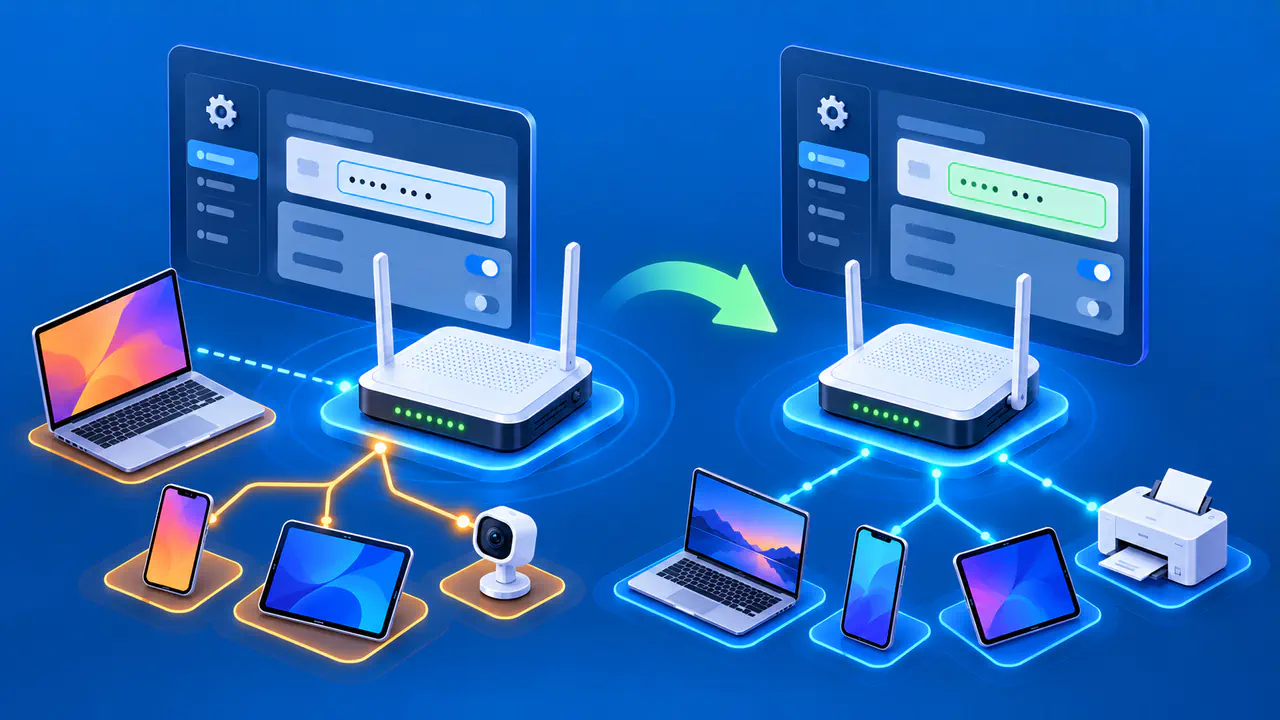
To change your router's LAN IP address, choose an unused address that fits your network, save it in the router's LAN settings, and reconnect using the new address. Other settings may need updating too, especially if you move the network to a different subnet. Changing this local address is not a way to request a different public IP address from your internet provider.
The menu example below uses the TP-Link Archer AX10 and AX1500 v1 interface. Check the instructions for your exact model and firmware because menus and automatic DHCP updates vary. These steps cover IPv4 settings on a router you manage locally.
Record the Current LAN Settings
While connected to the router's network, sign in to its management page and record the LAN IP address and subnet mask. Note which device runs the DHCP server, the service that assigns addresses to clients automatically. If DHCP runs on a separate device, you will need access to its settings as well.
Write down the DHCP address pool, gateway and DNS settings, and any address reservations. Also list devices with manually configured addresses, such as printers or a home server, alongside their current settings. Save a copy of any port-forwarding rules, DMZ settings, or static routes that refer to those devices.
If the router supports configuration backups, save one before making changes and check how to restore it. Make sure you can access the router's login details and your notes on the old LAN settings even if the network is unavailable. Use an Ethernet connection if possible. Changing the router's address can still end the browser session even when the cable stays connected.
Choose the New Address and Subnet
Decide whether you need a different router address within the current subnet or an entirely different subnet. For example, changing from 192.168.0.1 to 192.168.0.2 with a 255.255.255.0 mask leaves clients in the same subnet. That new router address must be unused and excluded from the addresses DHCP can assign to clients.
For a move to another subnet, choose a private IPv4 range that does not overlap the router's WAN network or networks you reach through a VPN or another router. Overlap can send traffic toward the wrong network. Compare the full subnet ranges, not just the addresses assigned to the routers.
Suppose you have checked that 192.168.50.0/24 does not overlap any of those networks. You could use 192.168.50.1 for the router with a 255.255.255.0 mask and, if those client addresses are available, a DHCP pool from 192.168.50.100 to 192.168.50.199. This is one possible arrangement; write down the router address, mask, pool, and fixed device addresses you have chosen for your own network before changing anything.
Save the New LAN Address
On the TP-Link Archer AX10 and AX1500 v1, open Advanced > Network > LAN and enter the new IP address. For the /24 examples above, keep the subnet mask at 255.255.255.0. Check that you are editing the LAN settings, then select Save.
Allow the router to finish applying the change. The old management address may stop responding, so a stalled browser tab does not necessarily mean the change failed. Open the new address after reconnecting; avoid submitting more changes through the old tab.
Reconnect and Check DHCP Settings
Disconnect your computer from the router's network, then reconnect and check the computer's IPv4 address, subnet mask, and default gateway. If the computer still has the old DHCP settings, renew its DHCP lease using your operating system's network controls. In a typical home setup where this router provides internet access, the default gateway should now be the router's new LAN address.
Type the new router address into the browser's address bar. If you moved to a different subnet and DHCP is not supplying a usable address, you may need to set a temporary manual address on the computer to reach the router. Use an unused client address in the new subnet with the matching mask, keeping it outside the DHCP pool and separate from the router's address.
Once you can sign in, check the DHCP pool, gateway, DNS settings, and reservations. Some routers adjust related values automatically, but verify the saved settings instead of assuming that every field changed. If a separate device runs DHCP, update that server's address pool and options, then renew client leases so devices receive the corrected settings. If the computer normally uses DHCP, return it to automatic addressing after recovery.
Update Device Settings and Network Rules
If you changed only the router address within the same subnet, manually configured clients can usually keep their own IP addresses and masks. Change their default gateway if it points to the old router address. Update the DNS setting on any device that used the router's old address for DNS. If a device uses a separate DNS server whose address has not changed, leave that DNS setting as it is.
If you changed the subnet, give each manually configured client an unused address in the new subnet, along with the correct mask, gateway, and DNS settings. Keep manually assigned addresses outside the DHCP pool or explicitly exclude them from that pool. Adjust DHCP reservations to match the new subnet as well. Check port-forwarding and DMZ targets against each device's actual address, and update static routes wherever they refer to the old subnet or router address.
Update bookmarks, printer connections, local DNS records, and other saved references to addresses that changed. Test a local service, such as printing, as well as internet access from an updated client. Opening the login page verifies access from that client, but other devices and forwarding rules still need checking.
Restore the Previous Settings if Needed
To undo the change, sign in to the router at the new address and restore the recorded LAN address and mask. Restore any DHCP settings, client settings, and rules you changed, then reconnect using the old address. A configuration backup may simplify restoring the router, but it will not restore settings you changed on other devices.
If you cannot reach the router, check the new address you recorded first. A connected computer may still list the old router address as its default gateway until the computer receives updated DHCP settings or you correct its manual settings. Use the router's discovery or recovery instructions if the address remains unclear. Use a factory reset only as a last resort because a reset can erase internet, WiFi, and custom settings. Contact your internet provider before resetting equipment managed by the provider.