How to Find Devices Connected to Your WiFi
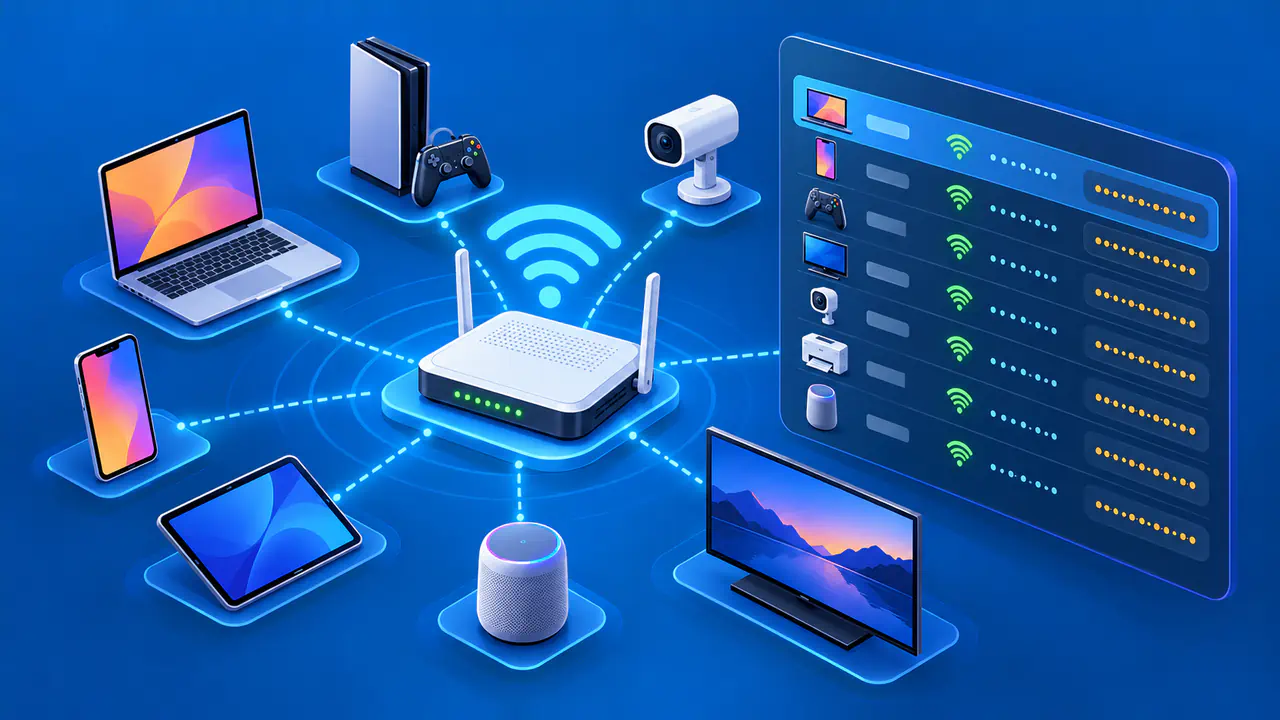
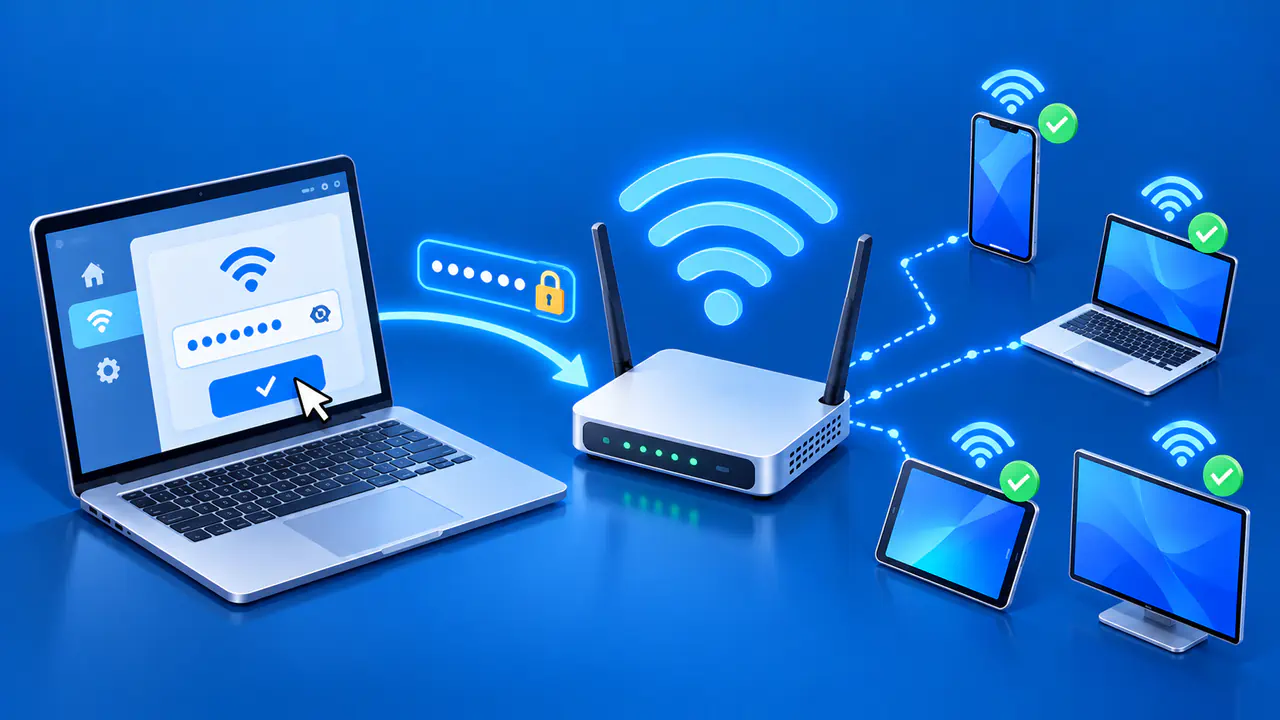
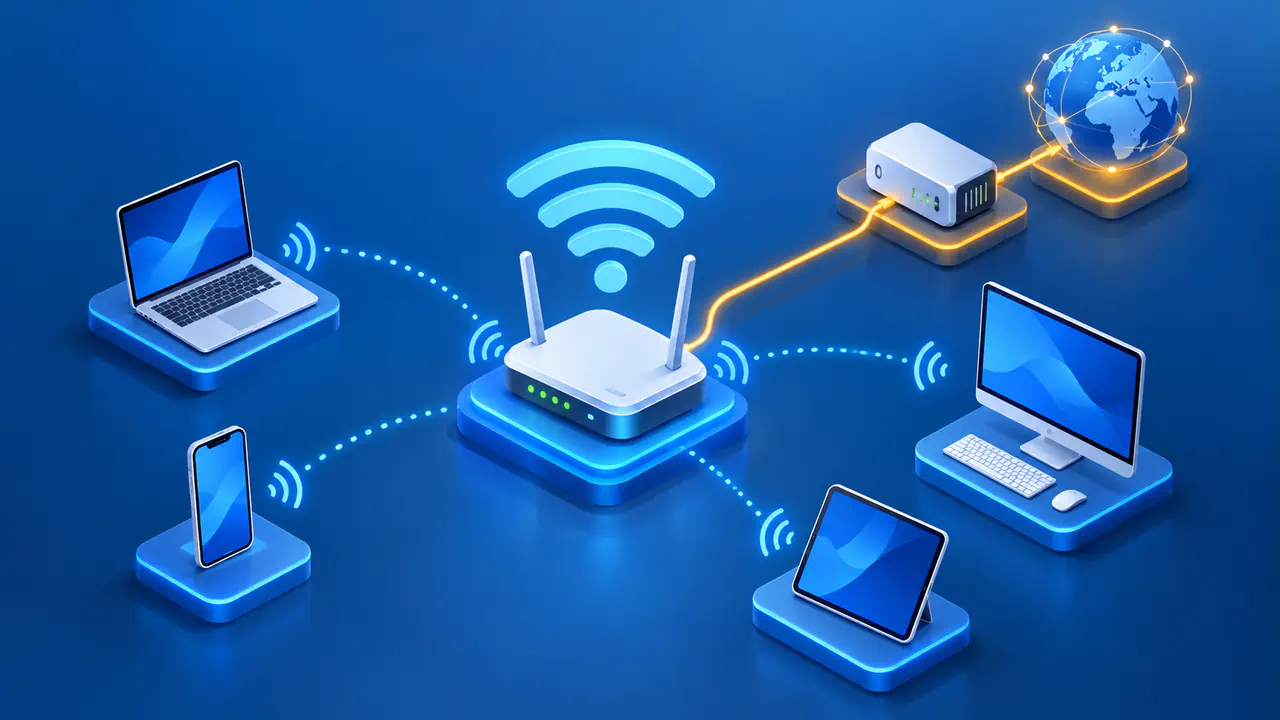
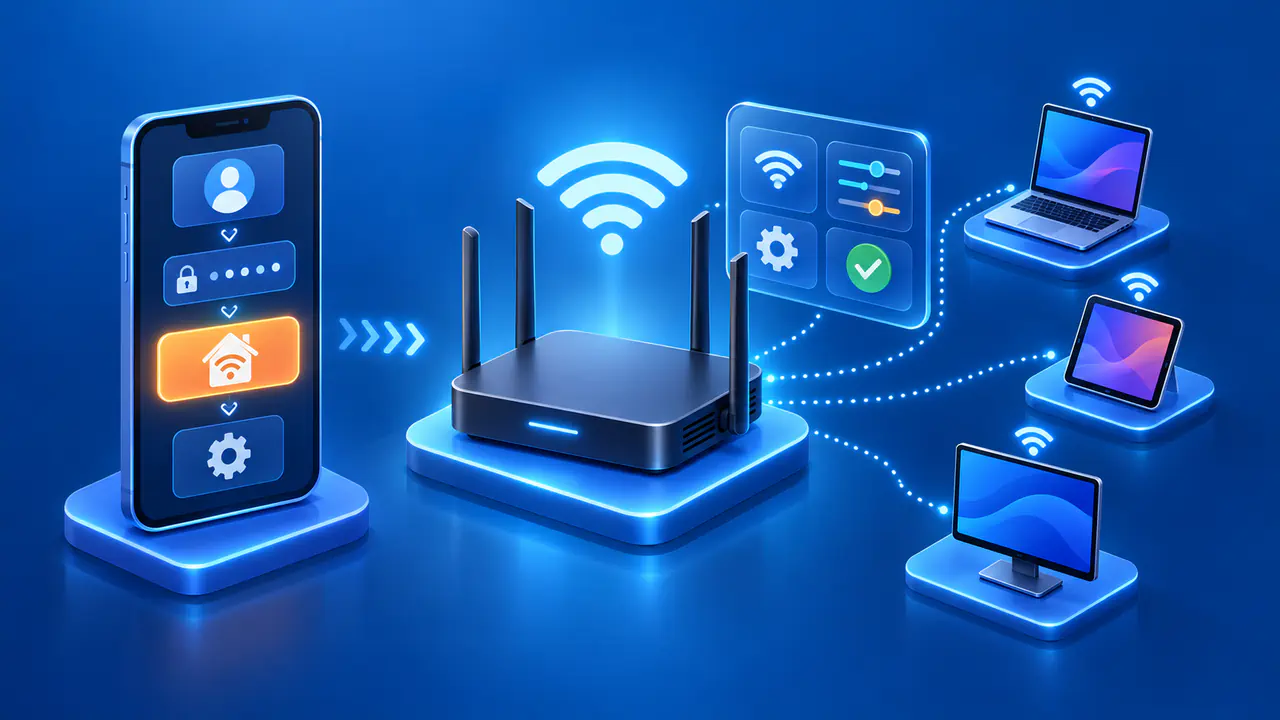
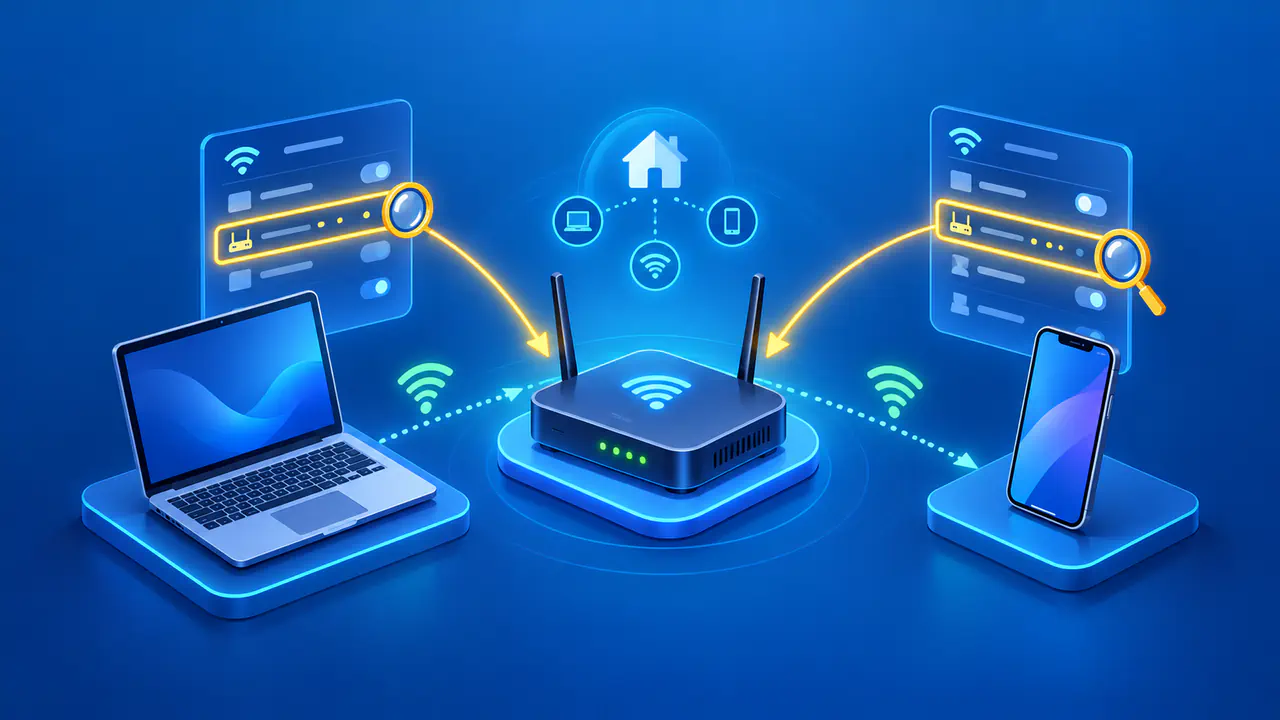
To find devices connected to your WiFi, open your router's management app or local settings page. Look for a list called Connected Devices, Clients, Attached Devices, or something similar. Check which entries are currently connected over WiFi, then compare their names, IP addresses, and MAC addresses with the network details on your own devices.
An unfamiliar name does not necessarily mean someone has joined without permission. A phone may use a private MAC address, a printer may appear under a generic name, and an app may retain records of old connections. Before deciding what to block, separate current WiFi connections from wired devices and saved records.
Check the Router's Device List
Connect to your home network and sign in to the router's settings page or the manufacturer's app. Menu names vary, so check the network map or device section if you cannot find a client list. Some routers separate wireless and Ethernet connections. Others also group devices by WiFi band, guest network, or mesh node.
Open an entry to see its details and refresh the list if that option is available. Look for a connection status such as online or offline, and check the interface's help text if a label is unclear. An Allowed label can describe an access rule without confirming that the device is connected. A previously connected device may remain in the app's history after disconnecting from WiFi.
Make sure you are viewing the network you want to check. Guest devices may have a separate list. If another router creates a separate network behind your main router, the main router's client list may not show the devices on that network. If you manage more than one network in an app, select the right home or router before investigating an unfamiliar entry.
Compare Connections with DHCP Leases
A DHCP lease records an address assigned by a DHCP server for a period of time. The lease table may include the client's name or identifier, its IP address, and the remaining lease time. A lease can remain valid after a device disconnects, so the table alone cannot tell you which devices are currently on WiFi.
Compare lease details with the router's current wireless client list instead of adding the two lists together. The same phone may appear in both, and an old lease can remain after the phone starts using a different private MAC address. A device using a manually configured IP address may be connected without having a current DHCP lease at all. Wired devices can also have leases, so a lease count is not a WiFi device count.
If a separate access point provides your WiFi, check its wireless client list too. The access point can show current WiFi connections while another device, such as the main router, handles DHCP. This distinction matters when you can see a device in one interface but cannot find it in the other.
Match Entries to Your Devices
Work through the devices in your home, including TVs, printers, speakers, cameras, and smart appliances as well as phones and computers. Look for each device's network details in its settings or companion app, if available. Compare the network name, local IP address, and current WiFi MAC address with the information in the router's list. A name alone is less reliable: devices can have generic names, owners can rename them, and the router may still display an old label.
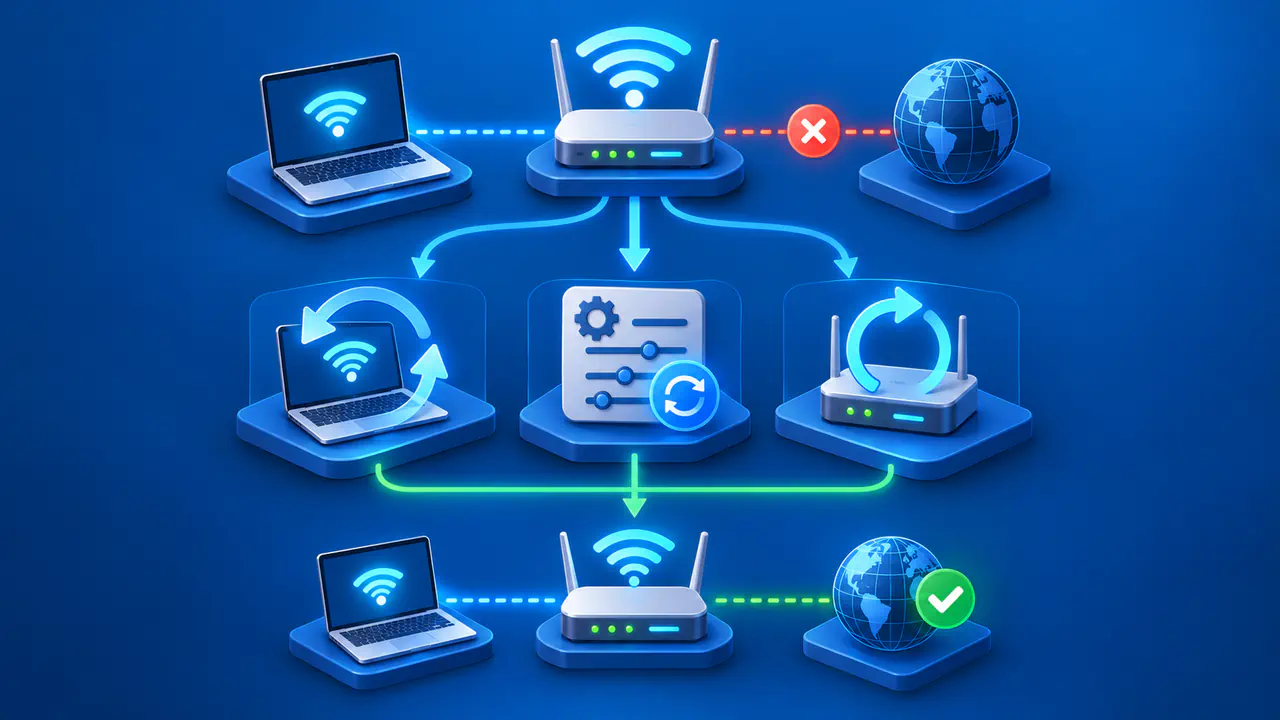
If you still cannot match an entry, choose a device you can briefly disconnect without interrupting anything important. Disconnect it from WiFi, allow time for the router's status to update, and refresh the list. Reconnect the device and watch for the corresponding change. Keep in mind that an app may update slowly or retain the offline entry rather than remove it.
A device with both WiFi and Ethernet has separate interfaces with their own MAC addresses, so it may account for more than one record. Mesh nodes and range extenders can also appear as devices on your network. Keep a note of each match so you can recognize the device next time, even if the displayed name is unclear.
Check for Private MAC Addresses
Many phones and computers use a private or randomized MAC address when joining WiFi. That address may differ between networks and, depending on the device's settings, may change over time. A new address in the router's list can therefore belong to a device you have used at home for months.
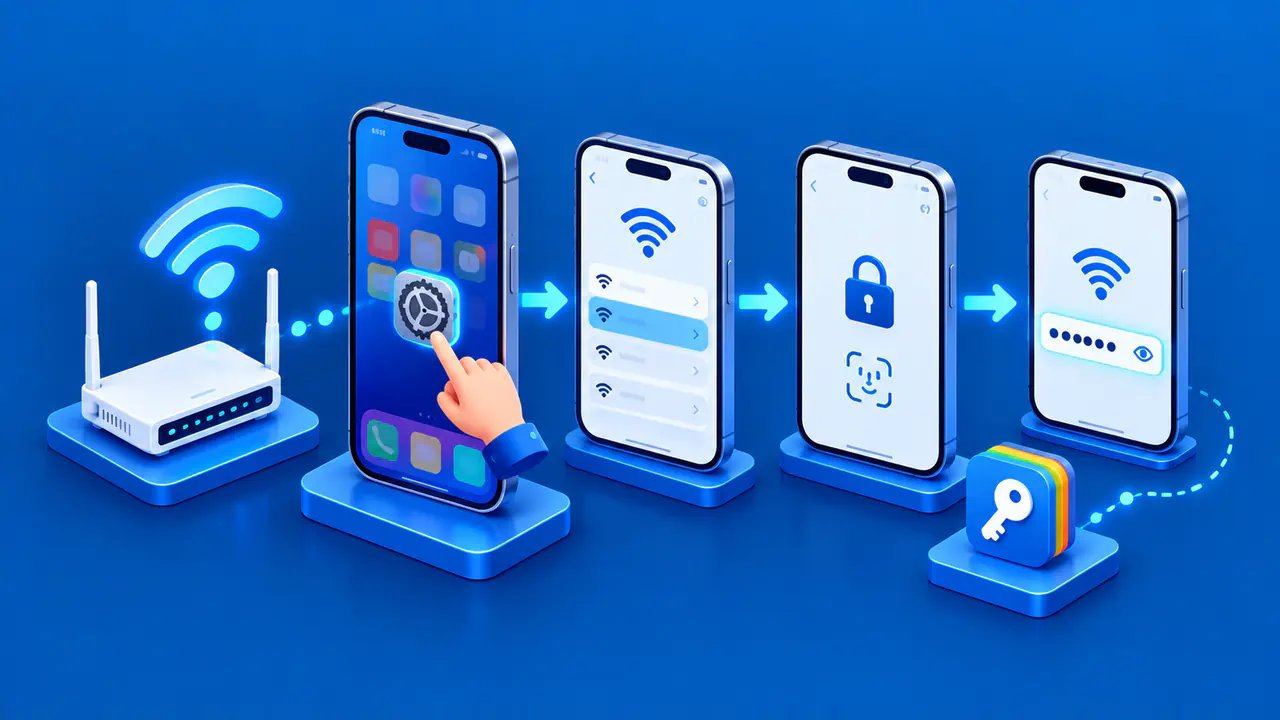
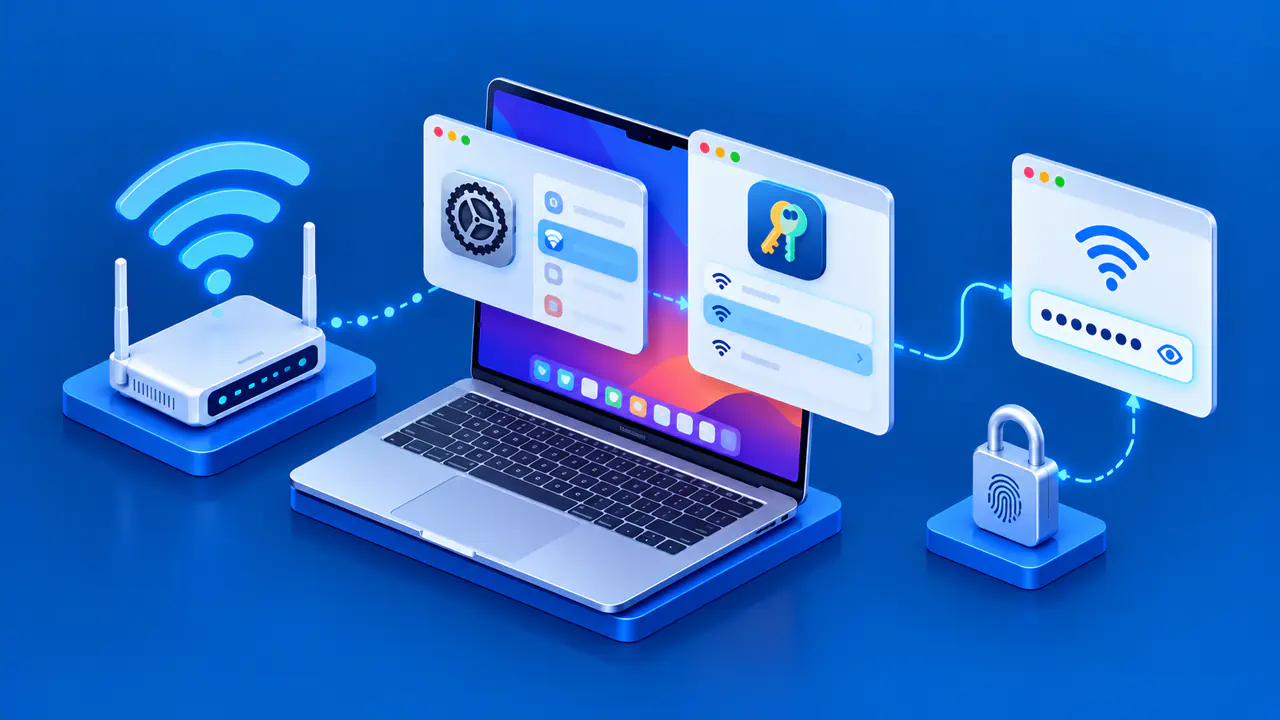
Check the MAC address shown in the device's settings for your current WiFi network. A hardware address on the packaging or in a general device-information screen may be different. On supported Apple devices, look for the private WiFi address; on supported Android devices, the network details may label it as a randomized MAC address. The available settings and their names depend on the operating system and version.
Resetting network settings or changing the private-address mode can cause a device to use a different address when it reconnects. Compare the current address before assuming an unfamiliar entry belongs to a device you do not own. You can identify a device while keeping its private-address feature enabled.
Investigate an Unrecognized Device
Ask other people in your household about guest devices or recent additions before blocking an entry you cannot match. A newly installed appliance or a visitor's phone may explain the connection. If the entry is still unexplained, record the current status, network, IP address, and MAC address so you can check for changes the next time you open the list.
If you confirm that someone has connected without permission, use your router's documented controls to remove their access. Blocking a single MAC address may not prevent another connection because that address can change or be copied. If the WiFi password has been shared without your permission, choose a new one. Someone who knows only the old password will no longer be able to use that password to reconnect. Your own devices using that WiFi network will also need the new password.