How to Fix a WiFi Connection with No Internet Access
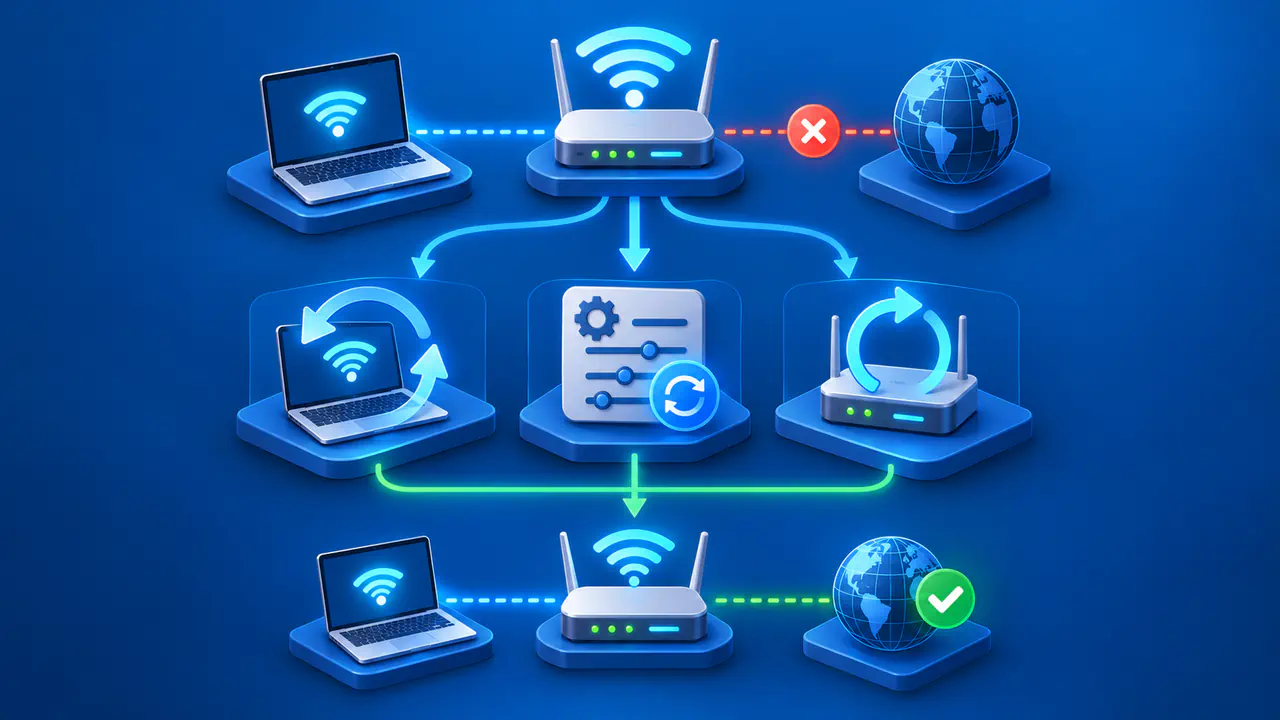
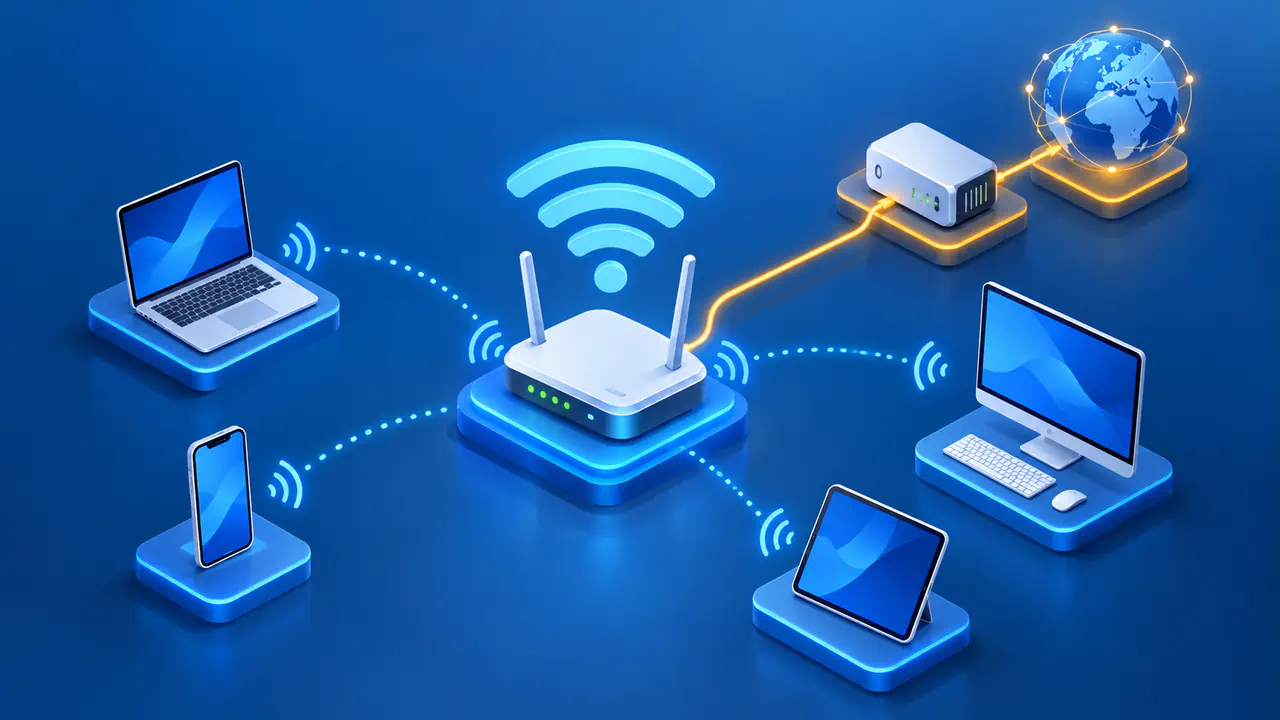
Your device can connect to WiFi without being able to access the internet. The WiFi connection is only the local radio link to an access point. Getting online also requires usable network settings and a working connection through your internet provider. To open most websites, your device also needs to look up the address for the website's name.
Reconnecting the device, renewing automatically assigned settings, or restarting network equipment can resolve some local failures. A provider outage or an access policy needs a different response. Start by finding out whether one device or the whole network is affected, then make one change at a time.
Check Which Services Are Affected
Check that the device shows the intended WiFi network as connected. Then try two familiar websites and another internet app. If one website fails while other services work, the problem may be limited to that destination. If all online services fail, investigate the connection more broadly.
Windows uses connectivity checks to decide whether to display a no-internet warning. If the network blocks those checks, Windows may show the warning even when some applications work. Note which applications actually work, as well as what the network icon shows. Making the warning disappear does not necessarily restore internet access.
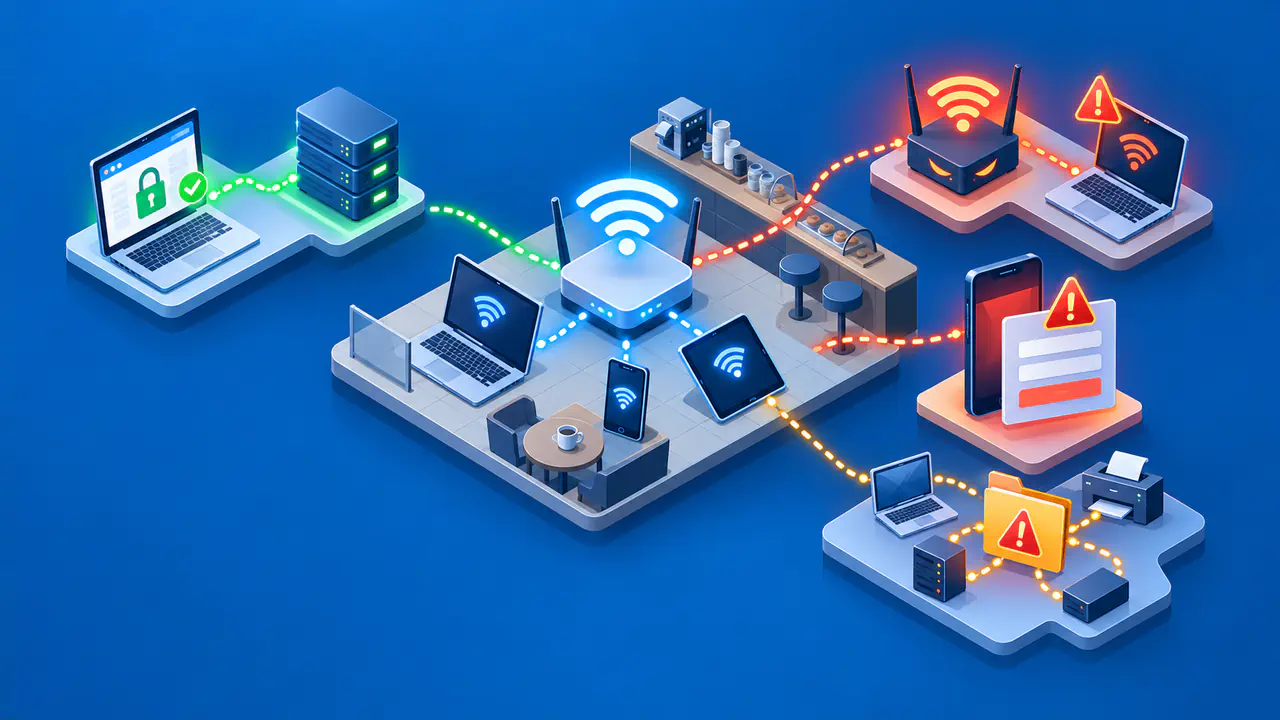
On a public hotspot, look for an expected sign-in or terms page and complete the network's normal login process. If the sign-in page does not appear, ask the network operator how to open that page. Do not bypass a certificate warning or enter credentials on an unverified page. On a work or school network, access may depend on an approved proxy or authentication policy.
Try Another Device and an Ethernet Connection
Connect a second device to the same WiFi and try the same trusted sites at roughly the same time. Make sure a phone is actually using WiFi for the comparison, rather than cellular data. Temporarily turning off cellular data keeps the phone from using the cellular connection during the comparison. Turn cellular data back on afterward if needed.
If both devices fail, investigate shared equipment and network settings. If only one device fails, examine that device's configuration and whether the network treats it differently. The comparison narrows the possibilities without proving that a particular component is faulty.
If the router and computer support Ethernet, connect the computer to the router and make sure the computer uses the cable for the test. If Ethernet works but WiFi does not, investigate the wireless connection and any settings that differ between the two connections. If neither works, check the computer, the router, and the router's connection to the internet. Do not move cables in a managed installation without authorization.
Check the Network Address and Local Gateway
The default gateway is the router a device normally uses to reach destinations outside its local network. On many home networks, DHCP automatically supplies the device's IP address, gateway, and DNS server settings. The home router commonly provides this service, though another server can do so. Do not guess replacement addresses when automatic configuration fails.
On Windows, open Command Prompt and run ipconfig /all to inspect the active WiFi adapter's settings. Check its IP address, Default Gateway, and DNS Servers entries, rather than the entries for a disconnected or virtual adapter. On an IPv4 network that normally uses DHCP, a self-assigned address beginning 169.254 can indicate that the device did not obtain its expected configuration. That local-only address cannot provide routed IPv4 internet access by itself.
To test the local path on Windows, use the gateway actually listed for the active adapter. For example, run ping 192.168.1.1 only if 192.168.1.1 is that gateway's address. A reply shows that the gateway responded to the computer, but does not prove that the gateway can reach the internet. A missing reply is inconclusive because some equipment or policies block ping traffic.
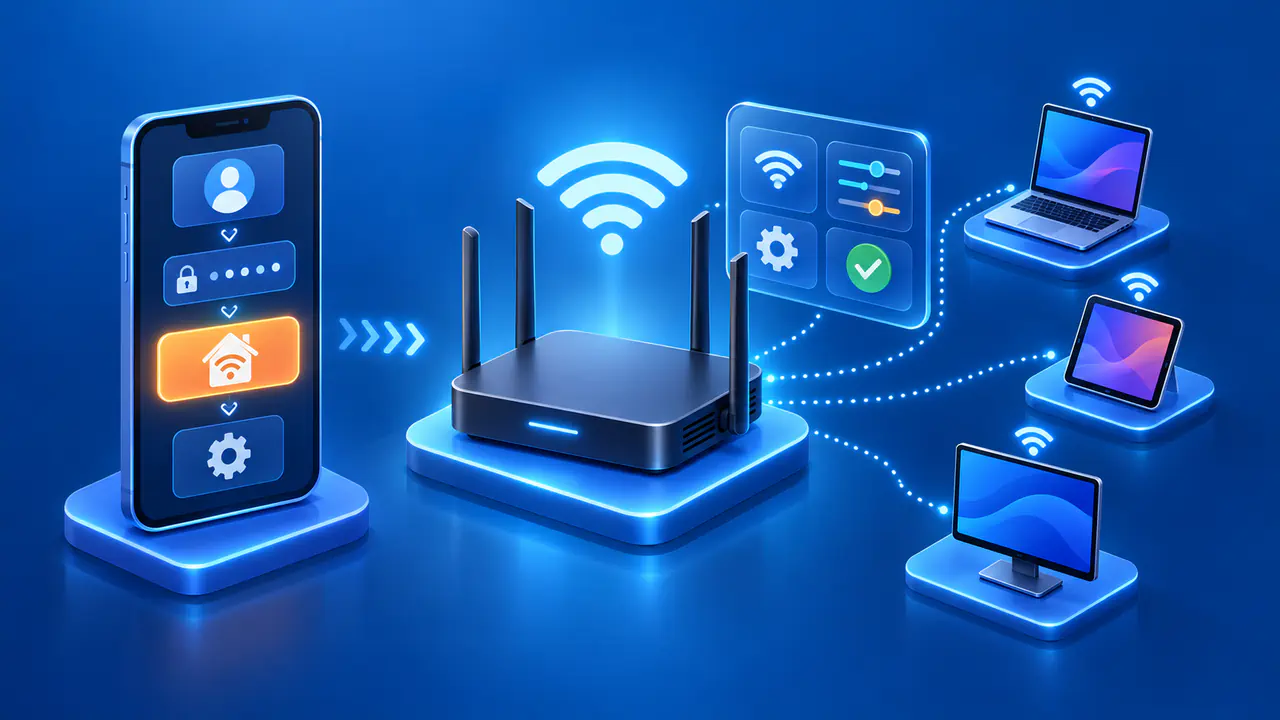
If the gateway is missing or the address does not match the network's expected settings, investigate DHCP or the intended manual configuration. Keep managed and static settings intact and ask the administrator to check them. If you normally manage the home router, review its DHCP status using the instructions for that model.
Separate DNS Failure from Other Connection Problems
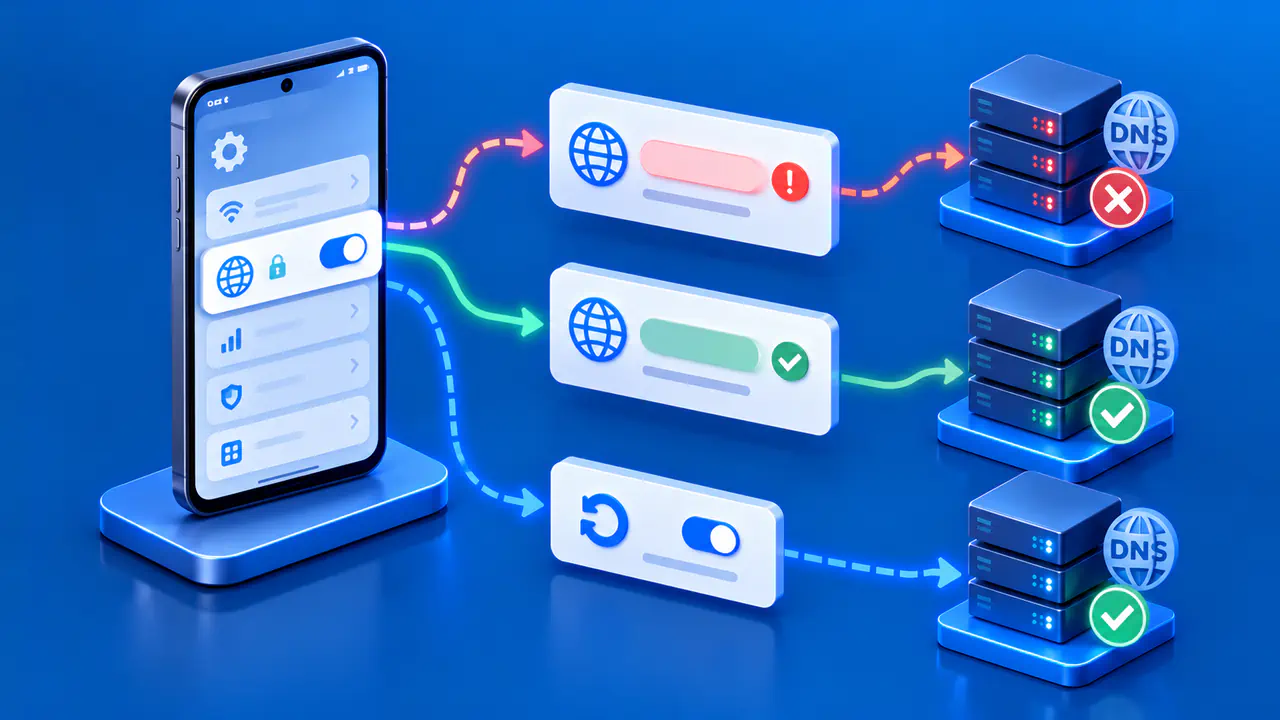
DNS finds addresses for website names. If names fail to resolve, a browser cannot normally start a connection to the intended website, even if another app's existing connection still works. Changing DNS cannot repair a broken modem connection or a provider outage. Check more than one name so that one unavailable destination does not determine the diagnosis.
On Windows, a command such as nslookup example.com asks the default DNS server to look up that name. Replace the example name with the hostname you are investigating, without a URL scheme or page path. An address in the response shows that this lookup returned data, not that the website is reachable. A timeout can reflect an unreachable DNS server or a wider connection problem, so it does not prove that DNS alone is at fault.
If only the configured DNS service appears to fail, use the provider's or network administrator's recommended settings and retest. On a network you manage, write down the current settings before testing another DNS resolver. A company's DNS service may be needed to find internal services, so replacing that resolver with a public one may prevent those names from resolving.
Reconnect the Device and Check Its Settings
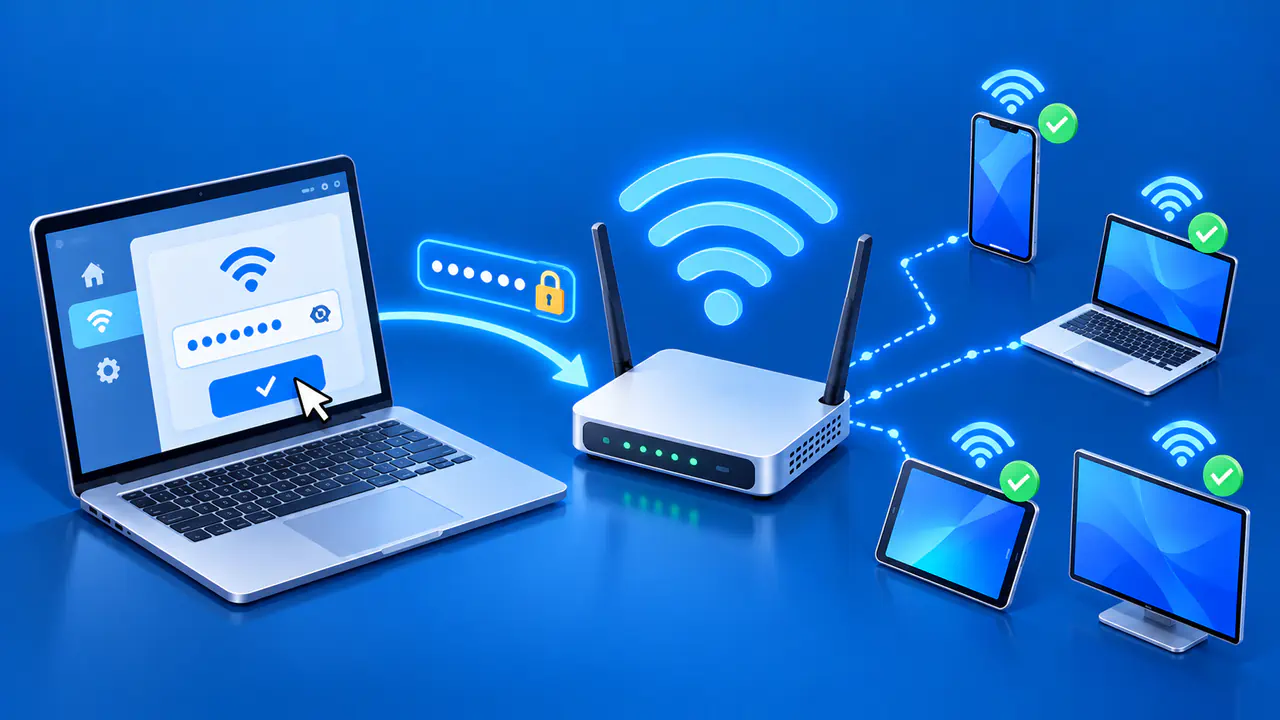
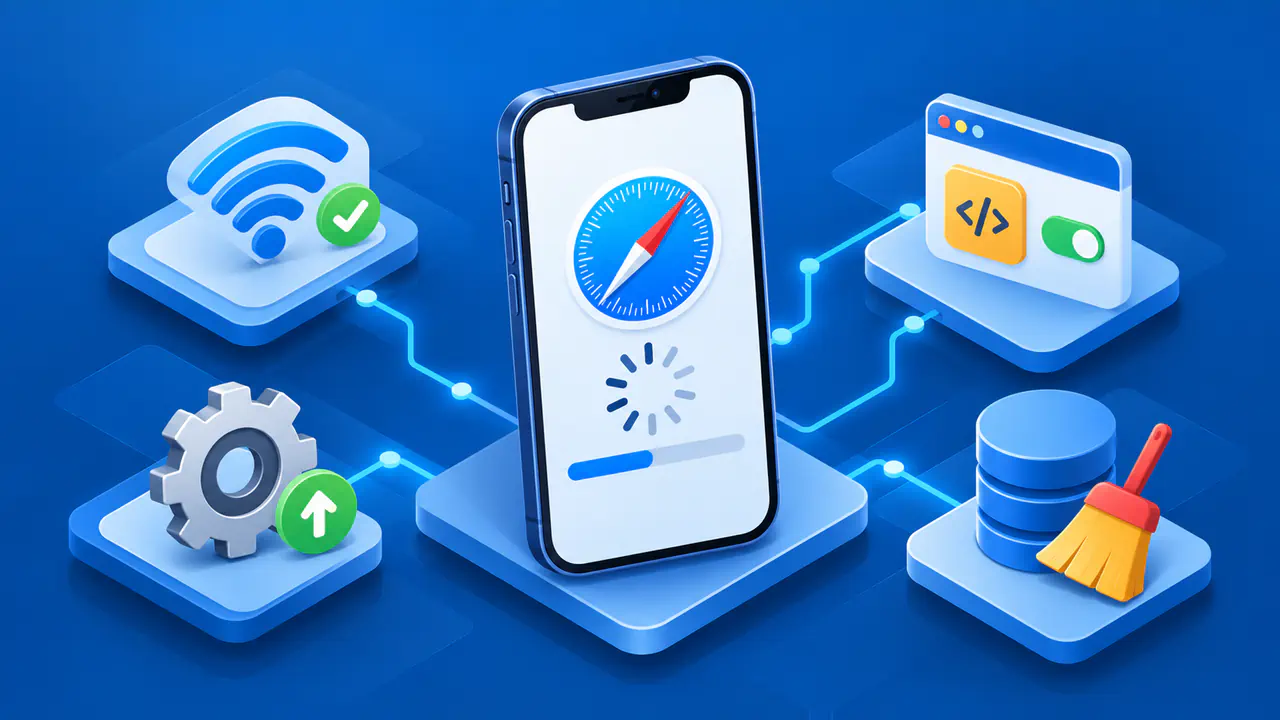
Turn WiFi off and on, then reconnect to the same known network. If only one device is affected, restart it after saving your work. Forget and rejoin the network only when you know the correct password and any special settings, because forgetting the network removes its saved settings. Check an active VPN or proxy only if you are permitted to change those settings, and restore any required settings after the comparison.
On a Mac that uses System Settings, open Network, choose the affected network service, and open Details. If the service obtains its address automatically, select Renew DHCP Lease under TCP/IP and confirm with OK. Renewing the lease requests fresh DHCP configuration but cannot repair a disconnected line from your internet provider. Keep any intentional manual configuration in place.
On Windows 11, the Network and Internet troubleshooter in Get Help can inspect common connection problems and attempt repairs. On a Mac, use Wi-Fi Recommendations if that item is available, or Wireless Diagnostics. If a device or network adapter needs an update, follow the manufacturer's supported instructions. Do not turn off security software indiscriminately just to remove a connection warning.
Check the Router and Provider Connection
If several devices cannot get online, check modem and router status lights against the model's documentation. Check the internet provider's service notice using another connection if necessary. If your router shows the status of its internet connection, also called the WAN connection, note any disconnection or message about missing connection settings. Ask your internet provider to confirm the correct connection type instead of trying unrelated account or address settings.
A normal restart may clear a temporary equipment problem, but it disconnects everyone using that equipment. Coordinate a suitable time, follow the provider's or manufacturer's power-up sequence, and wait for startup to finish before retesting. A factory reset is different and can erase provider and WiFi configuration. It is not a first response to this symptom.
If the router manufacturer recommends a firmware update, follow the instructions for your exact model and keep the router powered on until the update finishes. Choose a time when anyone using the connection can manage a temporary interruption. Repeatedly restarting or resetting equipment during a confirmed provider outage will not repair the provider's network.
Retest and Contact the Right Support Team
After each change, retry the same sites and app on the same connection. Record the time, which devices were affected, whether the gateway replied, what the DNS lookup returned, and whether Ethernet worked. Distinguish a failed test from one you could not complete. If internet access returns after a change, note that improvement without treating the timing alone as proof of the cause.
Give the internet provider the comparison results when the shared connection remains unavailable. If one managed device fails while other devices work, give its administrator or vendor those details instead. Include the router model and relevant status messages. Remove passwords, account identifiers, and sensitive log entries before sharing results publicly.