How to Find Your IP Address on a Chromebook
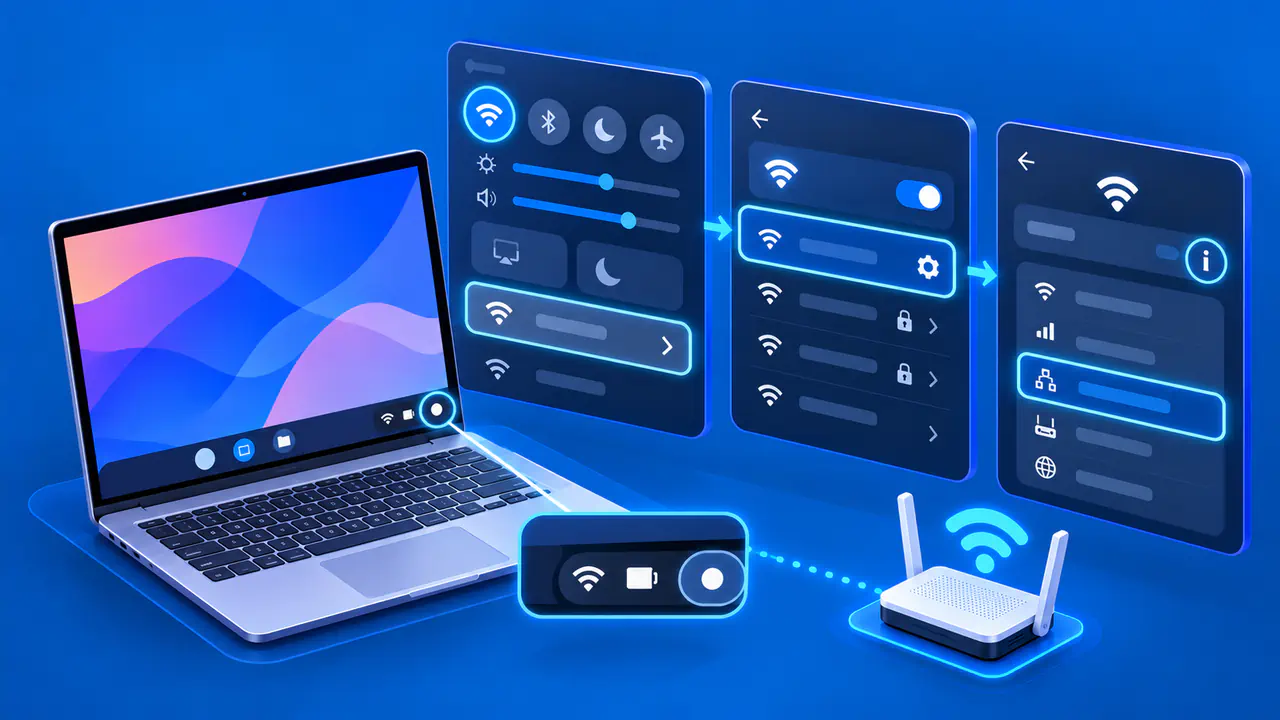
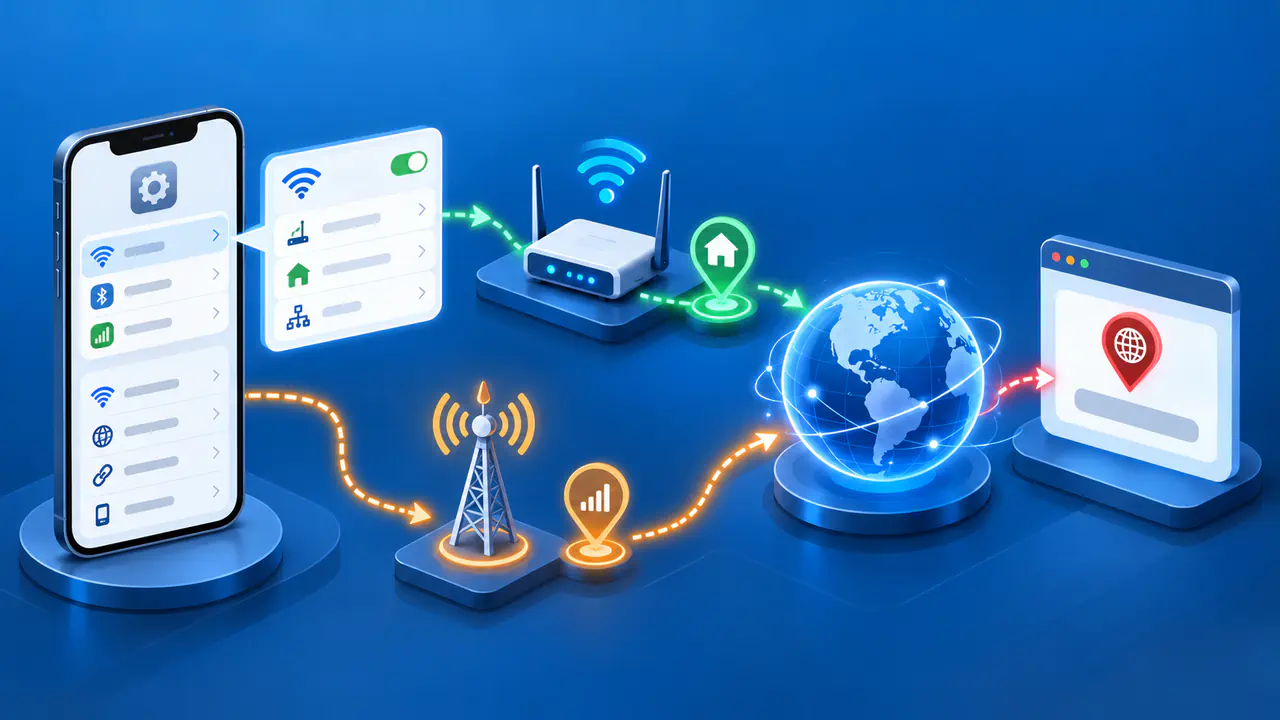
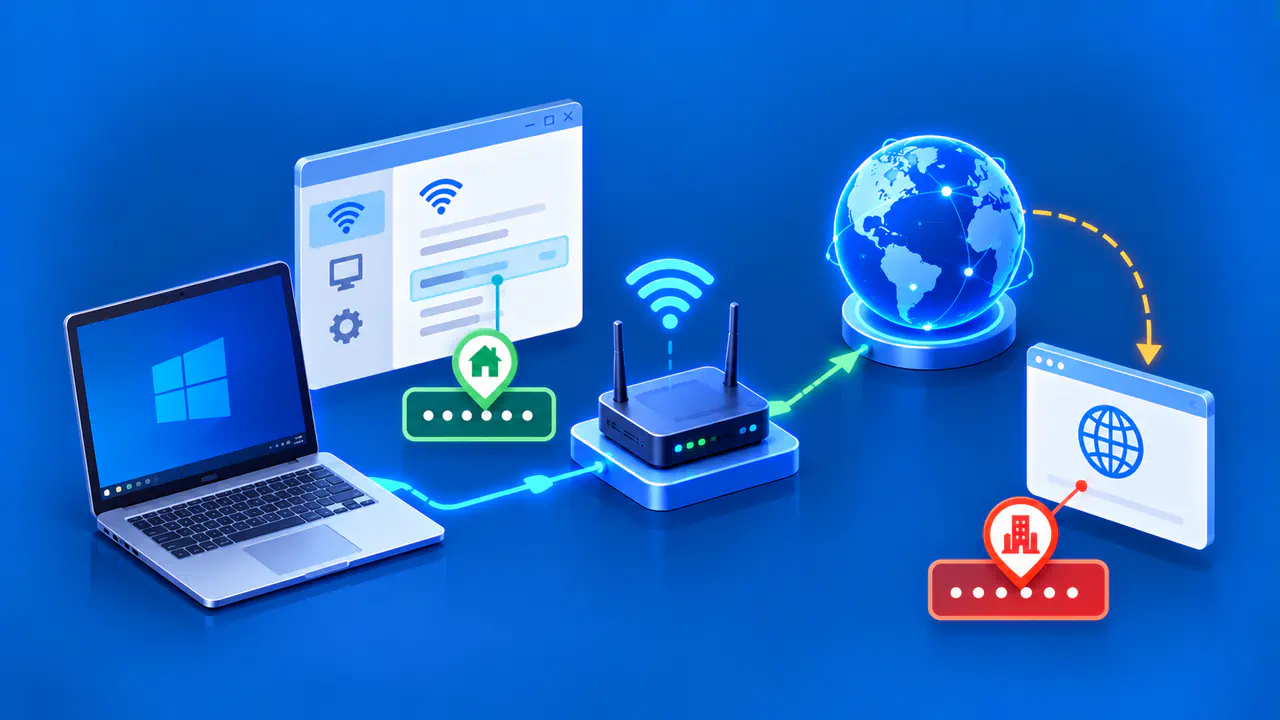
A Chromebook's local IP address belongs to its current network connection. ChromeOS shows it in the network information panel, where you can also find an IPv6 address if one is assigned. The value can differ between Wi-Fi and Ethernet. A private IPv4 address differs from the public address a website sees, while a globally routable IPv6 address may appear in both places.
Start with the network that is actually connected, rather than a network remembered from an earlier visit. ChromeOS menus can vary by device, version, and managed-network policy, so use the Network settings view if the quick panel looks different. Check the connection type before choosing which address to copy, especially if a dock, Ethernet adapter, or VPN is connected.
Open ChromeOS Network Details
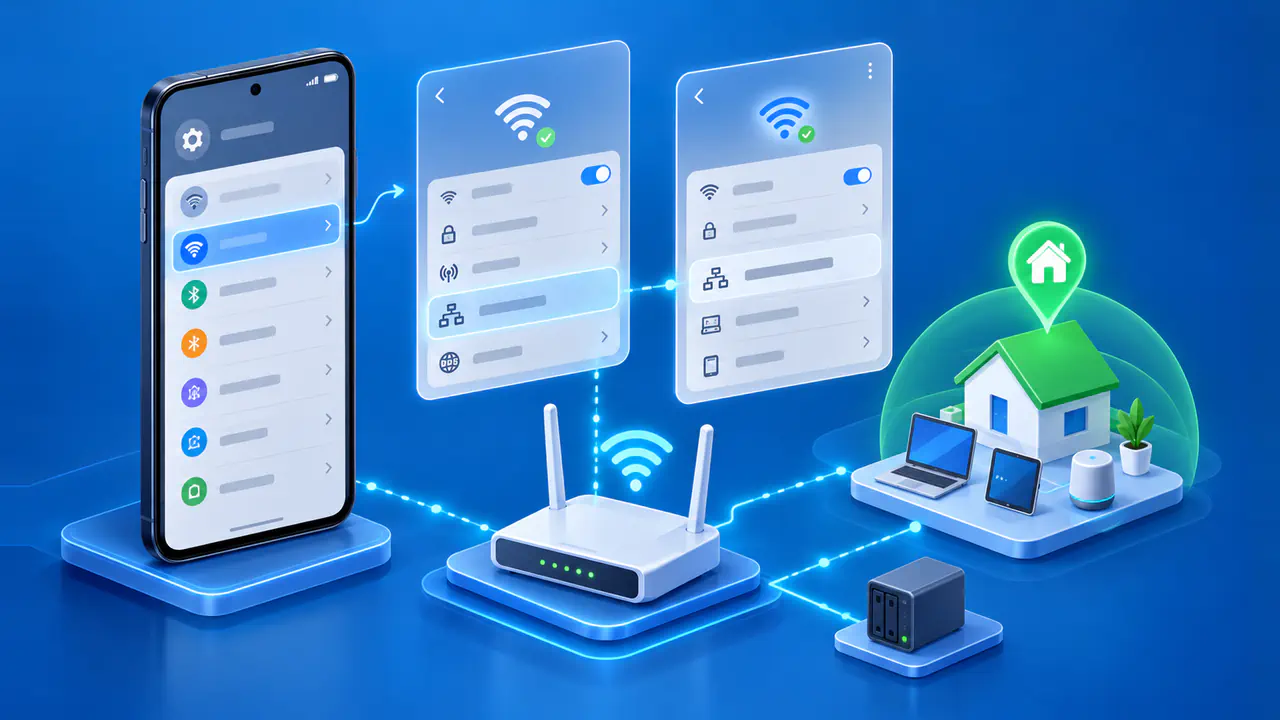
Sign in to the Chromebook. At the bottom right of the screen, select the time to open Quick Settings. Select the connected Wi-Fi network, then choose the Information icon at the top of the network box to see the IP details. Read the values as shown rather than copying an address from an old screenshot or another device.
If the quick panel does not show the expected connection, open Settings > Network > Wi-Fi and select the network that is marked connected. The precise presentation can change, but the same principle applies: inspect the active network, not just a saved network in the list. If several networks are listed, match the connected network's name before opening its details.
You may see other identifiers near the IP information. A MAC or hardware address labels a network interface and is not the IP address requested here. If a managed network asks for that separate identifier, use the administrator's instructions for that task.
Read the Active Local Address
The IPv4 address is normally four decimal numbers separated by dots, such as 192.168.1.24. On a home or office Wi-Fi network, a private IPv4 address is common. The IPv6 address, if shown, uses hexadecimal groups separated by colons. ChromeOS can display both, so record which version you are using when sharing a value with a network administrator or troubleshooting a service.
An address shown in the local network panel is not necessarily private. On an IPv6 network, the Chromebook may have a globally routable address that a website also observes. Copy the actual address you need instead of assuming that every value in this panel is hidden behind the router.
The local address is assigned to the connected network interface. It may change after the Chromebook connects to another Wi-Fi network or after the network reassigns it. An address in network details does not prove that a website is reachable, only that ChromeOS is reporting that value for the connection. The Chromebook can have an address on a local network even when that network has no working internet connection.
If no address appears, check whether the network is actually connected and whether the router or network service assigned an address. A network name can remain in Known networks after the Chromebook leaves its coverage, so selecting a remembered entry is not the same as reading a live assignment. Reconnect to the intended network and return to its information panel. On a school or work device, ask the network administrator if the connection is managed or restricted.
Do not publish a screenshot that includes network names, addresses, or other device details unless they are needed and safe to share. For ordinary troubleshooting, note the address family, the connected network, and the time of the reading. That helps distinguish a current assignment from an old one.
Check Wi-Fi versus Ethernet
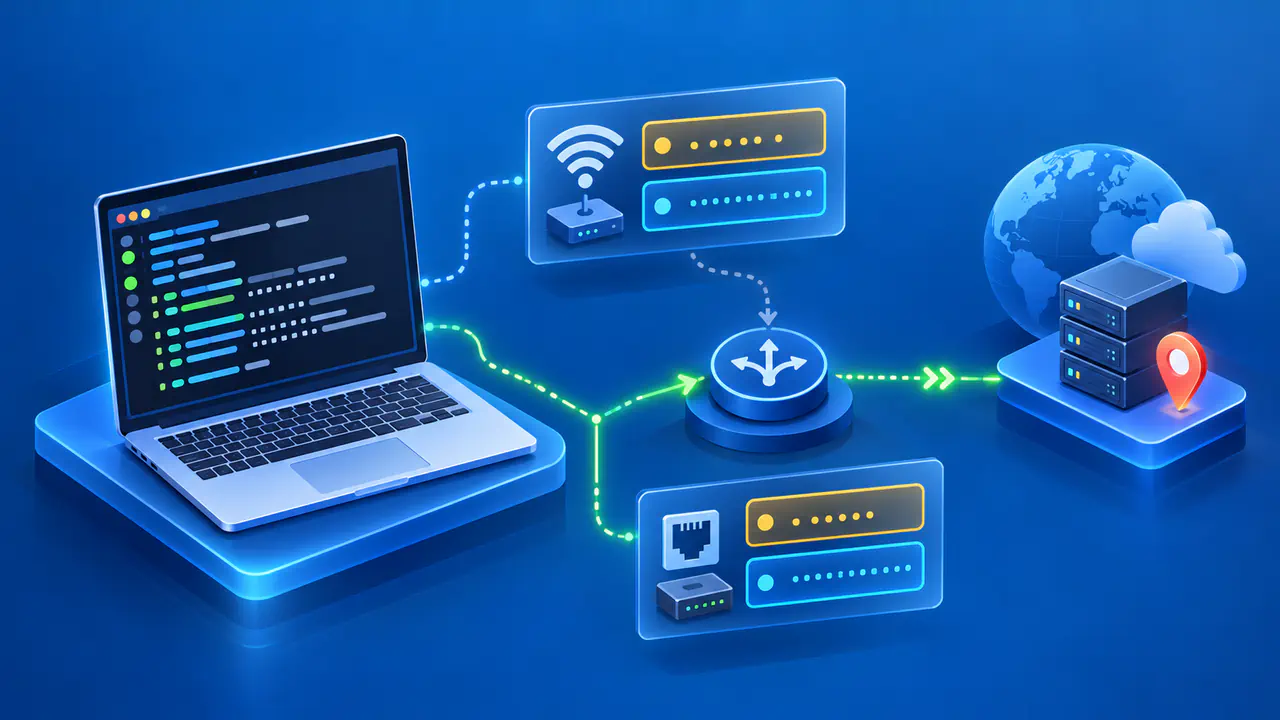
Some Chromebooks connect through a USB or dock Ethernet adapter as well as Wi-Fi. Each interface can have its own local address. If the Chromebook is currently using a wired connection, inspect Settings > Network for the connected Ethernet service. Wi-Fi can remain connected alongside Ethernet, so its assigned address alone does not establish which connection is carrying browser traffic.
The Diagnostics app provides another view of the default connection and can show IP Configuration information for Ethernet, Wi-Fi, and other connection types. Opening the app automatically starts connectivity tests on the default connection. To open it, select Settings > About ChromeOS > Diagnostics, or search for Diagnostics in the launcher. Expand IP Configuration for the address details and check the default connection method when a dock or adapter changes the active route.
If both Wi-Fi and Ethernet are connected, identify which network the target service uses before reporting an address. A VPN can add another network path and a different address inside its tunnel. A local service on Wi-Fi and a website reached through a VPN may therefore observe different addresses from the same Chromebook. The underlying Wi-Fi or Ethernet address does not by itself identify the VPN's public exit address.
Check the Public IP Separately
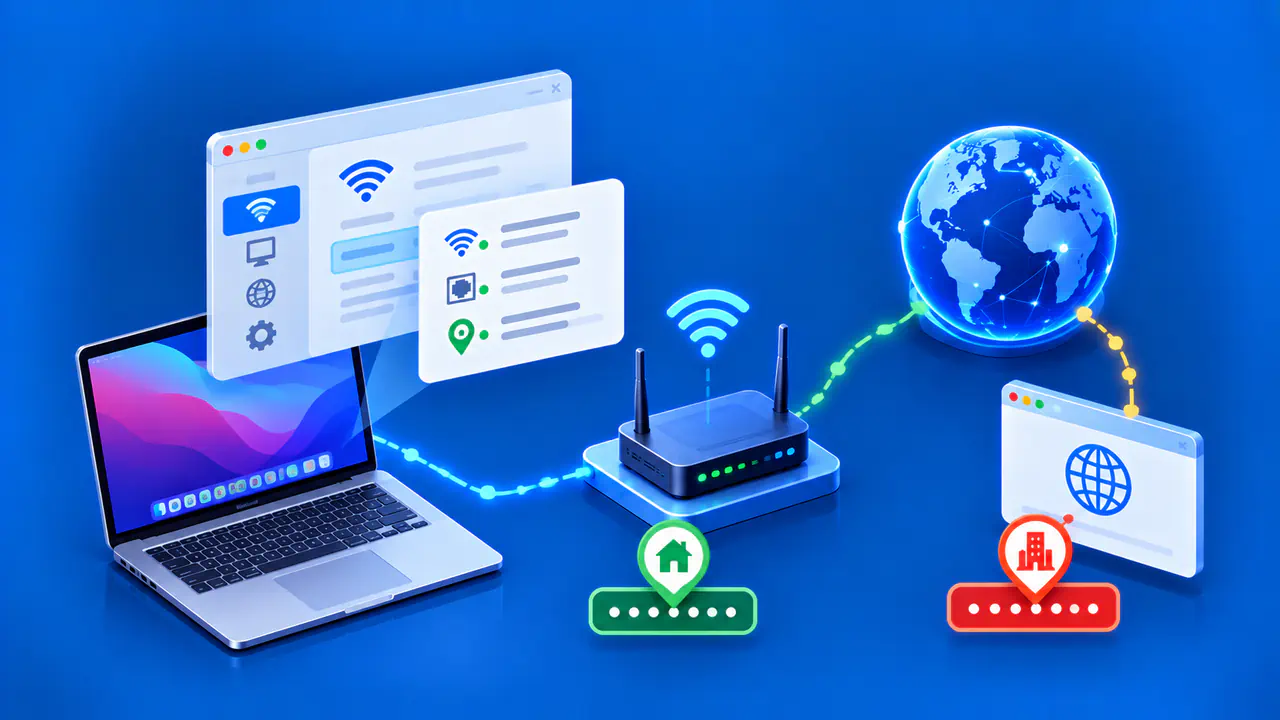
To learn the public address a website sees, visit a reputable external IP-check service from the browser and note its observed IPv4 or IPv6 address. Compare the address family explicitly. A home router may translate the Chromebook's private IPv4 address to an outward address, and the internet provider may translate it again. For traffic routed through a VPN, a site can see the VPN's exit address instead.
If the external page shows one address family but the Chromebook shows both, the comparison covers only the family the page reported. Do not assume both IPv4 and IPv6 take the same route. If a page reports a different city, that location is an estimate associated with the observed connection, not a correction to the Chromebook's local address.
A browser observation describes the connection used for that request at that time. It does not establish the address every app on the Chromebook uses, particularly when only some traffic passes through a VPN or proxy. If you switch networks or change the VPN connection, take a fresh reading before comparing it with the ChromeOS network details.