How to Log In to a NETGEAR Router
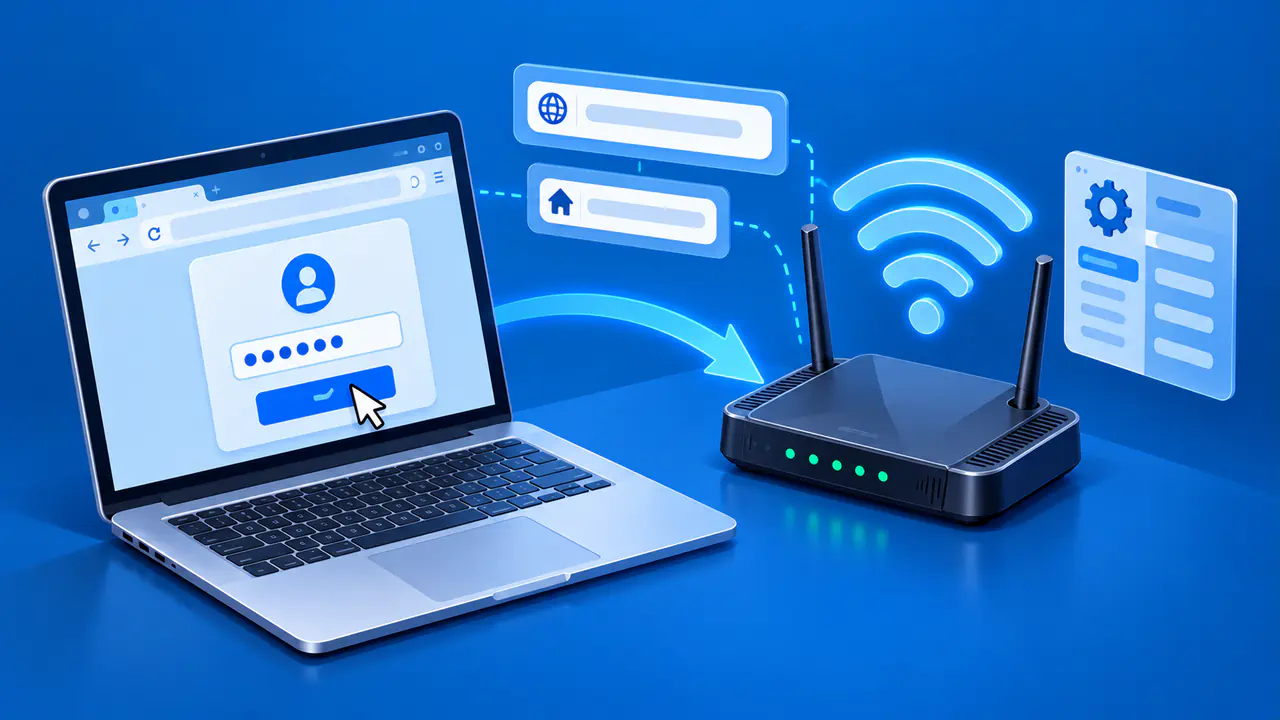
You can log in to a NETGEAR router by connecting to its WiFi or a LAN port, then opening routerlogin.net in a browser. Enter the router's administrator username and password to reach its settings. The WiFi password gets your device onto the network; it does not automatically give you access to the router's settings.
These steps are for a home router you own or have permission to manage. The Nighthawk app is another option for supported models, but you can also use a browser. The screens and password recovery options depend on the router model and its firmware, so a different menu layout does not necessarily mean you have opened the wrong page.
Connect to Your NETGEAR Network
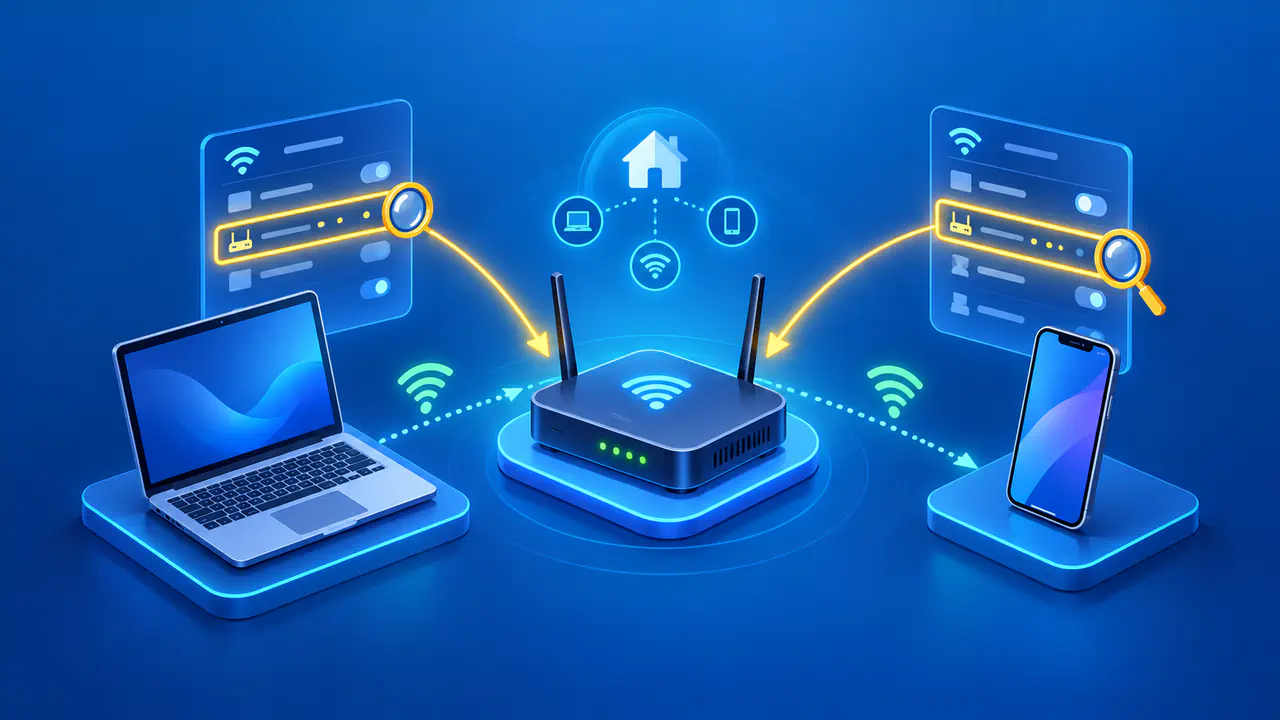
Connect your computer or phone to the router's WiFi, or plug a computer into one of the router's LAN ports with an Ethernet cable. The label on a new router usually shows its original WiFi name and password. If those details have been changed, use the current ones. A wired connection is useful if you cannot join the WiFi network.
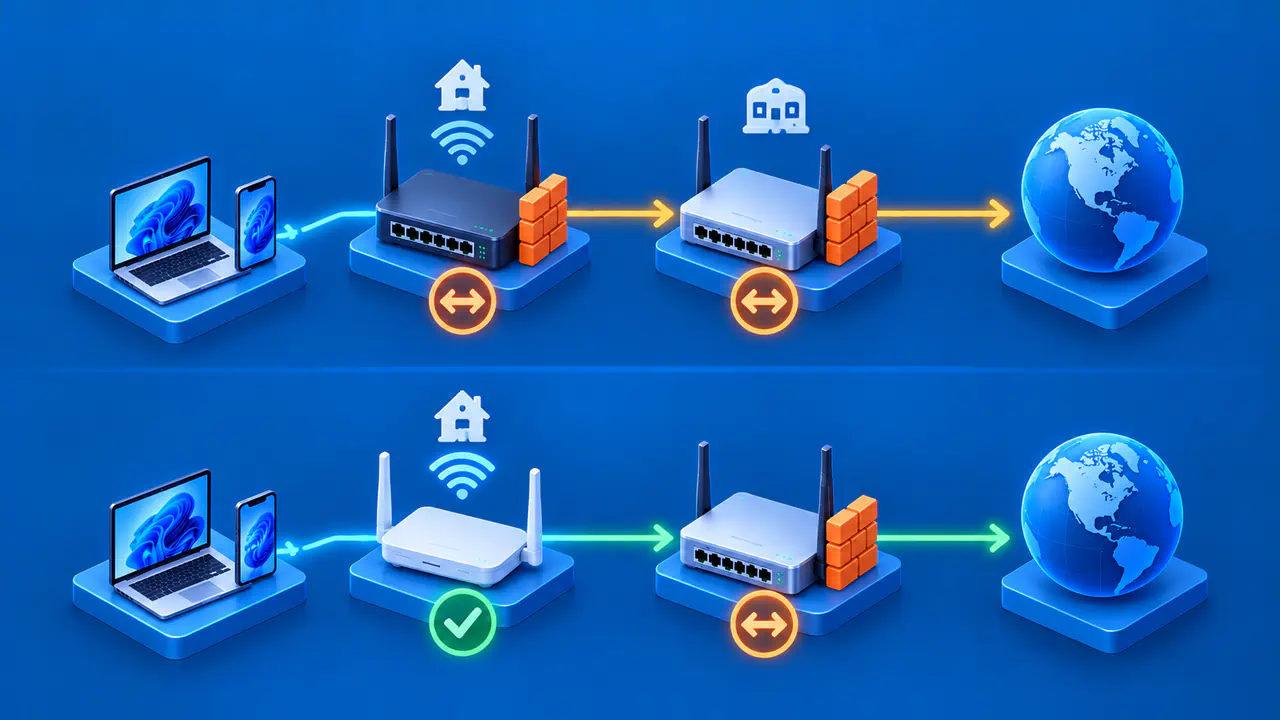
Check which device provides the network you joined. Your internet provider's gateway, an extender, or a separate mesh system may use a similar WiFi name. If your phone is using mobile data without a local WiFi connection, it cannot reach the router through this local login method.
The router does not need a working internet connection to show its local settings page. Your computer or phone does need a working connection to the router. You can therefore check the router's settings during an internet outage, as long as the router is powered on and the local network is working.
Find the Local Login Page
Type routerlogin.net into the browser's address bar and press Enter. Use the address bar rather than a search box, and check the spelling before entering a password. You should see a NETGEAR login prompt, or a setup page if the router has not been configured.
If that address does not open the page, try http://192.168.1.1, a common NETGEAR local address. If a previous administrator changed the router's LAN IP address, you will need to use the current address instead.
When the NETGEAR router is your network's default gateway, you can find its current address in your device's network details. On Windows, open Command Prompt, run ipconfig, and look for Default Gateway under the connection you are using. On a Mac, look for Router in that connection's TCP/IP details. Enter the address in your browser, but check which device appears if your network contains more than one router.
A new router may show a page recommending the Nighthawk app. If the model supports browser setup, look farther down the page for the option to continue without a compatible smartphone. Follow the setup instructions to create your administrator password and finish configuring the router before using its dashboard.
Enter the Router Administrator Password
For the standard NETGEAR home router login, the username is admin. Enter the administrator password chosen during setup, or the current password if someone changed it later. Both fields are case sensitive. After a successful login, the router opens its home page or dashboard.
The administrator password is separate from the WiFi password and your MyNETGEAR account password. A MyNETGEAR account may be used in the Nighthawk app or for product services, but its email address and password are not the usual local browser login. Likewise, the WiFi password printed on the router's label is for joining the wireless network.
If the router rejects your password, check capitalization and make sure your browser has not filled in an old saved password. A factory password listed online will not work after you or another administrator has changed it. Many newer NETGEAR routers require you to choose an administrator password during setup.
If the Login Page Will Not Open
A page that will not load needs different troubleshooting from a page that rejects your password. Start by checking the WiFi connection or Ethernet cable, then try the router's local IP address. Changing or recovering a password will not help if the browser cannot reach the router.
A VPN or another active network connection can interfere with access to the router. Temporarily disconnect the VPN or the extra network if you can do so without interrupting your work. Otherwise, try another device connected to the NETGEAR network.
Trying a different browser or another connected computer can help show whether the problem is limited to one device. If you see a search page, an unrelated website, or another router's dashboard, stop and recheck the address and network. Do not enter the NETGEAR administrator password on an unfamiliar page.
Recover a Forgotten Password
If the login page works but you cannot remember the password, check whether the router offers password recovery. On supported models, recovery requires the router's serial number and your answers to the security questions chosen during setup. Recovery may be unavailable if it was not configured, and the way you open it varies by model and firmware.
On models that use the Router Password Reset screen, that screen appears after three failed login attempts. From there, enter the serial number and continue to the security questions. If your answers are accepted, follow the prompts to set a new administrator password and recovery questions, then log in again. Older interfaces may offer recovery through the login window instead; use the procedure for your model if the screens differ.
Consider a factory reset only after the available recovery options have failed. It erases personalized settings, including the administrator password, WiFi name and password, and security settings. You may also need to reenter internet connection details and recreate other custom settings, so gather the information you will need before resetting the router.
Restoring a configuration backup replaces the router's current settings with the saved settings. The backup may include the administrator password you forgot, so check what will be restored before relying on a backup to regain access. If other people share the router or your internet provider manages it, contact the person or provider responsible for the router before resetting it.