How to Log In to a TP-Link Router
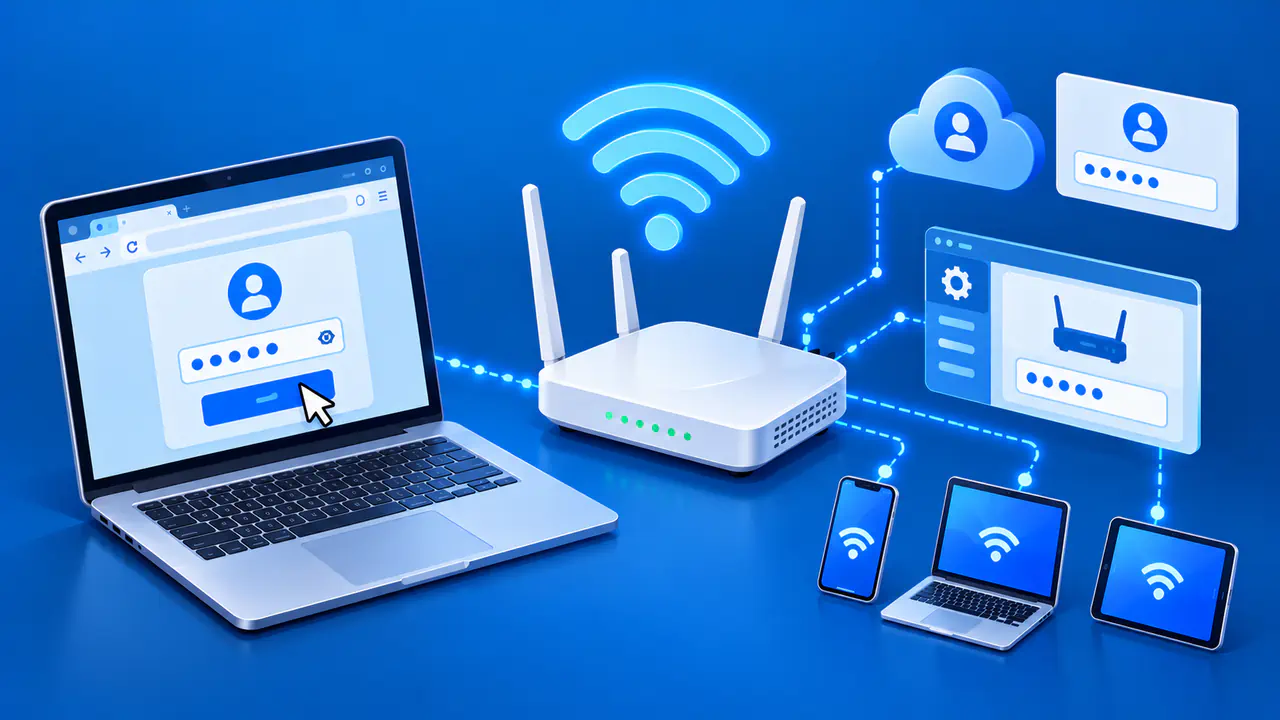
A TP-Link router's settings are available through its local web management page. Connect to the router's WiFi or a LAN port, open tplinkwifi.net in a browser, and enter the password requested by the login page. Depending on the model and setup, this may be a local administrator password or the password for a linked TP-Link ID. The WiFi password and the router login password serve different purposes.
The screens can vary with the router model, hardware version, and firmware. Use these steps only for a router you own or have permission to manage. Check the model on the device label before choosing its setup instructions, since TP-Link's mesh systems, modem routers, and mobile routers can use different management addresses.
Connect to the Router
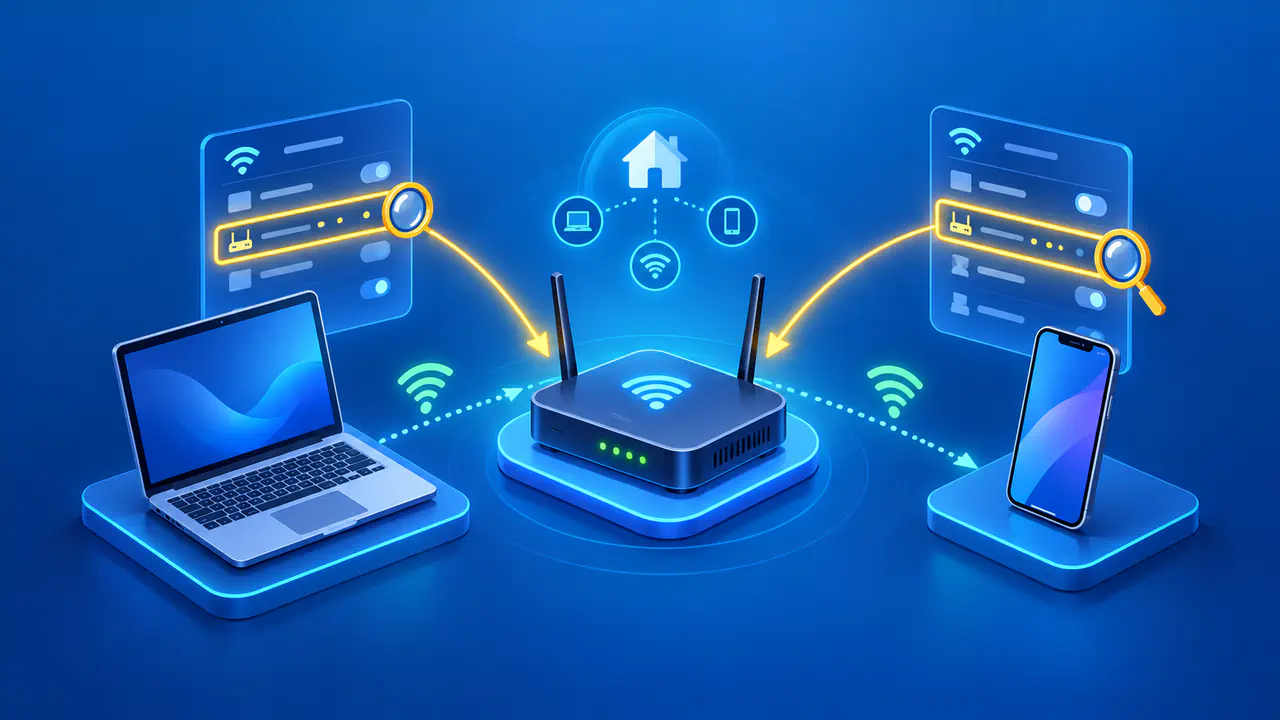
Join the TP-Link router's WiFi network from your computer or phone, or connect a computer to one of its LAN ports with an Ethernet cable. A new router's label may show the original WiFi name and password. If someone has changed them, use the current details instead.
An Ethernet connection is useful when you cannot join WiFi or plan to change the wireless settings. Applying a new WiFi name or password can disconnect the device you are using to manage the router. A cable lets you keep working without having to rejoin the wireless network after that change.
The local management page does not require a working internet connection, but your device must be able to reach the router. If your phone has switched to mobile data, reconnect it to the router's WiFi. A VPN, proxy, or second network connection can also interfere with local access. If changing those settings would interrupt your work, try another device connected to the router's network.
Open the TP-Link Login Page
For a standard TP-Link WiFi router, enter tplinkwifi.net directly in the browser's address bar and press Enter. If the browser shows search results, recheck where you typed the address instead of choosing a result. The page you need is the router's own login or initial setup screen.
If the name does not open the page, try the router's local IP address. Common defaults include 192.168.0.1 and, on some models, 192.168.1.1. These addresses work only if the router still uses them; a previous administrator may have changed its LAN address.
A local HTTPS page may trigger a privacy warning when the router uses a self-signed certificate. Before continuing, check that you are connected to your router and that the address matches its current management address. Follow the certificate instructions for that model only after confirming the local device. Do not enter router credentials on an unfamiliar page.
If the page will not load at all, check the WiFi connection or Ethernet cable and try another browser or connected device. A page that cannot be reached is a different problem from a page that rejects a password. Password recovery will not help until you can open the correct router page.
Find the Router's Current IP Address
When the TP-Link router is your network's default gateway, its address appears in your connected device's network details. On Windows, open the details for the active network connection and look for Default Gateway. On a Mac, look for Router in that connection's TCP/IP settings; on an iPhone or iPad, tap the information button beside the connected WiFi network and find Router.
Use the details for the connection you are actually using, especially if the computer has both WiFi and Ethernet enabled. Enter the address in the browser and check which device's login page appears. An old default address can stop working or belong to a different device after the network changes.
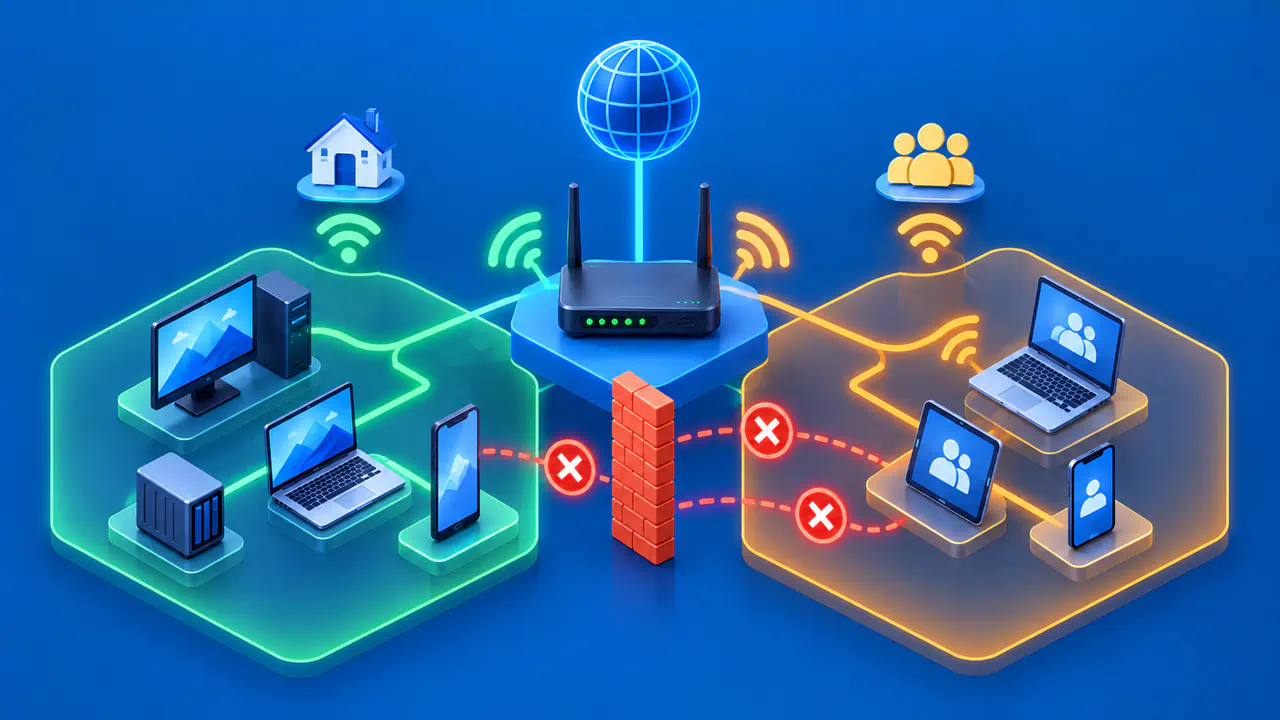
If you use the TP-Link router as an access point connected to your internet provider's router, the default gateway may lead to the provider's device. Check the main router's connected-device list for an IP address assigned to the TP-Link access point. If you cannot find the TP-Link device in that list, ask the network owner for its management address. Do not enter the TP-Link password on the provider's router login page.
Choose the Right Login Method
Many TP-Link routers ask you to create a local administrator password during first-time setup. When the page asks for the local password, use the current administrator password for that router. Older models may show separate username and password fields, so use the instructions for the exact model instead of assuming that one factory login works on every router.
If the router is linked to a TP-Link ID and the page offers account login, enter the credentials for an account authorized to manage that router. Some interfaces let you switch between local password and TP-Link ID login. Having a TP-Link account by itself does not grant access to someone else's router.
Your WiFi password lets you join the wireless network. Do not assume that the same password also works for the local administrator login or your TP-Link ID. If the router belongs to a household member or is managed by your internet provider, ask them which login method it uses.
Recover a Forgotten Password
For a forgotten local administrator password, look for Forgot Password on the login page. On supported models, you can recover access by email or by answering security questions, but recovery must have been configured before you lost access. Follow the method offered for your router and complete the verification steps before setting a new password.
If you forgot your TP-Link ID password, use the password reset option on TP-Link's account sign-in page and enter the email address registered to your account. You will need access to that inbox to follow the reset instructions; changing the WiFi password will not recover the account.
Consider a factory reset only after checking the available recovery options. It removes custom settings, including the router's administrator password, WiFi settings, and internet connection configuration, so you may need to set up the network again. Before resetting a shared or provider-managed router, contact the person responsible for it and gather the details needed to restore service.