How to Log In to a Verizon CR1000 Router
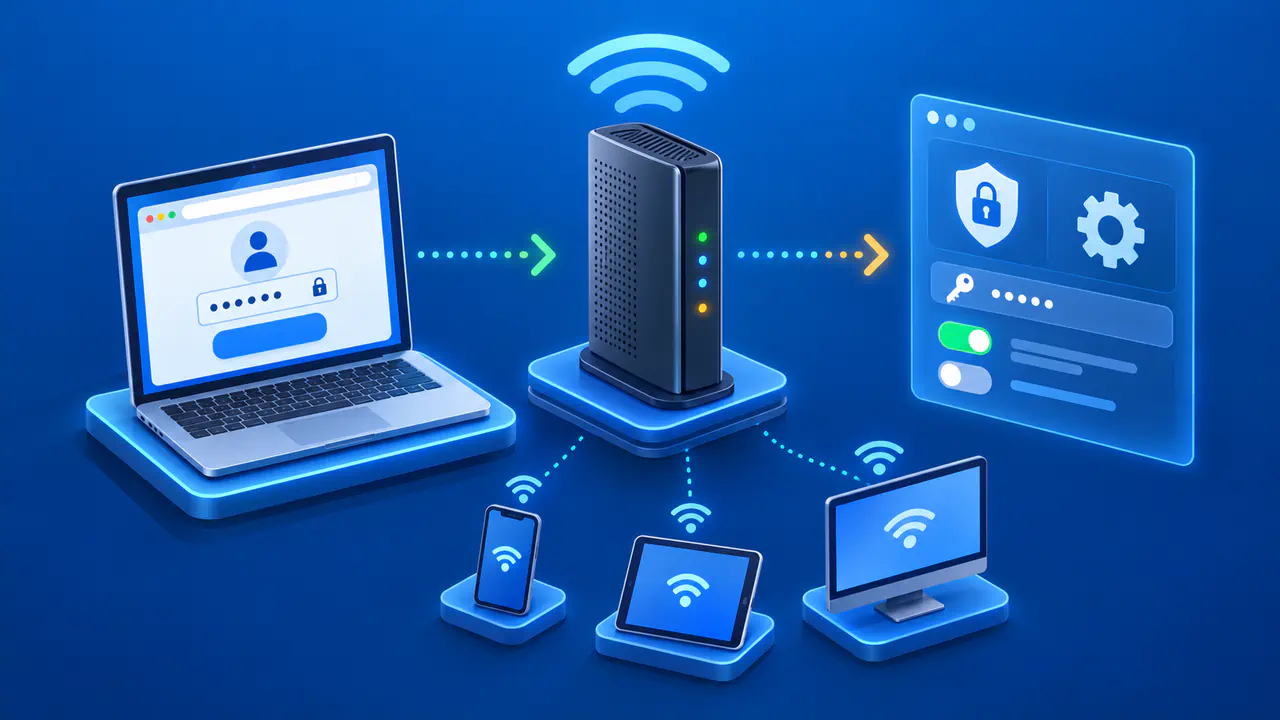
To log in to a Verizon CR1000A or CR1000B, first connect to the router's WiFi or an Ethernet LAN port. Open mynetworksettings.com in a browser, or use 192.168.1.1 if the router still has its factory IP address. The login requires the router's administrator password, so have that ready before you begin.
The local settings page lets you manage the router without signing in to your My Verizon account. You can review connected devices and change network settings there. If the page does not open, check your connection and the router's address before trying to fix a password problem.
Connect to Your CR1000
Check the model number on the bottom of the router before following the login steps. Confirm that the model is CR1000A or CR1000B. Other Verizon routers and mobile hotspots may have different addresses or login requirements, even when their WiFi names look similar.
Join the CR1000's main WiFi network, or connect a computer directly to an Ethernet LAN port. Use the current WiFi name and password if someone has changed them since installation. An Ethernet connection is a practical choice when you plan to change wireless settings, because the computer can remain connected while the WiFi network restarts.
If you have a second router, make sure your computer is connected to the CR1000 itself. If you connect through a second router that also uses 192.168.1.1, entering that address may open the second router's settings. You do not need to move the CR1000's internet cable to connect a computer; use an available LAN port.
Open the Router's Login Page
Type the Network Settings URL from the rear label into the browser's address bar and press Enter. For the CR1000A and CR1000B, the local address is mynetworksettings.com. If the name does not open the page, try https://192.168.1.1, provided the router's local IP address has not been changed.
Enter the address directly instead of searching for a router login page. A search result may lead to a help article or an unrelated website. The router password belongs in the local management interface, not in a form offering to find or unlock your router.
A browser privacy warning can appear when you open the CR1000's local page. Before continuing, confirm that you are connected to your own router and that the address is its known local IP. If your CR1000 still uses 192.168.1.1, the browser may offer an Advanced option followed by a link to proceed to that address. Do not enter the password if the page takes you to an unfamiliar address.
Enter the Administrator Password
On a router with its original settings, use the value beside Network Settings Password on the rear label. Use the WiFi password to join the wireless network; the Network Settings Password opens the router's settings. A My Verizon account password is also separate from this local router login.
The CR1000 login screen may ask only for a password. If a username field is present, the default username is admin. Enter the current administrator password and select Continue or Log In, as shown on your screen. If someone changed this password, use the new password instead of the one on the label.
A router being configured for the first time may show a setup wizard after login. Read each screen before applying settings, especially changes to the WiFi name or password. If you change either while connected wirelessly, reconnect with the new details before returning to the router page.
If the Login Page Will Not Open
Check that your phone has stayed on the CR1000's WiFi instead of switching to mobile data. If you are using a guest network, reconnect to the main network or use Ethernet. Some VPNs block local connections; try another device on the same home network if you cannot reach the router while the VPN is active.
If the router's address was customized, 192.168.1.1 may no longer work. On Windows, open Command Prompt, run ipconfig, and look for Default Gateway under the adapter you are using. On a Mac, open System Settings, select Network, and choose your active connection. Click Details, then TCP/IP, and look for Router.
On a device connected directly to the CR1000, the default gateway is usually the router's local address. If you are connected through another router, the default gateway may identify that other device instead. Connect directly to the CR1000 or ask the person who manages the network for the router's current local address.
If the page still will not load at the correct address, try another browser on the same device or another device on the same network. If either can open the page, check the browser or device that could not connect. Note the address and exact browser error before asking the network administrator or Verizon for help.
If the Password Is Rejected
Check capitalization and easily confused characters before trying the password again. If a password manager filled the box, confirm that the saved entry is for this router and not an old router or your Verizon account. You can retype the password to rule out an incorrect saved entry without changing any router settings.
Ask the person who installed or last managed the router whether the administrator password was changed. They may have saved the new password in a password manager or their setup notes. Keep any photo of the router's label private, since it can expose credentials for both the wireless network and the settings page.
A factory reset can restore the original login, but it also removes custom settings, including the WiFi name and password. If the current administrator password cannot be recovered, arrange a reset with the network owner or Verizon and allow time to set the network up again. Devices using the old wireless details may need to be reconnected afterward.