How to Log In to an Xfinity Gateway
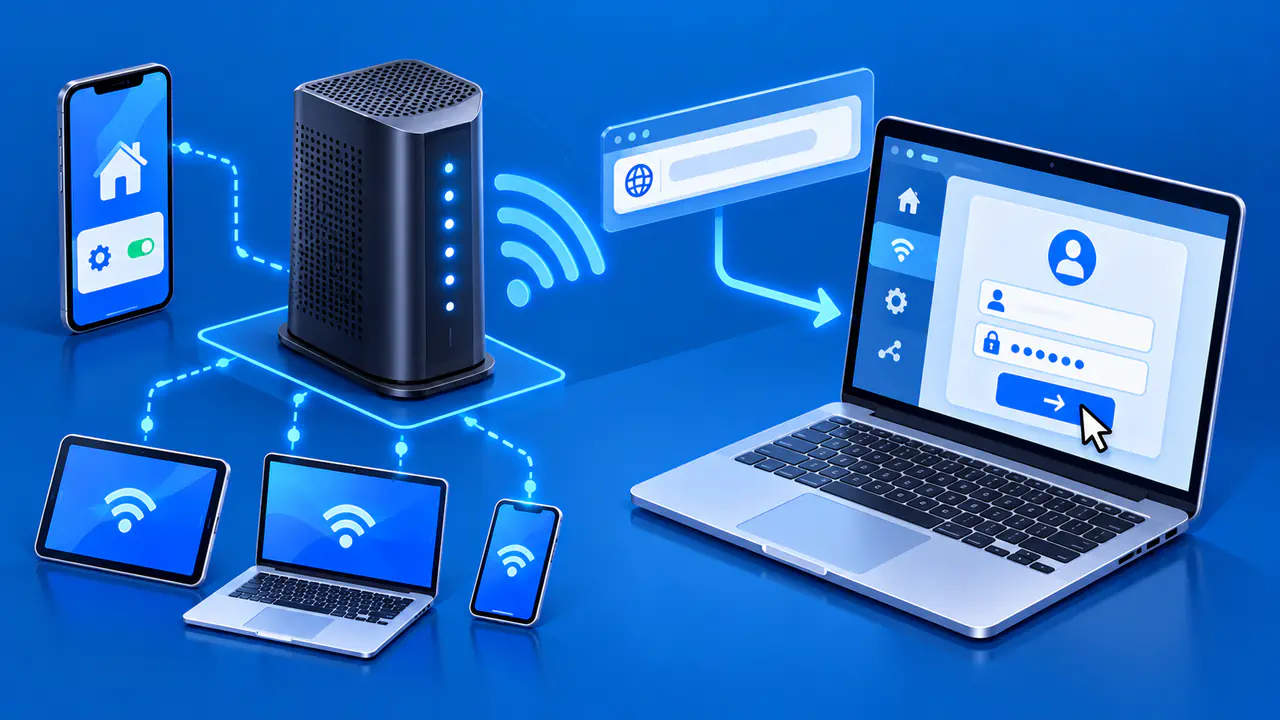
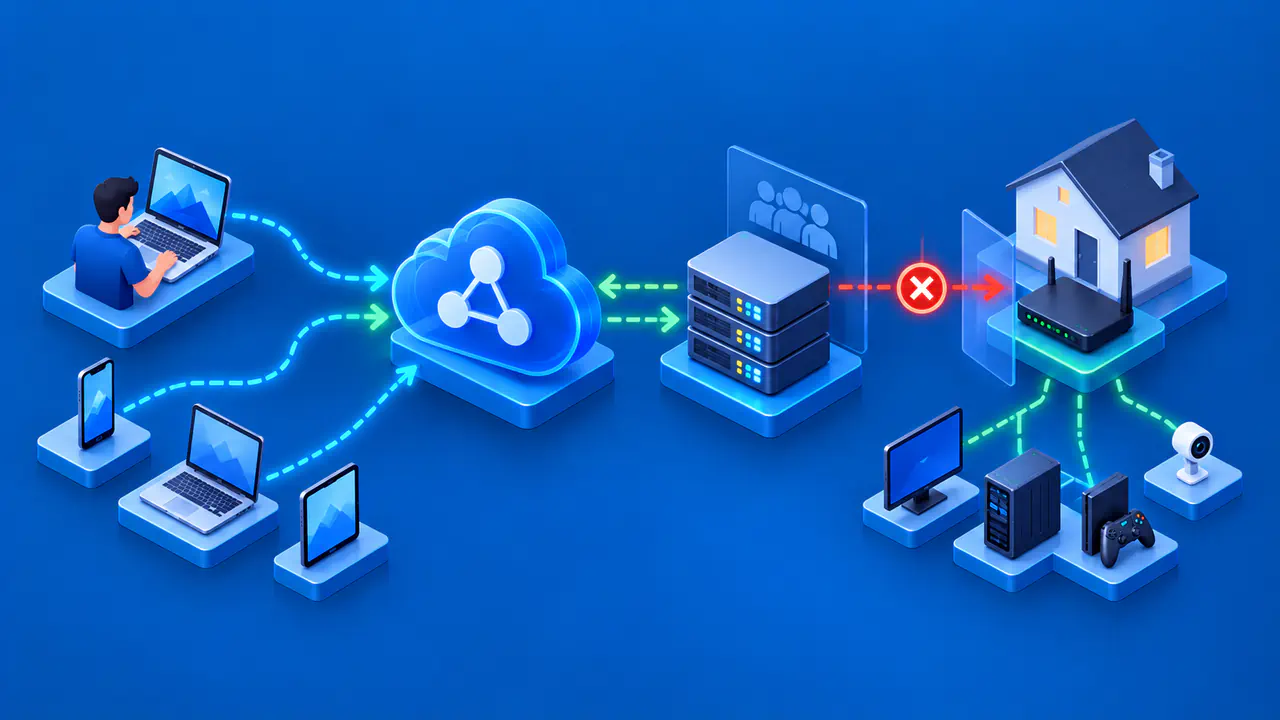
An Xfinity Gateway combines a cable modem and a router. Its local Admin Tool lets you open the gateway's settings in a browser at http://10.0.0.1 from your home network. On newer models, you may need to enable Admin Tool access in the Xfinity app before the login page will open.
The app and the local Admin Tool use different sign-ins. Your Xfinity ID gives you access to the app, while the gateway's administrator password opens its local settings. The WiFi password connects your device to the wireless network. Follow these steps only if you are authorized to manage the gateway.
Connect to Your Xfinity Gateway
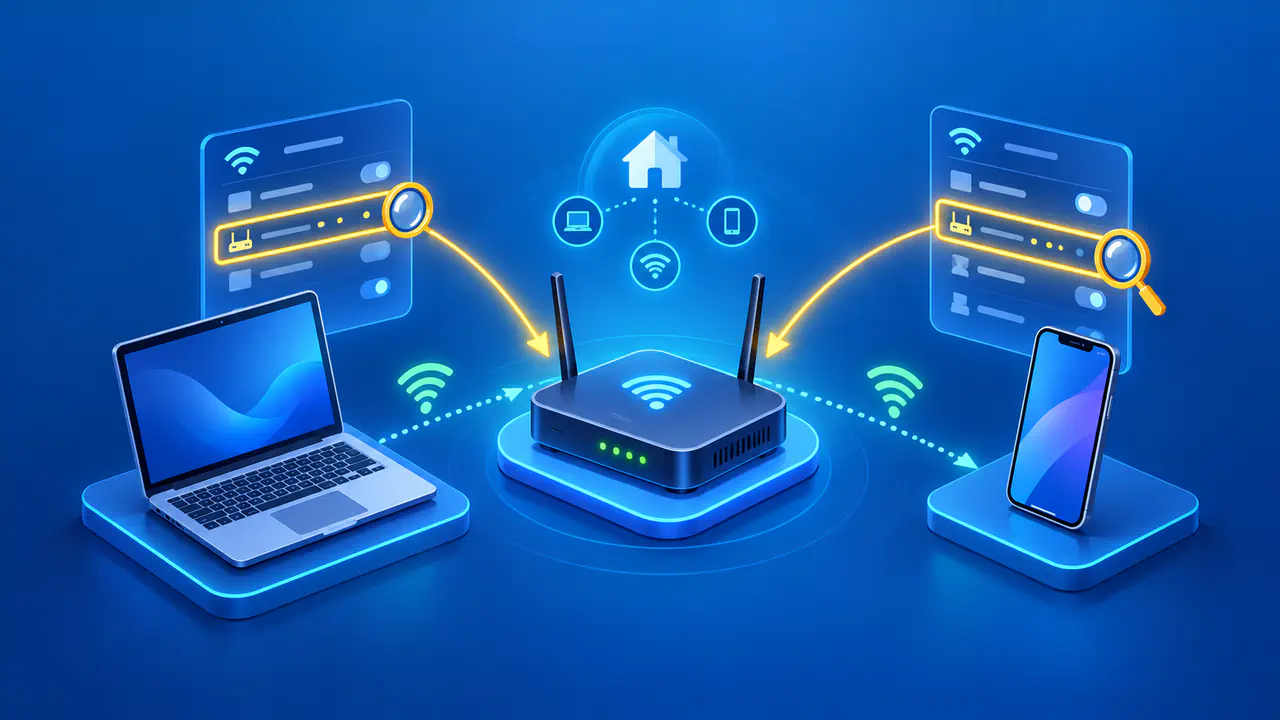
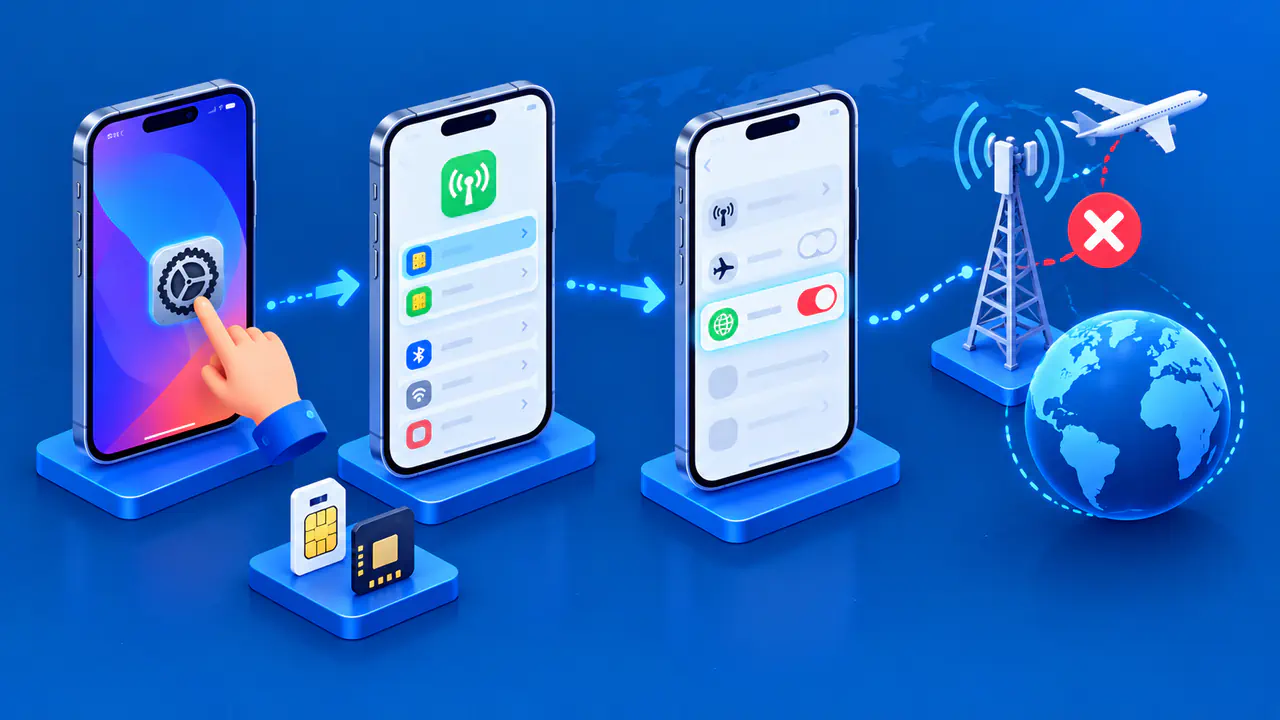
Connect your computer, phone, or tablet to the gateway's private home WiFi network. If you are using a computer with an Ethernet port, you can connect it to the gateway by cable instead. A phone using only mobile data cannot reach the gateway's local settings.
Check the network name before you open the login page. The xfinitywifi and XFINITY hotspot networks are separate from your private home network, even if a nearby gateway provides the signal. Choose your household's WiFi name rather than a hotspot name.
If you have more than one router, make sure you know which device you need to manage. Open the WiFi tab in the Xfinity app and select View WiFi equipment to identify your gateway. You can also check the model on the gateway's label. If you have a separate router connected to the gateway, that router has its own settings and administrator password.
Enable Admin Tool Access in the App
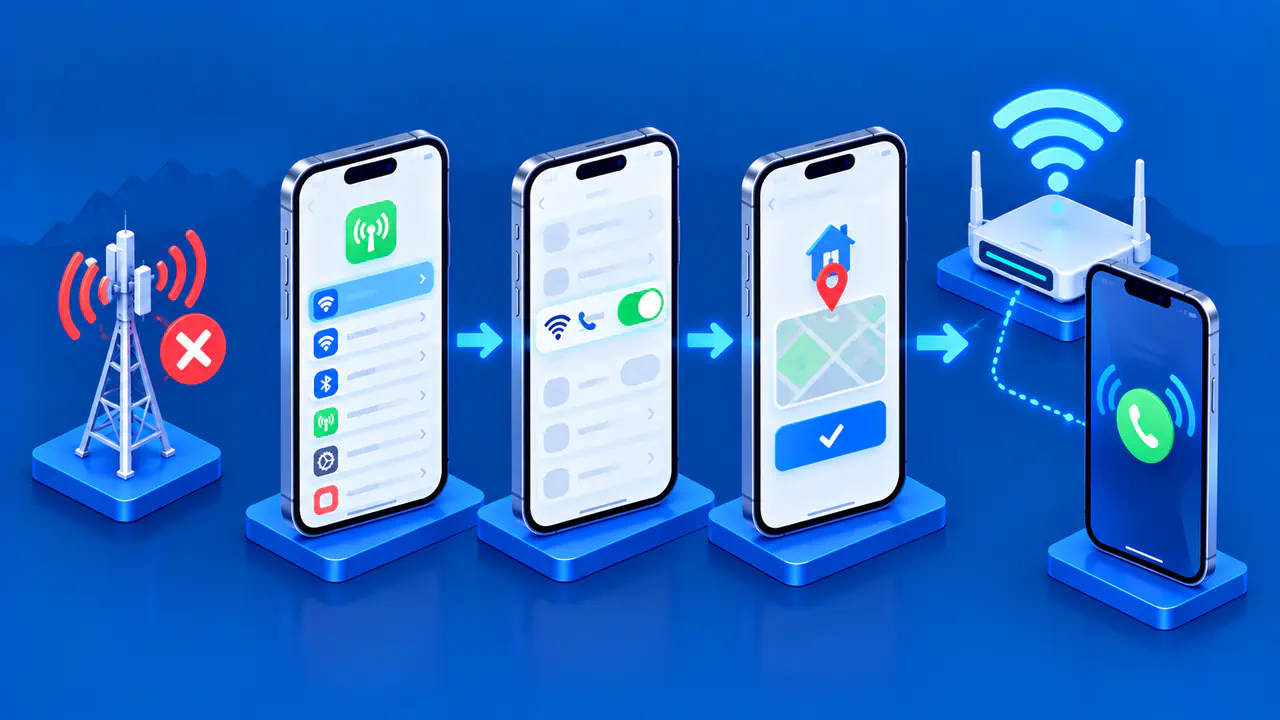
Newer gateways, including the XB6, XB7, XB8, and XB10, have an app setting that allows local Admin Tool access. Open WiFi, select View WiFi equipment, and then open Advanced settings. Select Admin Tool online access, turn on Allow Admin Tool access, and select Save.
When you enable access for the first time, the app asks you to create an Admin Tool password. Enter a new password and save it on that screen. Use this administrator password when you open the login page in your browser. Your WiFi password stays the same.
Wireless Gateway 1, Wireless Gateway 2, and XB3 models do not have this switch, so you can skip the app step and continue to the browser login. If the switch is missing on a supported newer model, contact Xfinity for help.
Sign In to the Local Admin Tool
Enter http://10.0.0.1 in your browser's address bar while connected to the gateway. Type the full address so the browser opens the local page instead of searching the web for it. Use admin as the username unless your gateway has a different administrator username. Enter the current Admin Tool password.
If you just created a password in the app, use that password. If access was enabled before February 2026, the default password printed on the gateway's bottom sticker may still work, provided nobody has changed it. Do not assume that the default password is "password".
Some gateways prompt you to replace the default administrator password on first access or after a factory reset. Follow that prompt if it appears, save the new password, and use it when you sign in again. If you need the original password but the gateway's sticker is missing, contact Xfinity.
If your browser shows a warning, check the address you entered and confirm that you are connected to the intended gateway. Do not enter your password into an unexpected page or dismiss a warning you cannot explain. Get help from Xfinity if you cannot verify that you have reached the correct local interface.
If You Cannot Sign In
If the login page does not load, check your WiFi or Ethernet connection and confirm that Admin Tool access is enabled if your model has the app switch. If the page opens but rejects your login, ask the person who manages the gateway to confirm the administrator username and password. If nobody knows the current password, contact Xfinity about recovery options for your model.
Bridge mode turns off the gateway's routing functions and private WiFi. To reach the Admin Tool in this mode, connect a computer directly to the gateway with an Ethernet cable. Xfinity supports only one device connected directly to a gateway in bridge mode, so you may need to disconnect your separate router first. That disconnection interrupts internet access for devices using the separate router.
Bridge mode also limits network management through the Xfinity app. If you cannot find the control needed to enable local access in this setup, ask Xfinity how to restore access. Avoid a factory reset just to try a different password. A reset erases customized settings, so you may have to set up your WiFi network again.
Choose Where to Change Your Settings
The settings available after login depend on your equipment. Use the Xfinity app to change your WiFi name and password if you have an XB6 or newer gateway, or if your network uses Xfinity WiFi Extenders. On XB2 and XB3 gateways without extenders, those settings may also be available in the Admin Tool.
Some advanced WiFi settings, such as channel selection, are managed automatically on newer gateways and are unavailable for manual changes. Logging in successfully does not unlock those controls. Check the instructions for your gateway model if a setting you expected is absent.
When you finish, select Logout in the Admin Tool. If your gateway has the app toggle, return to Admin Tool online access, turn access off, and select Save. You can enable it again when you next need to manage the gateway locally.