How to Log In to Your Router
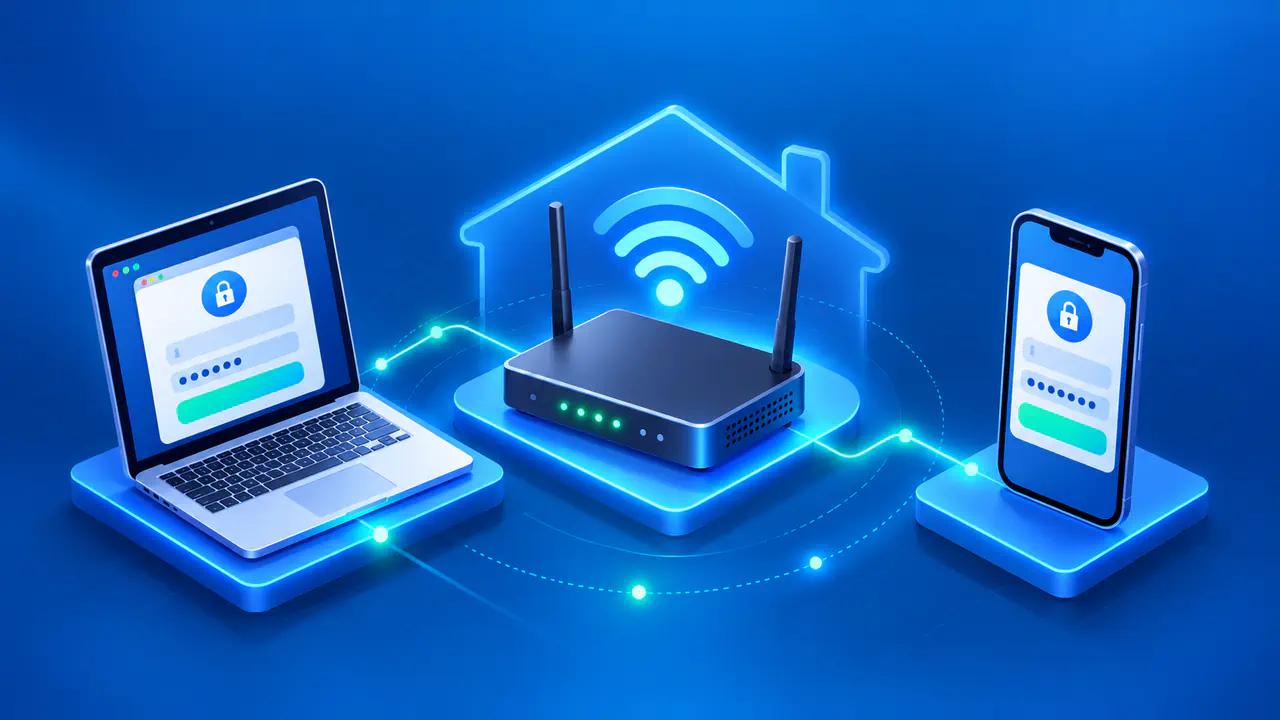
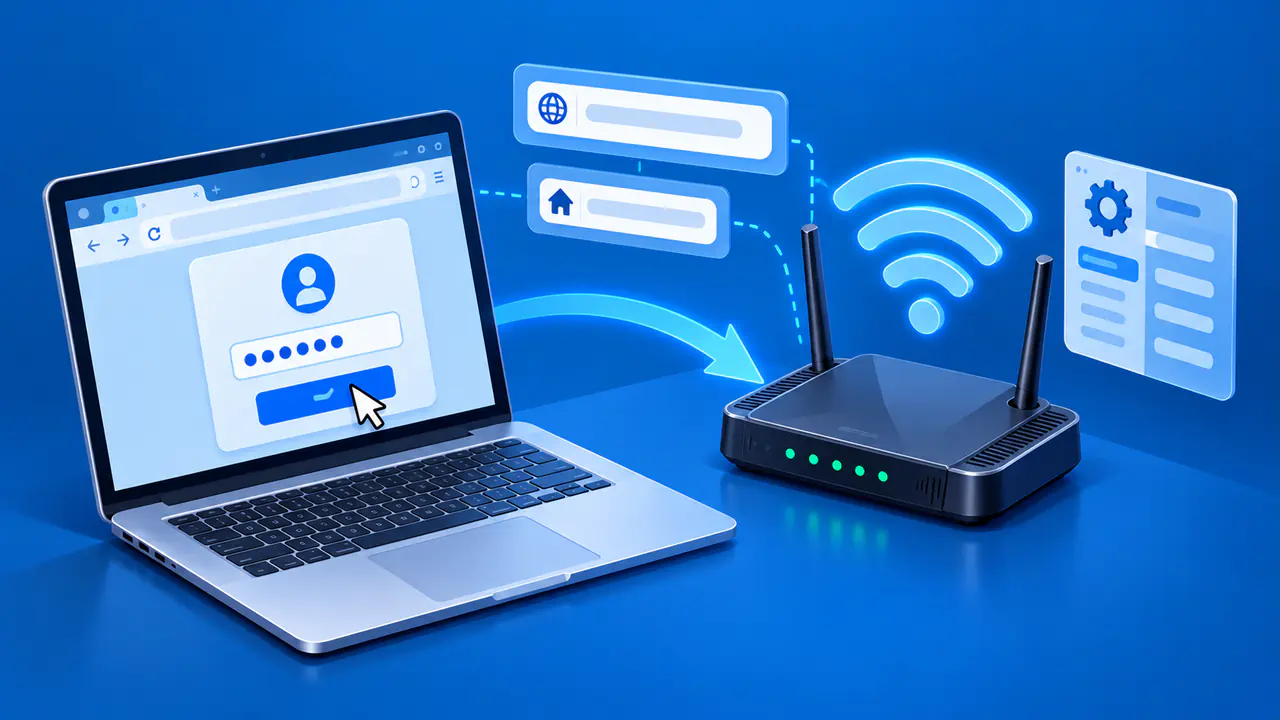
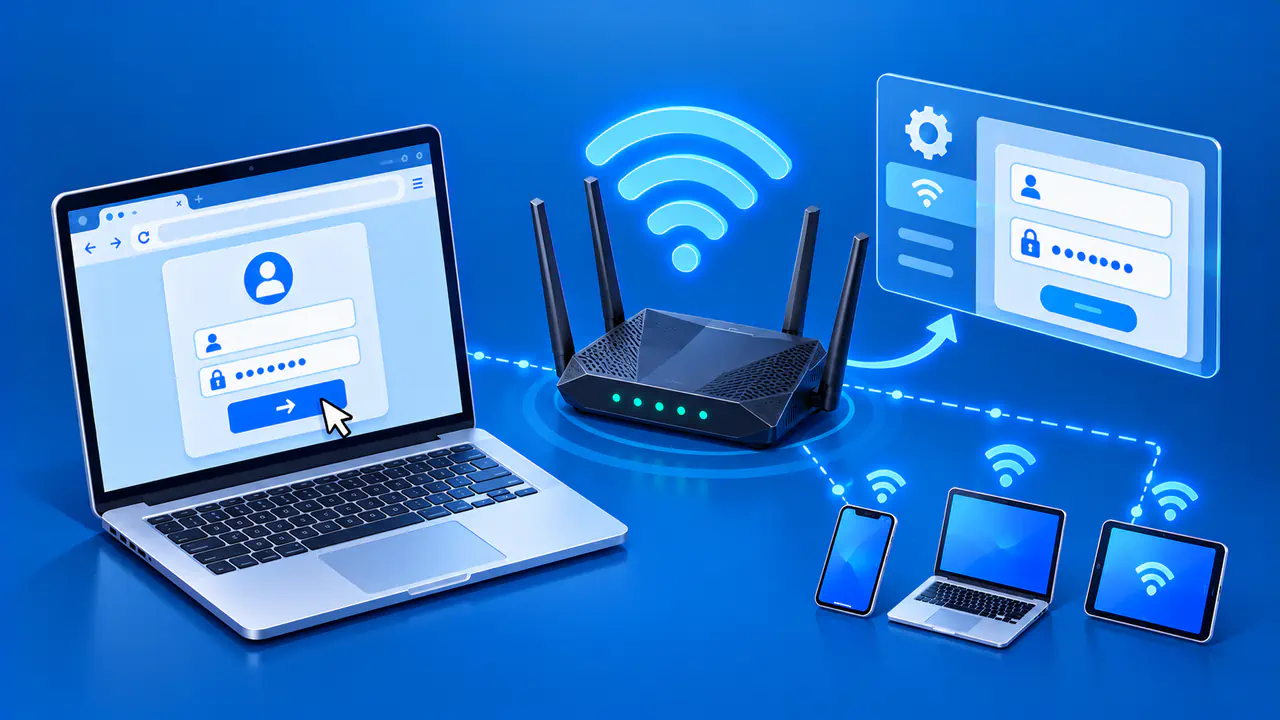
To log in to your router, connect to your home network and open the router's local address in a browser. Enter the admin password and, if requested, the username set for the router. Some models also offer an app for managing settings.
These steps apply to a router you own or have permission to manage. The admin password is usually separate from the password used to join WiFi. The router model and its settings determine which address and login options you can use.
Connect to Your Home Network
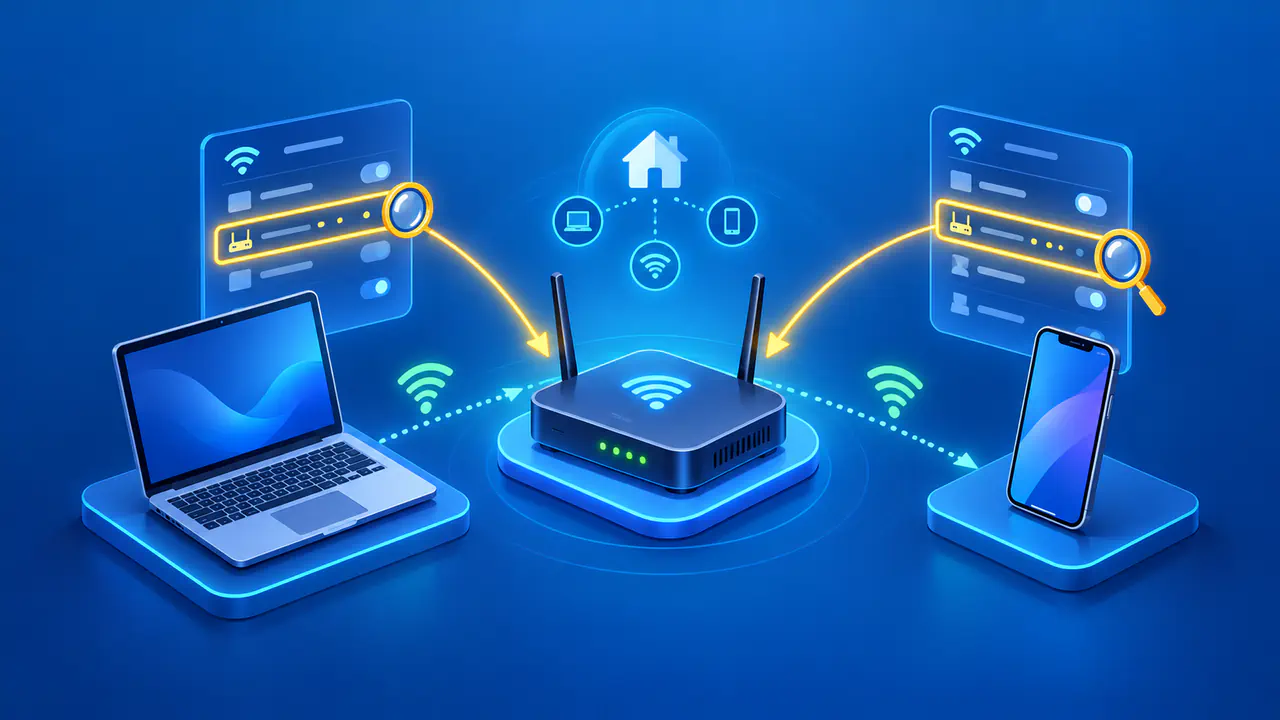
Join the router's main WiFi network, or connect a computer by Ethernet to one of its LAN ports. The local settings page may still work when your internet connection is down because the page is served by the router itself. A phone using cellular data alone will not normally reach that local address.
Check the network name before continuing, especially if your phone has several saved WiFi networks. Guest WiFi may block access to the router's settings or other local devices. If you plan to change the WiFi name or password after signing in, an Ethernet connection can keep you connected while the wireless settings change.
Find the Router's Local Address
Look in the network details for your active WiFi or Ethernet connection. The field labeled Default Gateway, Router, or Gateway usually contains the local address you need. Use that value instead of assuming the router still has the default address printed on its label.
On Windows, open Command Prompt and run ipconfig, then find Default Gateway under the connected adapter. On a Mac, open System Settings, select Network, and open the connection's details to find the Router address under TCP/IP. An address such as 192.168.1.1 is a common example, but it is not a universal login address.
If your home has two routers, the gateway shown for your connection may belong to a different router from the one you want to manage. An access point can also have a management address that differs from the gateway address. To find the access point's address, use the manufacturer's discovery tool if one is available, or check the main router's list of connected devices.
For local login, use the management address of the router or access point you want to configure. A public IP lookup will not show you that local address.
Choose the Right Login Details
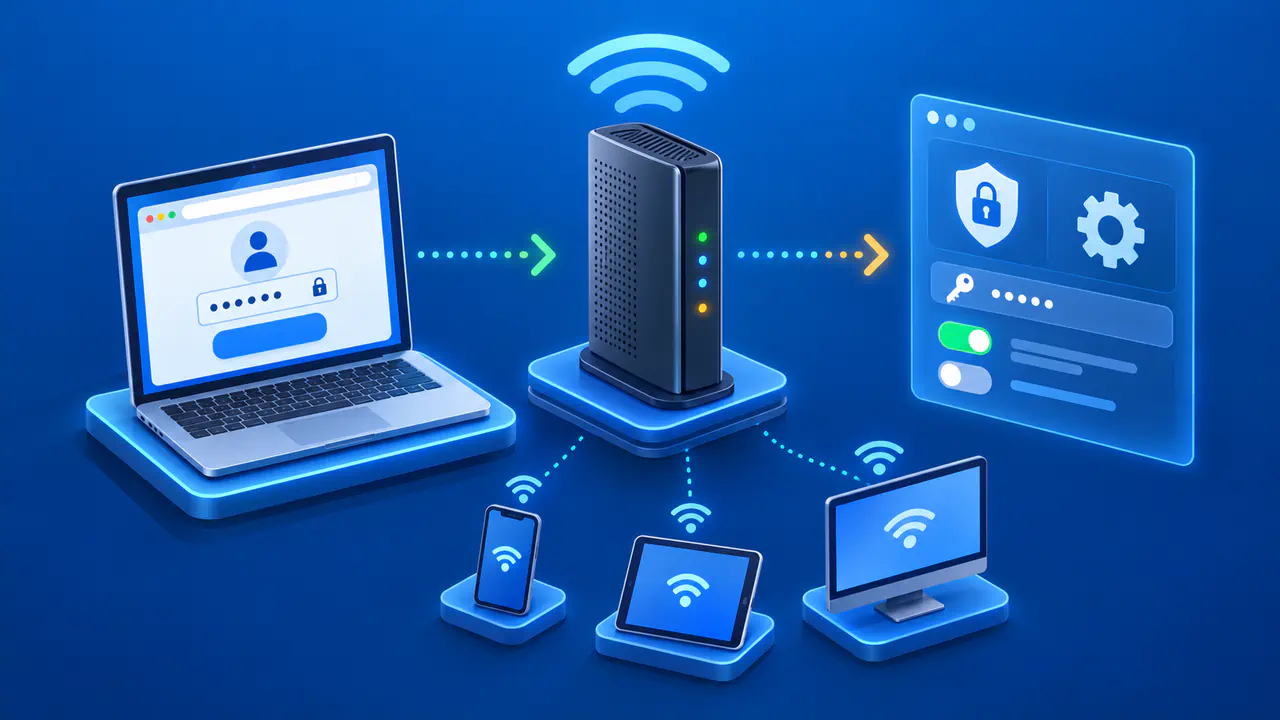
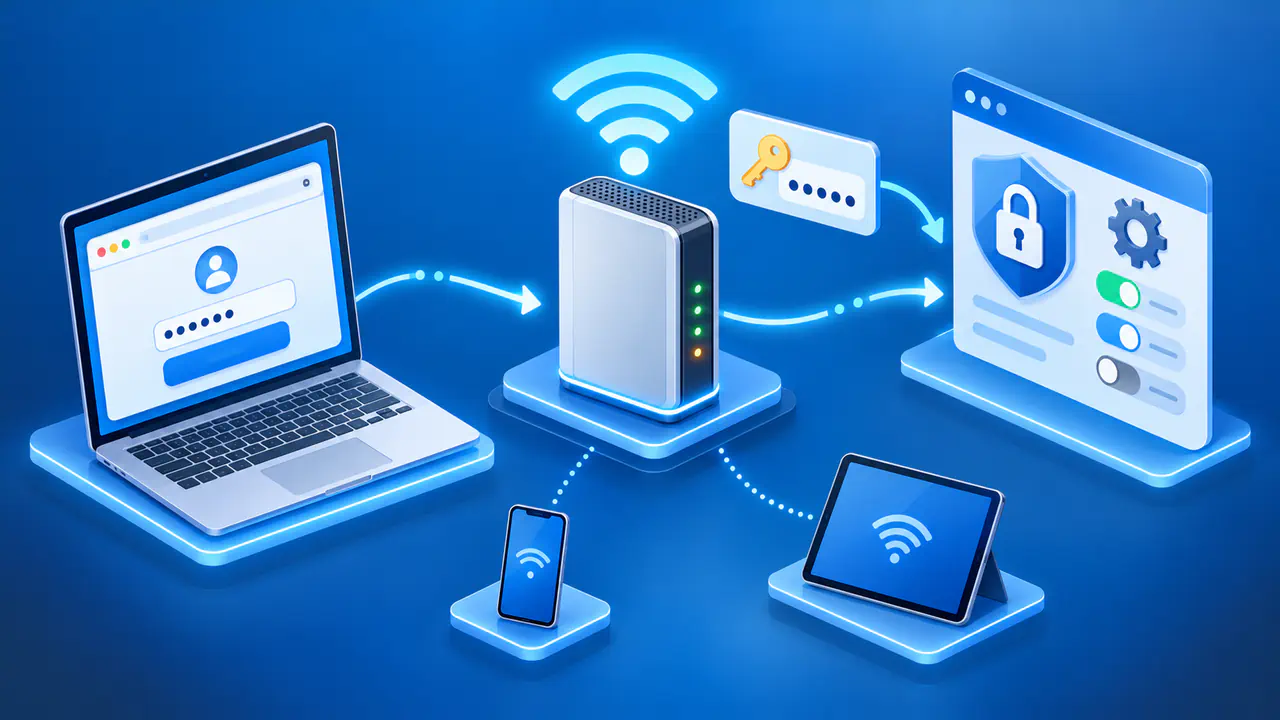
A router's admin password controls access to its settings. The WiFi password lets a device join the wireless network, while an internet provider may issue separate account details for the broadband connection. Even if two passwords happen to match, they serve different purposes.
A new router may ask you to create an admin password the first time you open its settings. If the router is already configured, use the admin password chosen during setup or supplied by its administrator. Some models have default login details on a label, but other labels show only the WiFi name and password. Read the labels carefully and check the instructions for the exact model.
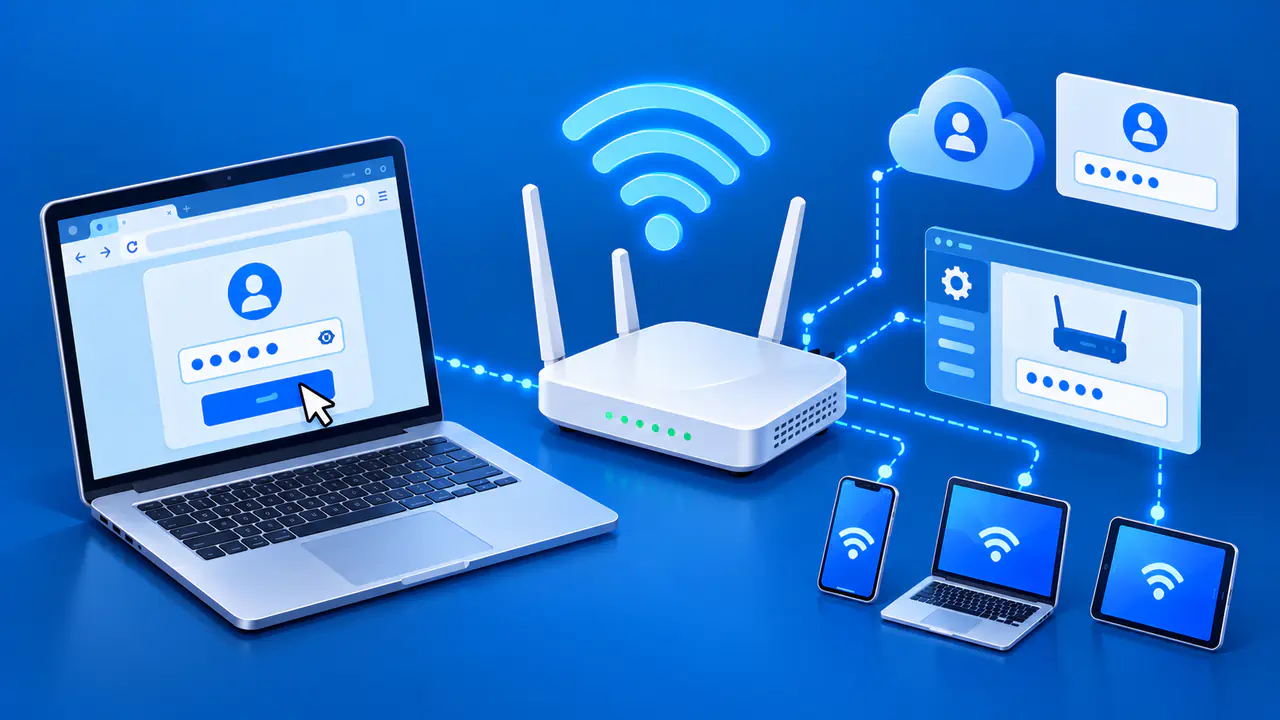
Some routers let you sign in with an account you created with the manufacturer. An app may ask for an email address and account password, whereas the local web page may use a separate admin password. Some web pages also accept a linked account, so check which sign-in option is selected before entering your details.
Open the Login Page and Sign In
Type the router's local address into the browser's address bar and press Enter. If the model guide gives a local hostname instead, enter that hostname exactly as shown. A search result for a router login page is not a substitute for opening the address directly.
Before entering a password, check that the address and the page's branding match the router you intend to manage. If a different device or an unexpected service appears, stop and check the address. Use the username and password requested by the router, then confirm the device name or model on its settings page. On an already configured router, simply signing in does not require you to change the WiFi, firewall, or internet settings.
Some local router pages show a certificate warning because the browser does not trust the certificate used by the device. A warning alone does not establish that the page is legitimate. Check the local address and the manufacturer's instructions for that model before continuing, and do not dismiss a warning on an unfamiliar website just because it mentions router login.
If you prefer an app, check that your router supports the manufacturer's app and follow its login instructions. App access may use an online account and require internet access, even when the router's local web page works offline.
If the Page Won't Open
First check that your device is still connected to the intended network and that you entered the router's address in the browser's address bar. A VPN or proxy can prevent access to local devices. If you manage those settings, check whether local network access is allowed or briefly disconnect the VPN while trying the router's page.
Try another browser or a computer connected to a LAN port if the page still fails to load. Use the router's current local address. Trying several common default addresses may open another device's settings. For equipment managed by your internet provider or a building administrator, ask which login method is available to you before changing cables or resetting anything.
If the Password Is Rejected
Check whether the page expects your router's local admin login or your manufacturer account details, then compare what you entered with your saved credentials for that option. Do not keep guessing after repeated failures. If the router offers password recovery, follow the instructions for your model. You may need access to a linked account or recovery information, such as answers to security questions that you set up earlier.
A factory reset erases custom settings, so you may need to set up WiFi and your internet connection again. Read the model's recovery instructions before using the reset button, and make sure you have the information needed to restore the connection. For a router supplied and managed by your internet provider, contact the provider before resetting it.