How to Reduce Tracking without a VPN
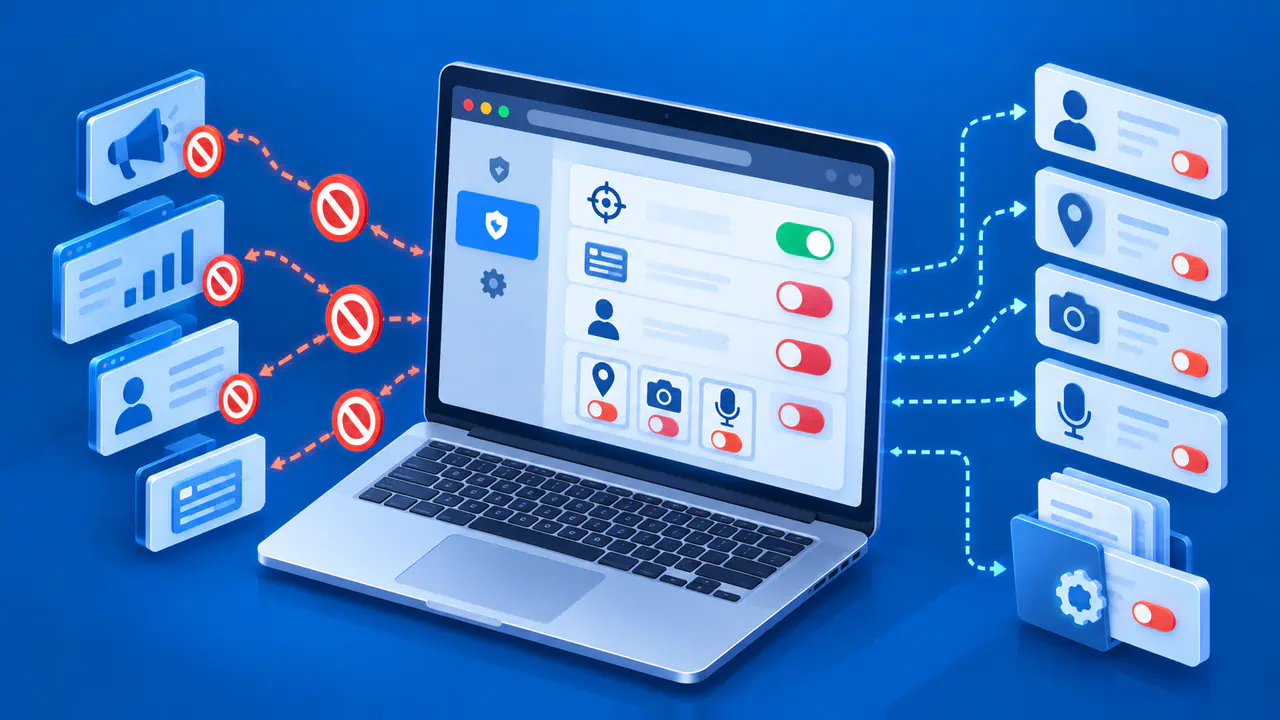
You can reduce online tracking without a VPN by using your browser's tracking protection, limiting site permissions, and keeping unrelated accounts separate. The right setting depends on how a service recognizes your activity: through stored cookies, a signed-in account, or information your browser and device reveal. A VPN can change the IP address seen by sites reached through its tunnel, but connecting to a VPN does not erase cookies or sign you out.
Start with the protections your browser already provides, then review the information you share with sites and services. Change one setting at a time and check that the websites you use still work. If a login or payment page stops working, you can then investigate the last change instead of turning off every privacy feature.
Cookies, Accounts, and Browser Fingerprints
Cookies are small pieces of data stored by a browser and sent with matching requests to a website. A cookie may keep you signed in or let a store remember your shopping cart. An advertising company can also use cookies to recognize a browser across sites that load its content, unless the browser blocks or isolates those cookies. Blocking every cookie can disrupt useful features without stopping other ways of recognizing you.
Signing in gives a service a direct link between your activity and your account. A company that operates several services may combine activity from those services, depending on its settings and policies, even when your browser blocks outside trackers. Check whether you need to be signed in for the task, such as reading a public page. Signing out reduces that direct association, but does not prevent recognition through other signals or erase activity already recorded.
Browser fingerprinting uses a combination of browser and device characteristics to help distinguish one browser from others. Clearing cookies does not remove those characteristics. Browser defenses vary, so use the fingerprinting protection your browser offers without treating any single setting as proof of anonymity. Detailed fingerprinting tests can also give different results as the browser, device, or test changes.
Use Browser Controls First
Open your browser's privacy settings and check which tracking protections are already active. Firefox's Standard mode, for example, includes protections against known trackers and separates cookies between websites; Strict mode blocks more content but may disrupt some sites. Other browsers have different controls and defaults. Keep your browser updated, and read the description of a stronger mode before enabling it.
When protection breaks a feature, check the browser's report for blocked content and try an exception for that site only if you need the feature and trust the site. An exception can allow tracking on that site, so remove it if it does not solve the problem. One broken checkout or embedded player is not a reason to disable protection everywhere.
Private browsing keeps some activity out of the browser's saved history. In Firefox, private-session cookies are discarded when the last private window closes, but downloaded files and saved bookmarks remain. A private window does not hide activity from a website you visit or an account you sign into. On a shared device, close all private windows when you finish and remember that downloaded files may still be visible to the next person.
Review browser extensions as well. An extension with broad page access can see data on many sites, depending on its permissions. Keep only extensions you need, check their current permissions and publisher information, and remove ones you no longer use. Several extensions that block the same content can make it difficult to tell which one caused a problem, while each extension may have access to additional browsing data.
Separate Accounts and Review Data Sharing
Separate browser profiles or containers, where supported, can keep work and personal logins in different sets of cookies and site storage. Choose the intended profile or container before opening a site, and use it consistently for that activity. Signing into the same website account in both places still tells the service that both sessions belong to that account. Profile separation also does not conceal a shared IP address or every device characteristic.
On services you use regularly, inspect the controls for saved activity, personalized advertising, and connected apps. Check what each control actually changes: limiting future activity collection, changing ad selection, and deleting old records are different actions. A service may offer separate controls for each, and an advertising preference does not automatically remove previously collected information. Use the current help for that service if the setting's scope is unclear.
Remove access for connected apps you no longer use. For example, an app linked to an account may still have permission to read account data even if you rarely open the app. Revoking access prevents the app from continuing to retrieve the account data covered by that permission, but does not necessarily delete copies the app already obtained. Review the app's own deletion options if you also want those copies removed.
Limit Site Permissions and Personal Details
Review permissions granted to sites, especially location, camera, microphone, notifications, and access to nearby devices. A permission request does not mean the site needs that access for every task. For a one-time need, choose a temporary permission if your browser offers one, or revoke the permission afterward. A weather page that accepts a city entered manually may not need access to your device's location at all.
Device location can be more precise than a location estimated from an IP address. If location access is necessary, check whether the device or browser offers an approximate option. Denying location permission limits that specific source of data; it does not remove information you type into a form or send through another permitted feature. Review permissions for each site rather than assuming a broad privacy setting covers every permission.
Reduce the information you submit voluntarily. Reusing a distinctive username, email address, or personal detail on public profiles can make the profiles easier to connect. Leave unnecessary optional fields blank and use the service's visibility settings to control who can see what you post. Browser tracking protection cannot keep information private after you deliberately publish it.
Check for Broken Features and Review Exceptions
After a privacy change, try an ordinary task such as signing in, running a search, or playing a video. Record the setting you changed and the feature that failed before trying another adjustment. If a site exception restores the feature, decide whether that access is worth keeping; if the exception does not help, remove it and investigate another cause. A blocked-tracker count shows the activity the browser detected and blocked, not a complete measure of everything a site collected.
Recheck permissions and exceptions periodically, particularly after you stop using a service. Sites can change their embedded content, and a permission granted for one visit may still be active. Use the browser's own settings to review that access; do not give account credentials or personal identifiers to an unfamiliar tracking-test page.
What Browser Settings Cannot Hide
These browser and account settings do not hide your connection's IP address from the sites you contact. Your internet provider can also see connection details, such as destination IP addresses, even when page content is encrypted. If your concern is monitoring on a work or school device, browser settings alone may not control the organization's monitoring software or policies. Check the device's management status and the network's rules before using it for sensitive personal activity.