Modem vs Router
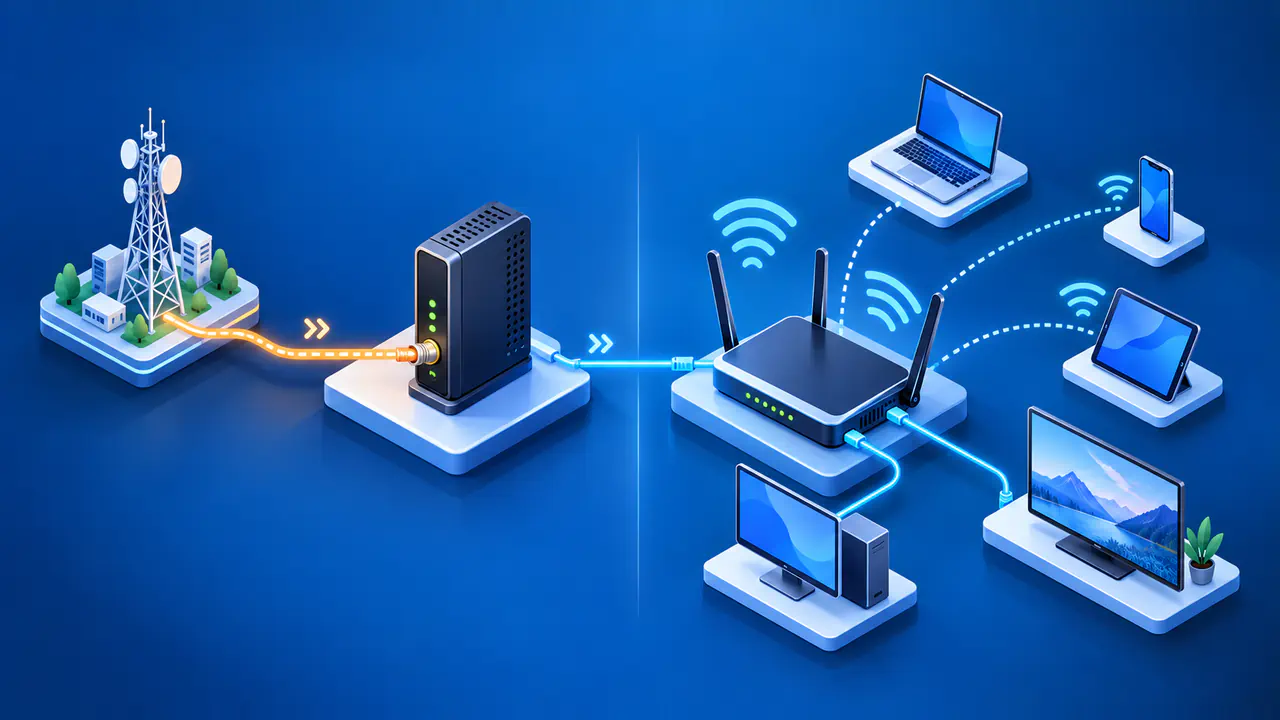
A modem connects your home to a service such as cable or DSL internet. A router manages traffic between that connection and the devices on your home network. They can be separate devices or parts of a single unit, often sold as a modem-router or gateway.
The distinction matters when you replace equipment or try to fix a connection problem. A new standalone router can improve WiFi coverage, but it cannot replace the modem needed for cable service. Likewise, replacing a standalone modem will not change where your WiFi signal comes from.
What the Modem Does
A modem sends and receives data using the signals carried by your provider's line. A cable modem connects to a coaxial cable, while a DSL modem uses a telephone line. If you use a separate modem and router, an Ethernet cable normally carries data between them. A cable modem cannot take the place of a DSL modem simply because both have an Ethernet port.
The modem must support the type of service and the requirements of your internet provider. For cable internet, that usually means choosing an approved model and having the provider activate it on your account. Connecting the cables does not complete that activation. The modem's supported speeds also matter: a model approved for one service plan may not support a faster plan from the same provider.
Fiber service uses different equipment. An optical network terminal, or ONT, receives the optical signal and can provide an Ethernet connection for a router. Some providers combine optical and routing functions in one unit; others install a separate ONT. A router connected to a separate ONT does not also need a cable modem.
What the Router Does
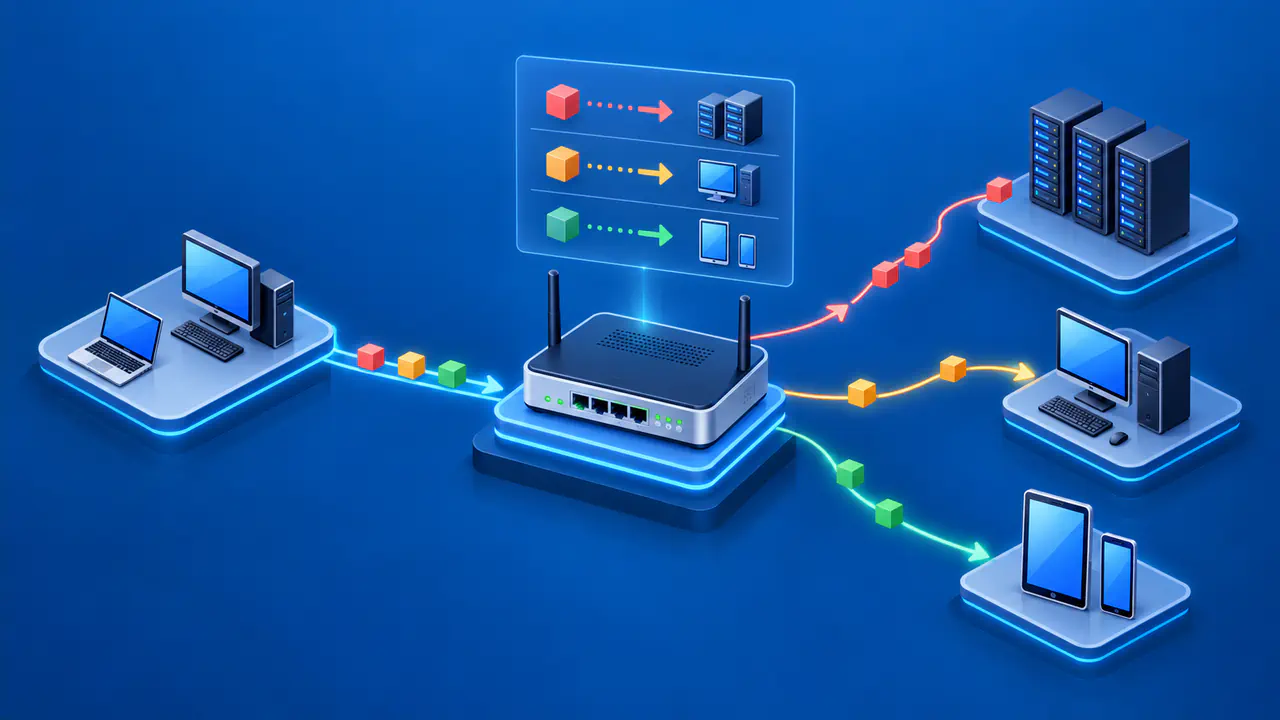
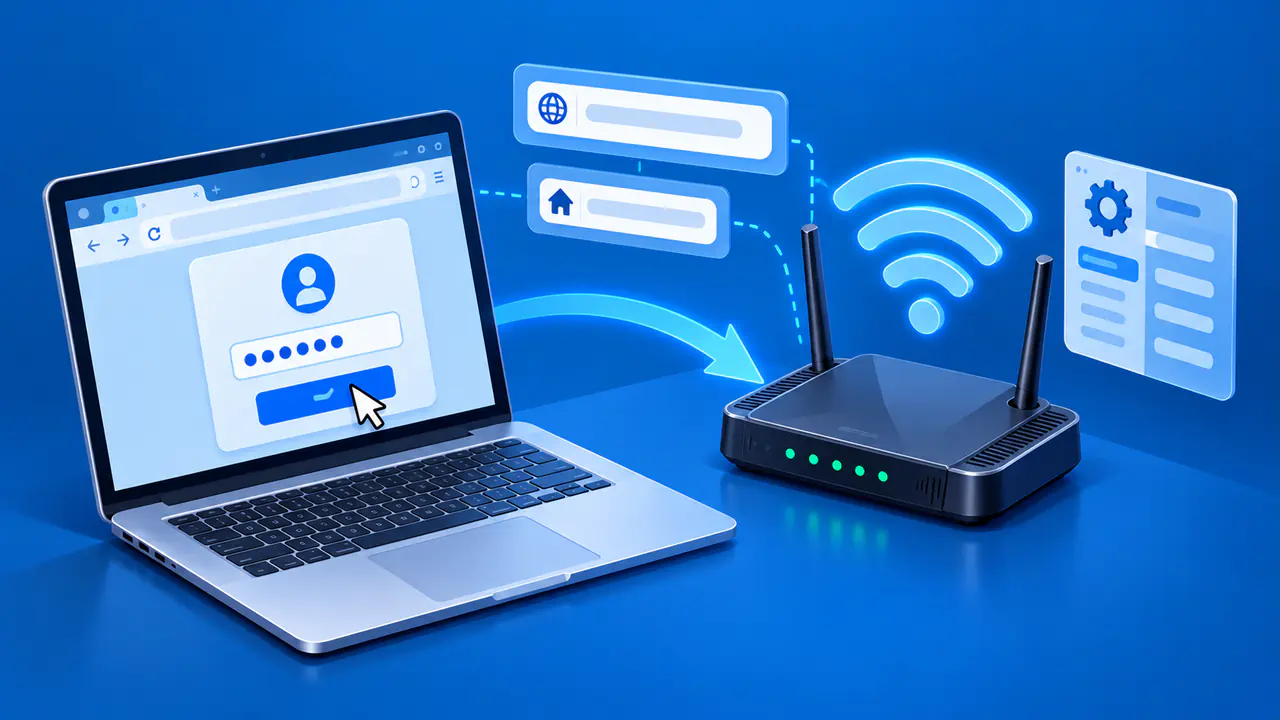
A home router forwards data between the local network and the internet connection. For example, when a laptop requests a web page, the router passes the request toward the provider and forwards returning traffic to the laptop. The router's WAN or Internet port normally connects to the modem, while its LAN ports connect to local devices.
Home routers usually include a DHCP server that assigns local IP addresses to connected devices. For IPv4 connections, they commonly use network address translation, or NAT, to rewrite address information so that several devices can share the address on the router's internet connection. The router's firewall has a different job: it allows or blocks traffic based on rules.
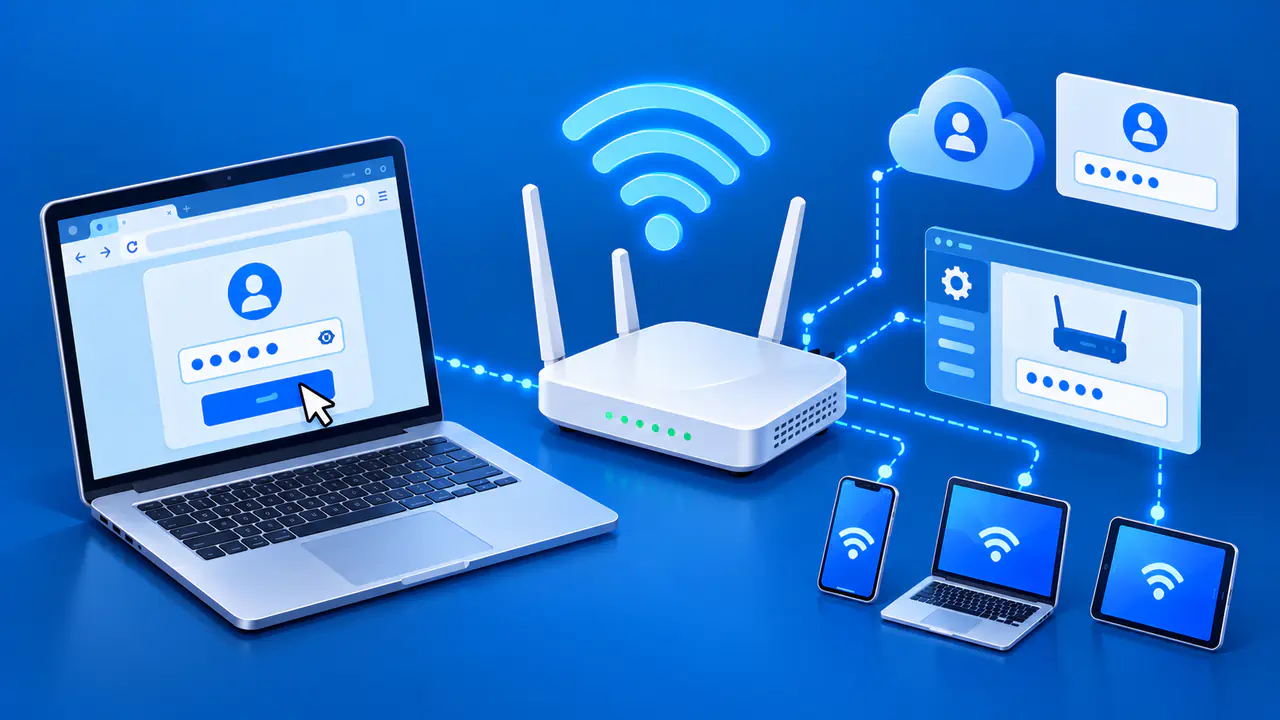
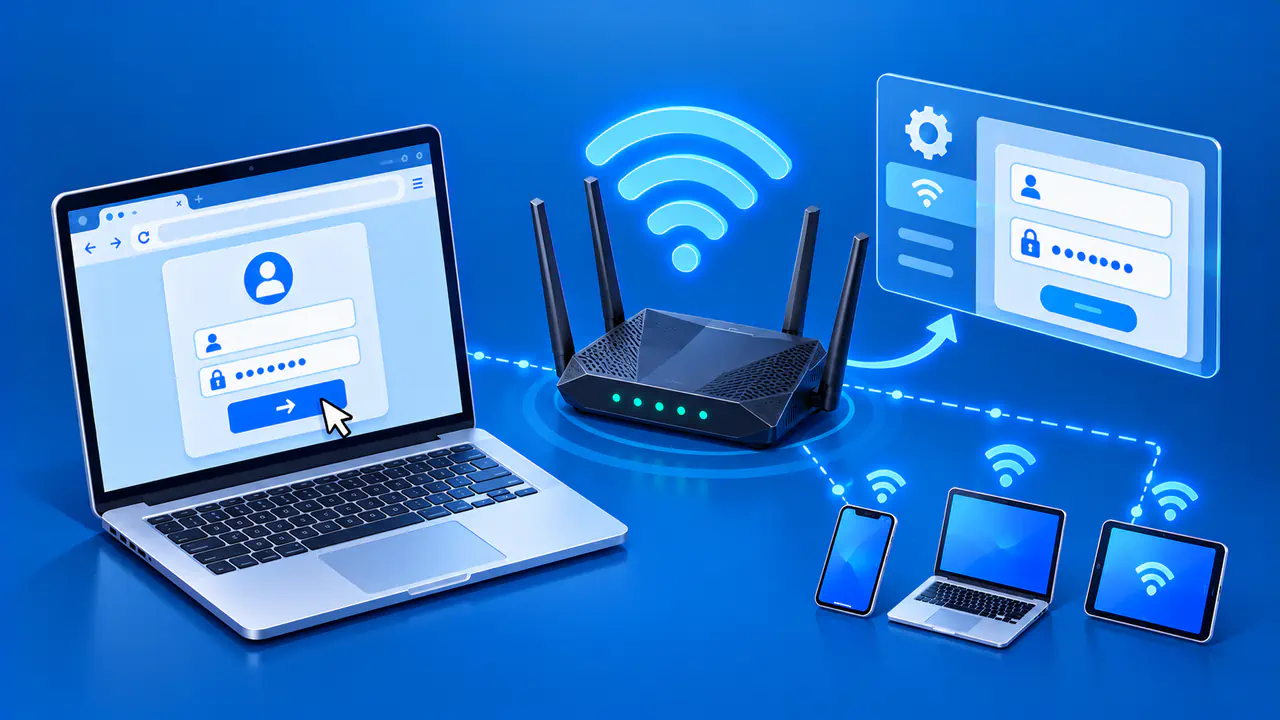
Most home routers also include a WiFi access point and an Ethernet switch, allowing devices to connect wirelessly or by cable. WiFi is therefore a common router feature, not the definition of routing itself. A wired-only router is still a router, and a separate access point can provide WiFi while another device handles routing.
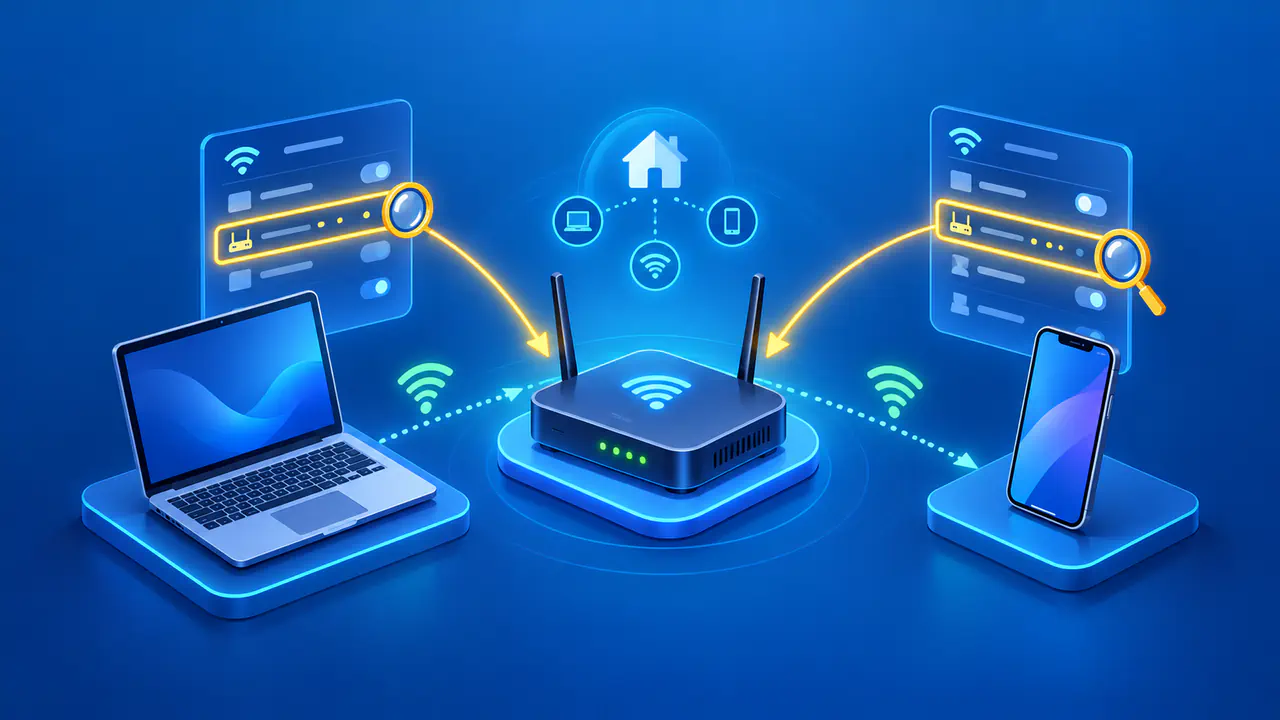
The local network can keep working when internet service is down. A laptop might still print to a printer on the same network or open files on local storage, provided those services do not require an internet connection. Seeing your WiFi network name during an outage only shows that an access point is broadcasting that name. The name can remain visible even when the modem has lost its connection to the provider.
How to Recognize a Combined Gateway
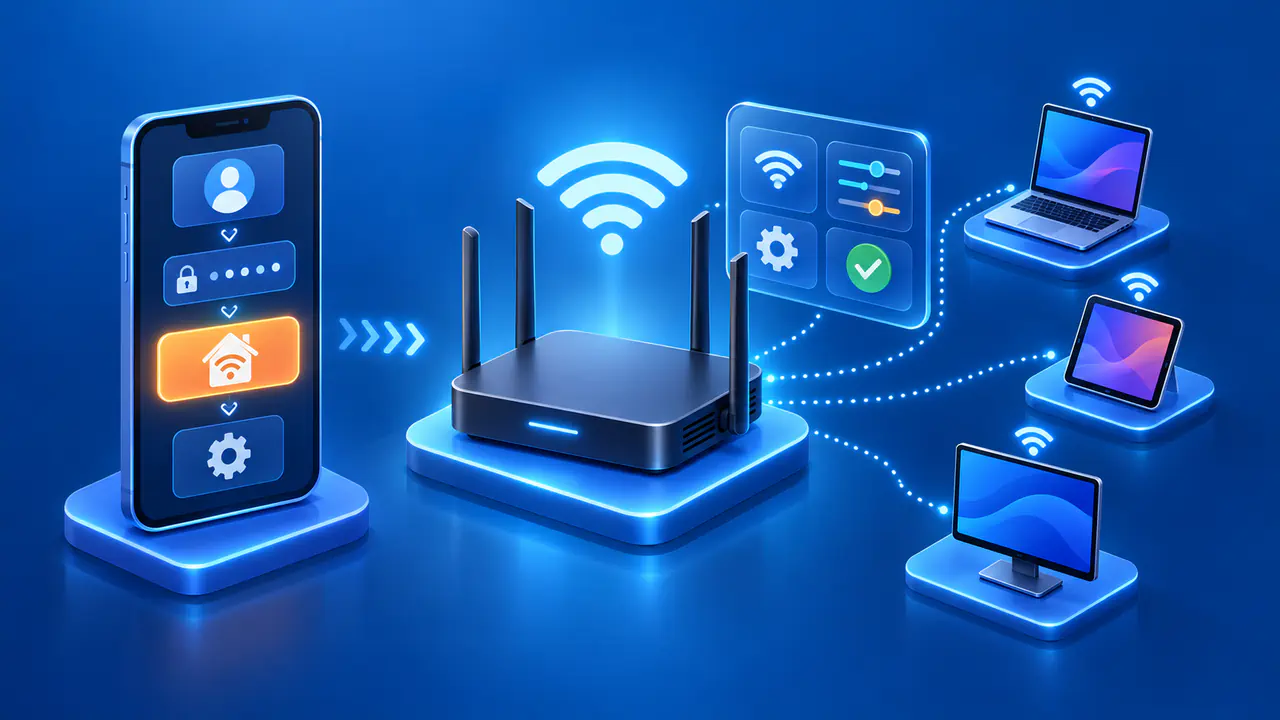
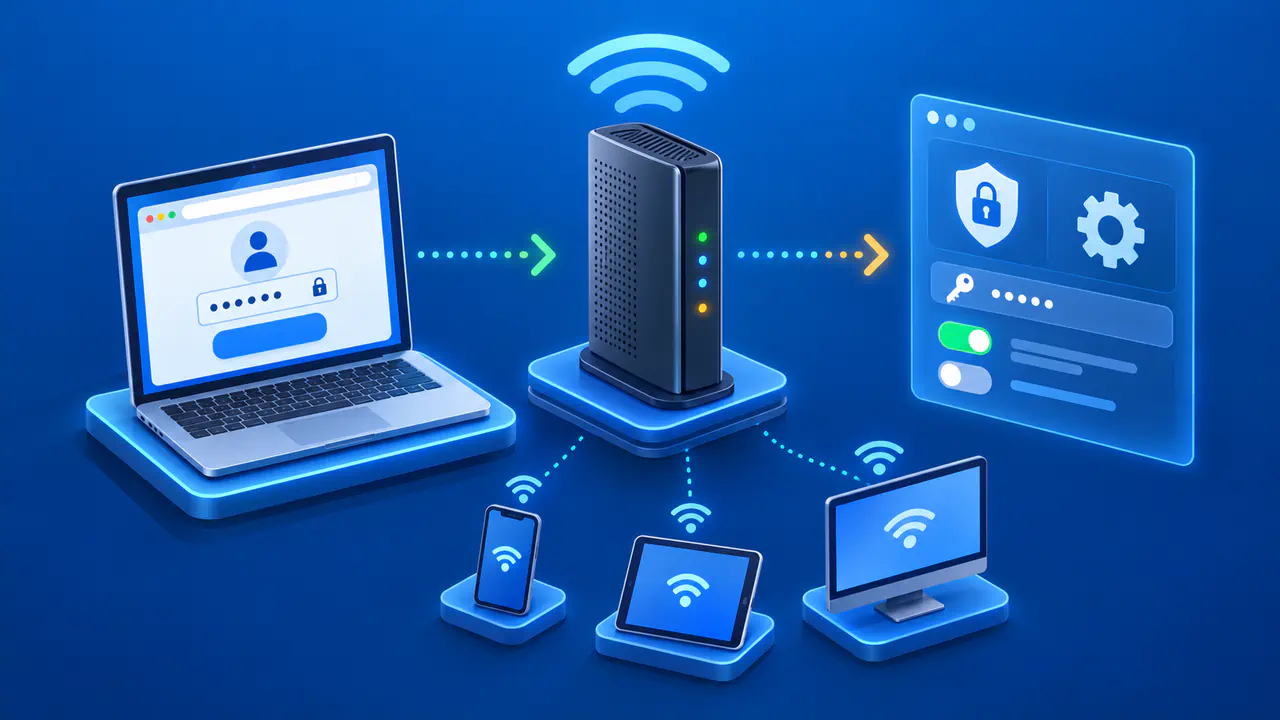
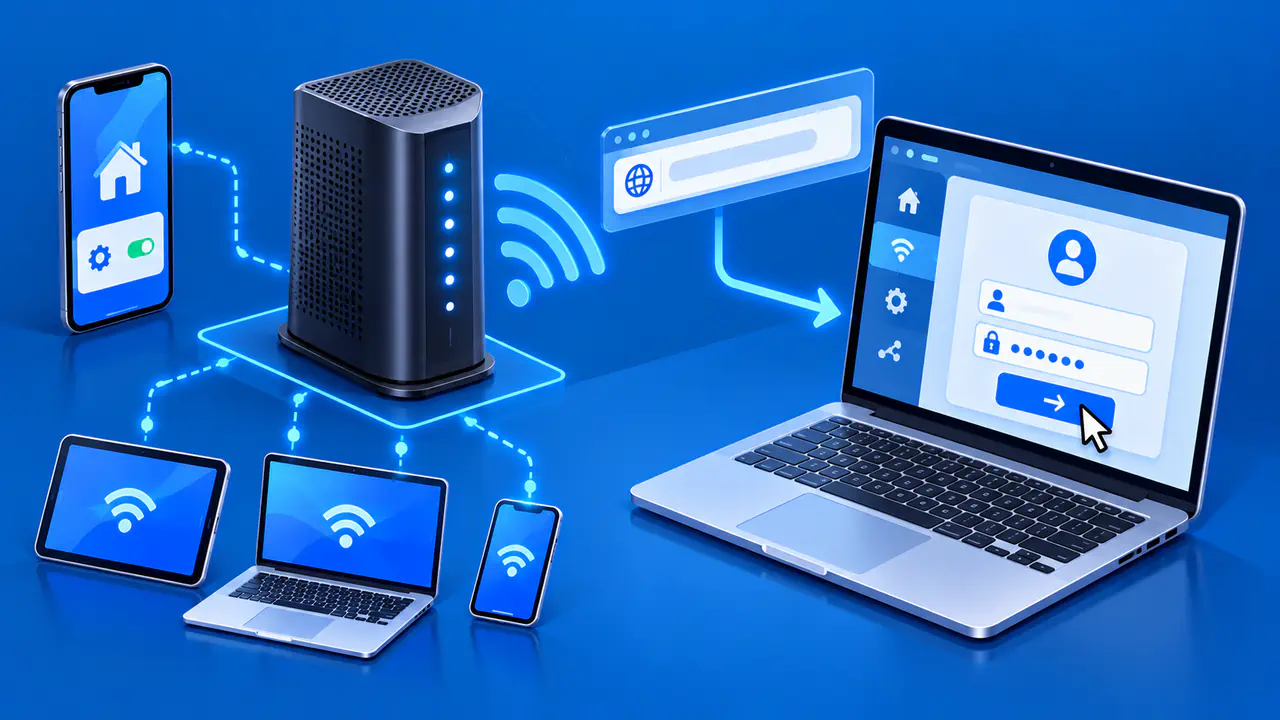
A cable gateway combines a cable modem and a router in one device. The modem connects to the cable service, and the router shares that connection with wired and wireless devices. Settings such as the WiFi name, local IP address assignments, and firewall controls may all be available through one management page or app.
Check the model's specifications to see whether a modem is built in and which service it supports. A cable gateway connects to a coaxial cable, while a DSL gateway uses a DSL line. A standalone router generally receives its internet connection through Ethernet.
A coaxial socket alone does not identify a cable modem. Some routers use coaxial cables for MoCA, which carries local network traffic over the home's coaxial wiring. The word gateway, the number of antennas, and the size of the box are not reliable ways to identify the built-in functions.
Choosing Separate or Combined Equipment
A combined gateway needs fewer cables and power connections than a separate modem and router. When the provider supplies it, support staff may also be able to help with both the internet connection and the home network. Check what that support includes and whether the service has an equipment charge before comparing costs.
Separate devices let you replace the router without replacing a compatible modem. They also give you more freedom to position the router: the modem can stay near the cable outlet while an Ethernet cable reaches a better location for WiFi. Putting the router out in the open can help avoid signal loss through cabinets and other obstructions. A combined gateway must stay within reach of the incoming service cable, which can limit where you place the device for better WiFi coverage.
Neither arrangement is automatically faster. The modem must support the service plan, and the router and its Ethernet connection must be able to carry that traffic. For example, a single 1 Gbps Ethernet connection between separate devices limits traffic across that connection even if the internet plan offers more than 1 Gbps. WiFi performance also depends on distance, interference, and the connected device, so upgrading the modem alone may leave a weak wireless connection unchanged.
Connecting Another Router to a Gateway
Connecting a second router's WAN port to a gateway's LAN port can create double NAT if both devices perform address translation. Web browsing may still work, but some online games and connections initiated from outside your home may require additional router settings. Devices connected to different routers may also have trouble finding each other, such as when a laptop and printer are on separate local networks.
If you only need more WiFi coverage, an access point or a compatible mesh system in access-point mode can extend the existing network. The gateway continues to handle routing. Check whether the specific mesh system supports access point mode before buying or installing it.
If you want your own router to manage the network, check whether your gateway supports bridge mode. In bridge mode, the gateway keeps its modem connection active and leaves routing to your router. The gateway's private WiFi and some management features may then become unavailable. Follow the provider's instructions for that model, including which ports remain usable. Simply disabling WiFi on the gateway does not disable NAT or put it into bridge mode.