Why Do Apps Ask for Local Network Access?
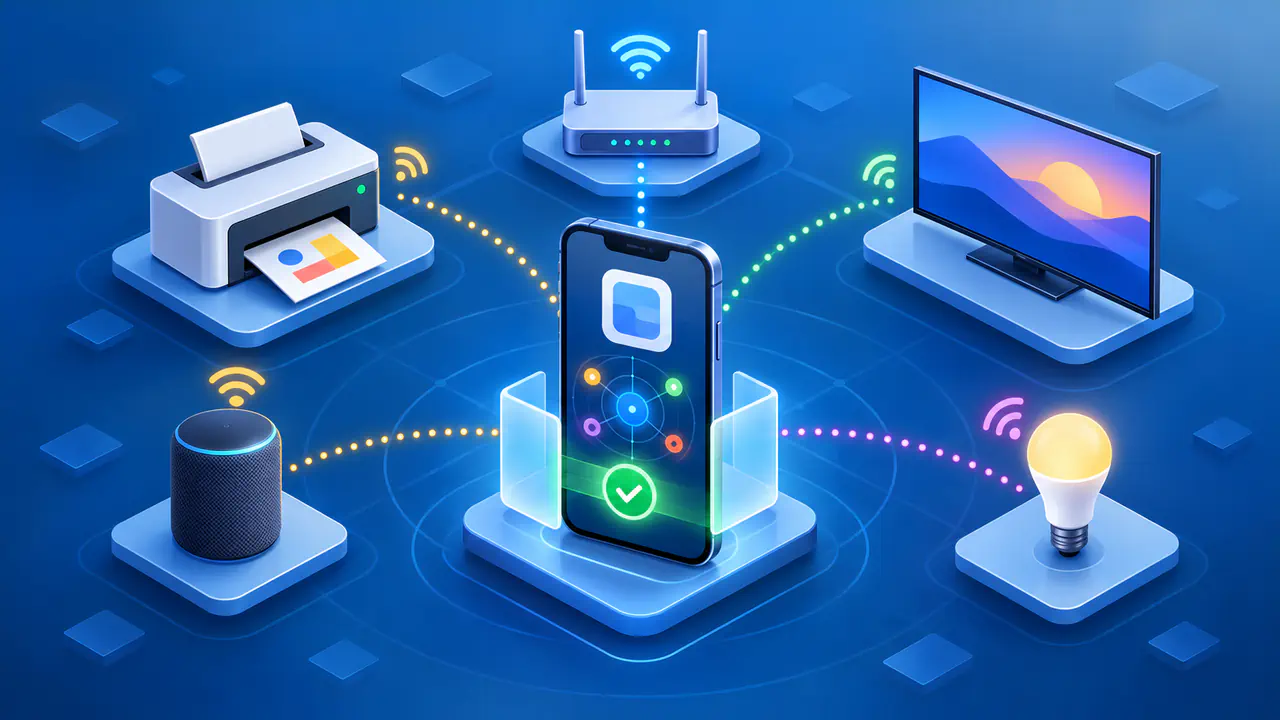
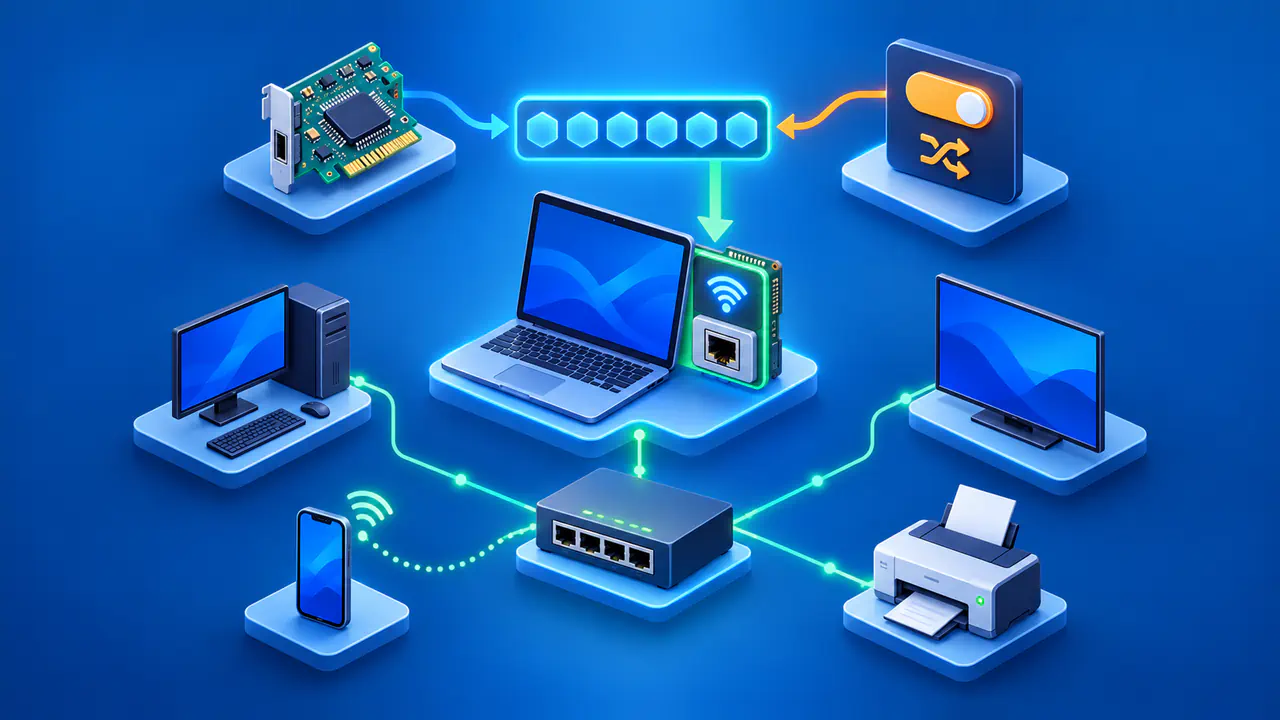
An app asks for local network access when it wants to find or communicate with devices on your network. Printing, casting to a TV, and setting up a smart-home accessory are common reasons. The request gives you a chance to decide whether the app needs that access for something you want to do.
The words "local network" refer to network connections, not permission to read your GPS location. A website can also ask to contact a device or service through your browser. Before allowing either kind of request, identify who is asking and which feature needs the connection. A familiar app name alone does not explain an unexpected request.
What an App Can Do with Local Access
Finding a device and using it are separate steps. A music app may first look for compatible speakers, then show a list so you can choose one. After you select a speaker, the app can send instructions to start playback. Discovery saves you from having to enter the speaker's network address, but it also lets the app learn that the speaker is present.
A discovered device may advertise a name and the services it offers. Those details can help an app recognize a network and infer when you use it. An app does not need your contacts or precise location permission to learn this kind of network information. Local network access therefore has privacy implications even when the requested feature seems ordinary.
The permission does not itself unlock every device the app finds. A printer, router, or other service can still require a password, pairing step, or account. However, reaching a device is an opportunity to interact with whatever services that device exposes. Granting access should follow a clear need for the connection; the presence of a permission prompt is not a security review of the app.
App Permissions and Website Permissions
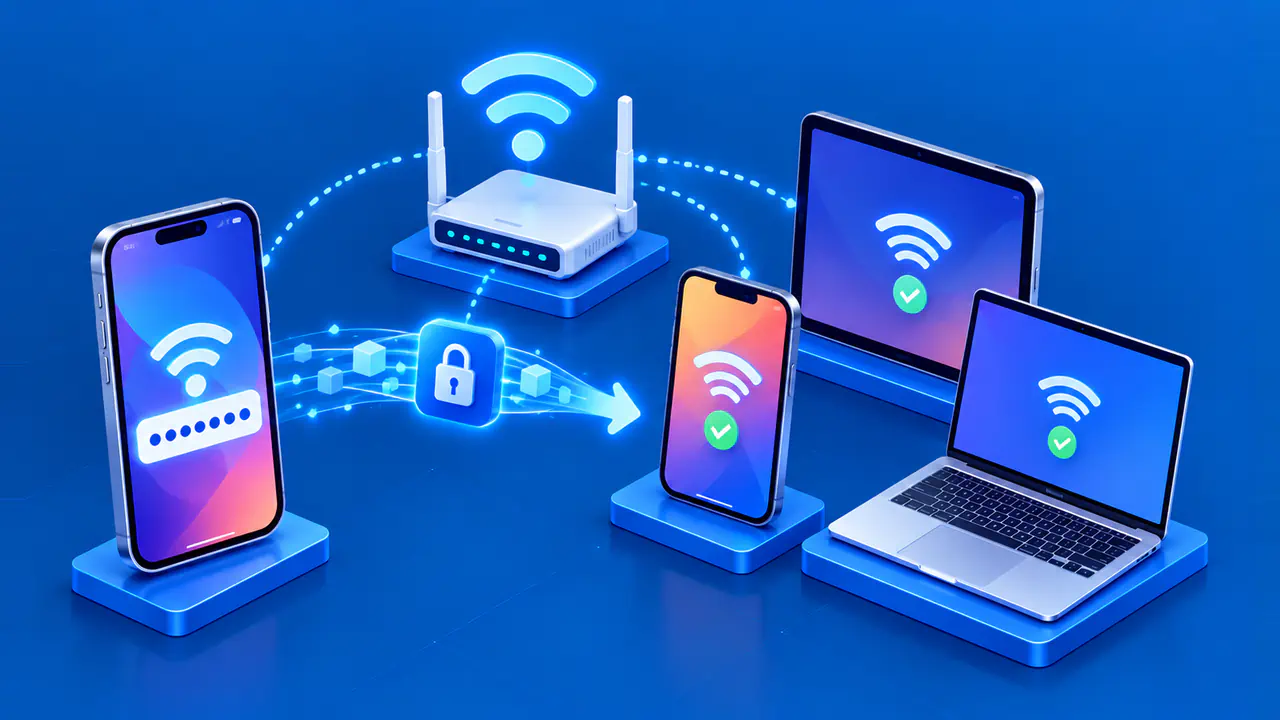
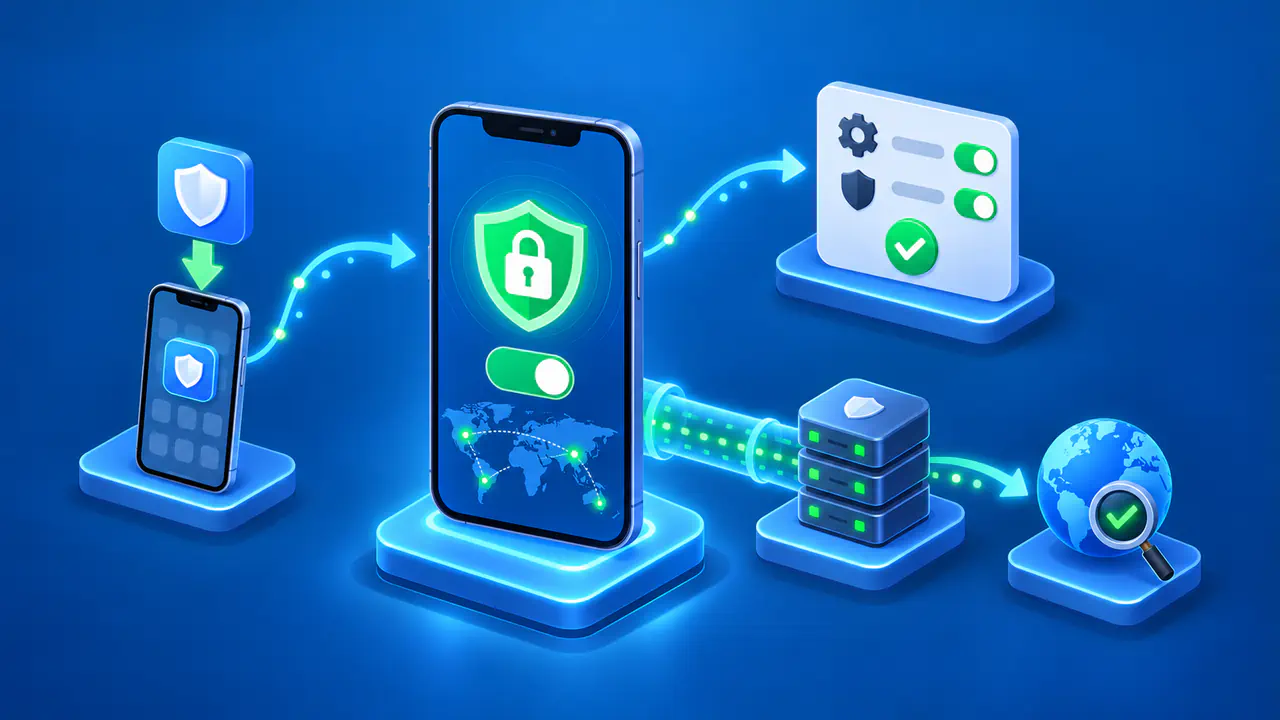
For an installed app, the operating system usually controls the permission. On iPhone and iPad, an app's first attempt to browse the local network can bring up a system prompt, with an explanation supplied by the developer. The system remembers your choice, and you can change it later. The exact controls and exceptions vary across operating systems, so instructions for one phone may not apply to another.
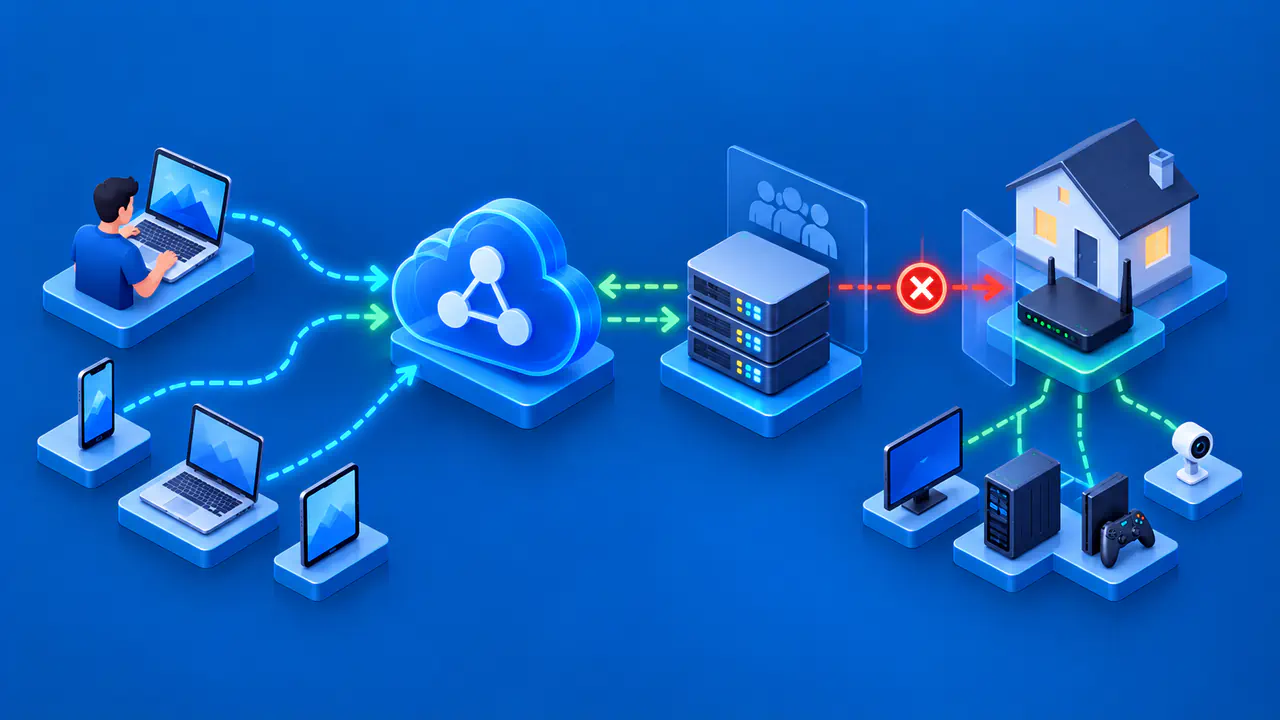
A browser can impose an additional permission on a website. This helps prevent a page from silently sending requests to your router or other local services. Such requests could otherwise be used to attempt unwanted actions or collect clues about your network. A website can have a legitimate reason to connect, such as communicating with a device you are setting up, but ordinary page viewing does not explain that need.
A service on your own computer is another possible destination. For example, a web application might communicate with a companion program installed on the computer. Chrome introduced its local access restrictions in version 142 and split local-network and loopback access into separate permissions in version 145. Loopback means the connection stays on the same computer. A request to reach local software does not necessarily mean the site is searching for your printer or TV.
Read the app or site name shown in the actual permission dialog. A website's explanation can provide context, but it is separate from the browser's permission control. If the site named in the dialog is unfamiliar, stop and check which service you opened before approving the request. A connection needed by one website is not a reason to approve unrelated sites.
Deciding Whether the Request Makes Sense
The feature you just selected is the best starting point. If you tapped Cast in a video app and want to use your TV, searching for a compatible receiver is a clear part of that task. If an app asks for local access before explaining any device-related feature, deny the request while you check its help information. The unexplained timing does not prove malicious behavior, but it leaves you without a reason to grant access.
Look for an explanation that names what the app needs to contact. "Find your printer" gives you more useful information than a promise of an improved experience. You can compare that explanation with the app's purpose, its publisher, and the feature you intend to use. If you do not use the local-device feature, you may have no reason to enable it.
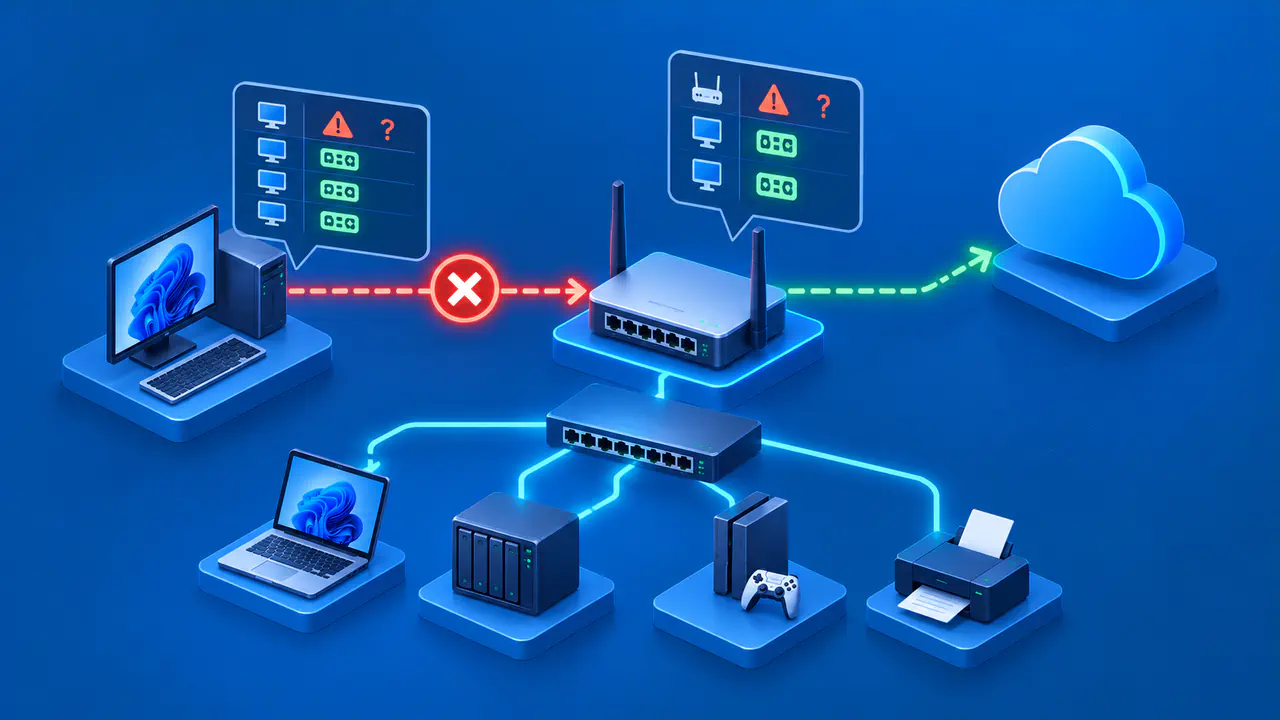
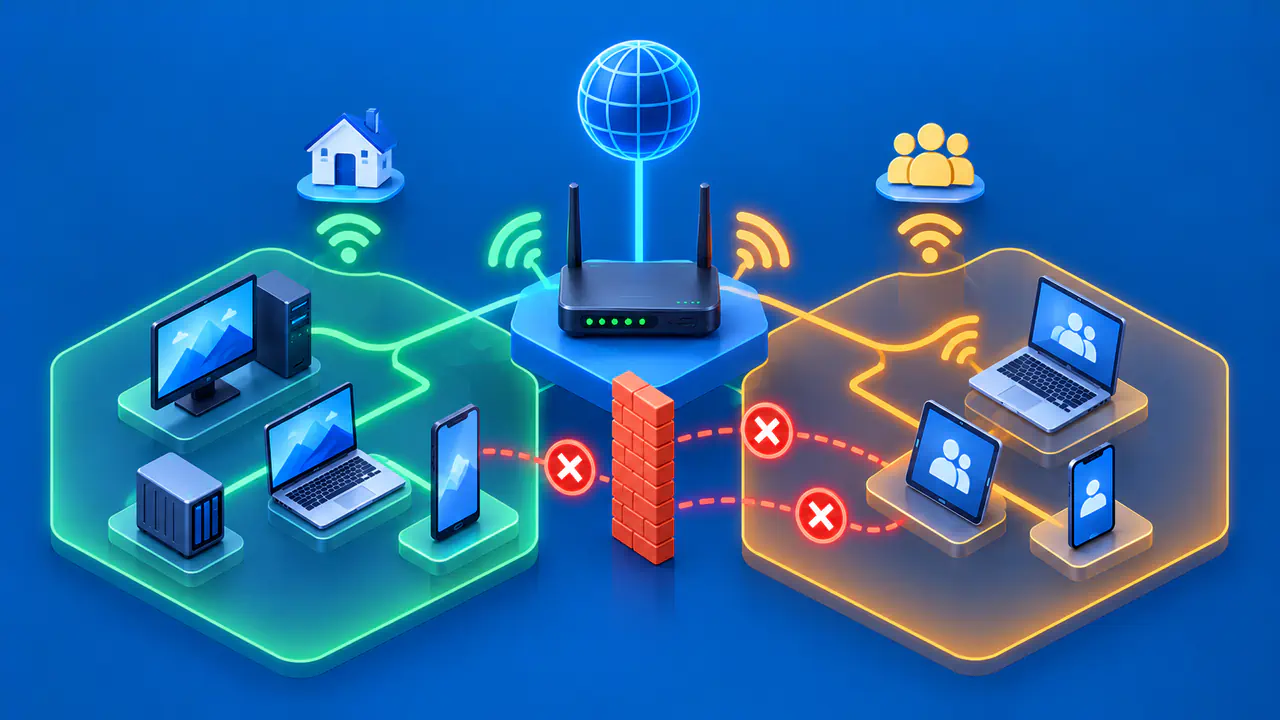
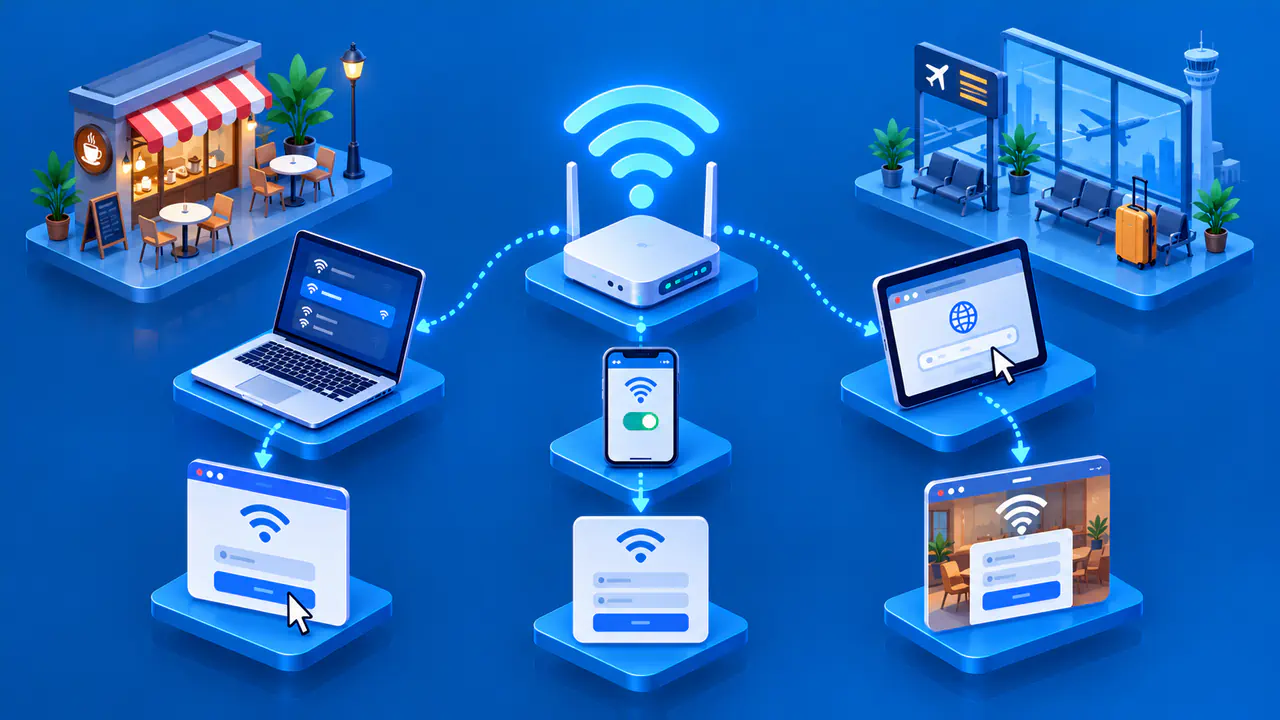
Also consider where you are connected. Your own TV should be on your home network, while a hotel or office network may contain devices belonging to other people. Permission from your phone does not authorize you to use those devices. On a managed network, ask the administrator about the approved way to print, present, or connect an accessory.
What Changes after You Allow or Deny Access
Denying local access can stop device discovery while leaving internet features available. For example, a video app may still play on your phone even though it cannot find a Cast receiver. Some iPhone and iPad apps can also use system services such as AirPrint or AirPlay without receiving general local network access. The result depends on how the app implements the feature, so a working print button does not prove that your refusal was ignored.
Allowing access lets the app make connections that the permission previously blocked. It does not repair a failed network connection. A receiver still needs to be powered on and reachable. Guest networks and access-point isolation can prevent devices from communicating even when the app has permission. If the device list stays empty, check the intended device and network before repeatedly changing the app's privacy settings.
If you later choose to use a blocked feature, change the permission for the relevant app or site and try that feature again. Keep track of whether the device appears and whether the connection succeeds: finding a TV but failing to play on it is a different symptom from seeing no TV at all. Those details give the developer or network administrator something specific to investigate.